

Sync with shops and feeds
The sync takes prices, texts, pictures and stock from the shop or feed into your items and Kleinanzeigen listings. It pauses listings of sold-out products and activates them again as soon as stock is available. What it takes over is set in the settings of the shop or feed (gear icon).
Sync with preview
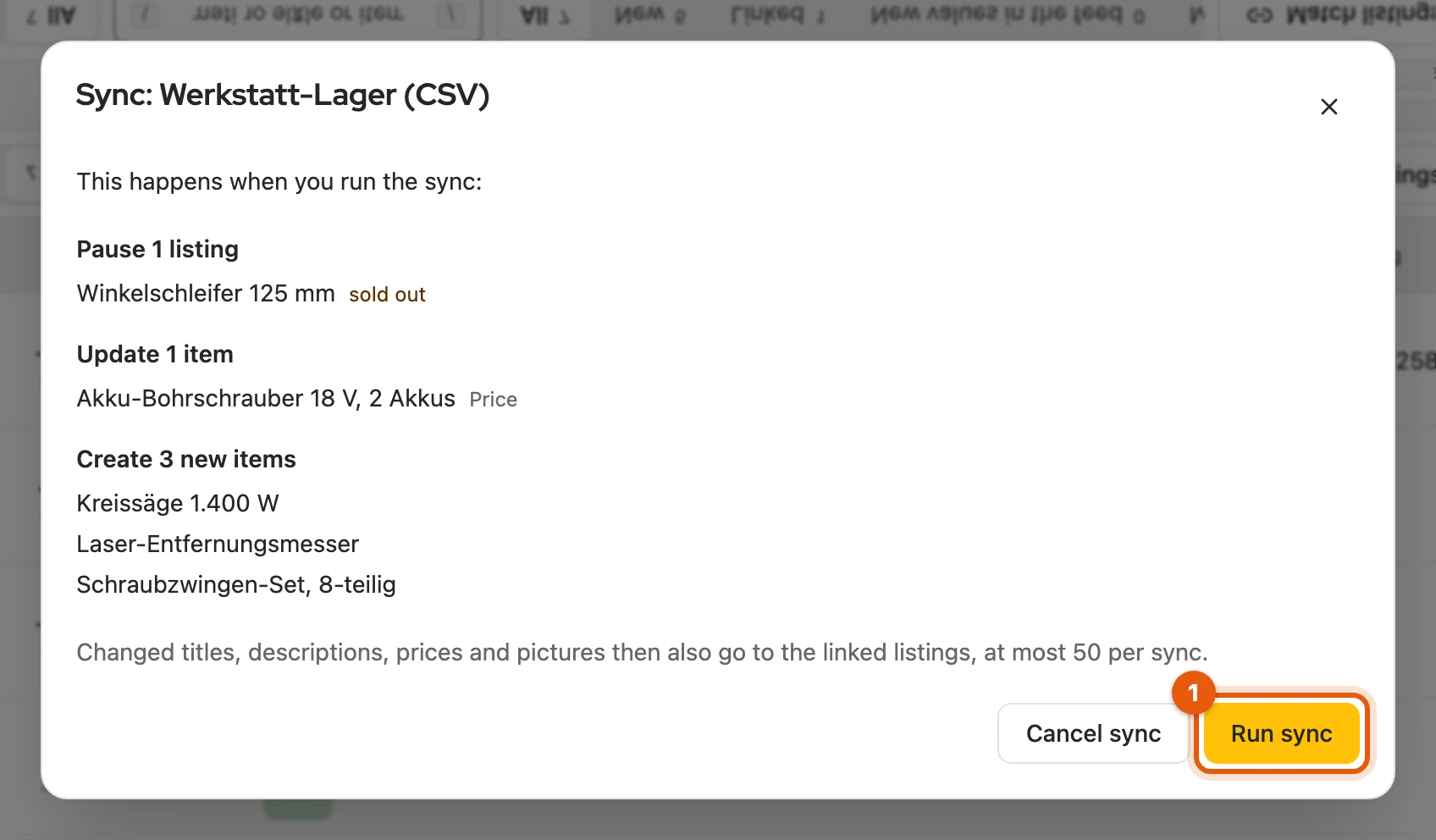
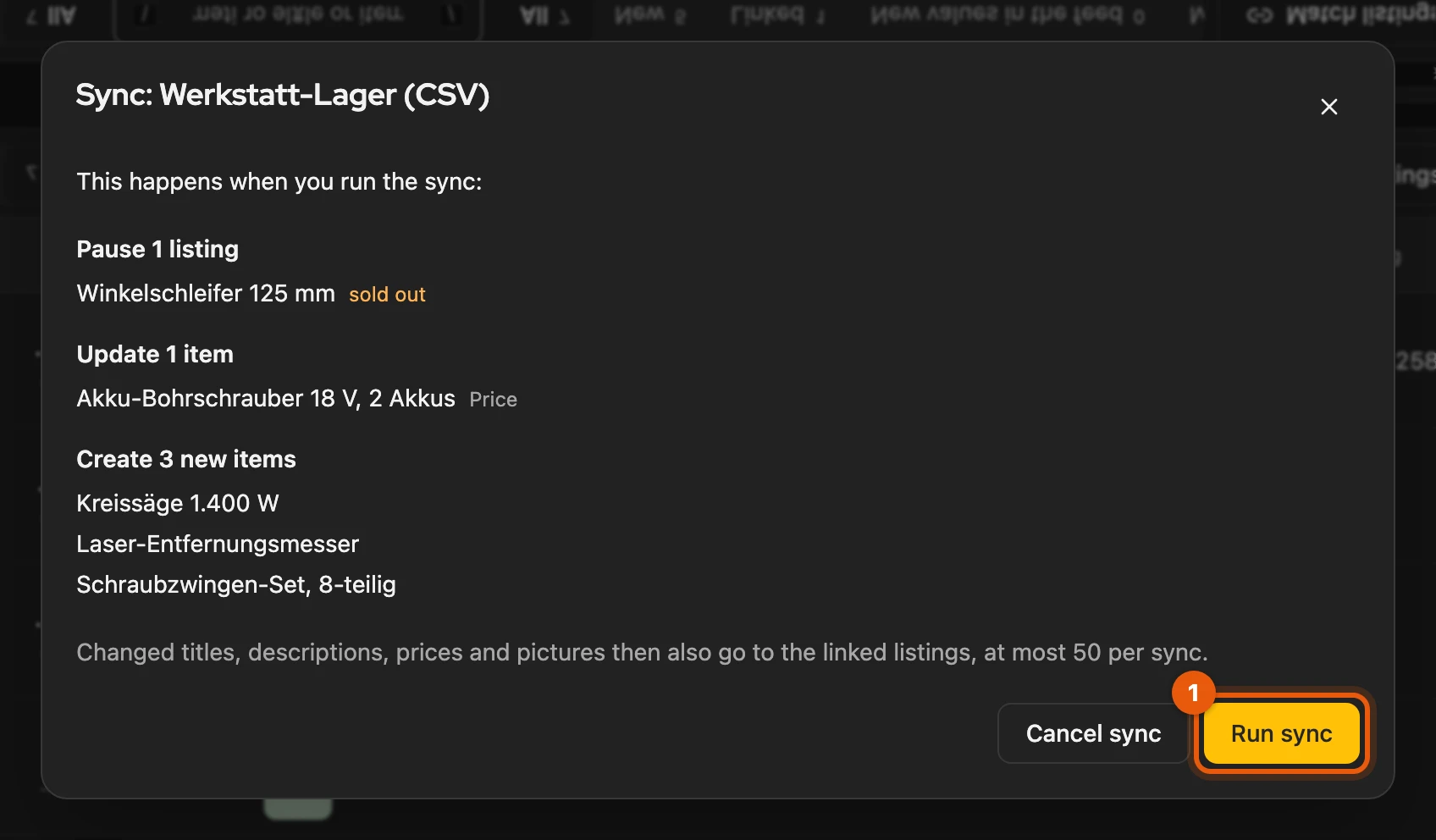
Section titled “Sync with preview”Click Sync on the shop or feed. If the sync would pause, delete or publish listings, it shows a preview first, always on the first sync. Run sync (1) starts it; you may close the window, the process is then listed under Processes.
More: what the preview shows and what comes next
- At the top what affects listings (delete, pause, activate again), below what affects items (update, link, create).
- Why it asks: for example when the shop or feed supplies clearly fewer products than last time or unusually many listings would be paused or deleted.
- Different values on a new link: with Keep the item’s value, your item’s value stays.
- Deleting: the button states the number of deleted listings. If the shop or feed has changed in the meantime, the preview asks again.
- Result: for example 12 of 14 products synced, below it every failed product with the reason. You open a waiting preview under Processes with Open preview.
- Without asking: pure item and stock updates.
Your changes are kept
Section titled “Your changes are kept”The sync does not overwrite what you changed in an item yourself. If you activate a listing the sync paused, it only pauses it again once something changes in the shop or feed. If deleting is set, it still deletes it.
More: when the sync touches a listing
- Only what changed: it adjusts a listing only in the fields that changed; a new price does not upload the pictures again.
- Product identifier: if you entered EAN, brand or model yourself, they stay.
- Item edited, listing not yet updated: the sync does not change this listing.
- At most 50 listings per sync (changeable under At most this many listing changes per sync); the rest follows next time.
- Activated by you then shows in the product list. Pause automatically again in the product’s window hands the listing back to the sync right away.
Automatic sync
Section titled “Automatic sync”In the Automatic sync section you turn it on and choose How often. You find it in the window after a sync and in the settings of each shop and feed.
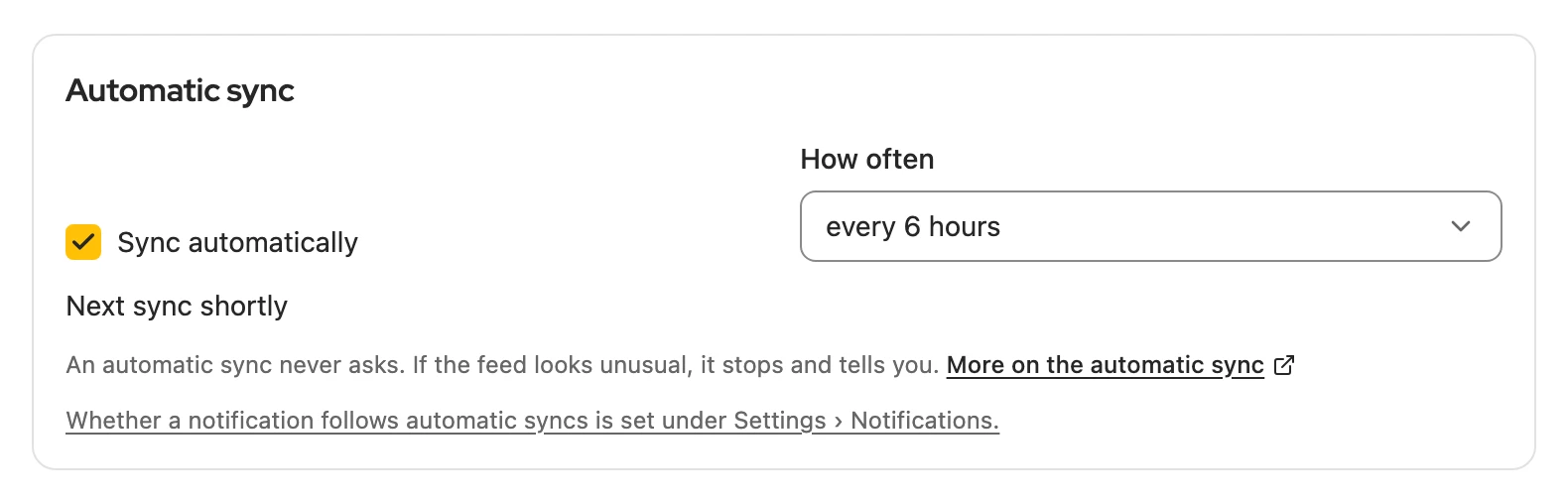
It needs a licence from Business L and a first sync with preview; if something is missing, the section states the reason. Files are never synced automatically. If the shop or feed looks unusual, it stops and tells you.
More: requirements, frequency and notifications
- Requirements: licence from Business L (plan from version 5 from Business 400), access to the website granted, one sync with preview done, shop or feed confirmed for this browser.
- How often: from hourly to daily. It never asks.
- New products: if it publishes them, a missing category and required details are filled in automatically, without credits; existing listings are synced without filling in. It publishes nothing without a picture: if access to the pictures’ website is missing, the product waits until you allow it.
- Duplicate references: it skips a few and names them; with many it stops.
- Pictures from your home network (such as
fritz.boxor192.168.…) are never loaded, for your protection, unless they sit on your connected shop itself. - System notification: comes when listings were paused, activated, deleted, published or adjusted, or when you need to do something. Turn it off under Settings › Notifications with System notification after automatic syncs.
- Processes: shows the last ten per shop or feed, also those without changes.
Several devices
Section titled “Several devices”Only one computer syncs automatically; the others show where it runs. Run here moves it to the computer you are using. If a device is off for a longer time, another one takes over by itself.
Signed out or a different Kleinanzeigen account
Section titled “Signed out or a different Kleinanzeigen account”If you are signed out of Kleinanzeigen, the automatic sync only updates your inventory; Kleinanzeigen-Enhanced catches up on the listings after you sign in. After switching accounts, the shop or feed shows No Kleinanzeigen account connected; click Connect.