

Sales agent
The Sales agent watches items you choose on the market every day and suggests what is worth doing for your listings. It changes nothing without your click; the only exception is Lower the price step by step, which you switch on per item yourself. Unlike the Market check, it searches every day by itself.
Who can use it
Section titled “Who can use it”The sales agent comes with Privat Plus and up and with every Business plan. How many items you can watch at the same time depends on your licence. Without it, the Market tab shows Not in your plan next to Offers over time.


Watching an item
Section titled “Watching an item”- On the Sales agent page: click Add, enter what you want to sell, or drop pictures under Photos (each recognition costs one credit). Watch creates a draft item in your inventory.
- In the inventory: a row’s menu (⋯) › Watch.
- In the item: in the Market tab, click Watch beside Offers over time.
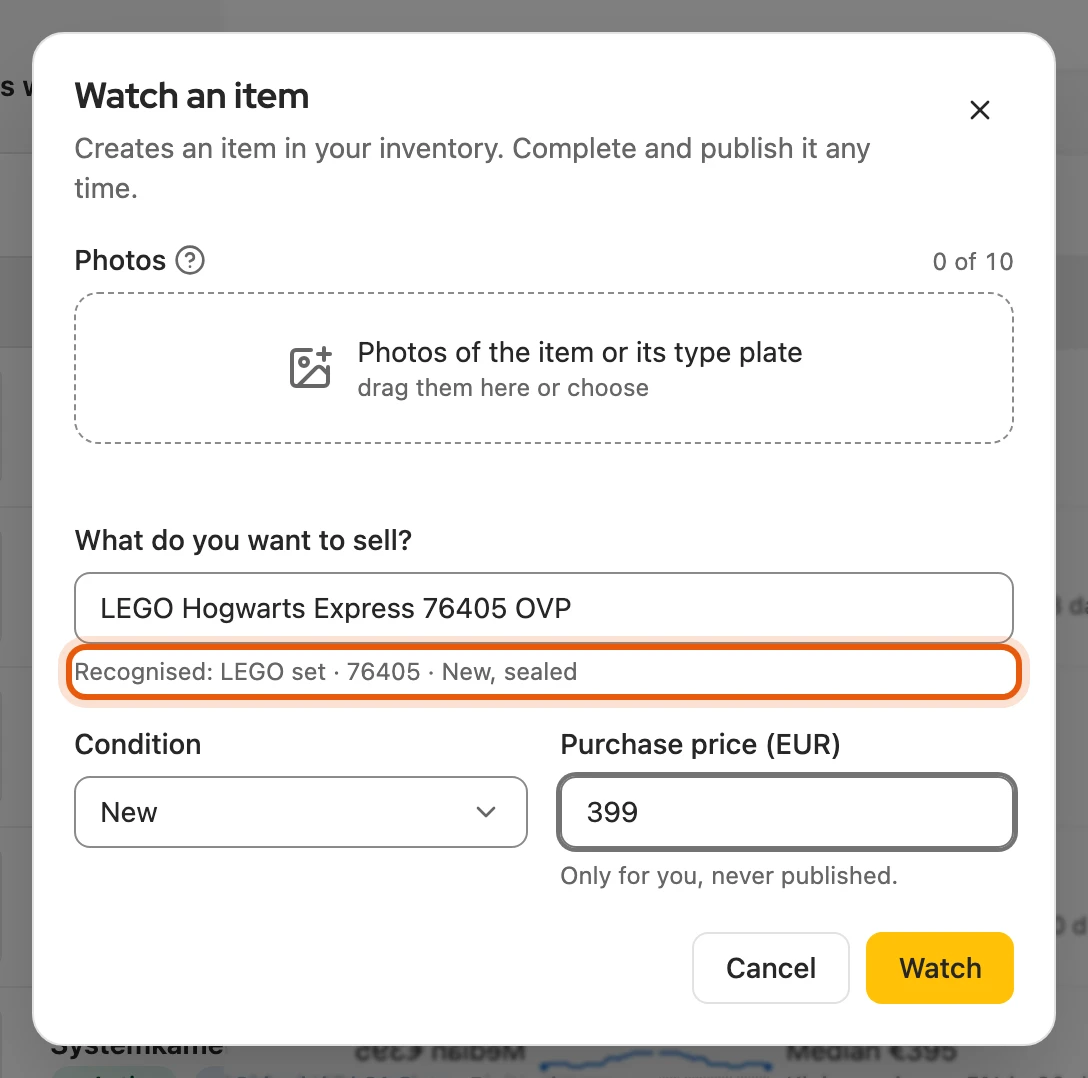
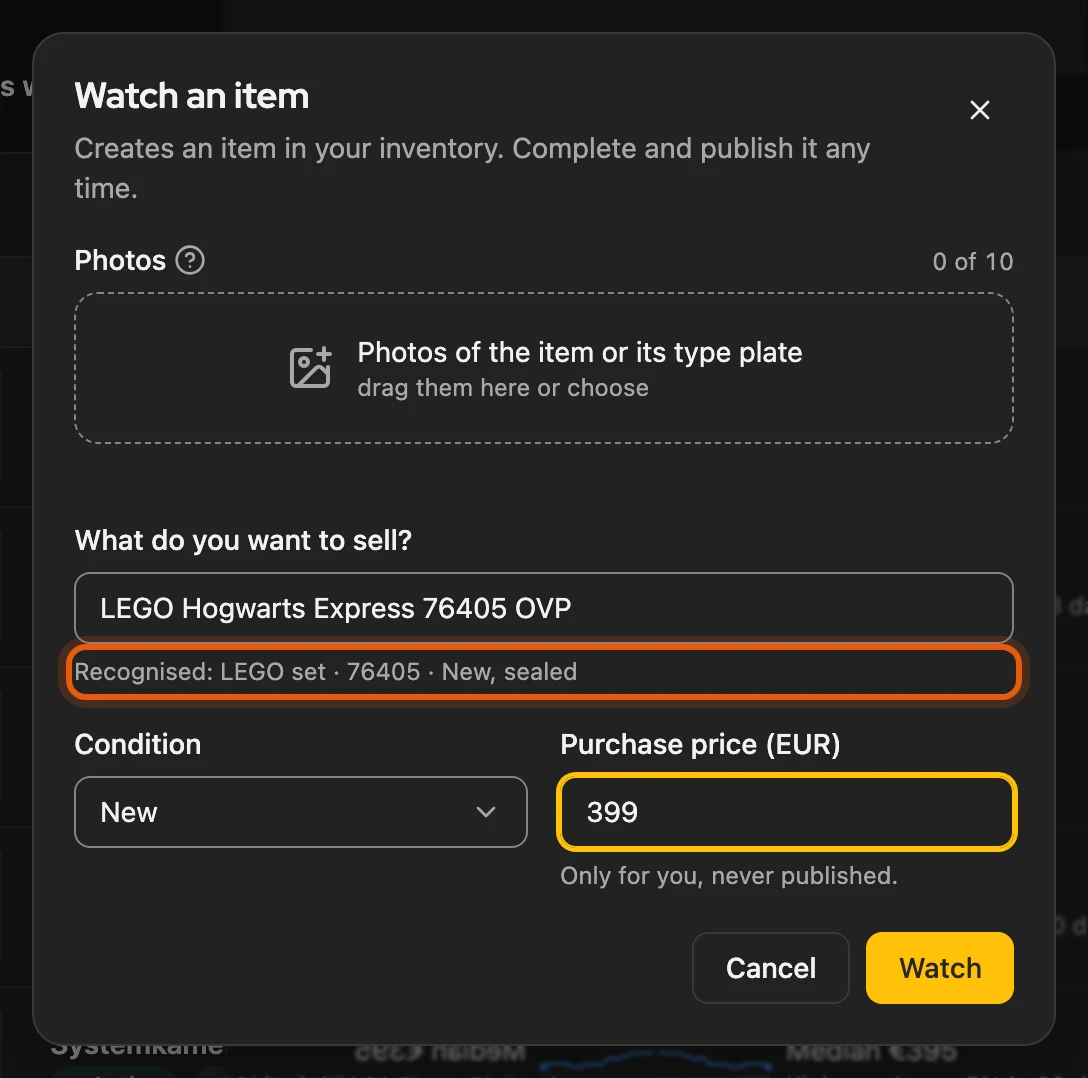
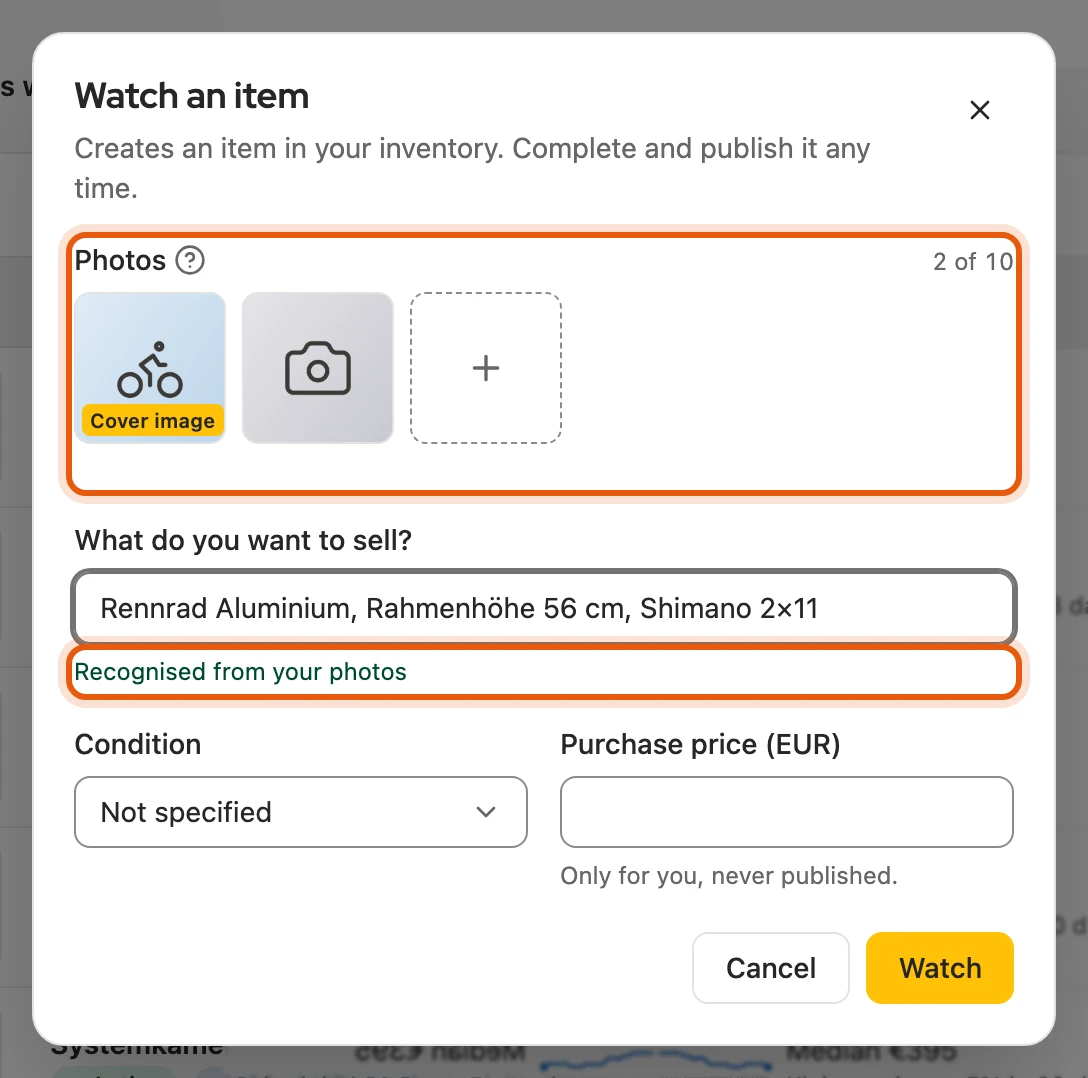
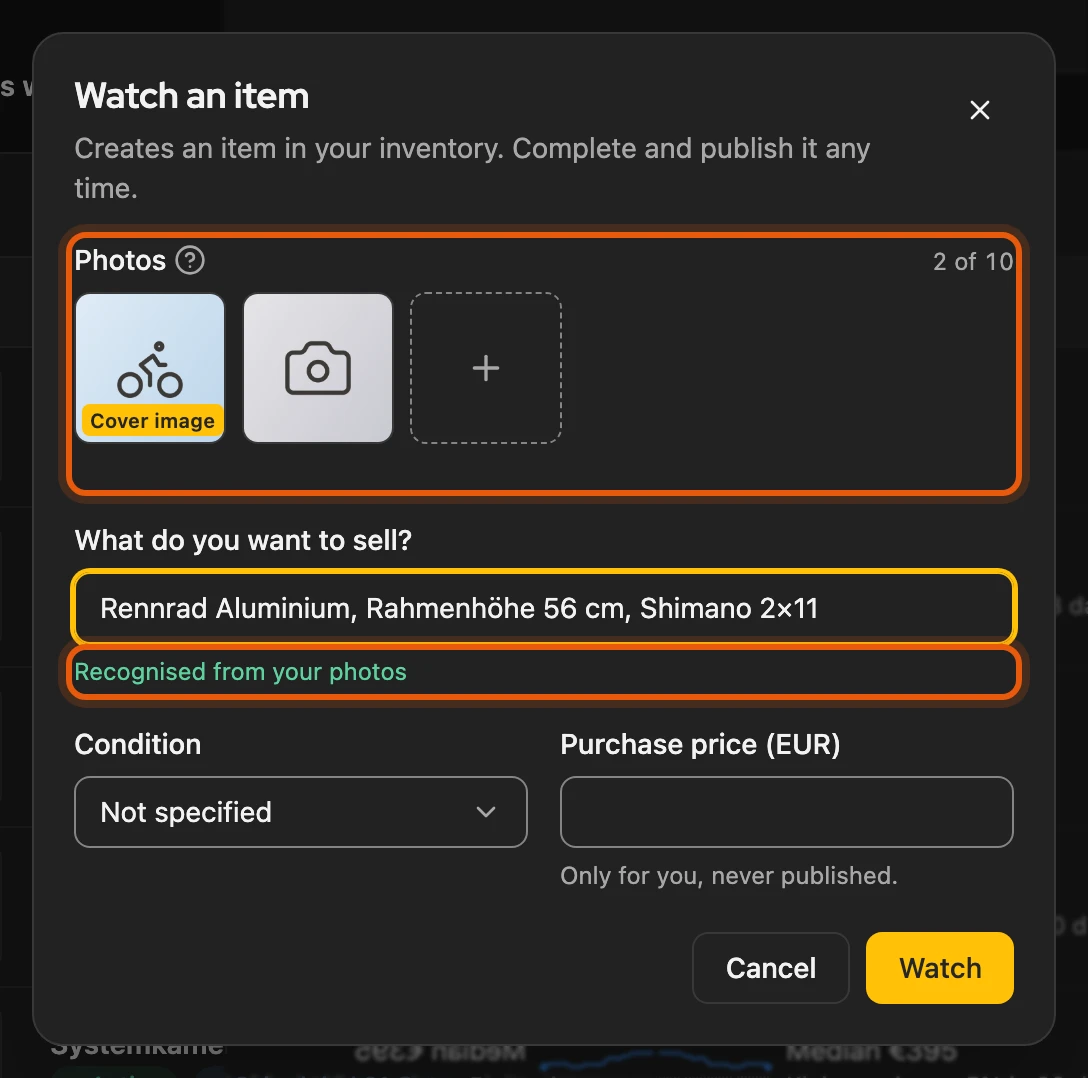
Pause and End are in the menu of the Watching button or an icon in the row. Ending frees the slot. The sales agent does not watch sold items.
More: slots, photos and the end of a watch
- Slots: active, paused and resting watches each take up a slot; ended ones do not. If a new plan has fewer slots (also after the launch offer), existing watches keep running; you can only start a new one once a slot is free.
- Photos: up to ten, for example of the device and its type plate. You need a Kleinanzeigen-Enhanced account for this. A title you already typed stays; the recognised one appears below it with Use. You don’t need a selling price; the sales agent suggests one.
- Without a licence: pausing and ending work; to resume you need Privat Plus and up.
| What happens | Effect on the watch |
|---|---|
| You end it | Comparable offers stay visible for 90 days, daily figures for 400 days. |
| Item marked as sold or reported sold by the platform | It ends. |
| Item archived | Resting: item archived, continues by itself afterwards. |
| Licence ends | Resting: not in your plan, data stays, continues with a licence. |
| Item deleted | Watch, comparable offers and daily figures are gone. |
When it searches
Section titled “When it searches”It searches from your browser while it is running, about once a day per item and platform. In Germany it searches Kleinanzeigen and Vinted, in Austria willhaben and Vinted; eBay only with the eBay search switched on. If a platform slows down, it pauses there and then continues by itself.
More: how often and for what it searches
- Pace: at the earliest 20 hours after the last answered search, at most two searches per platform and day. If the browser was off for days, it catches up once.
- Individual check: every three days it checks up to 20 tracked Kleinanzeigen offers that the last search no longer showed.
- Country: follows from the item’s postcode. It leaves out platforms that do not carry such goods, for example Vinted for furniture, bicycles or cars.
- Search term: your own search term, otherwise the product identifier. With a product identifier, only offers for the same product count.
- Load: its requests count towards Keeping an eye on the load, not towards the number of your search agents. A pause shows at the top of the page, for example “Vinted search paused”.
The “Sales agent” page
Section titled “The “Sales agent” page”You find it in the sidebar under Organisation. A click on a row opens the item in the Market tab.
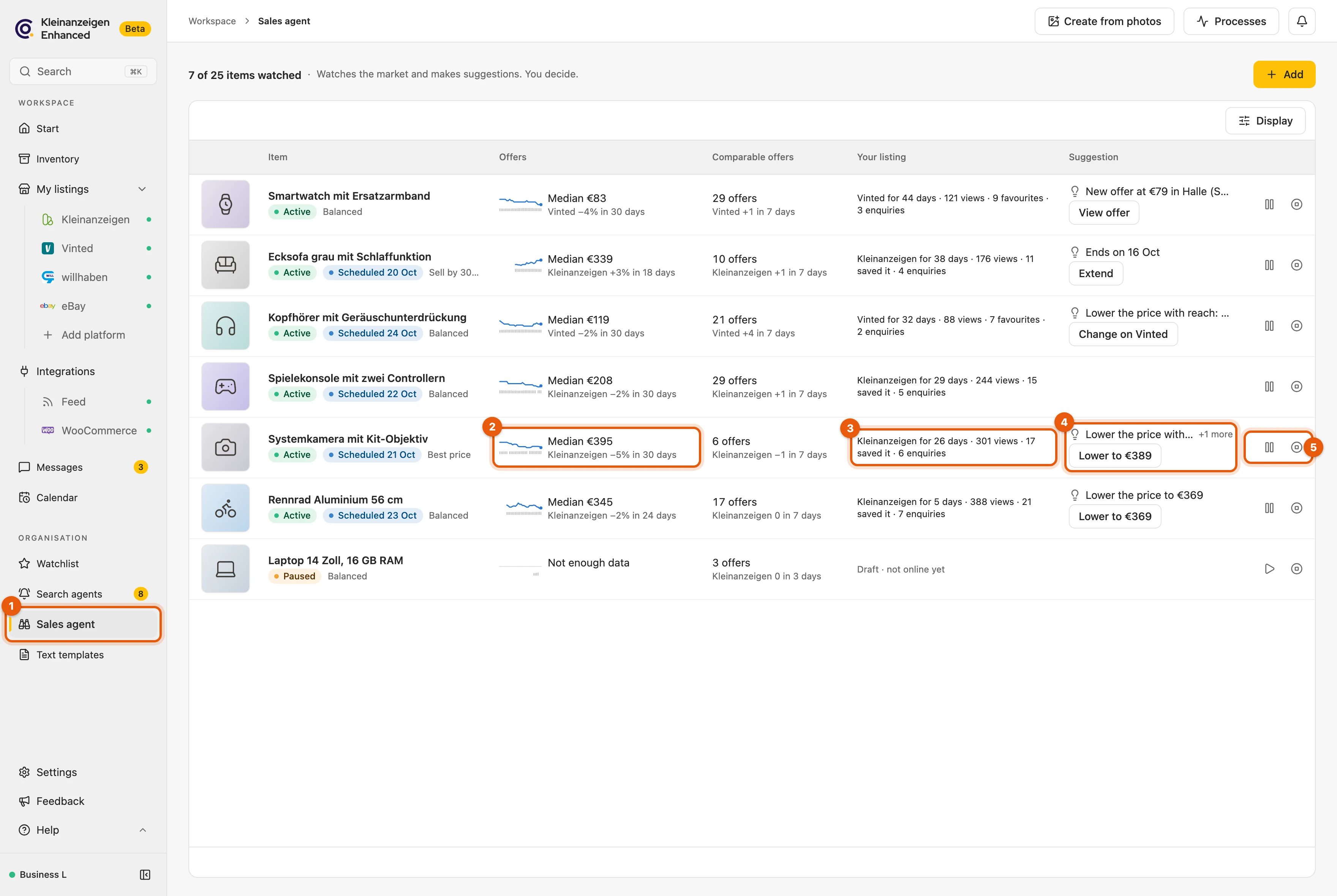
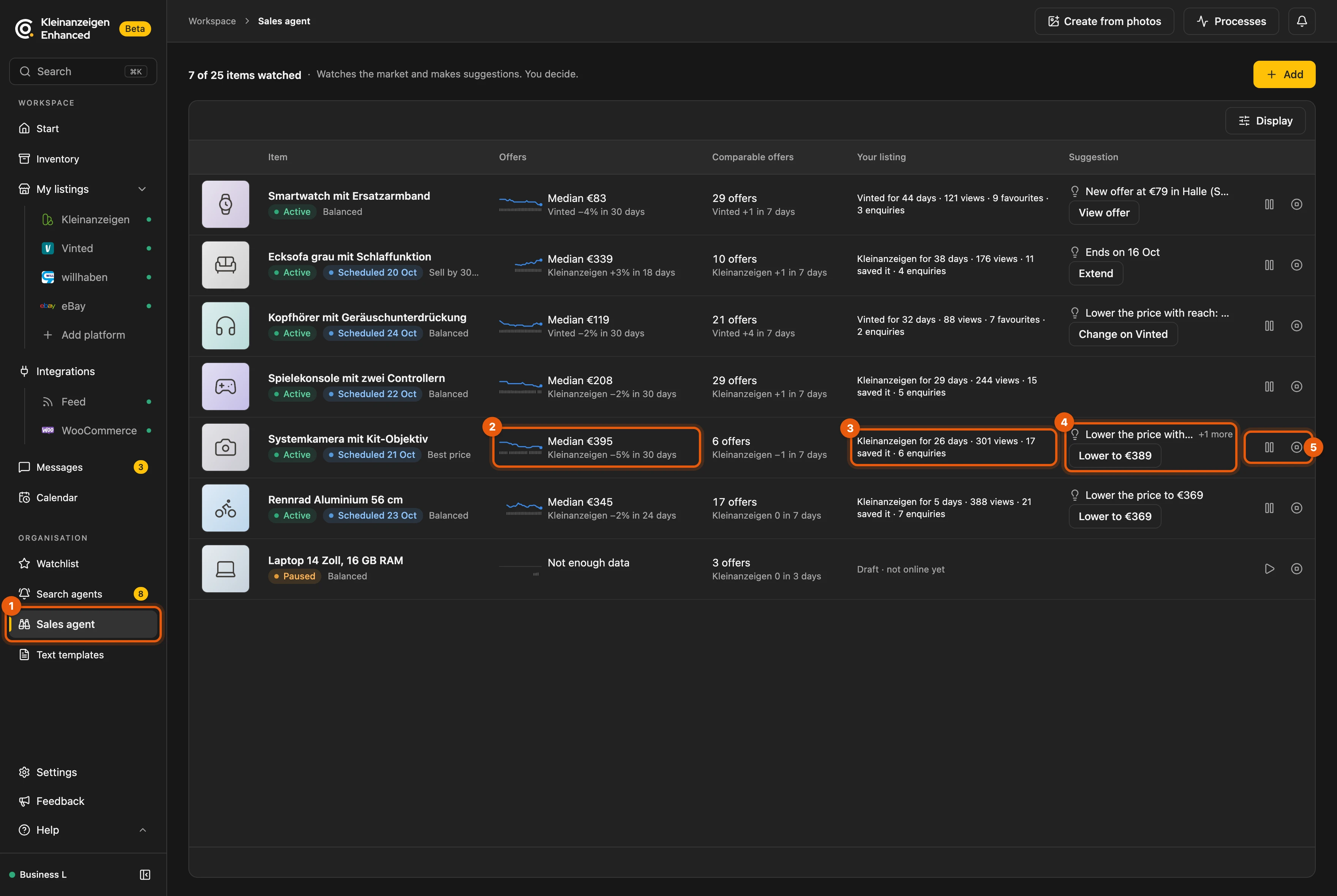
- Sales agent in the sidebar
- Offers: typical price across all platforms and trend
- Your listing: time online, views, saves, enquiries
- Suggestion: the most important suggestion with its button
- Pause or Resume and End
More: states and notes in the list
| Shown in the list | Meaning |
|---|---|
| Active | The sales agent searches daily. |
| Paused | You have stopped the watch. |
| Resting: item archived | The item is archived. |
| Resting: not in your plan | Your licence no longer includes the sales agent. |
| Sold | The watch ends. |
| Not enough data | fewer than 5 comparable offers with a price |
| No data yet | Neither a market check nor a search has answered. |
| Specify model | The product identifier is too vague. |
If the item is on several platforms, Your listing shows Kleinanzeigen. Trend and curve apply to one platform and name it, for example “Kleinanzeigen −5 % in 30 days”.
In the “Market” tab
Section titled “In the “Market” tab”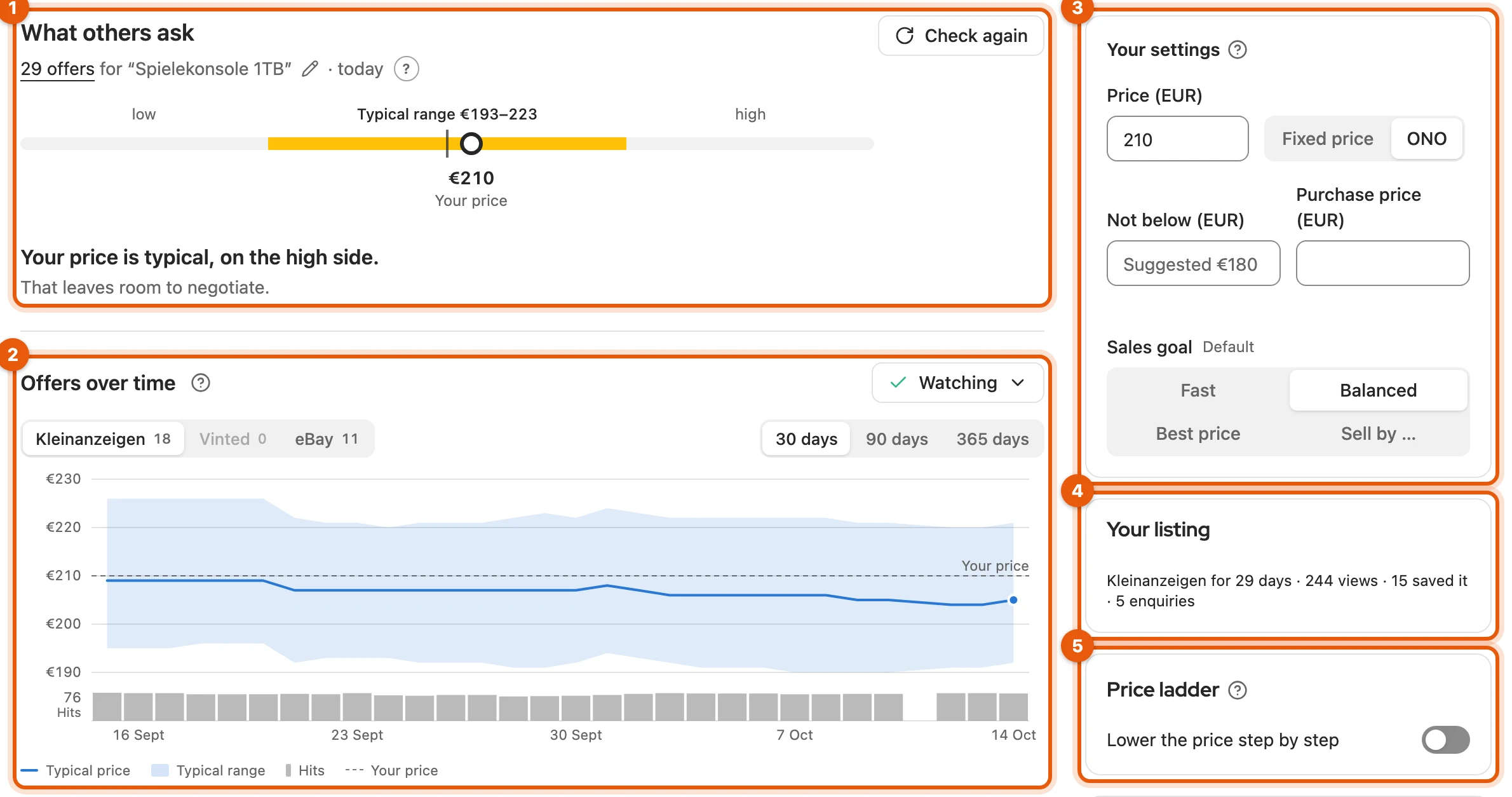
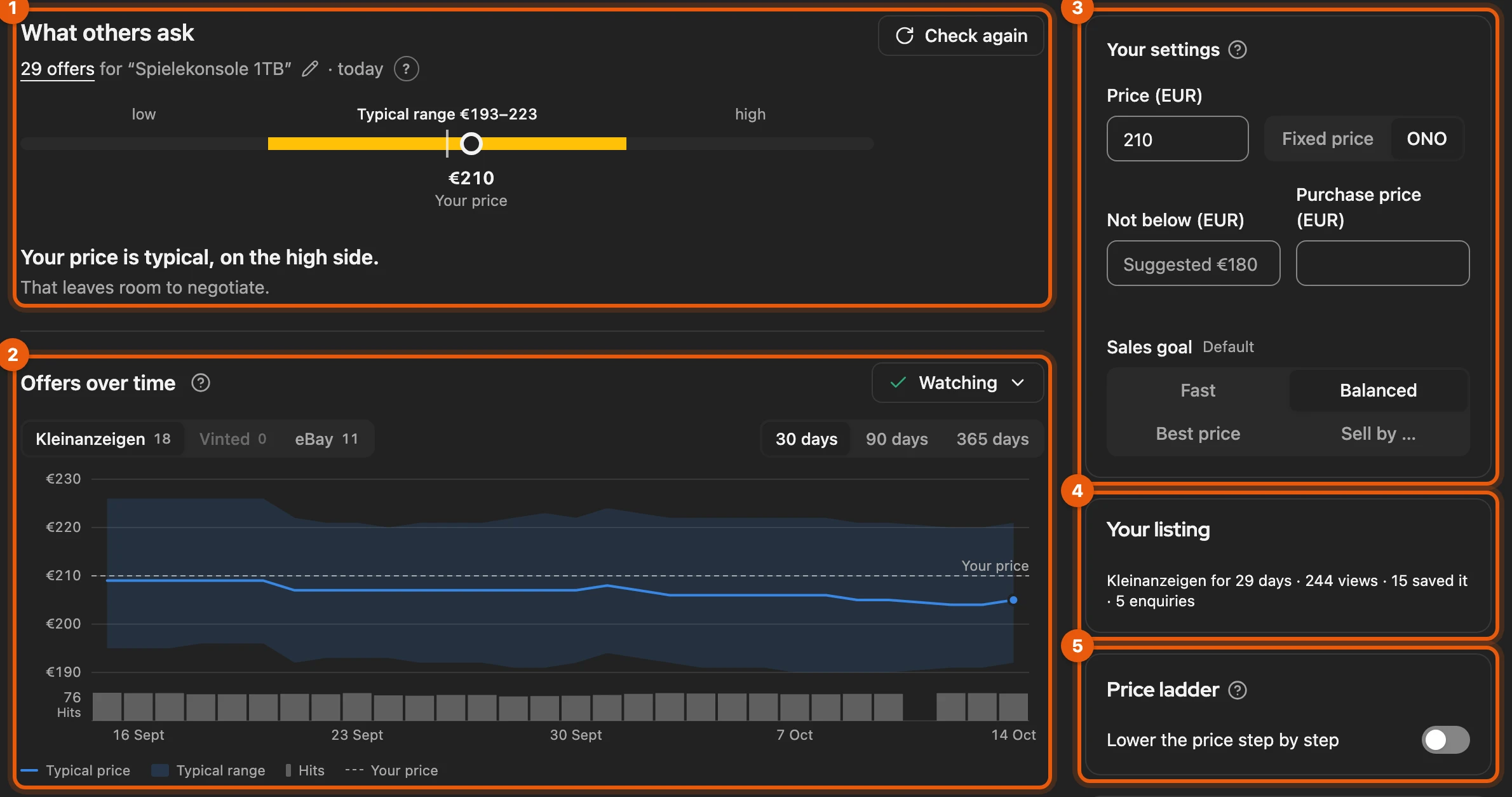
- What others ask: the market check with your price.
- Offers over time: the watch, see below.
- Your settings, such as price and floor price.
- Your listing: figures of your running listings.
- Price ladder, see lowering the price step by step.
Below, links open a search on idealo, eBay and Google Trends; their figures are not used anywhere.
Watch and trend
Section titled “Watch and trend”The chart shows the Typical price of the offers per day, the Typical range and your price. If you hover over it, you see the values of a day.
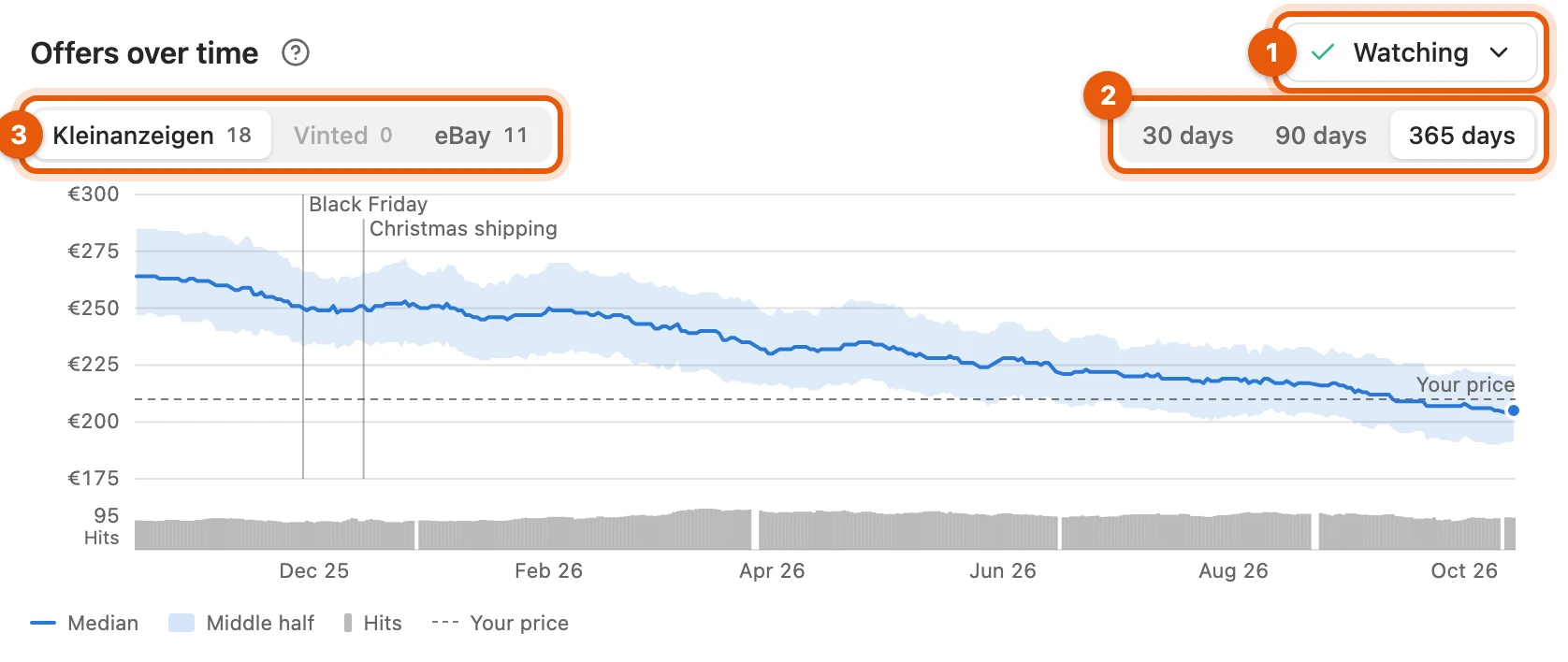
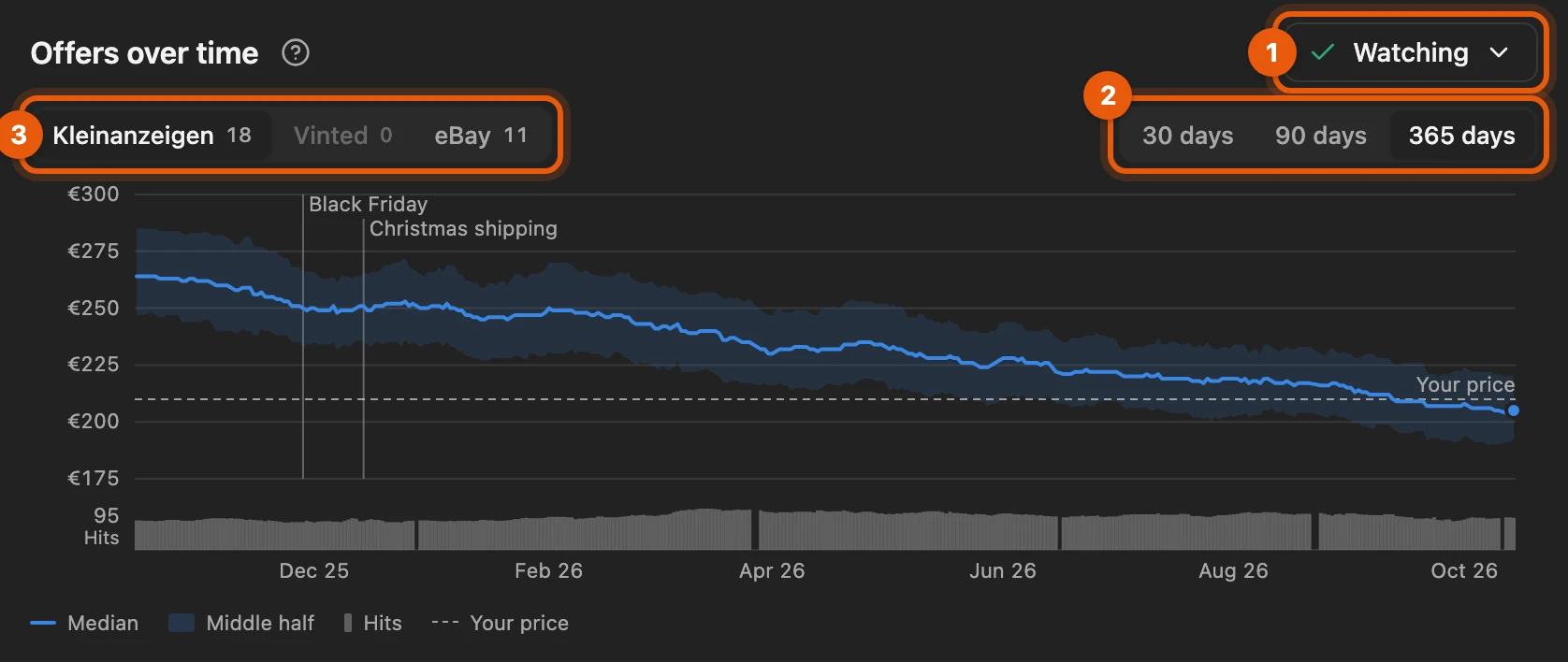
- Watch starts the watch; after that, Watching opens the menu with Pause and End.
- the period
- the platform
More: what counts in the history
- Typical range: a quarter of the offers lie below it, a quarter above.
- Counted: asking prices of the first results page in your item’s condition, per day the last check. Not counted: wanted ads, auctions, giveaways, sorted-out offers and outliers. If your item’s condition changes, the curve starts again.
- Hits: the bars show how many hits the platform reports for the search.
- Markers: Keynote for iPhones, Black Friday and Christmas shipping for suitable goods.
- Too few offers: instead of the curve it says for example “History from 5 offers (today 3)”.
- Slots: below the button it says for example “3 of 25 slots taken”; from 80 % also next to the button.
Comparable offers being watched
Section titled “Comparable offers being watched”The list shows the offers the sales plan takes its price from. A click on the title opens the offer.
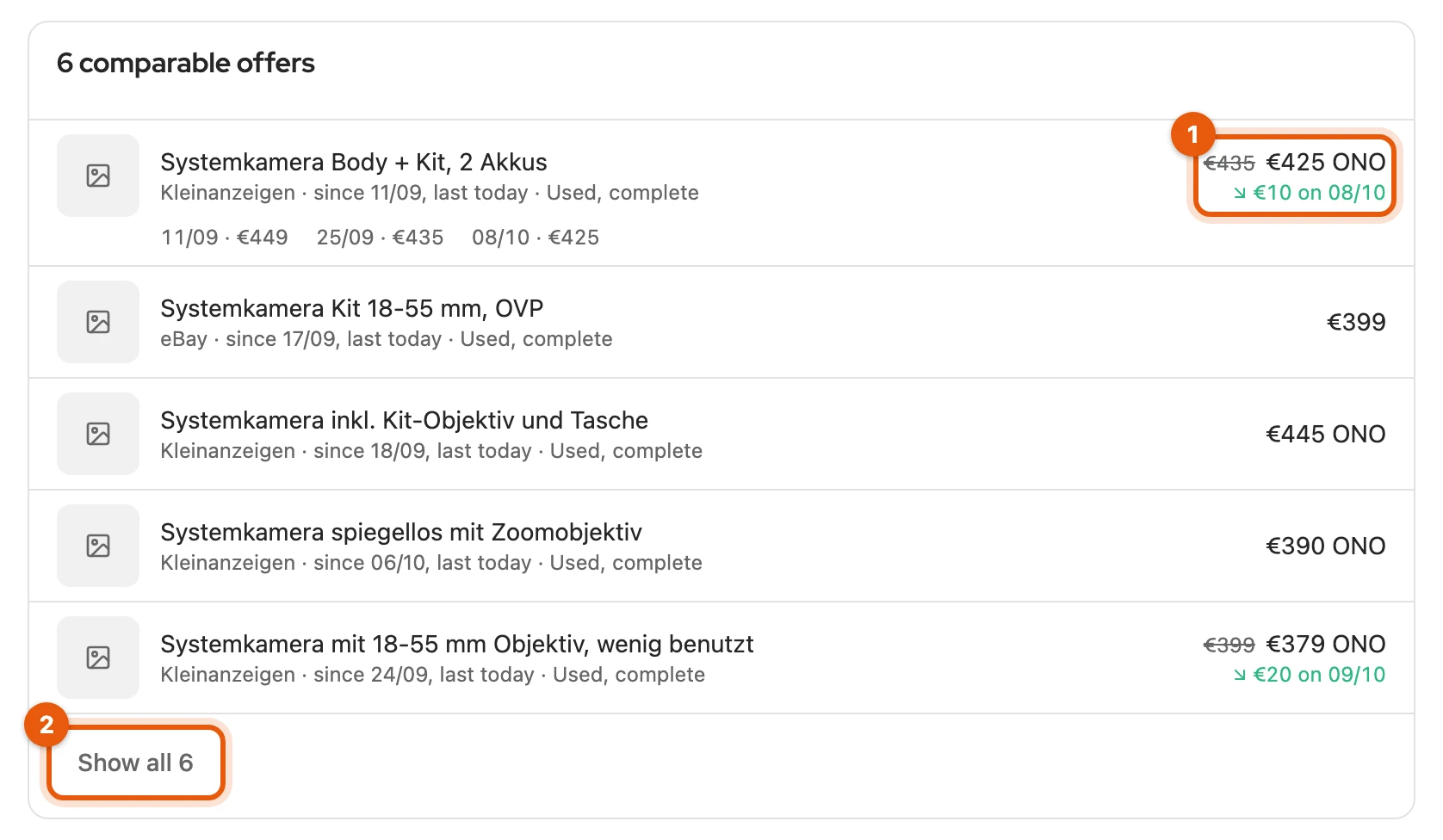
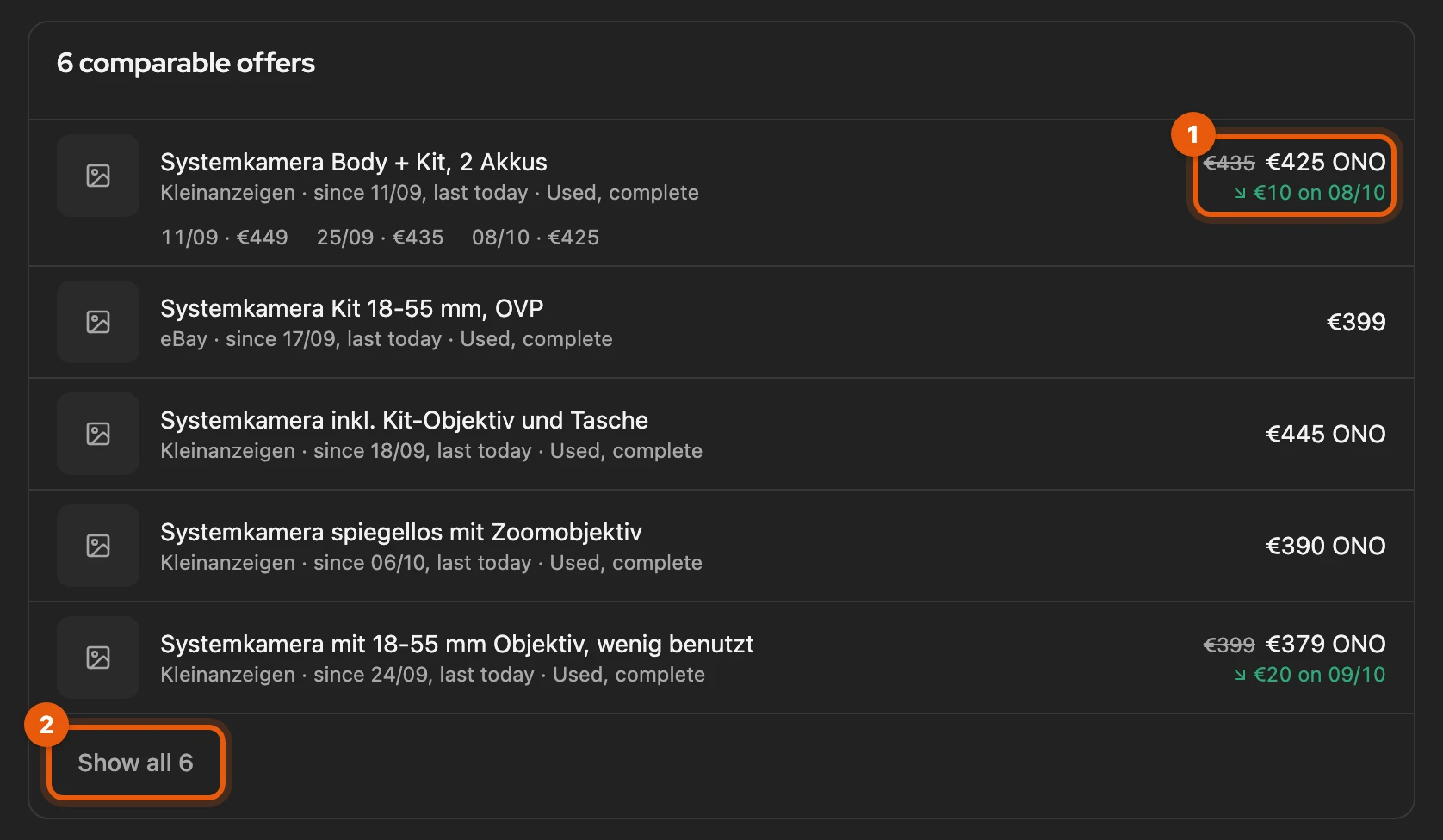
- A changed price shows the previous one struck through; a click shows the history.
- Show all 6 expands the rest.
More: which offers are in the list
- It replaces the market check’s list once the sales agent has searched more recently. The five offers closest to your price come first.
- An offer that has gone (sold, deleted) only drops out if the search had all hits on its first page or the individual check no longer finds it. If it turns up again, it counts again.
- Offers for a different product, for example after you changed the product identifier, are removed in the next round.
- When the bell reports “2 comparable offers changed their price”, View market leads here; these offers are at the top with “new price”.
Your listing
Section titled “Your listing”Once the item is listed, the card shows time online, views, saves and enquiries per platform (on eBay saves are called watchers, on Vinted favourites). The figures come from the refresh of your listings.
Suggestions for running listings
Section titled “Suggestions for running listings”For watched items with a running listing, the sales agent suggests what is worth doing, with a reason and a button. You find the suggestions in the Market tab, on the Sales agent page and on the start page. Not now hides a suggestion for 3 to 30 days.
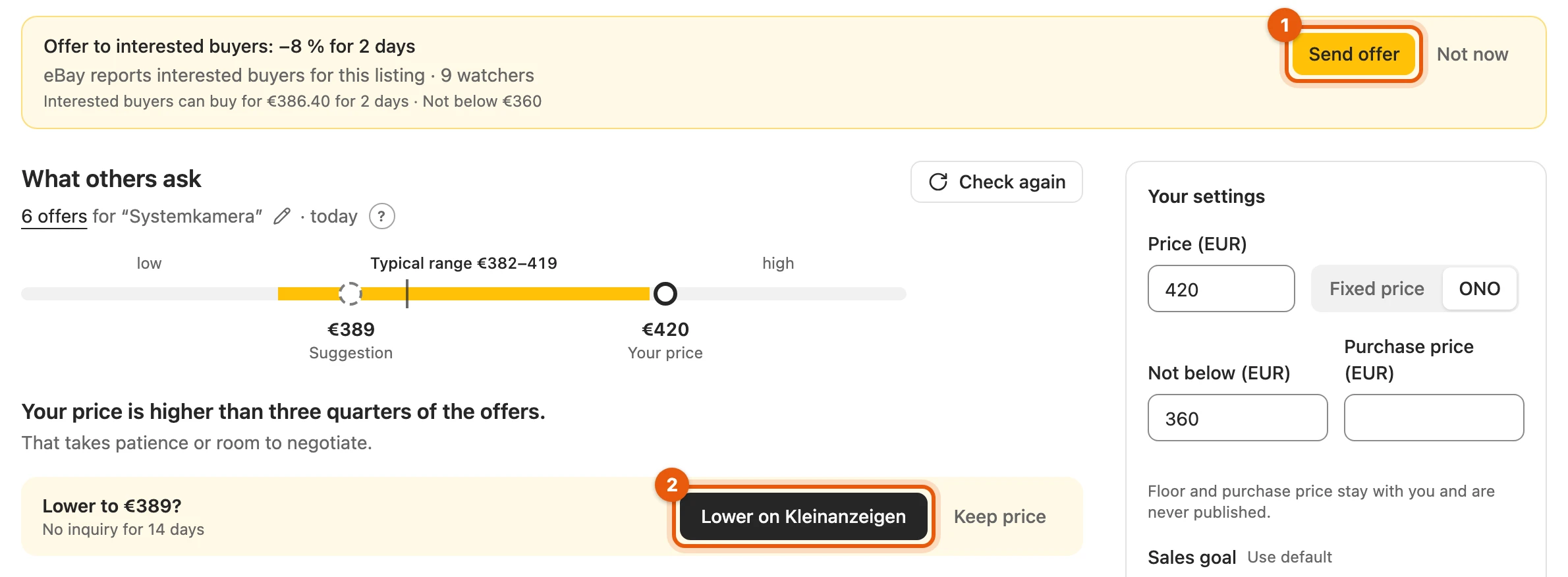
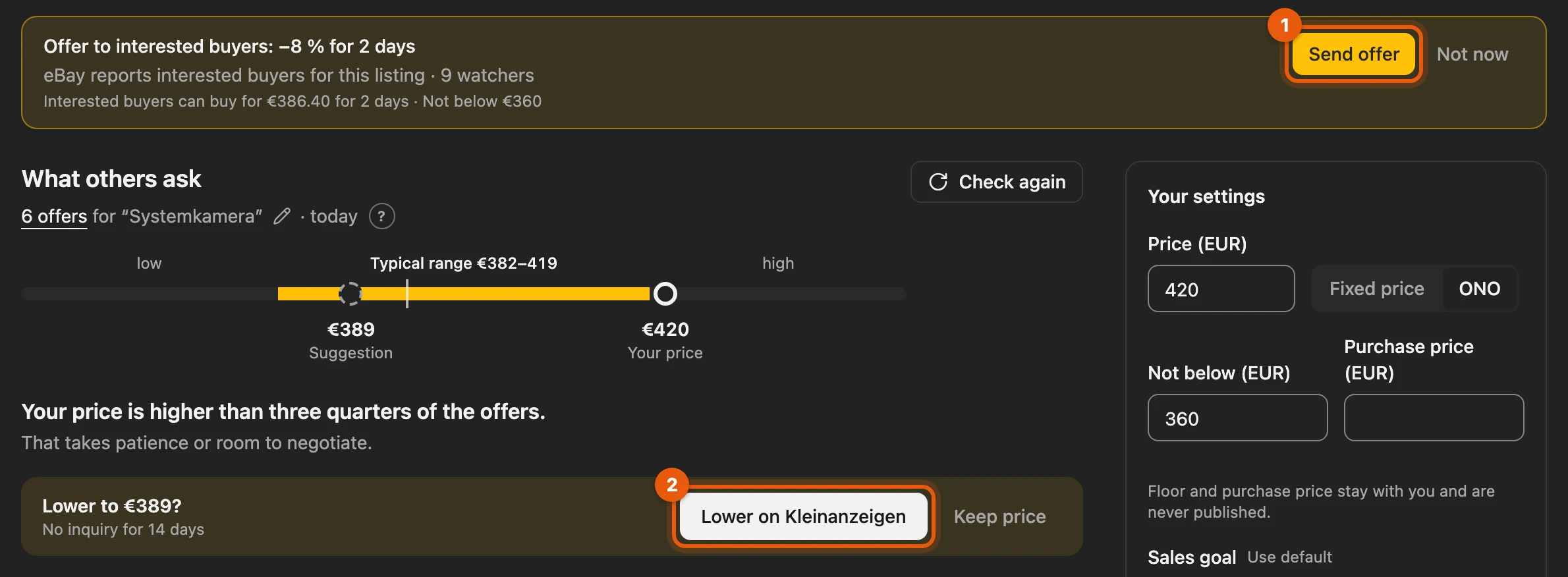
- a suggestion’s button, with Not now beside it
- a price suggestion with Lower on Kleinanzeigen and Keep price
The nine rules
Section titled “The nine rules”| Suggestion | When | Button |
|---|---|---|
| Lower the price to … | dearer than three quarters of the offers, no enquiry | Lower to … |
| Lower the price with reach | at least 5 saves, no enquiry | Lower to … |
| Offer to interested buyers | eBay reports interested buyers | Send offer |
| Improve the title and the first photo | few views after 72 hours | Edit item |
| Hold the price or raise it to … | fewer offers, rising price | Raise to … |
| New offer at … | a new, clearly cheaper offer | View offer |
| Sell before … or The season ends on … | an important date or the end of the season is near | no button |
| Also offer it on … | two reductions without a sale | Transfer to … |
| Ends on … | the listing ends soon | Extend |
How long “no enquiry” has to last depends on the sales goal: 4 days for Fast, 7 for Balanced, 14 for Best price.
More: the exact thresholds
- Sell by …: 4 days without an enquiry if your date is at most 14 days away, otherwise 7.
- Title and first photo: 72 hours after the start, your Kleinanzeigen listing has fewer than half as many views as your other listings in the same product group.
- Hold or raise the price: at least 40 % fewer offers within 30 days, and their price is rising.
- New offer: for at most a week, same condition, at least 10 % cheaper.
- Dates: a keynote, Black Friday, the shipping deadline before Christmas or the end of the season at most 21 days away.
- Ends on: within 8 days, the automatic extension does not take care of it, and Kleinanzeigen extends for free.
- Price suggestions need at least 5 offers with fresh figures (a daily figure from the last 7 days or a market check from the last 14). At most one per listing, none under 10 €.
- Vinted counts no enquiries: there, a listing counts as quiet when it has been online at this price for that long without selling.
- Order: listings that end soon first, then saves, interested buyers and price signals, mere notes last. Paused watches get no suggestions.
Price limits
Section titled “Price limits”A reduction is 5 to 10 % and never goes below your floor. There is at most one price change per listing in 7 days and none after three reductions. Example: if your camera costs €420 and the floor is €360, it suggests something like €389.
More: round prices and notifications
- The new price ends round, preferably on 9 or 0. If no round price above the floor fits, there is no suggestion.
- The 7-day limit applies even if you changed the price yourself.
- From two reductions on, it suggests also offering the item on another platform.
- Saves and watchers “can be notified”; the platform does not say whom it notifies. Vinted notifies all favourites about every reduction.
- If you sell privately and the new price is below the first price of your Kleinanzeigen listing, Kleinanzeigen shows the old price struck through; the suggestion mentions this.
What the buttons do
Section titled “What the buttons do”- Kleinanzeigen: Lower to … and Raise to … change the price in the background.
- eBay: Send offer sends the interested buyers an offer if eBay is connected. eBay listings get no price suggestions.
- Vinted: Lower to … changes the price in one click, one at a time only; more under Vinted: Sales and prices.
- willhaben: only a note, without a button.
If it is unclear whether an action arrived, Kleinanzeigen-Enhanced repeats nothing by itself. Then check on the platform or under Processes.
More: offer to interested buyers, Vinted and checks beforehand
- Offer to interested buyers (eBay): 8 % off for two days through the official interface. If your floor requires it, the discount gets smaller, but never below eBay’s minimum of 5 %. You do not find out who the interested buyers are. For 7 days afterwards there is no new suggestion of this kind, and while an offer is running, eBay refuses a second one. If eBay does not offer the feature for eBay.de at the moment, the suggestion is dropped.
- eBay prices: eBay does not allow price suggestions from market figures, not even with the eBay search switched on.
- Vinted: if Vinted asks for a confirmation, the process stops. Under Processes, Confirm on Vinted opens your listing, and Try again continues afterwards. If Kleinanzeigen-Enhanced turns the click down beforehand, Change on Vinted opens the Vinted editor.
- Kleinanzeigen: beforehand, Kleinanzeigen-Enhanced checks whether the listing is still online and has its price, whether the floor and the 7-day limit fit and whether no other process is running. Otherwise it changes nothing and says why.
- Other buttons: View offer opens the offer, Edit item your item, Transfer to … starts the transfer.
Several suggestions at once
Section titled “Several suggestions at once”-
Tick the suggestions on the Market tab or the start page.
-
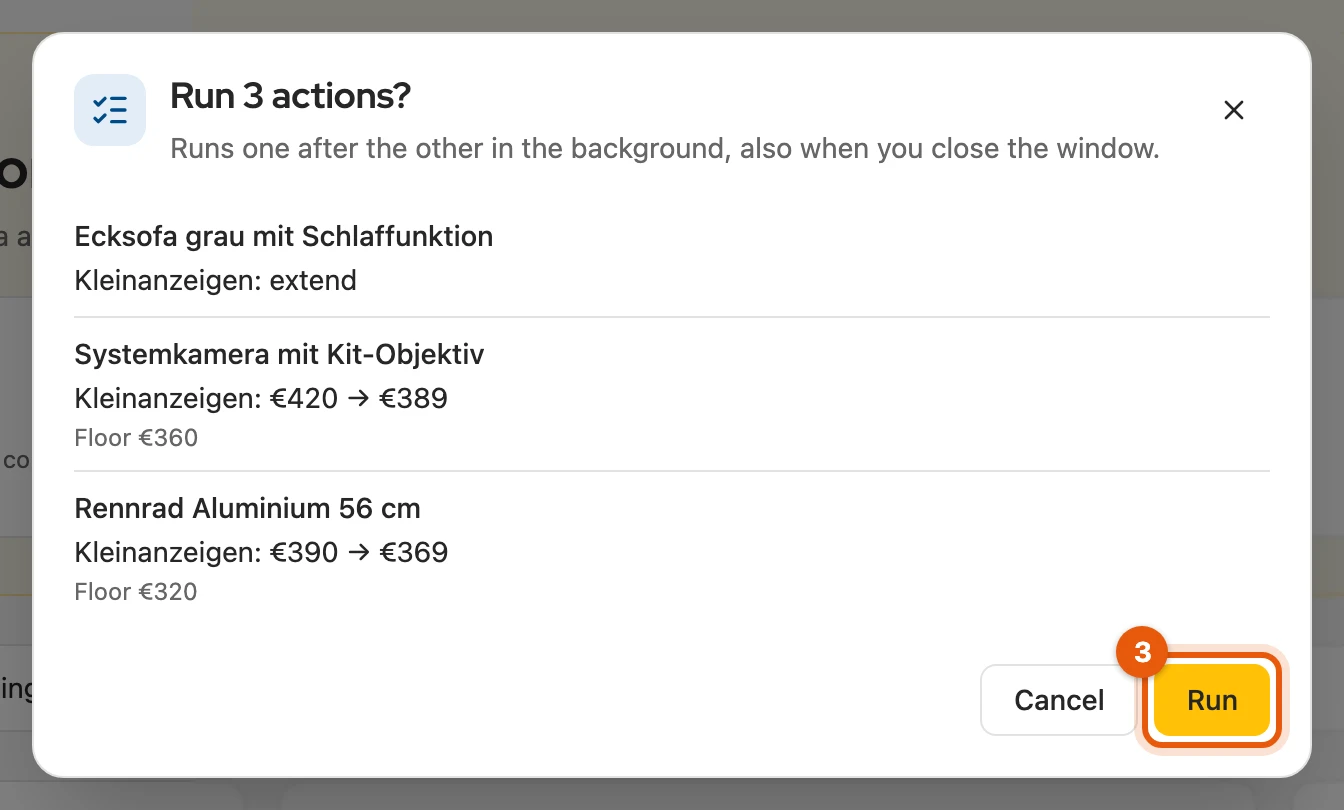
Click Confirm 3 suggestions.
-
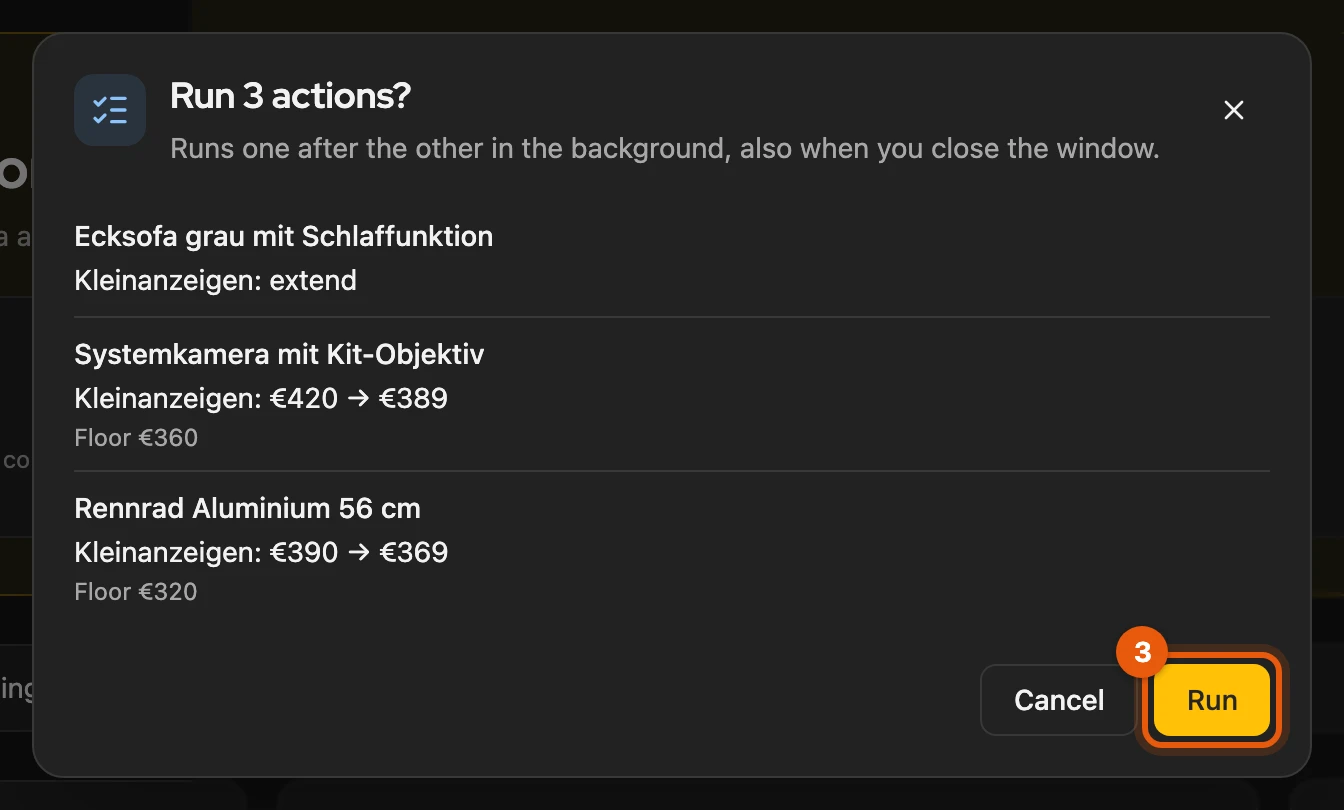
Check the list and click Run.
The actions run one after the other in the background, even if you close the window.
More: what works together and how to see the status
- Suggestions that run in the background get a checkbox: changing the price, extending, offer to interested buyers, scheduling and reminding. Others, including Vinted prices, carry “Only one at a time”.
- Each action is its own process, because Kleinanzeigen only allows one at a time. It continues after a browser restart; a second collective confirmation only starts afterwards.
- View shows the status of each action: Waiting, Running, Done, Failed, Skipped or Unclear. At the end it says for example “2 of 3 actions carried out”, with the reason for each that did not work.
Lowering the price step by step
Section titled “Lowering the price step by step”Here Kleinanzeigen-Enhanced lowers the price of a running listing in up to three small steps, never below your floor. It comes with Privat Plus and up and with Business M and up.
You switch it on in the Market tab (Price ladder card), in the inventory via the menu (⋯) › Lower the price step by step … or for several items in the selection bar. The dialog asks for Not below (€).
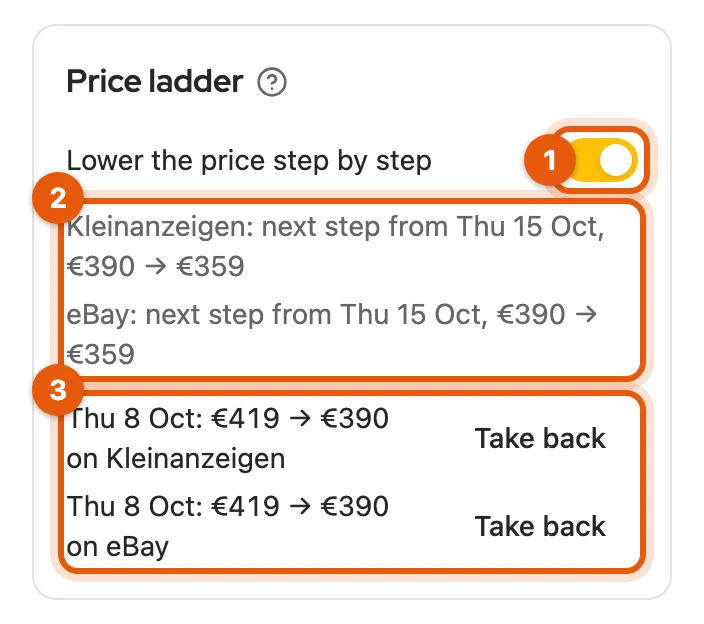
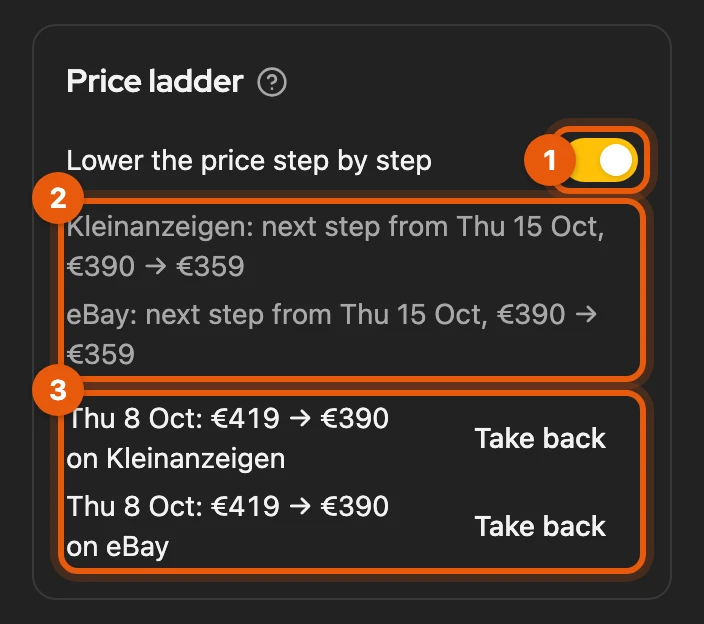
- The switch turns the price ladder on or off.
- The next step per platform, with its day and new price.
- The reductions so far; Take back sets the old price again.
More: the floor when switching on
- Not below (€) is required and prefilled, from the market data or with 80 % of the price. It is the item’s floor and is never published.
- For several items you give the floor as a percentage of today’s price (80 % suggested). An item’s own floor stays.
- If the amount is below half the price or your Kleinanzeigen account is younger than 14 days, the dialog points this out. Nothing is blocked.
How it lowers
Section titled “How it lowers”The pace follows the sales goal: every 4, 7 or 14 days. It only lowers while your browser runs, between 9 am and 8 pm. Each step is announced about a day before as a suggestion:


Skip this time postpones it. Take back in the Price ladder card sets the old price again.
More: steps, limits and special cases
| Case | What happens |
|---|---|
| Step | 5 to 10 % to a round price; below €10 one whole euro per step. The floor is the last step. |
| Sell by … | The floor is reached about 3 days before your date, steps 3 to 14 days apart. |
| New enquiry (Kleinanzeigen) or new watcher (eBay) | The step waits one more pace. willhaben only counts the pace. |
| Many listings | At most 20 reductions per platform and device a day, the rest the next day. |
| Browser was off | It does not catch up on missed steps. |
| Several devices | Only one lowers each listing, never twice. Switching on and off applies on the device where you do it. |
| You change the price yourself | The price ladder takes it over and the pace starts again. |
| Listing sold, paused, deleted or reserved | It stops until the listing runs again. |
| Price ladder on | The sales agent’s price suggestions for the item are left out. |
| Take back | The price ladder is off for the item; when you switch it on again, the pace starts over. |
After reductions your browser shows something like “3 prices lowered”. Under Settings › Notifications you switch this off with Notification after reductions.
Platforms
Section titled “Platforms”Kleinanzeigen, eBay and willhaben lower by themselves, eBay only if it is connected. Vinted only reminds you; there you set the price in one click.
If a platform slows down, asks for a captcha or the sign-in is missing, the price ladder stops there until the next morning. Pause everything under Settings › Notifications stops all price ladders at once.
More: exceptions per platform and pausing
- eBay: it leaves out auctions, listings with variants and listings with a running sale. On eBay.at and eBay.ch it only reminds you; listings in Swiss francs it leaves out.
- willhaben: only the price changes; the runtime and the costs stay the same.
- Vinted: Lower to €579 sets the new price, at most once a week.
- Plan ends: the price ladder rests and the bell shows “Price ladder paused”. After an upgrade it continues without catching up.
- Pause everything also holds the sales agent’s dates. If a date is more than 48 hours past when you switch it off, the bell reports “Missed date”. Your own dates in the calendar keep running.
Good time to list
Section titled “Good time to list”For watched items not yet listed, the sales agent suggests Good time to list as soon as the sales plan says “now”. Prepare listing opens your item. You switch off the browser notification for it under Settings › Notifications.
More: when the suggestion comes
- It needs at least 5 comparable offers. If the plan advises waiting, it first suggests listing later.
- It goes away as soon as a listing of the item is online, paused or scheduled, and for archived, reserved or sold items.
- It does not appear on the Market tab; there you publish with Save and publish.
- The notification comes once a day, not before 9 am, at most once per item and occasion, not after Not now. To switch it off: the Notification when to list card.
Listing later
Section titled “Listing later”If a later day is better, the sales agent suggests for example Better to list from 1 Nov. Schedule for 1 Nov schedules the listing on Kleinanzeigen (with the calendar in your licence), Remind me on 1 Nov sets a reminder. You change or cancel both on the Market tab.
More: requirements and reminders
- The suggestion needs at least 5 comparable offers, a starting price of at least 10 € and no date yet.
- For Vinted, willhaben and eBay there is only the reminder.
- If confirmed together with others, the date or reminder is set at the first good time of that day.
- A due reminder always shows in the bell and the browser, even if you switched off the listing notifications. If the browser was off, it comes at the next start.
On the start page
Section titled “On the start page”If the sales agent has suggestions, the start page shows the group Sales agent: 6 suggestions with the five most important.
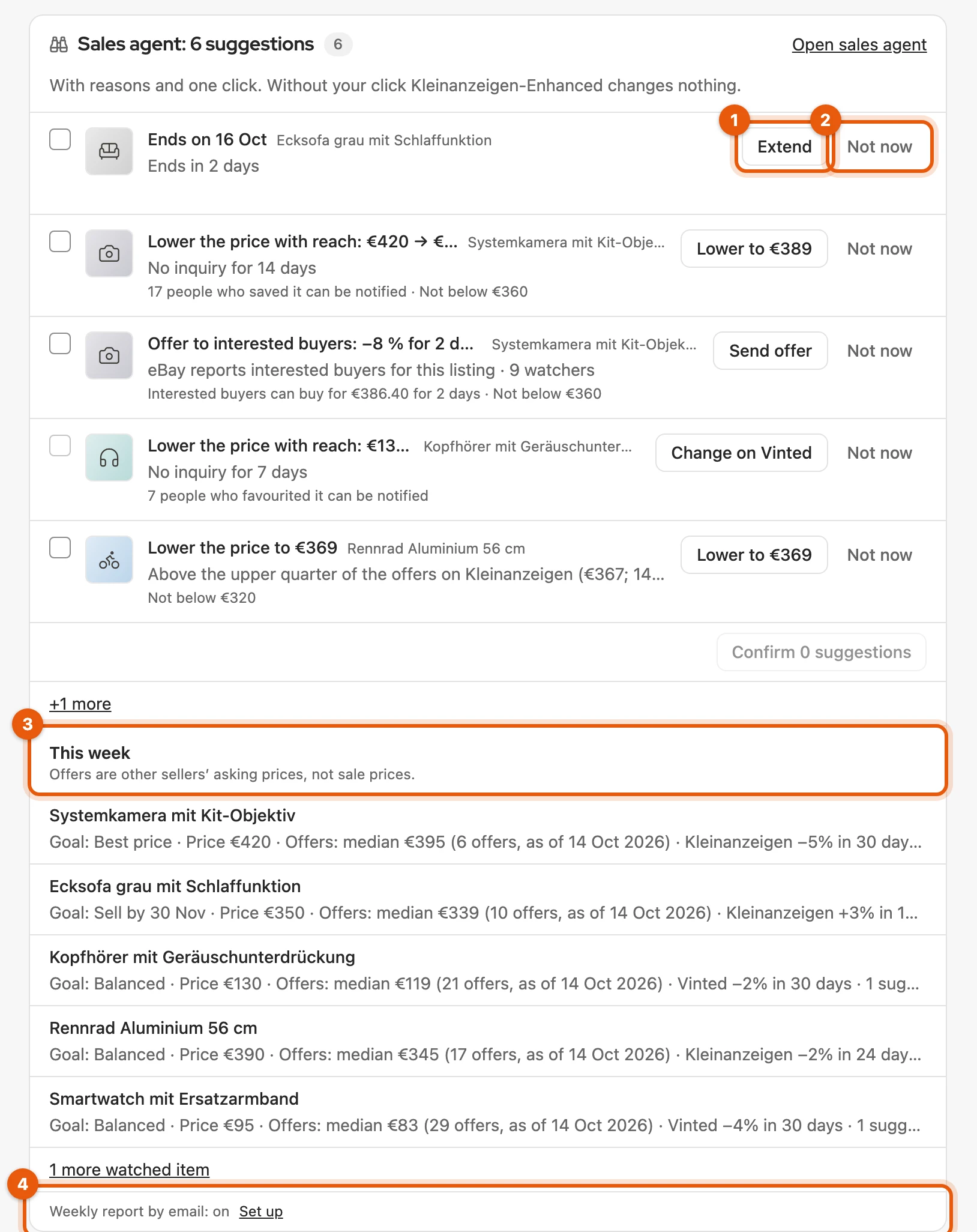
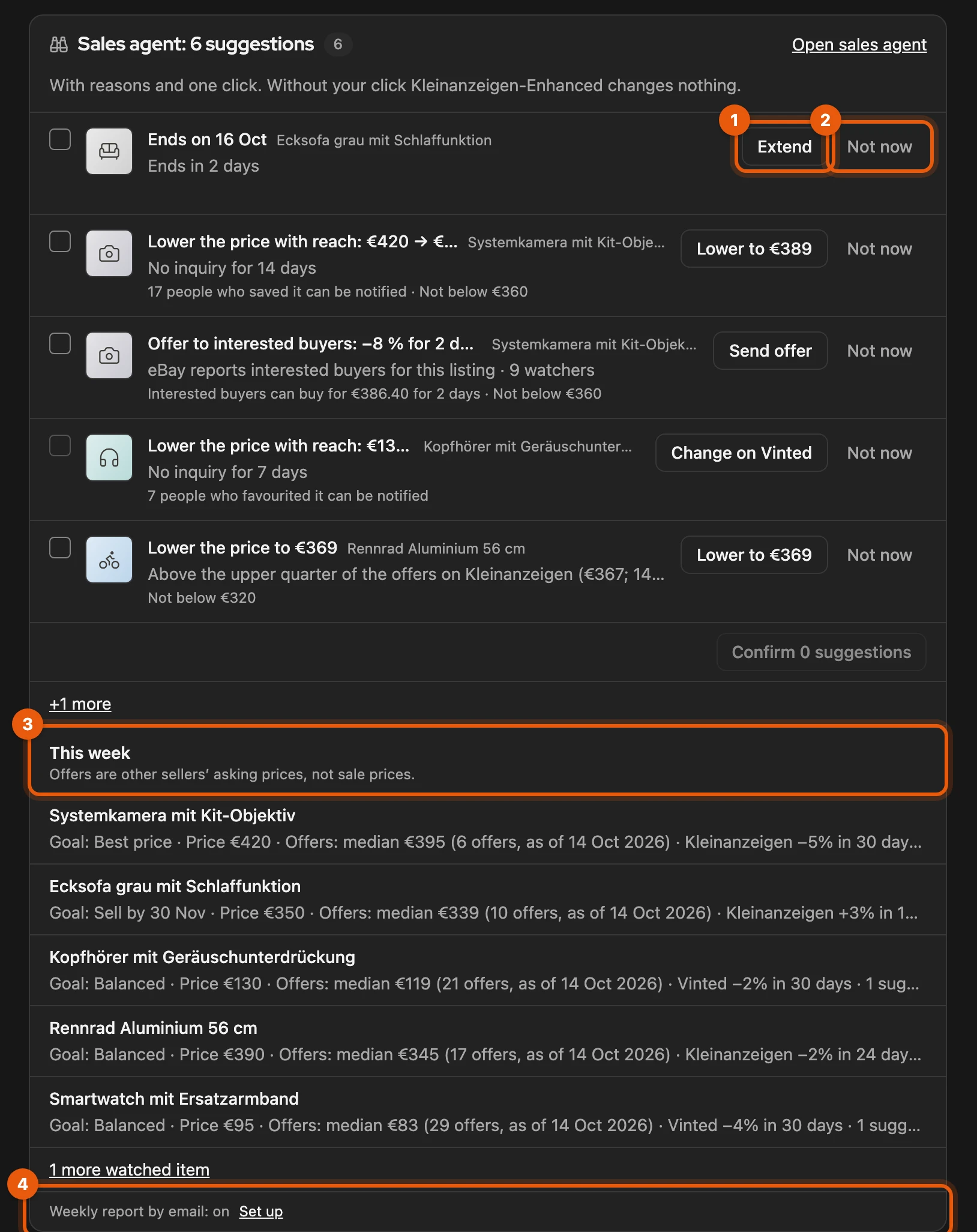
- a suggestion with its item and button
- Not now
Weekly report by email
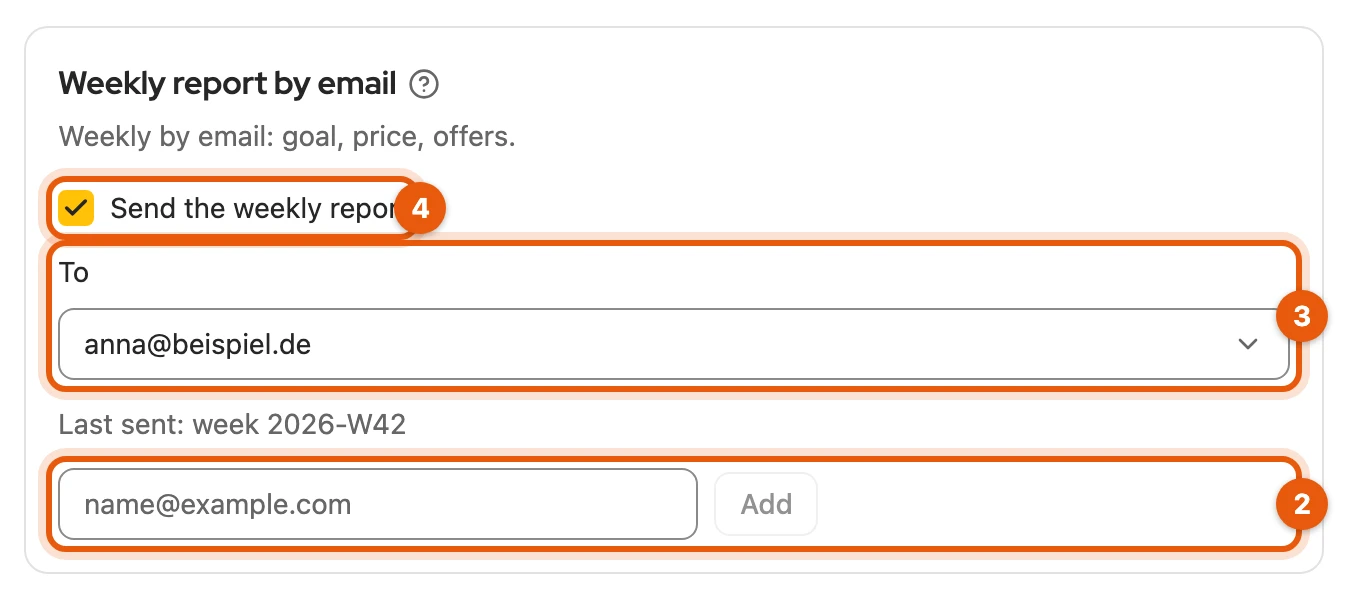
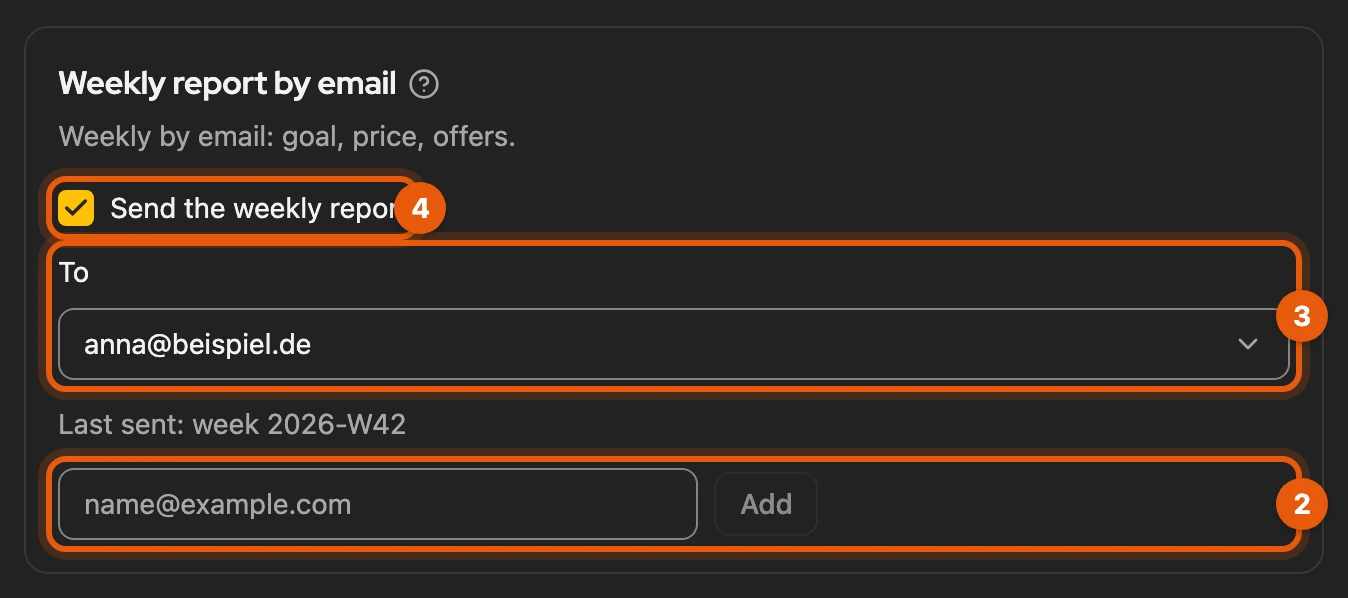
Section titled “Weekly report by email”If you like, the sales agent sends you a summary of your watched items every Monday.
-
Open Settings › Notifications, Weekly report by email card.
-
Without a confirmed address: enter it under New address, click Add and confirm the link in the email. Then reopen the settings.
-
Under To, choose the address.
-
Tick Send the weekly report.
More: sending and content
- When: on Mondays or at the first browser start after that, only if you are watching at least one item. You do not need the Search agent package.
- Content per item (those with suggestions first): title with link and picture of your listing, sales goal and price, typical price with number of offers and date, the number of open suggestions and the most important one. The report gives no trend.
- Addresses are shared with the search agents. If you choose a different address, the report is off for it at first.
- Below the checkbox it says how the last attempt went, for example “Last sent: week 2026-W42”.
Unsubscribing
Section titled “Unsubscribing”Wochenbericht abbestellen (“unsubscribe from the weekly report”) is in every report and only unsubscribes from it. Keine Mails mehr an diese Adresse (“no more emails to this address”) in a hit email ends all emails to the address. To get the report again, add the address again and confirm it.
More: after unsubscribing
- The page behind the link asks once more; the unsubscribe button in your email program works the same way, just without asking. The hit emails of your search agents keep coming.
- The address then appears under To with “(unsubscribed)” and cannot be chosen.
- The new confirmation applies to both kinds of email. Then choose the address under To and tick Send the weekly report again.
How to read the figures
Section titled “How to read the figures”Offers are not a market value: they count what others ask, not what buyers pay. Below 5 comparable offers there is no typical price (“Not enough data”).
More: date, trend and condition
- The same everywhere: the sales plan, the Sales agent page, the start page, the weekly report and the Recommendation column in the inventory give the same typical price, from the newer of market check and watch. Only curve, trend and weekly change apply to one platform.
- Date: if it is more than two days back, it is shown, for example “Typical price €389 · as of 9 October 2026”.
- Trend: compares the typical price of the last day with that of the oldest day of the last 30 days that is at least a week back.
- Condition: the figures apply to your item’s condition as soon as at least 5 offers name it, otherwise to all conditions. You enter the condition under Product.
- Offers automatically checked as comparable carry a grey tick.
If something does not work
Section titled “If something does not work”- “All … slots are taken”: end a watch or choose a larger plan.
- “eBay: browser access missing”: click Allow access, see “Access missing”.
- “Which model exactly?”: choose the model, then the sales agent searches more precisely; Not now hides the question for 30 days.
- No search: the browser has to be running; nothing is searched while it is closed.
Privacy
Section titled “Privacy”Searches run from your browser; the data stays there and in your cloud backup. For comparability, titles of new offers go through our server to an AI model, as in the market check. Your floor goes to no platform and not into the weekly report.
More: what goes to our server
- Comparability: titles and short descriptions of new offers.
- Offer to interested buyers: our server asks eBay through your eBay connection. Only the discount and the number of buyers reached are recorded.
- Weekly report: per item the title, link and picture of your listing, sales goal, price, the figures on the offers and the most important suggestion. We do not store the content, only for 30 days the fact that the email was delivered.