

Inventory
The Inventory holds your items, independent of any platform. They are stored locally in your browser.
Creating items
Section titled “Creating items”An empty inventory shows every way in:
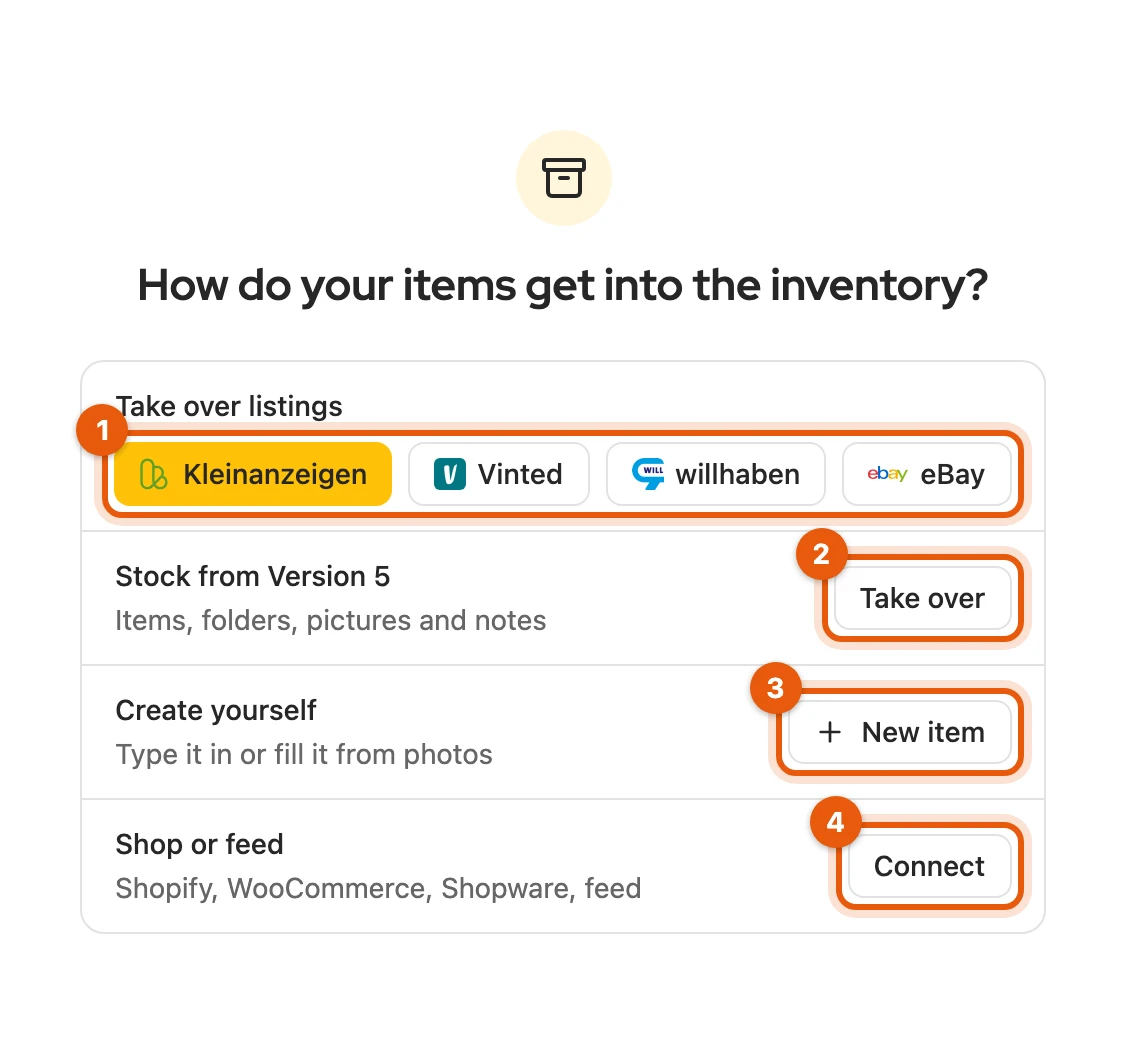
- Take over listings from Kleinanzeigen, Vinted, willhaben or eBay (Take over listings into the inventory)
- Stock from Version 5 (Switching from Version 5)
- New item, also Fill in from photos (Edit an item)
- Shop or feed (Connect shops and feeds)
The first platform you are connected to is yellow, otherwise New item. Later New item sits at the top of the inventory; if a folder is open, the item is placed there.
Finding and filtering
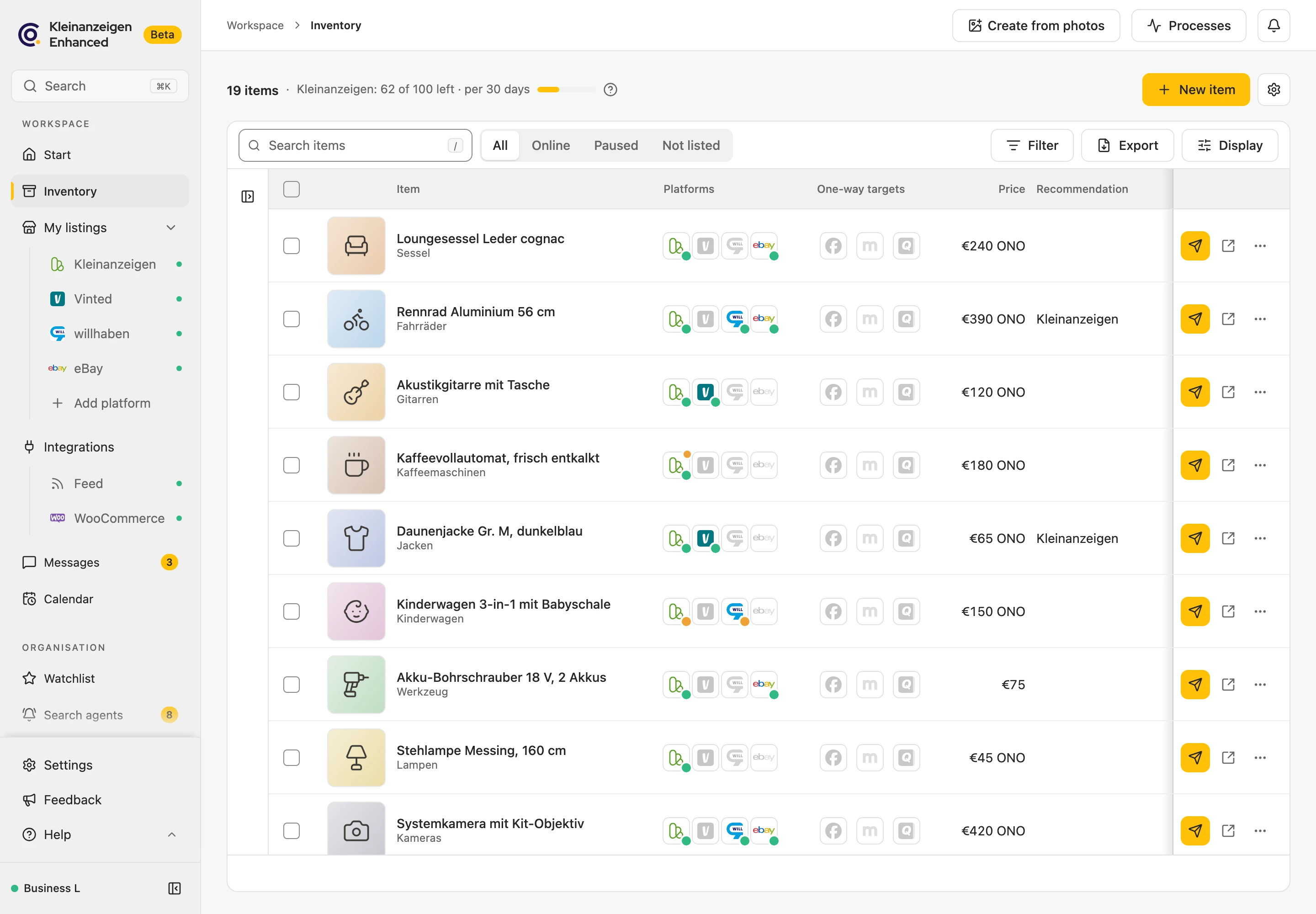
Section titled “Finding and filtering”The search on the far left searches all fields of your items; press / to jump into it. Next to it you choose All, Online, Paused or Not listed. Filter holds further filters, such as Item status, Origin or Signed-in account only.
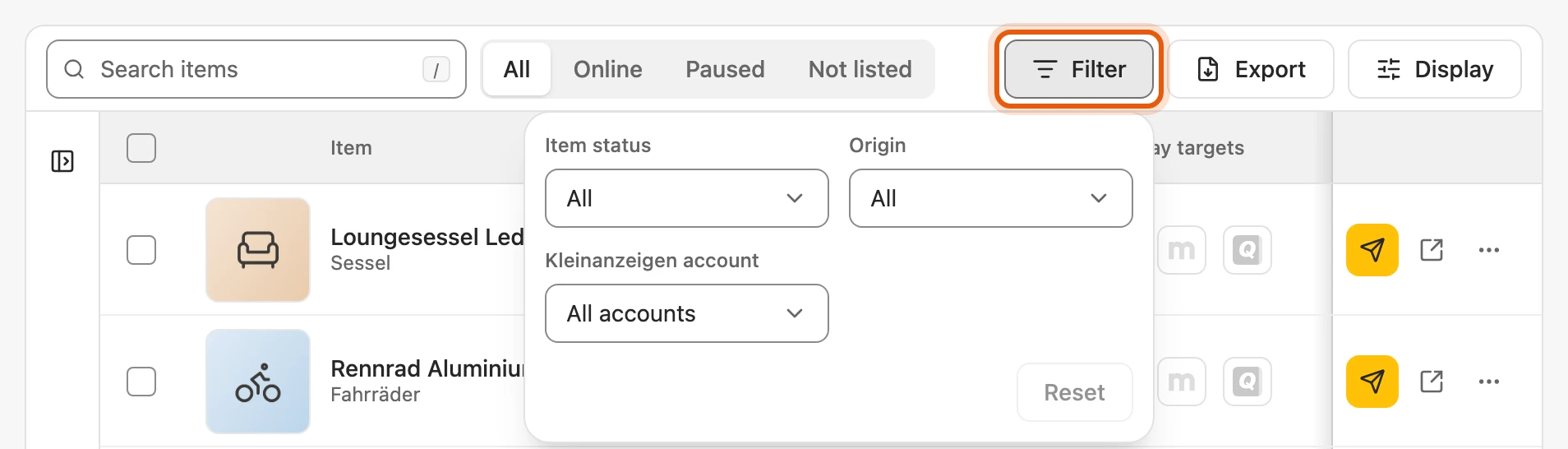
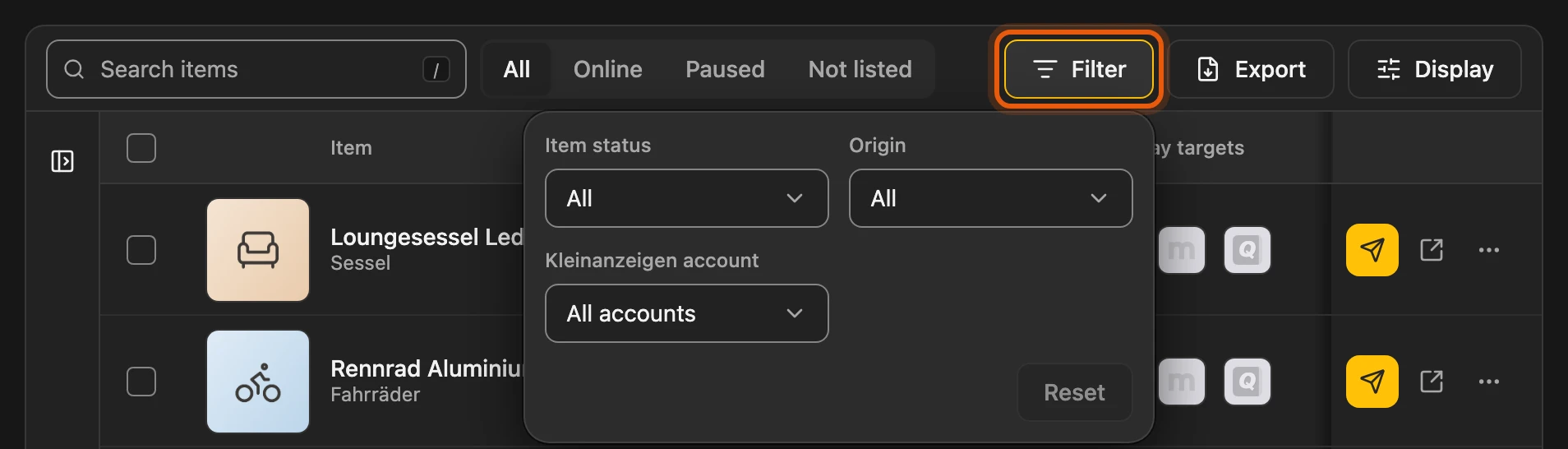
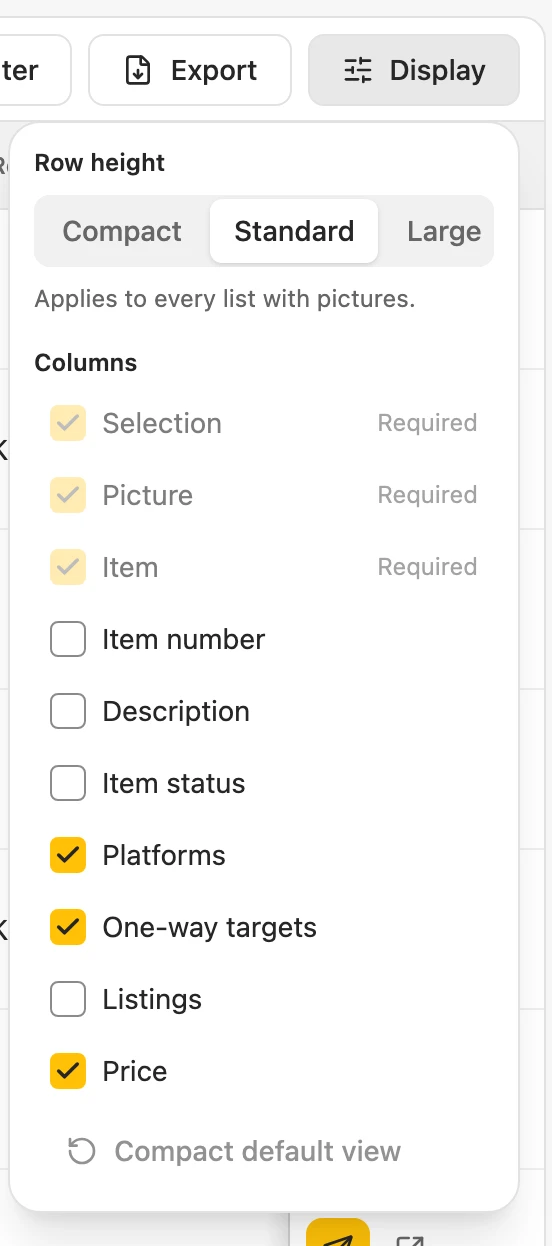
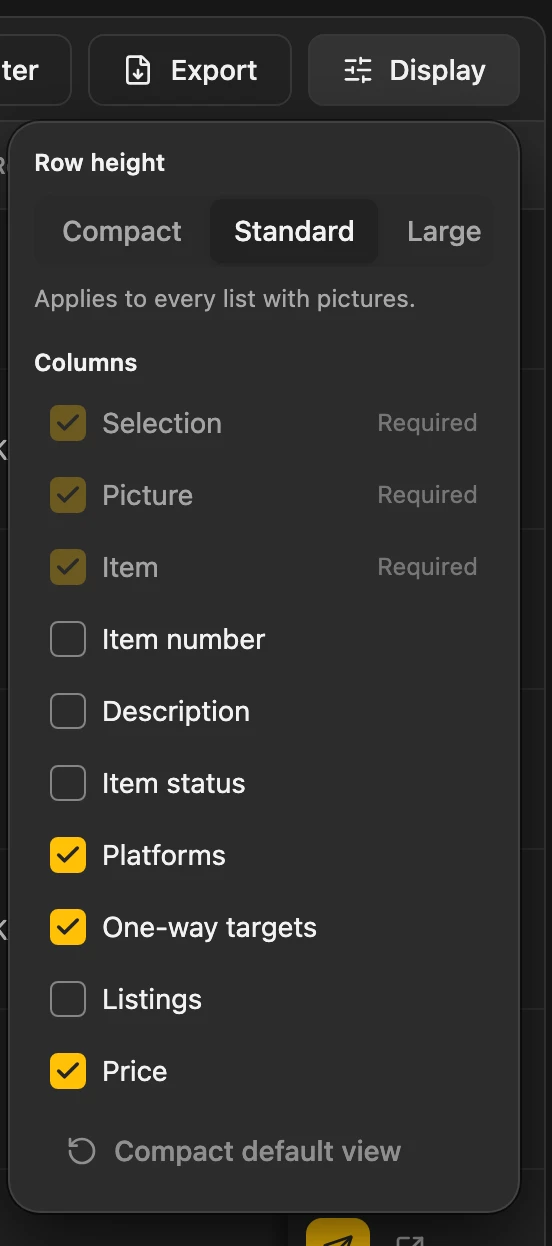
Under Display you choose row height and columns. Click a column header to sort. You collapse and expand the folder bar with the icon next to “Folders”.
More: search, filters and sorting
- Search: title, description, item number, category, price and price type (such as ONO), location, brand, condition, product identifier (such as the EAN) and listing IDs. Several words must all appear; upper and lower case and umlauts do not matter (“muller” finds “Müller”).
- Signed-in account only: hides items whose Kleinanzeigen listings belong to another of your Kleinanzeigen accounts. Items without a listing stay visible.
- In season now: with the Best listing time, shows all items currently in season.
- Sorting: by title, price, item number, created, changed and scheduled. Items without a price or item number come last in both directions; “A-20” comes before “A-100”.
- Wide lists: tick box, picture and buttons stay in place when you scroll sideways. Keep the title in place when scrolling sideways under Settings › General › Advanced › Tables keeps the title there too.
- Folder bar: starts collapsed in windows below 1460 px wide.
Exporting
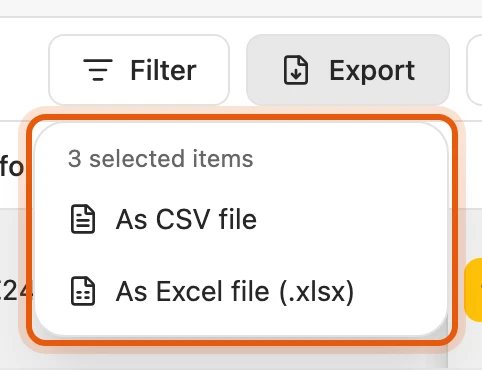
Section titled “Exporting”Export saves your items as a CSV or Excel file, from the Privat licence. If you have selected items, exactly these go into the file; otherwise all items that match the search, folder and filters.
More: what the file contains
- All fields, regardless of the columns shown, including the product identifier and, for each platform, the listing’s ID, status and link.
- Not in the file: sales goal and floor price.
- Prices and quantities are stored as numbers; the CSV file separates with semicolons.
- Without a licence, both formats carry Not in your plan.
Recommendation
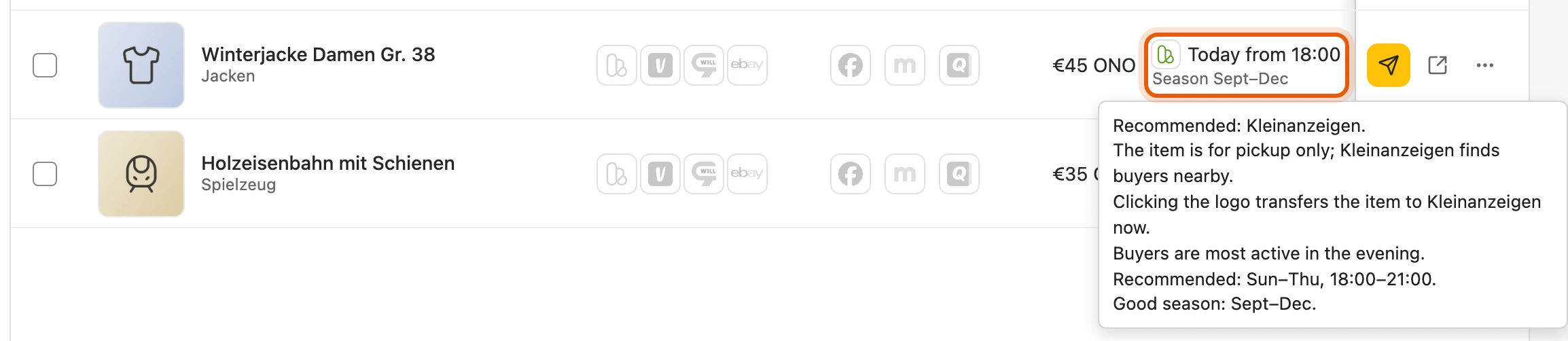
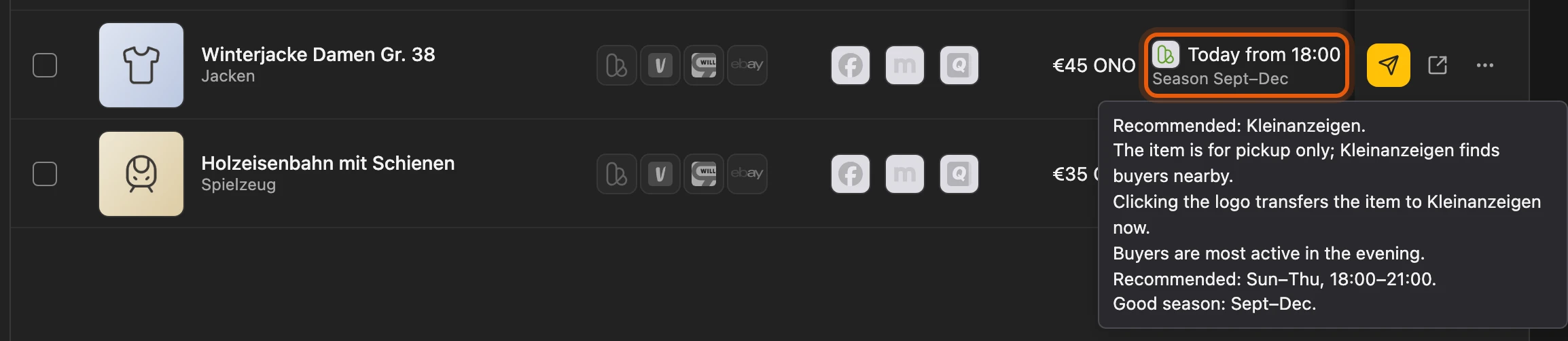
Section titled “Recommendation”The Recommendation column shows where and when publishing pays off. Clicking the logo transfers the item there; when you move the mouse over the cell, you see the reasoning. If there is no logo, the item is already running where it fits.
More: what the cell shows
- + in front of the logo: the item already runs on the best platform, and this one suits it just as well.
- Time: Now, Today from 18:00, a weekday or From a month, such as “From February” for a bicycle in autumn.
- Season: such as “Season Sep–Dec”, “Mild season Nov–Dec” or All year.
- Price: the column does not name one. After a market check the reasoning shows the plan’s price, such as “Sales plan: €419 ONO, not below €360”.
- No recommendation: for wanted ads, reserved items and items without a Kleinanzeigen category. Sold or archived items show their status.
Which platform fits
Section titled “Which platform fits”The recommendation checks in two steps:
- What is not possible? willhaben drops out in Germany, Kleinanzeigen in Austria, Vinted for pickup-only or bulky items.
- What fits best? Points for product group, revenue after fees, price, condition and more. So fashion usually goes to Vinted, furniture to Kleinanzeigen near you, collectibles to eBay.
More: special rules
- Country: comes from the item’s postcode.
- Jobs, property, services: only Kleinanzeigen or willhaben.
- LEGO collector sets: a collector word in the title (Ideas, Icons, UCS, Modular, 18+, “Sammleredition”) or €200 or more: usually eBay, with Kleinanzeigen next to it. Duplo and replicas do not count.
- From €300: Vinted gets fewer points for electronics and collectibles (buyers pay a fee for buyer protection there).
- Cars: the reasoning also names mobile.de and AutoScout24. Books, CDs, films, games with a barcode: a pointer to buy-back portals. Kleinanzeigen-Enhanced transfers nothing there.
- Commercial sellers: the reasoning names the revenue after fees. On Kleinanzeigen your allowance counts: if the listing still fits into it, there is no listing fee. The platforms set allowance and fees themselves.
The Best listing time is available from Privat Plus and Business M; with Business it is off at first. You switch it on under Settings › Inventory › Advanced with Show the best listing time. The time follows the evening hours in which buyers are most active, the season follows the category.
More: time, season and special cases
- Time: Sunday to Thursday, 18:00 to 21:00. Once there are enough first buyer messages on your listings, it follows your own buyers.
- Season: from the Kleinanzeigen category, for some also from the title, such as “Winterreifen” (winter tyres).
- Losing value: iPhones, game consoles, TVs, video games, tablets and wearables. Here the recommendation never waits for the season. Apple accessories do not count.
- Before Christmas: the season only counts until 14 December; for toys and Christmas items from 30 September, for gift items such as consoles, watches or jewellery from 1 November.
On the start page
Section titled “On the start page”With the Best listing time, the start page shows up to five items under Worth listing now that are in season and not yet online on the recommended platform.
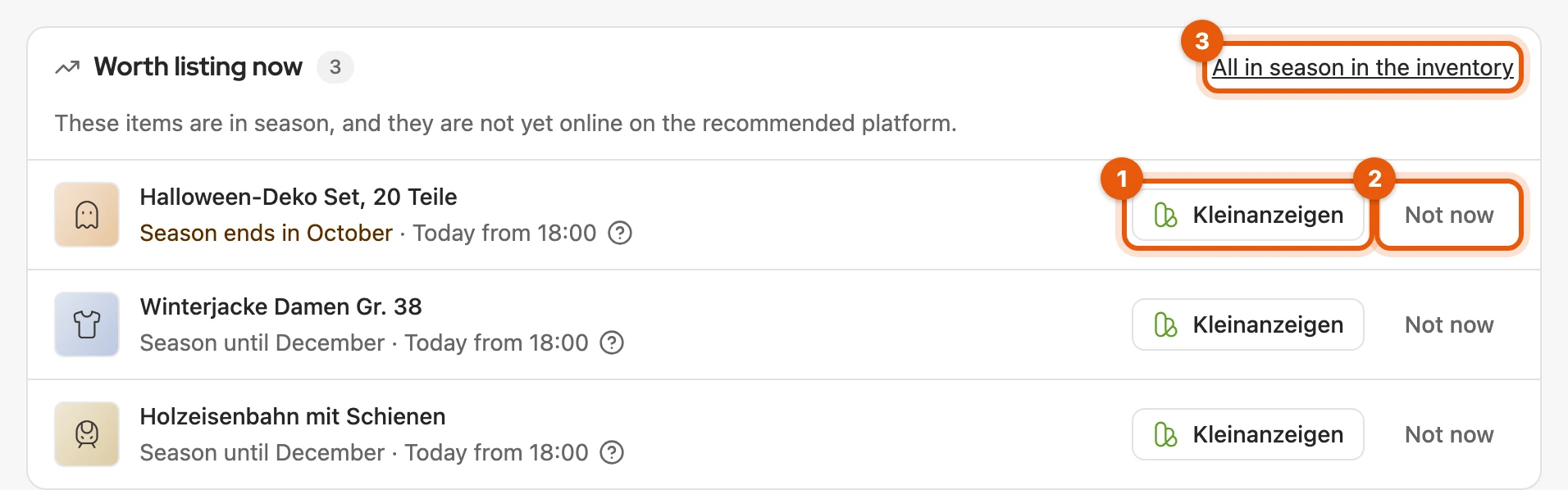
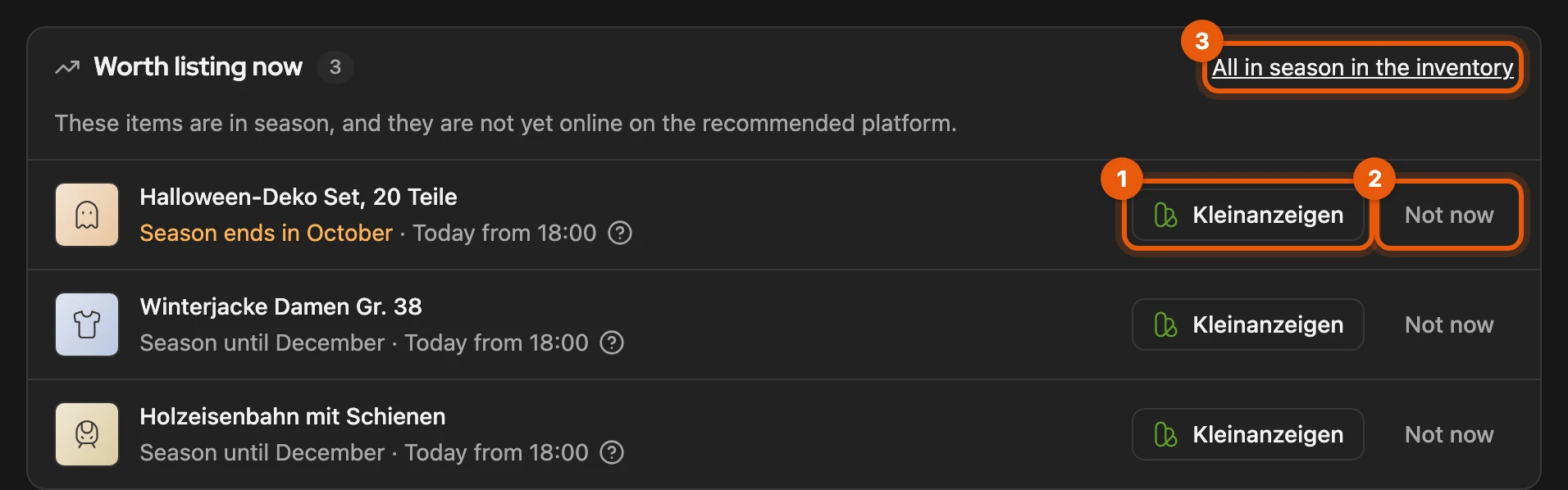
- The logo transfers the item to the recommended platform.
- Not now hides it until the end of its season; Undo works right afterwards.
- All in season in the inventory opens the inventory with the In season now filter.
More: which items appear there
- First items whose season ends this month, then items not online anywhere yet.
- Items for all year do not appear, items with a mild season only in its last month.
- The list does not count towards the open tasks.
- Without the Best listing time there is only a line saying how many items are in season.
The platform column
Section titled “The platform column”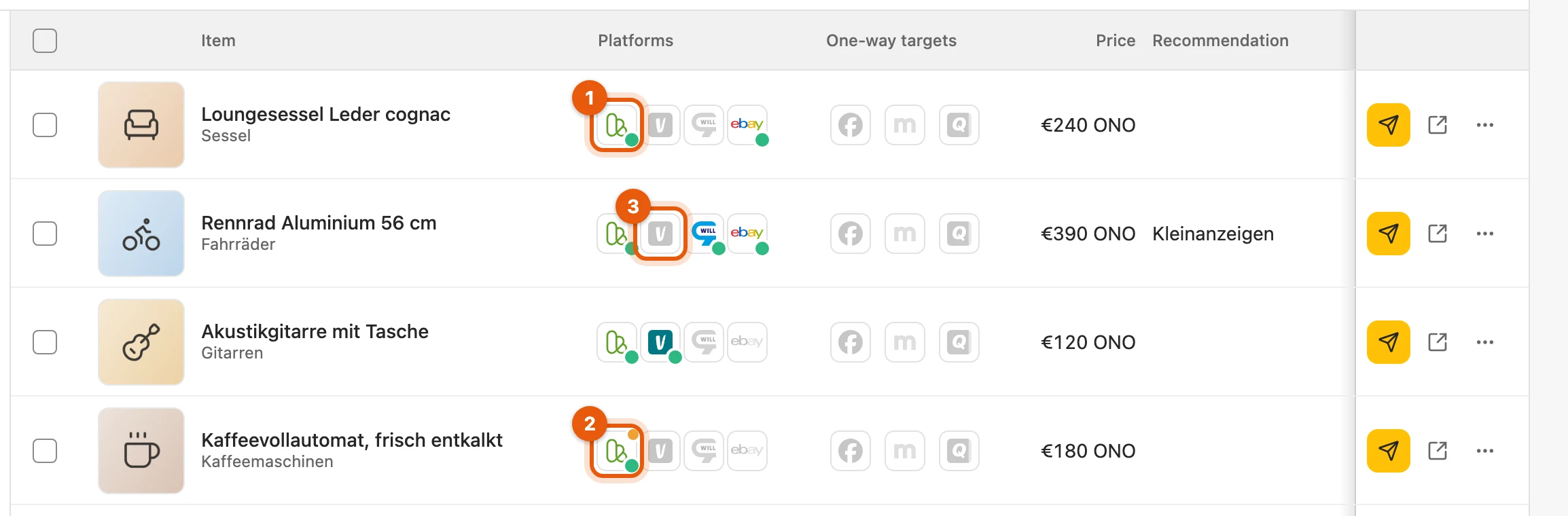
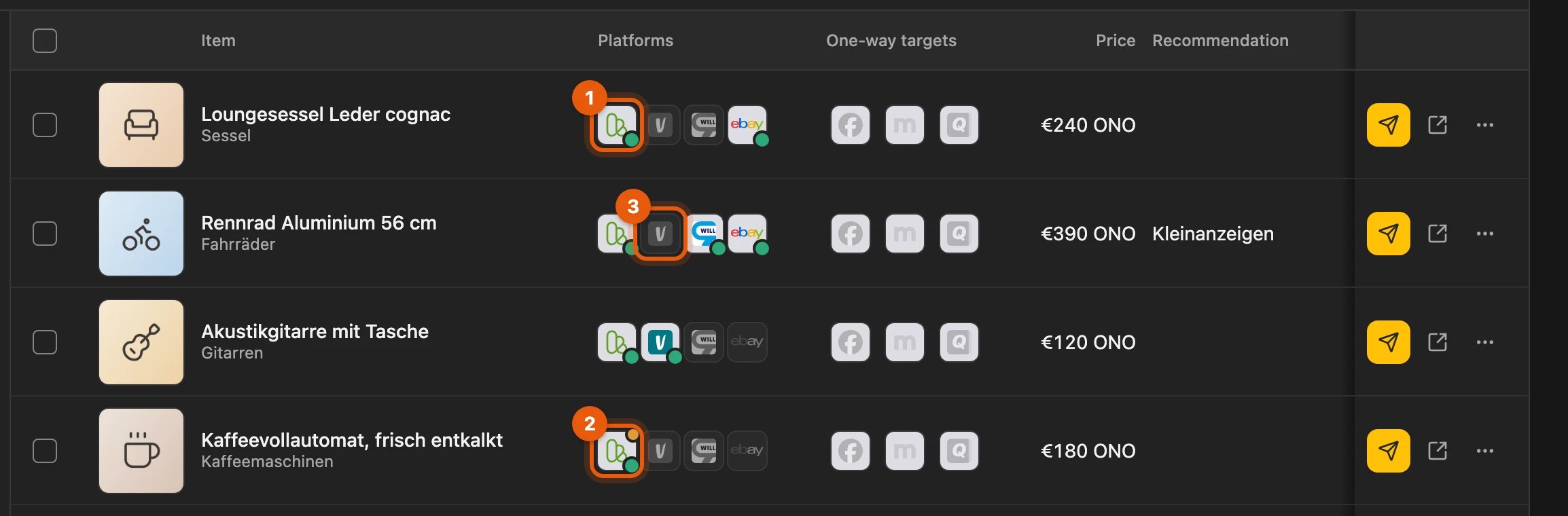
- coloured with a dot: online; clicking opens the listing.
- yellow dot: Changes pending, see Edit an item.
- pale: no listing yet; clicking transfers the item.
On the right of the row, the yellow paper plane publishes on Kleinanzeigen. The menu (⋯) holds all other actions; anything your plan does not include carries Not in your plan.
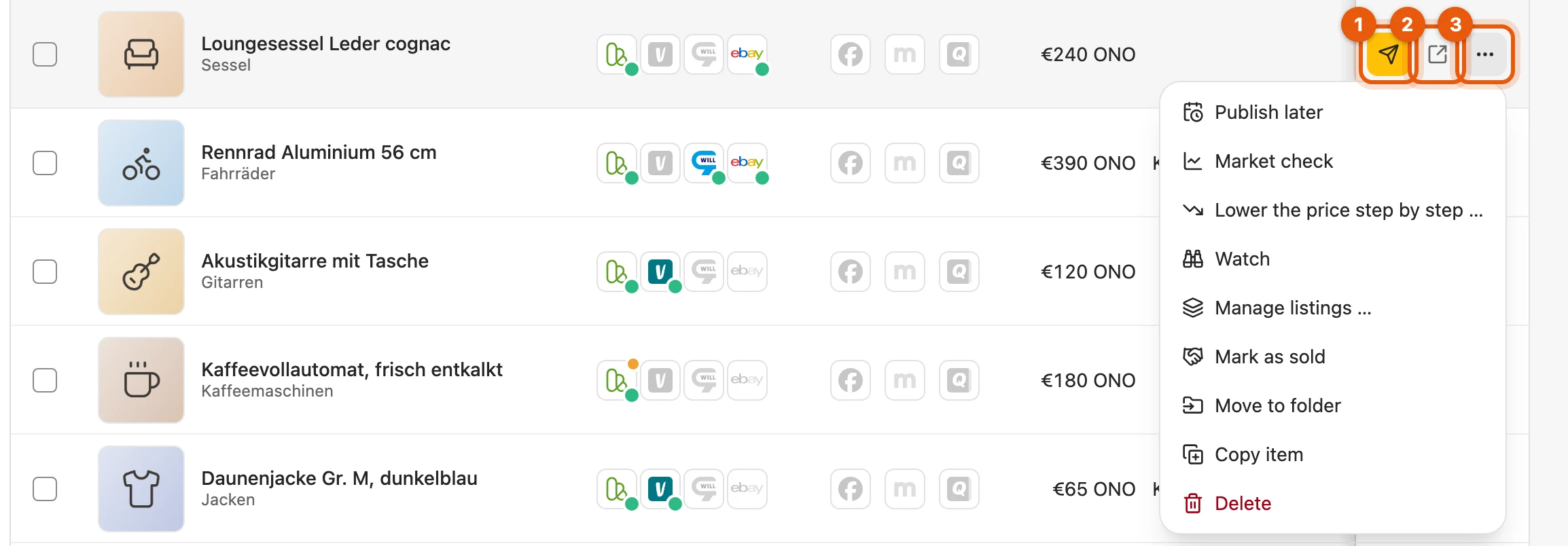
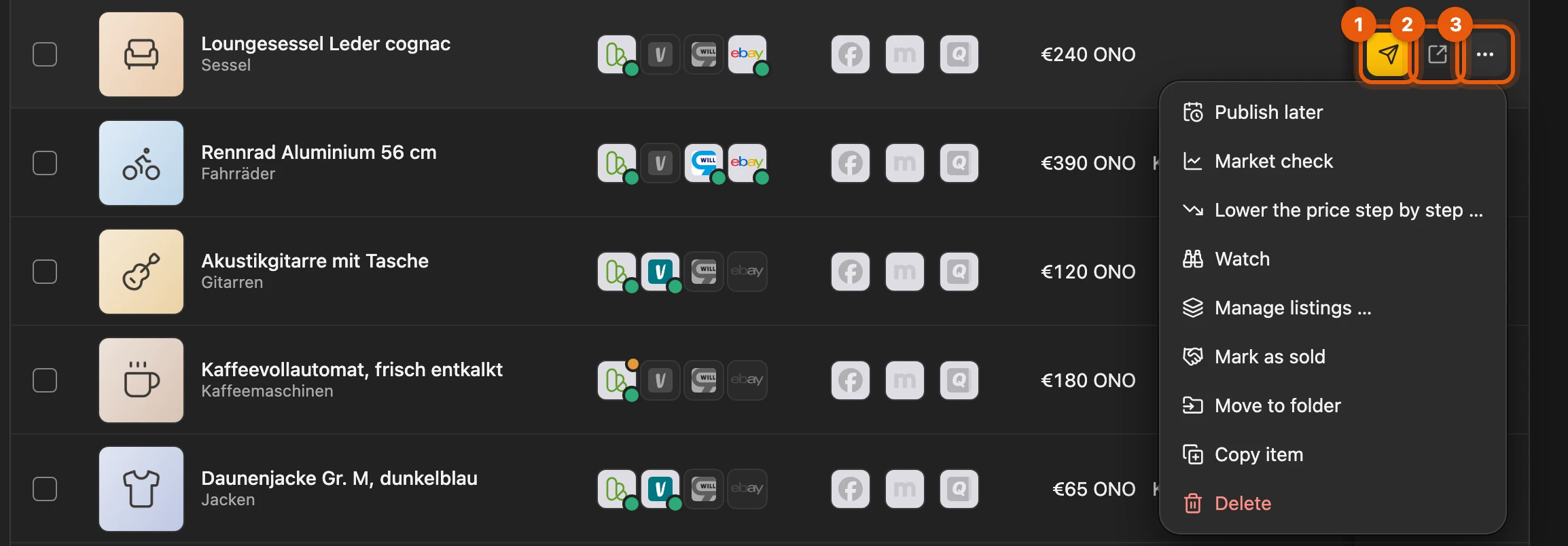
More: the menu entries
- Publish later: opens the schedule.
- Market check: opens the Market tab and starts a market check.
- Lower the price step by step …: lowers the running listing’s price in small steps, never below your floor (more).
- Watch: hands the item to the sales agent. Small binoculars then appear after the title; a second click ends the watch.
- Copy item: a new item with “(copy)” in the title, in the same folder, not linked to any listing and without the note. It counts towards your inventory places.
- Buttons at the front: Inventory actions at the front under Settings › General › Advanced › Tables puts them after the tick box.
The One-way targets column
Section titled “The One-way targets column”For Facebook, markt.de and Quoka, Kleinanzeigen-Enhanced only fills in the listing form; it does not know whether you published there. Coloured with a date means: the form was last filled in on that day. More under Facebook, markt.de and Quoka; you hide them under Visible marketplaces.
Manage listings
Section titled “Manage listings”The row’s menu (⋯) › Manage listings …. For a single item this works with every licence and also without one.
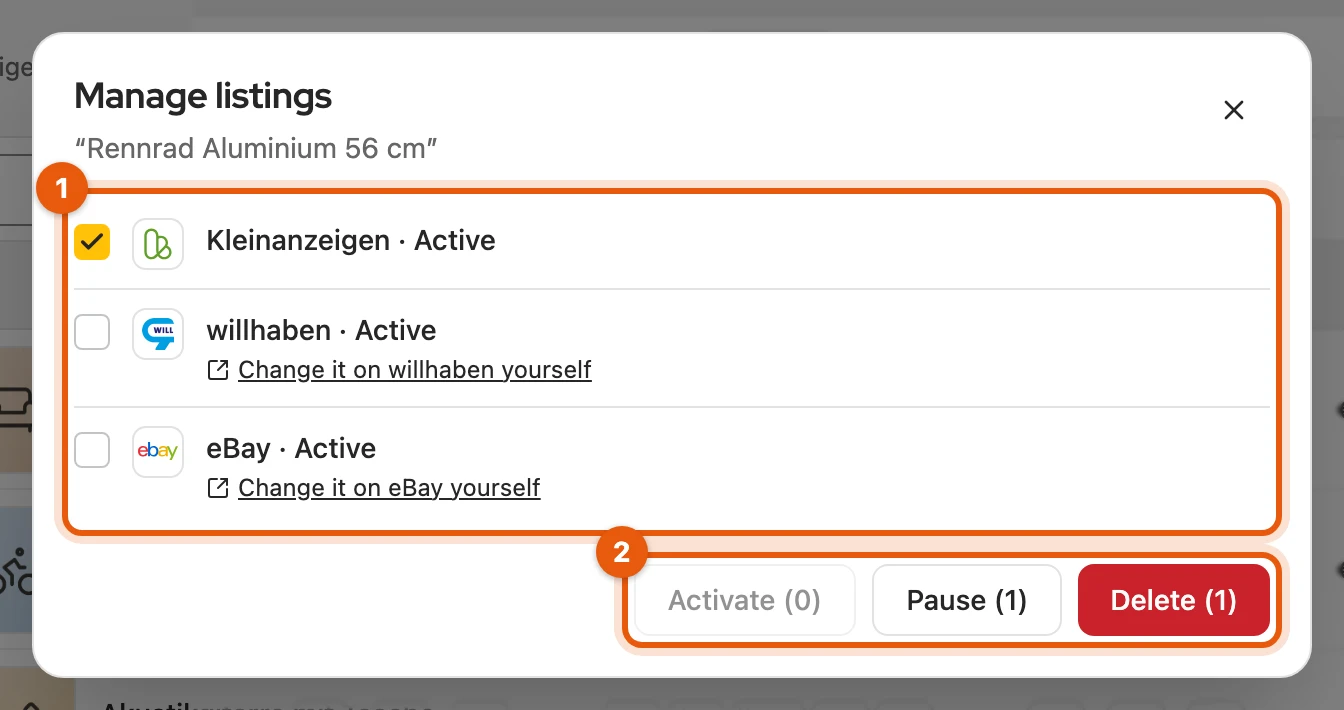
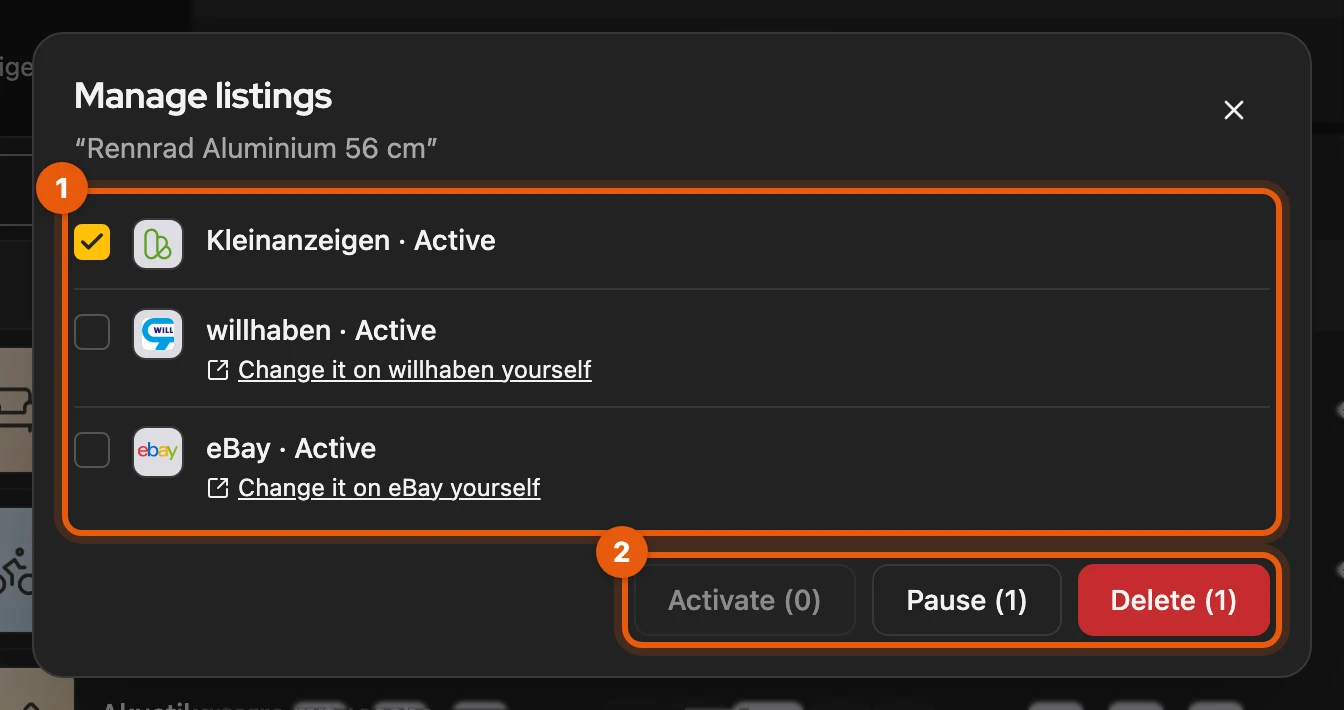
- Tick the listings. Where you have to change it yourself, a link leads to the platform.
- Pause, Activate or Delete applies to the ticked ones. If it fails on a platform, the row names the reason.
More: eBay and several items
- eBay: instead of Delete it says End. A fixed-price listing ends at once; you end an auction directly on eBay, the dialog links to it.
- Delete asks once more. If it fails on one platform, the others carry on.
- Several items: one process starts per platform, such as “Pausing 12 of 14 listings”. Open processes shows the progress.
Mark as sold
Section titled “Mark as sold”Choose Mark as sold in the menu (⋯), then the platform and what happens to the listings still active: Delete, Pause or Keep. The dialog links listings that Kleinanzeigen-Enhanced cannot end; you end those yourself.
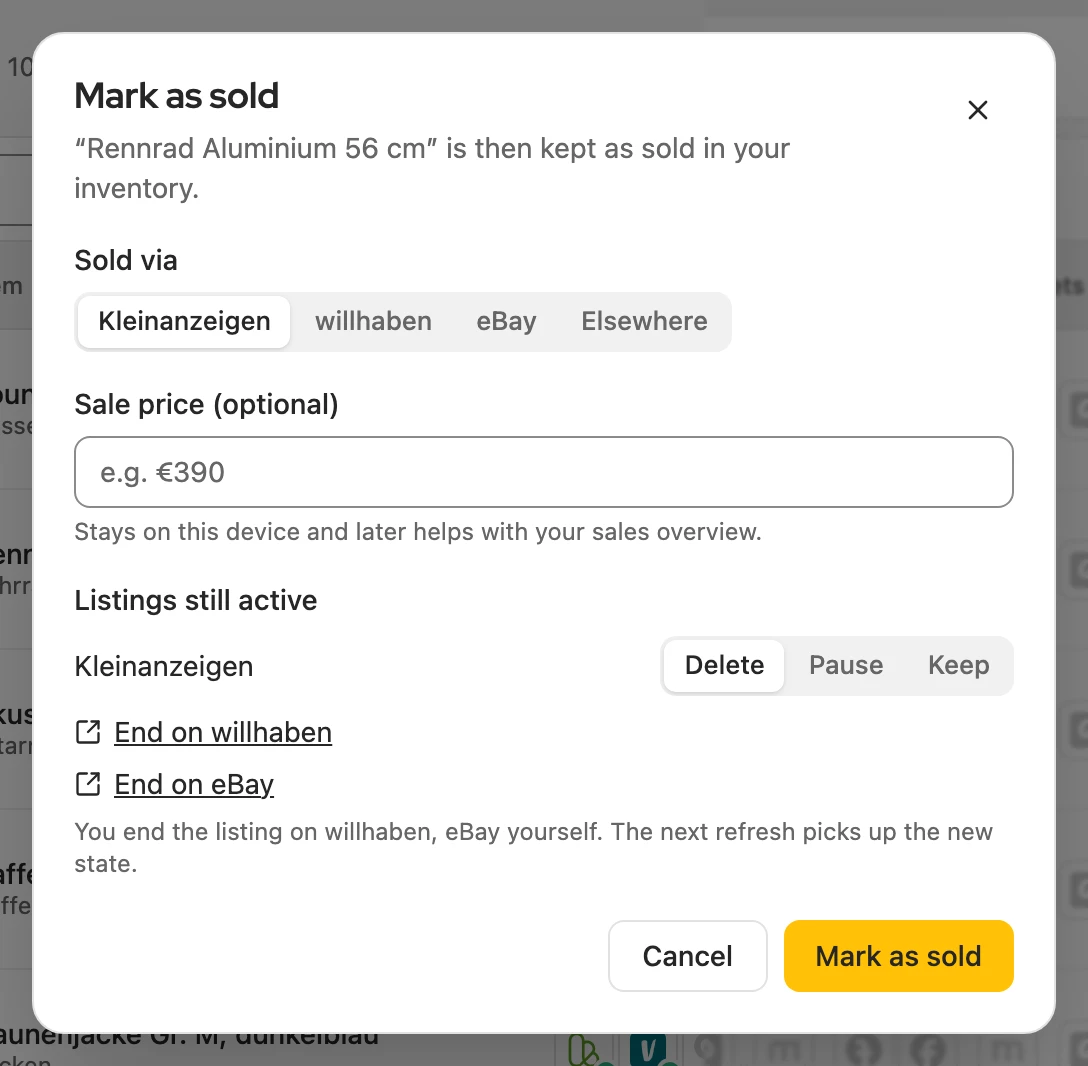
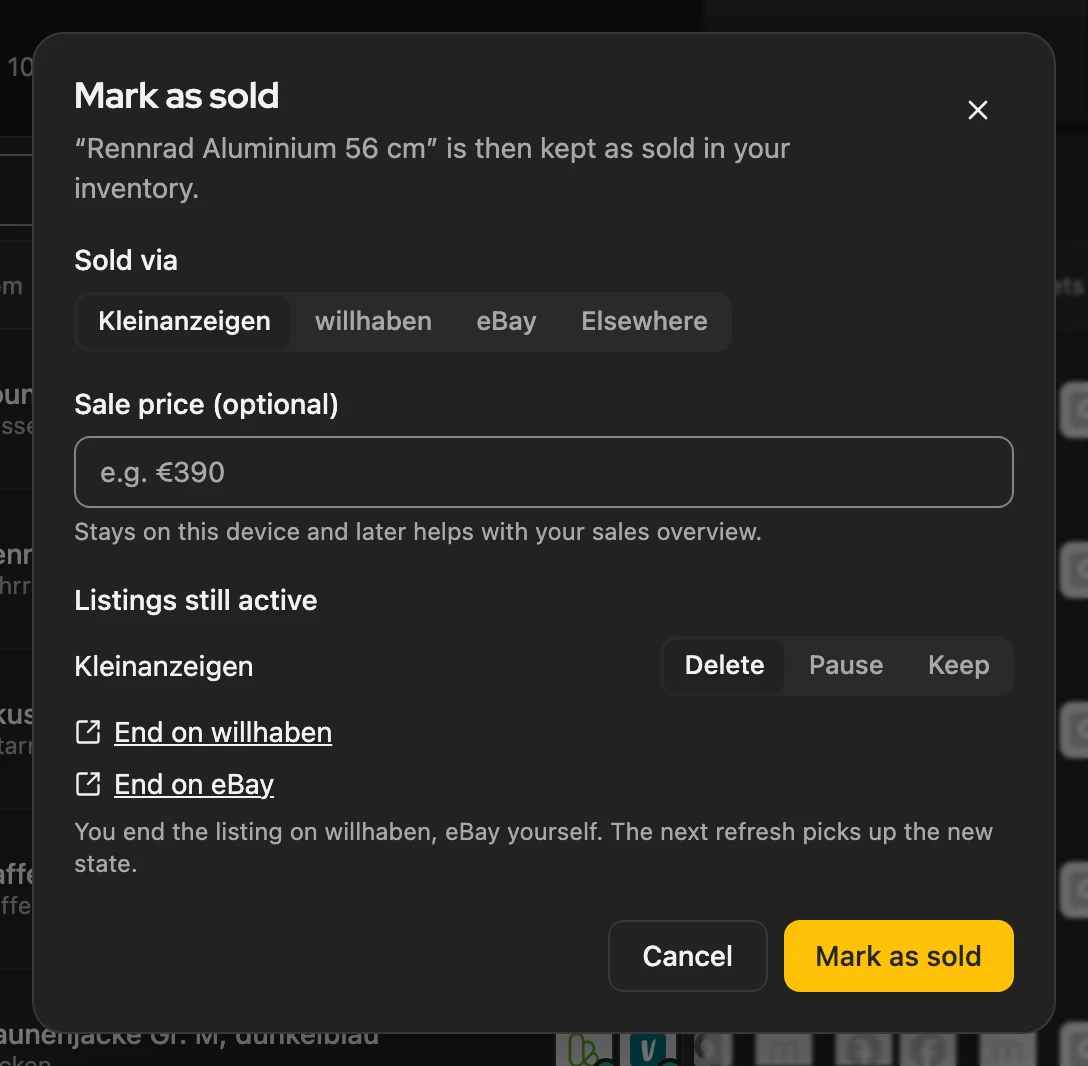
If eBay or Vinted reports a sale or a listing disappears, the row asks below the title, for example “Sold? The Kleinanzeigen listing ended”. Clicking it opens the same dialog.
More: sale price, questions and several items
- Sale price (optional): stays on your device.
- willhaben: a running listing can be set to Sold; it cannot be activated again afterwards.
- Afterwards: the item is set to Sold; calendar dates for it are skipped. Choosing the status Sold at the top of the item opens the same dialog.
- Several items: via the selection bar, with one shared choice for all listings.
- The “Sold?” question: Sold via Kleinanzeigen marks it at once (with Undo), Sold elsewhere opens the dialog with Elsewhere, Not sold closes the question. Unanswered, it disappears after 30 days; expired listings do not trigger one.
- Vinted: a sale there also shows as a system notification, such as “End it on Kleinanzeigen?”. When Vinted is synced: Sales and prices.
Several items at once
Section titled “Several items at once”Tick the items; instead of the column headers, a bar with the actions appears, and the rest is in the ⋯ menu. Hold Shift to select a range; Esc clears the selection.
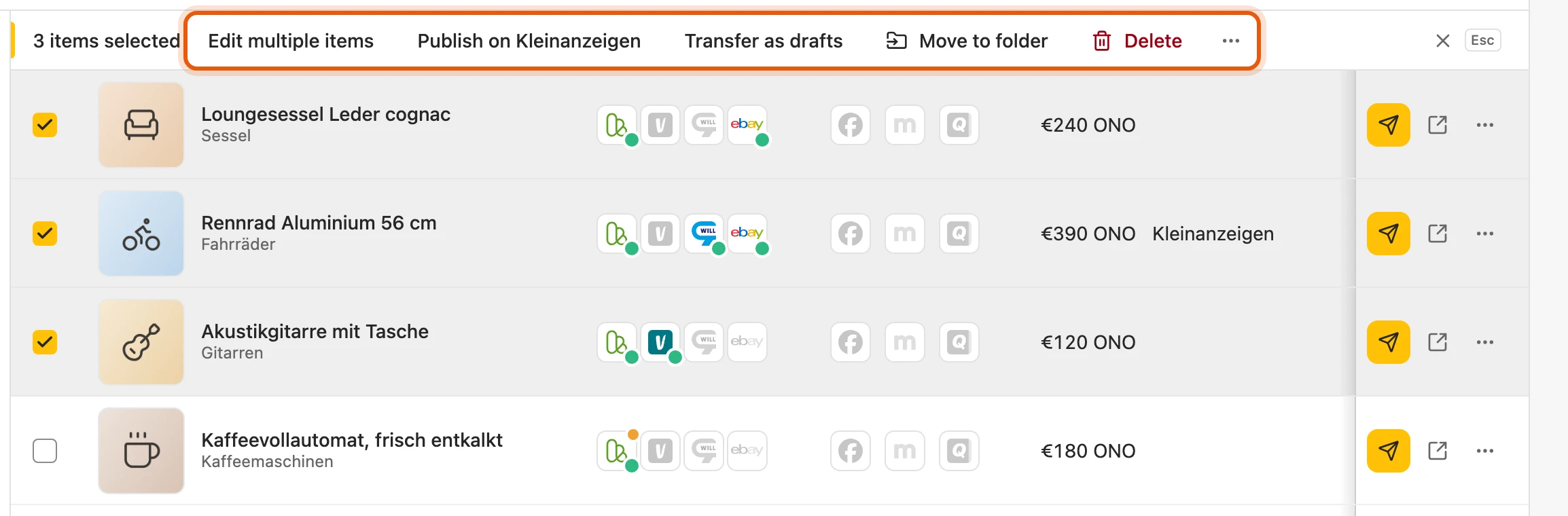
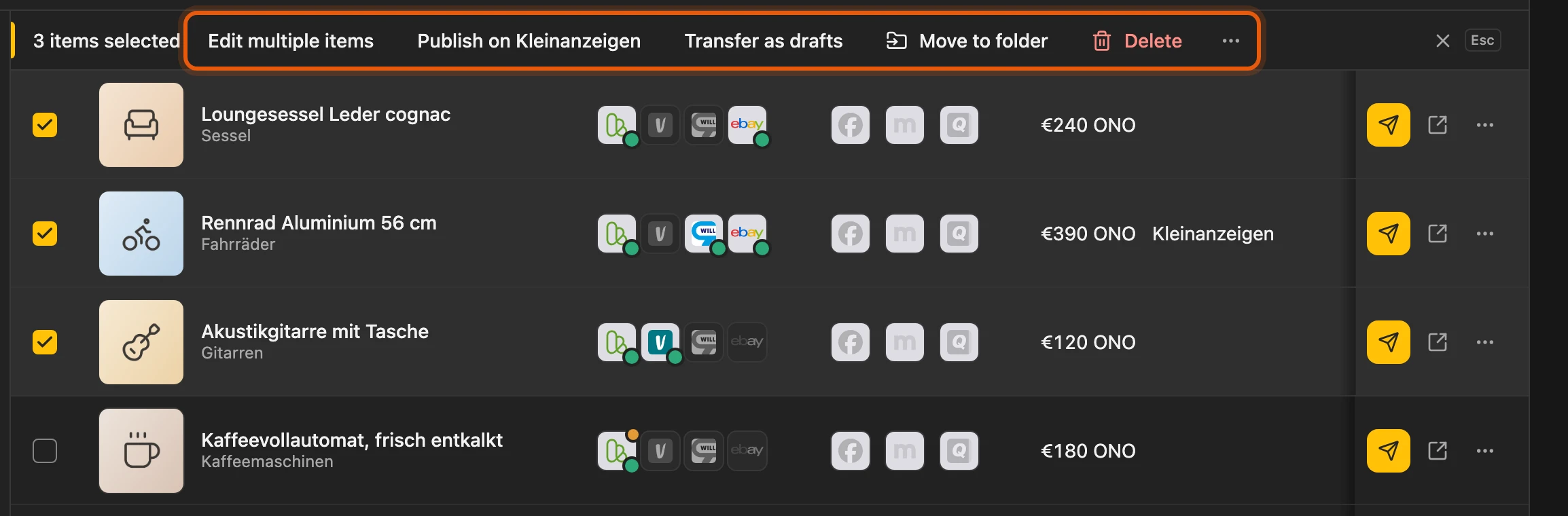
Manage listings … and Transfer as drafts for several items are available from Privat Plus and Business M, during the beta also with Privat and Business from Version 5 (Bulk actions). Edit multiple items changes price, texts, category, images and shipping; only filled-in fields change.
More: selection and Edit multiple items
- Selection: after Select all, ticks you remove stay excluded. Changing folder or filter clears the selection. Items ticked one by one stay selected while you search, such as “5 items selected, 2 of them outside the search”.
- Price: by %, by € or New price. Title and description: add text at the start or end, or replace it.
- Images: drag them onto the Images tab, sort and rotate them there.
- Direkt kaufen: On only applies to items with shipping and a price from €1 to €2,000.
- Shipping: Change sets the shipping type and the carriers of one parcel size. If you choose no carriers, every item keeps its own.
- Move to folder: the message at the top offers Undo.
- Watch: when every slot is taken, the message says how many made it.
Sales goal and floor price for many items
Section titled “Sales goal and floor price for many items”-
Tick the items and click Edit multiple items.
-
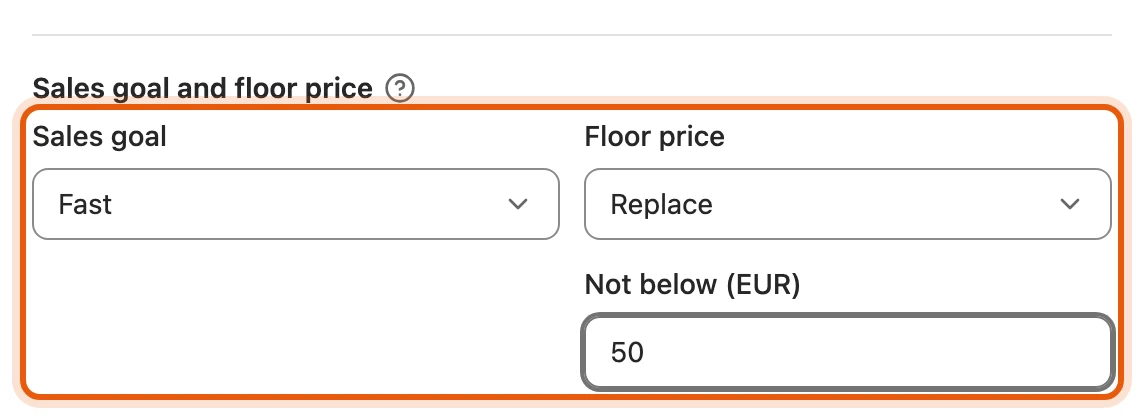
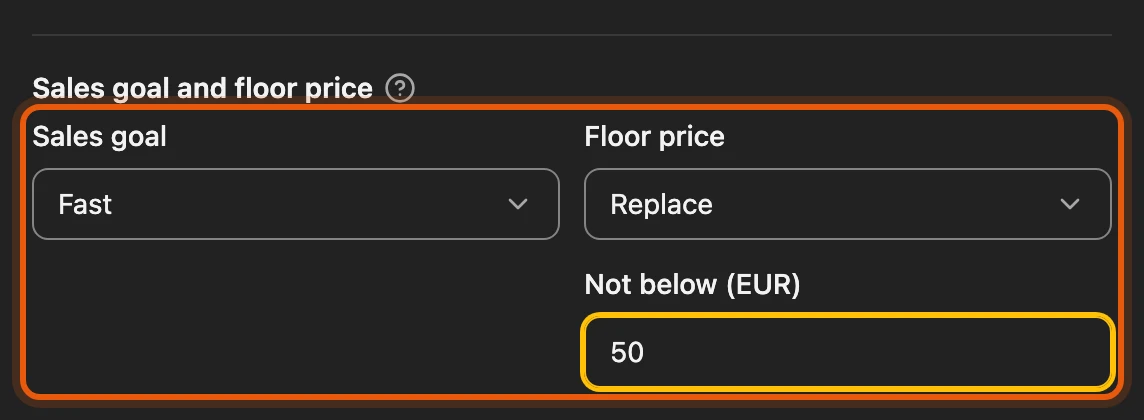
On the Price & texts tab, choose the new values under Sales goal and floor price. Default (clear) brings back the goal from Settings › Inventory.
-
Click the button at the bottom right, for example Change 3 items. Preview shows the old and new values first.
Neither is ever published. What the goals do: Sales goal and Floor price. If an item was edited elsewhere in the meantime, the dialog skips it and names the reason.
Deleting
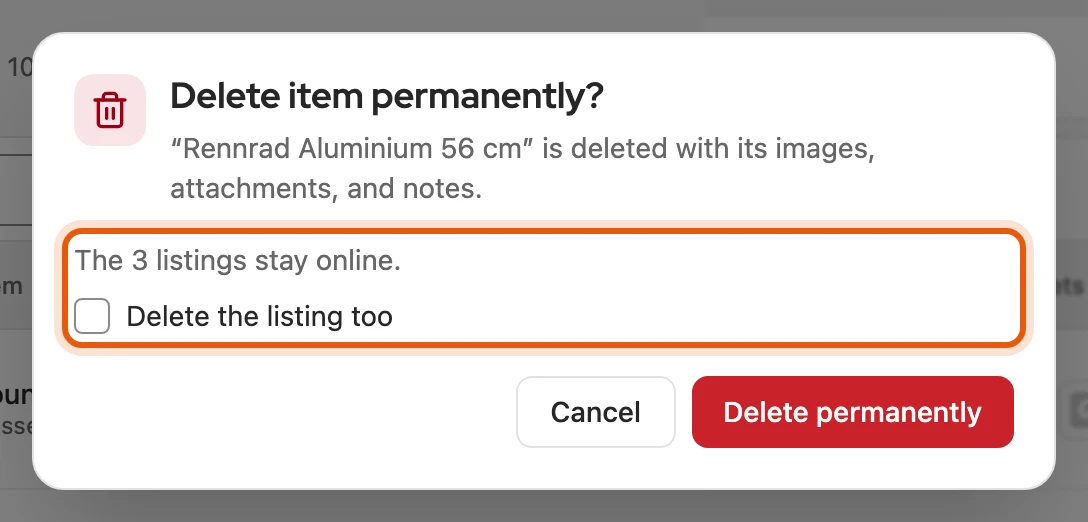
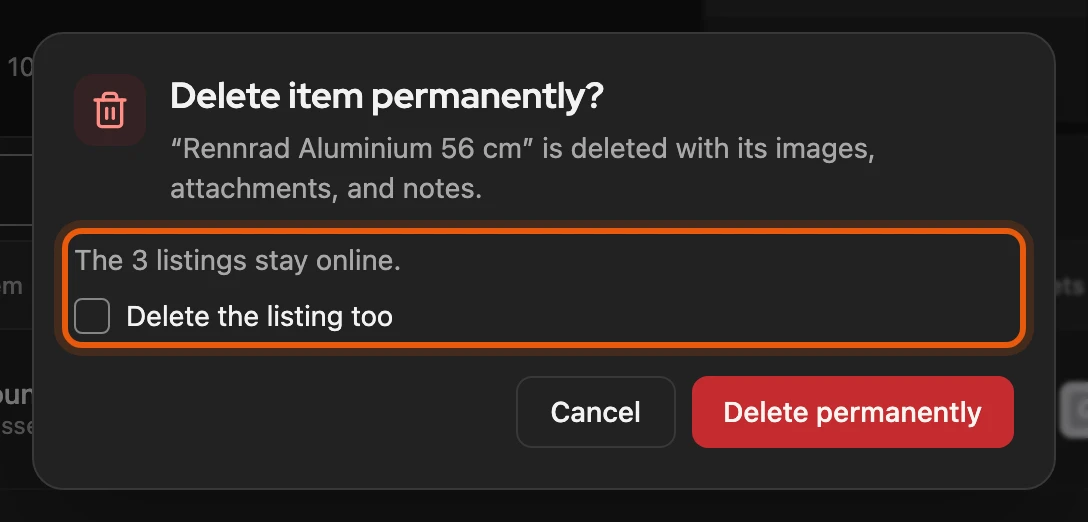
Section titled “Deleting”Deleting is final; there is no recycle bin, and pictures, attachments and notes go with it. The listings on the platforms stay online unless you choose Delete the listing too in the dialog.
More: what happens to the listings
- Several items: the dialog says how many listings stay online, such as “3 listings on Kleinanzeigen, Vinted stay online.”
- One item via its menu: Delete the listing too or Delete the 2 listings too. If a listing cannot be deleted, the item is kept; Delete only the item deletes it anyway.
When the inventory is full
Section titled “When the inventory is full”Without a licence you have room for 50 items, with a licence more. When all are taken, you cannot create new items; existing ones stay usable. You see the state under Settings › Licence. This limit is set by your Kleinanzeigen-Enhanced licence, not by Kleinanzeigen.