

Switching from Version 5
There are two ways:
- Update: if Version 6 replaces your Version 5, it finds your data in the browser by itself.
- Backup: if you test Version 6 alongside Version 5, you take over your inventory with a backup.
After the update to Version 6
Section titled “After the update to Version 6”-
The browser shows Version 6 is here once. A click opens the dashboard.
-
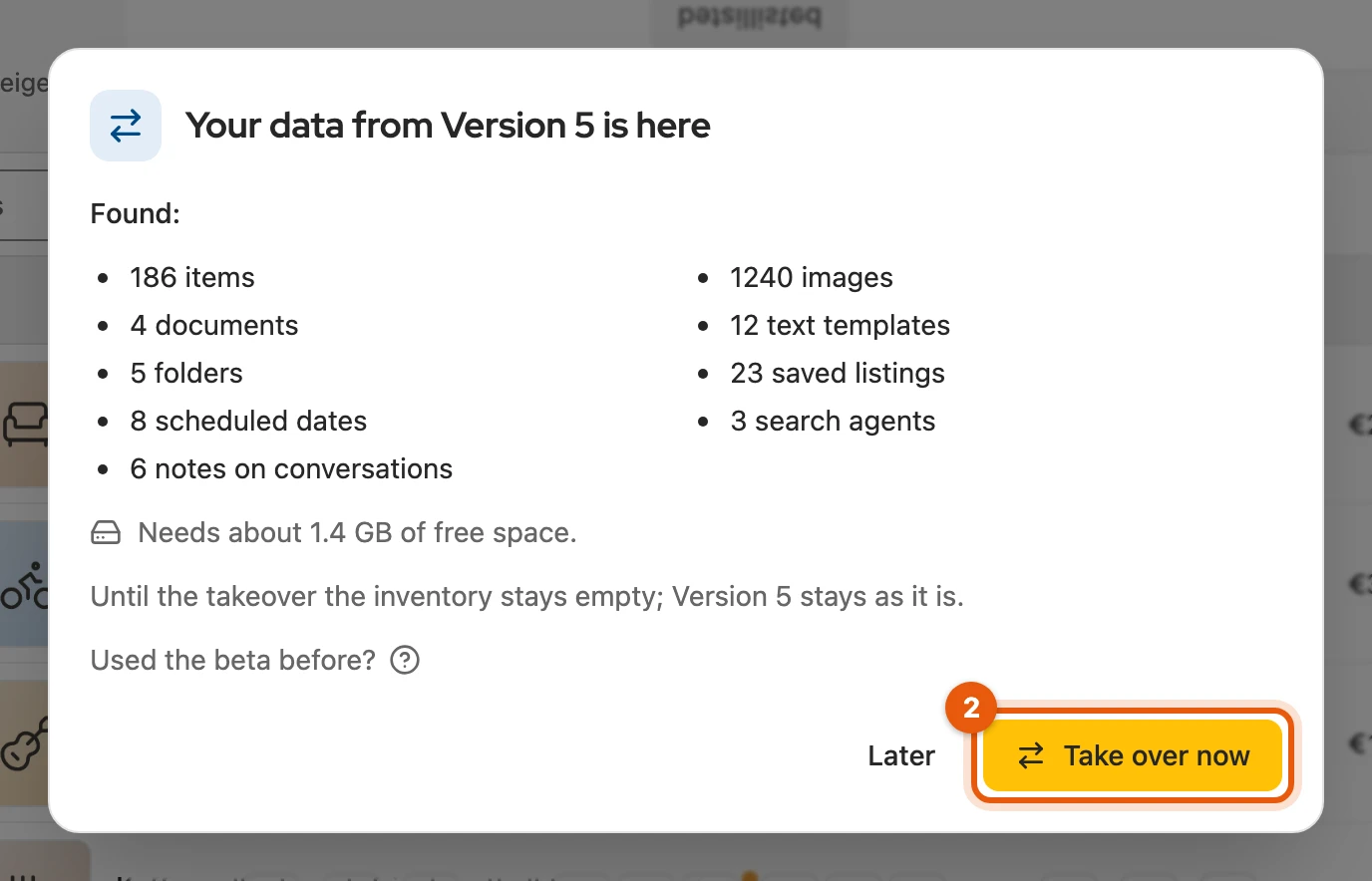
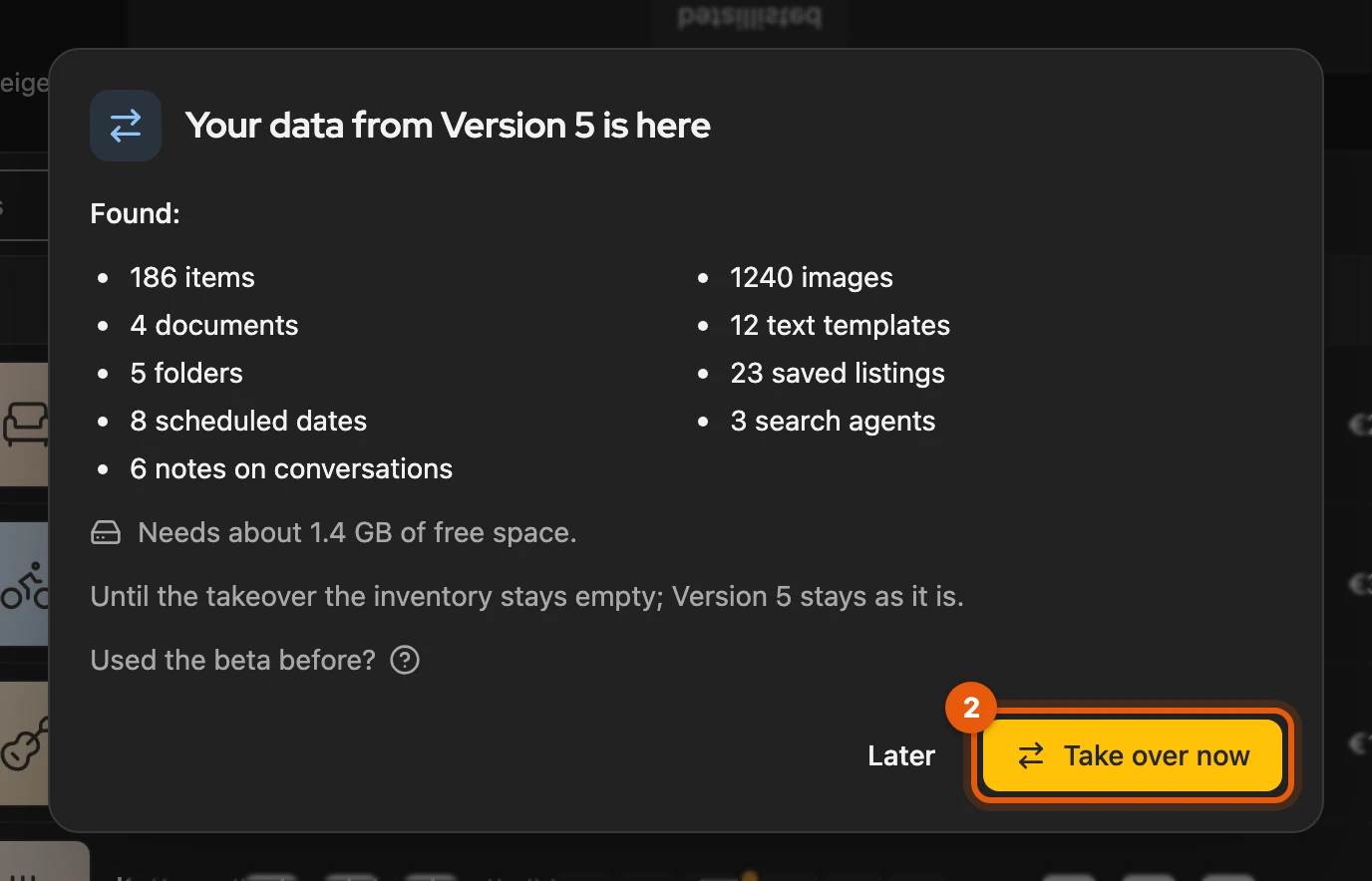
At Your data from Version 5 is here, click Take over now. Until then, your inventory in Version 6 stays empty.
-
Leave the tab open until the window shows the result, then click Close.
If you were signed in to Version 5, Version 6 signs you in without a password; otherwise the start page shows Sign in once. If the Version 6 Beta ran in the same browser and you have already removed it, first restore your cloud backup under Settings › Data & import.
More: what is taken over, interruptions, signing in
- Taken over: items, images, PDF attachments, notes on your own listings, eBay drafts, the Vinted inventory, text templates, schedules, search agents and connections; plus what no backup contains: notes on conversations, the statistics of your listings, the counter of your extensions and links to other platforms.
- Where notes end up: on the listing’s page on Kleinanzeigen, and in the inbox above the conversation, as long as Show note field is on.
- Not taken over: follower history, calendar log, defaults for listings from photos, introduction, table views and caches.
- Later shows the notice again the next time you open the dashboard.
- If the tab is closed, the takeover continues; after a browser restart it picks up where it left off. The result only lists what was not taken over, with the reason.
- Sign in once sends a code by email; your address from Version 5 is already filled in. In Firefox, the browser asks once for the licence server permission when you click Take over now.
- Version 6 Beta in the same browser: Version 6 first takes over its data, then the data from Version 5. What you changed in the Beta stays; afterwards you can remove the Beta.
What ran automatically in Version 5
Section titled “What ran automatically in Version 5”So that nothing happens twice, for example through Version 5 on a second computer, nothing starts by itself after the takeover:
| Area | After the takeover |
|---|---|
| Schedules, search agents | paused |
| Autoresponder | with its text, but switched off |
| Automatic extension | keeps running as in Version 5 |
| eBay | connect once more |
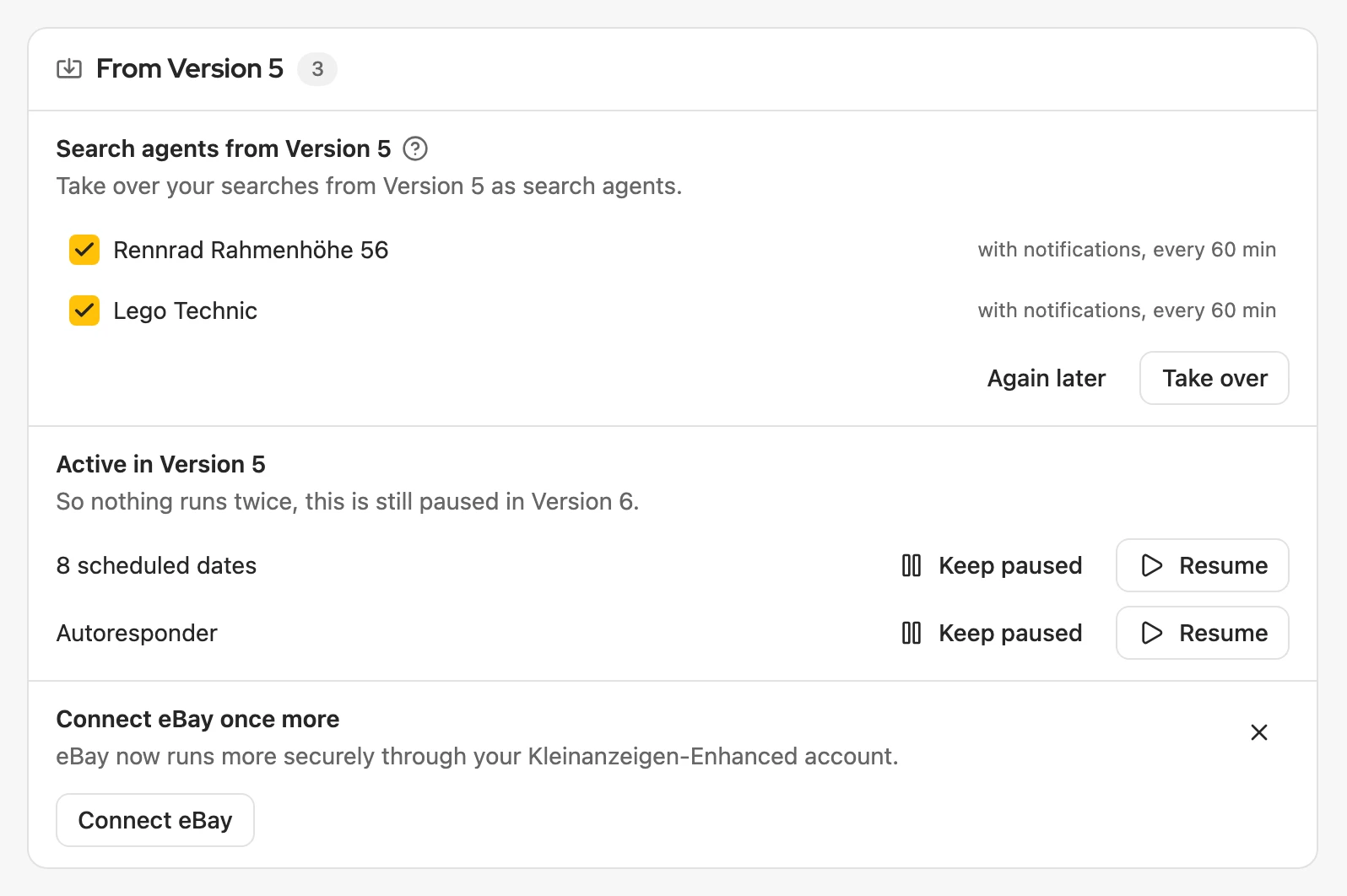
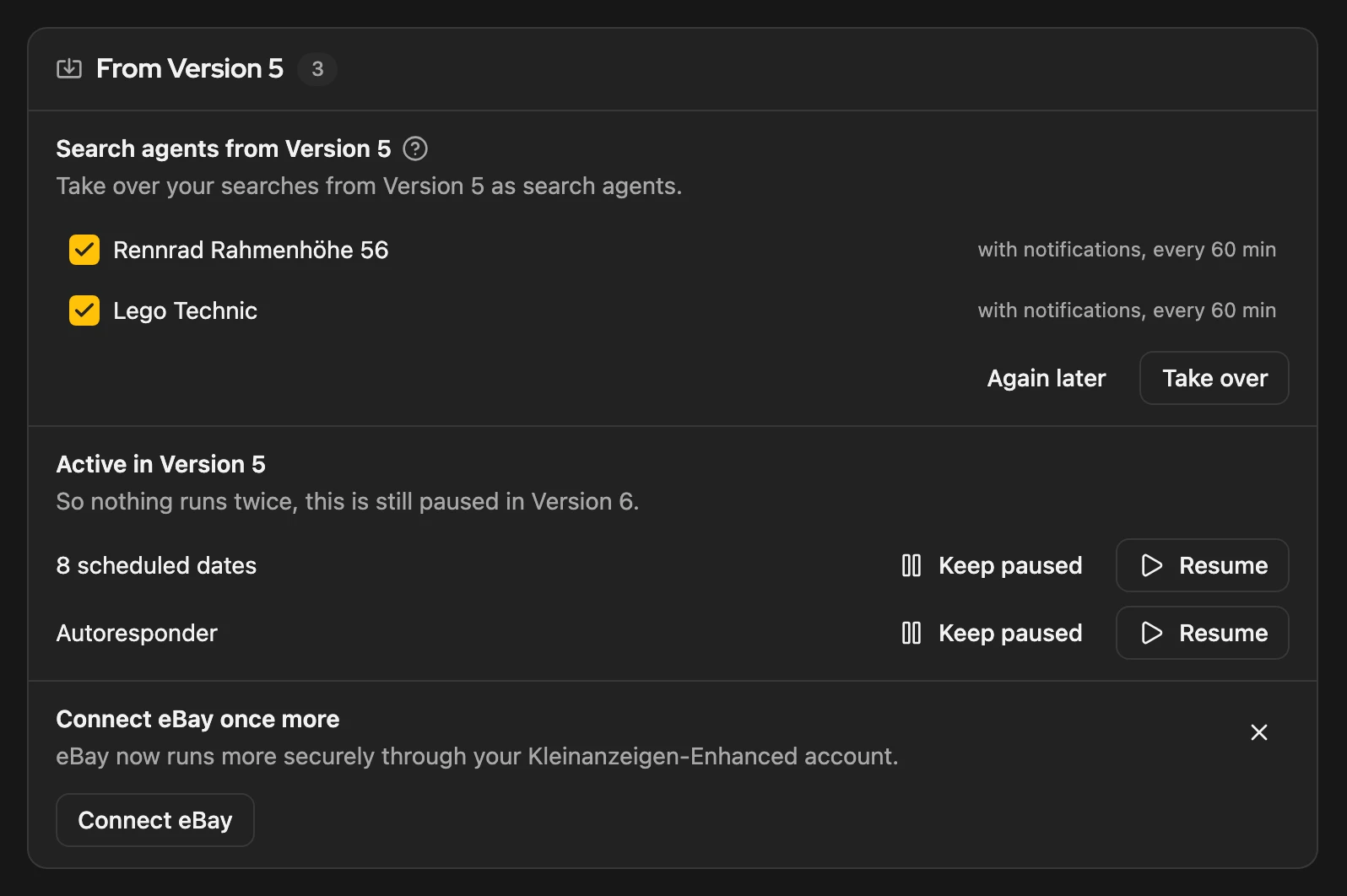
The From Version 5 card on the start page shows the open points:
More: search agents and the reminder
- Search agents with a search address from kleinanzeigen.de all come along, even beyond your plan’s limit.
- Most search agents of Version 5 are saved searches from “Meine Suchen” (My searches) on Kleinanzeigen. Search agents from Version 5 shows all of them selected, Take over creates them. You need to be signed in to Kleinanzeigen; listings already reported do not come again. If it does not work right now, try again with Again later.
- On the other pages the header reminds you, for example 2 points from Version 5 are still open; Show leads to the card, the cross hides the line until you open the dashboard again.
Removing old data from Version 5
Section titled “Removing old data from Version 5”Version 6 never deletes it by itself. Under Settings › Data & import, Remove old data from Version 5 shows how much space it frees; it is only deleted after your click.
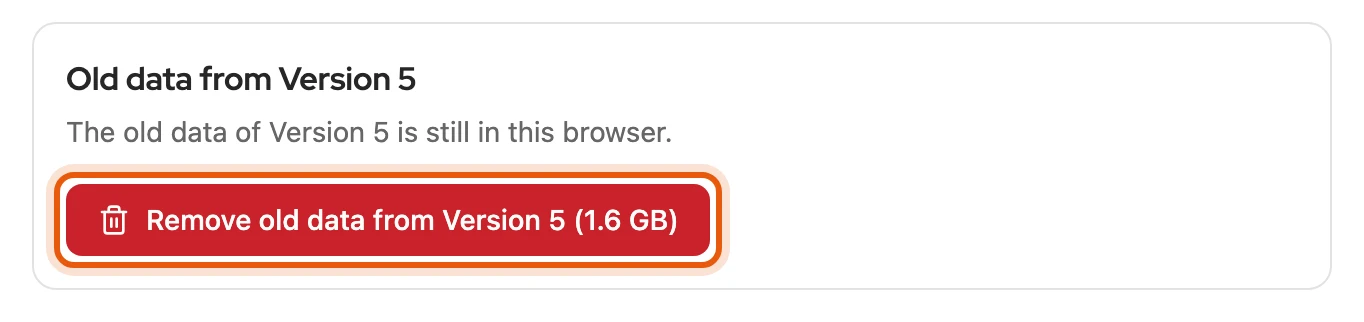
If there is not enough space for the images, you have two ways:
- Free up space on the drive and click Try again.
- Move the images and continue: needs hardly any space, but Version 5 no longer has these images afterwards. First save a backup with Save the backup to a folder, ideally on another drive.
More: the backup before moving
- Later, Version 6 asks once whether you want to delete the old data.
- In Firefox you get a ZIP file instead of the folder; for very large inventories it is not enough.
- Version 6 reads this backup again under Settings › Data & import.
Taking over from a backup
Section titled “Taking over from a backup”Version 5 no longer needs to be installed for this, and you do not need a licence. The takeover does not count towards the item limit.
-
In Version 5, create a backup: gear › “Sicherung” (Backup) › “Sicherung erstellen” (Create backup). For large inventories, Version 5 stores a folder instead of a ZIP file.
-
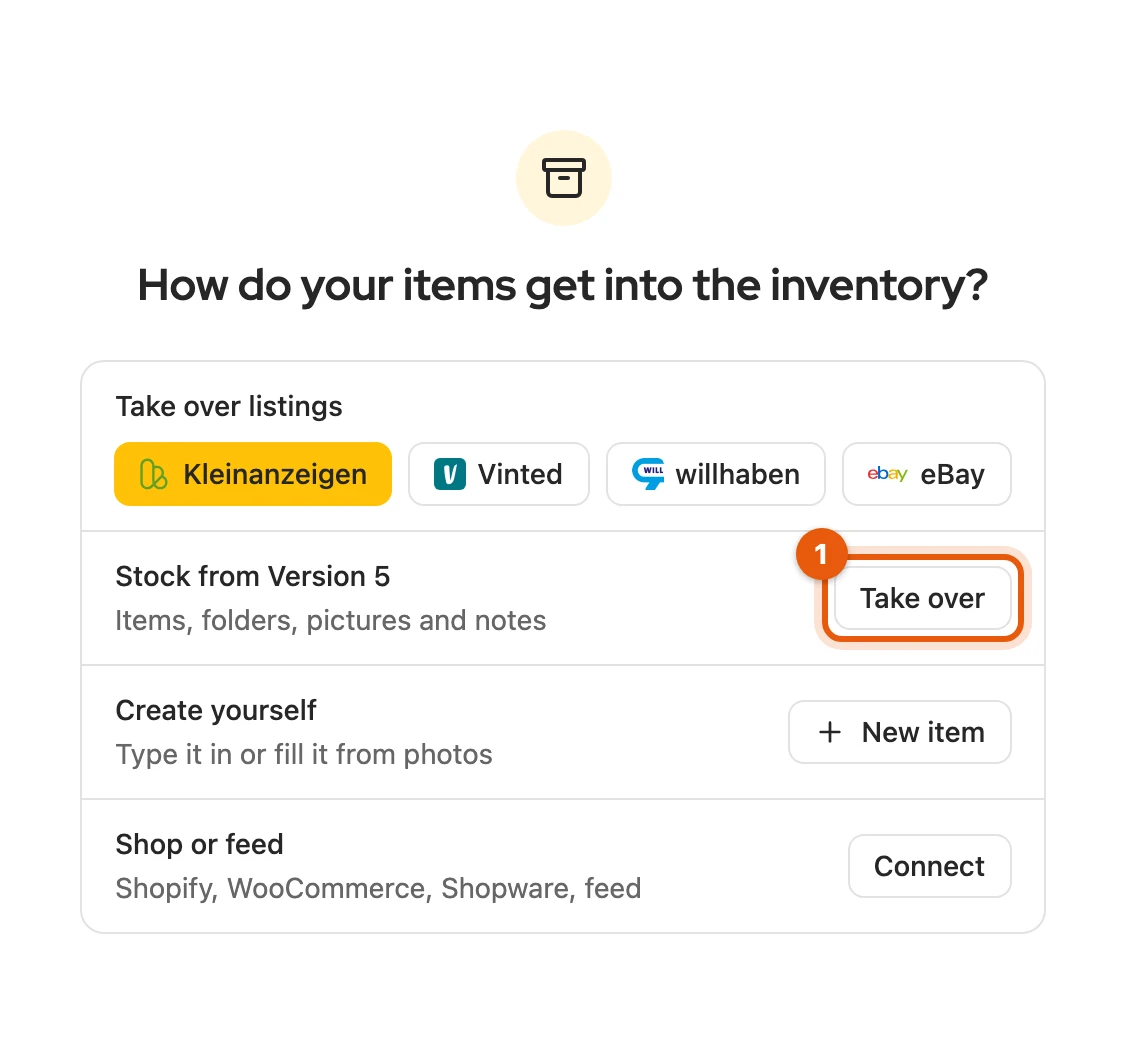
Open Settings › Data & import, or Take over next to Stock from Version 5 if the inventory is empty.
-
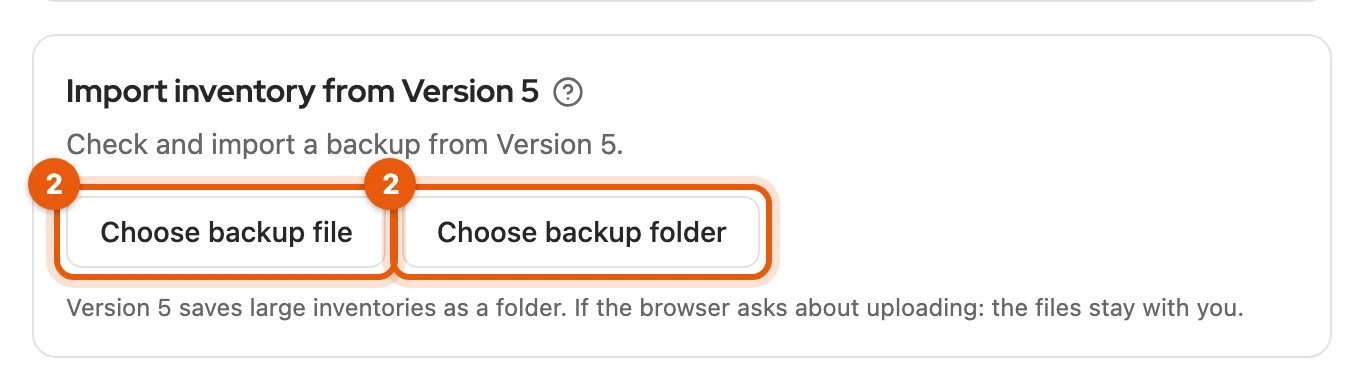
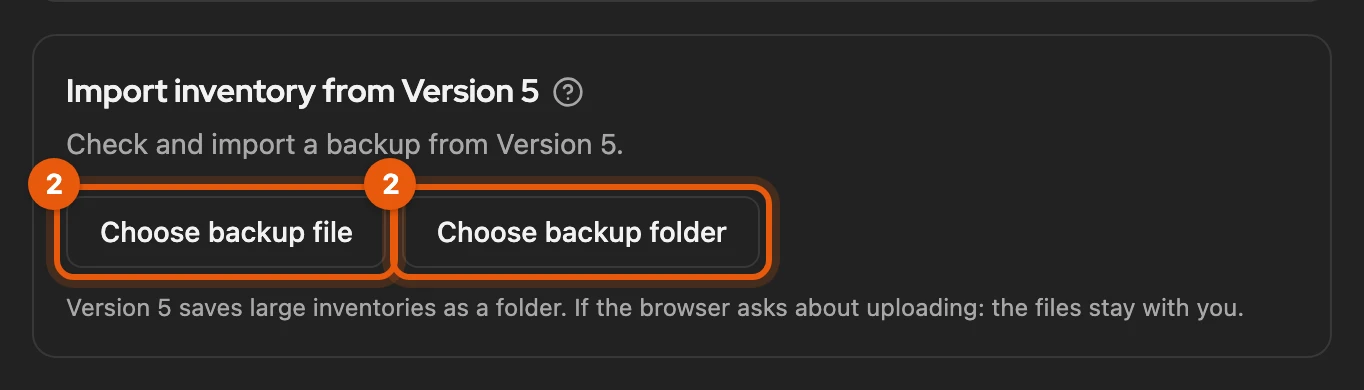
Click Choose backup file, or for a folder Choose backup folder and select the whole folder. The files stay on your computer.
-
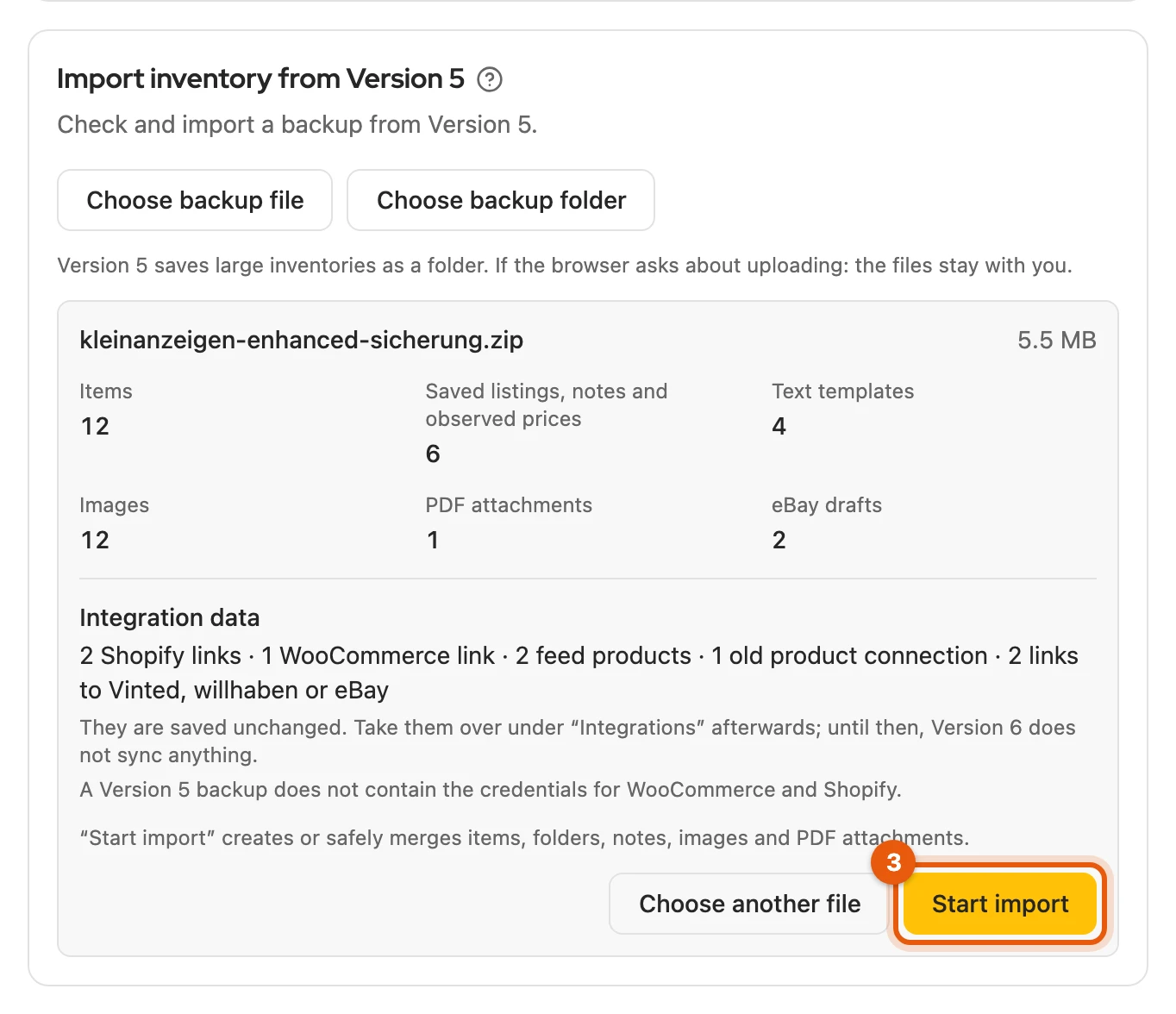
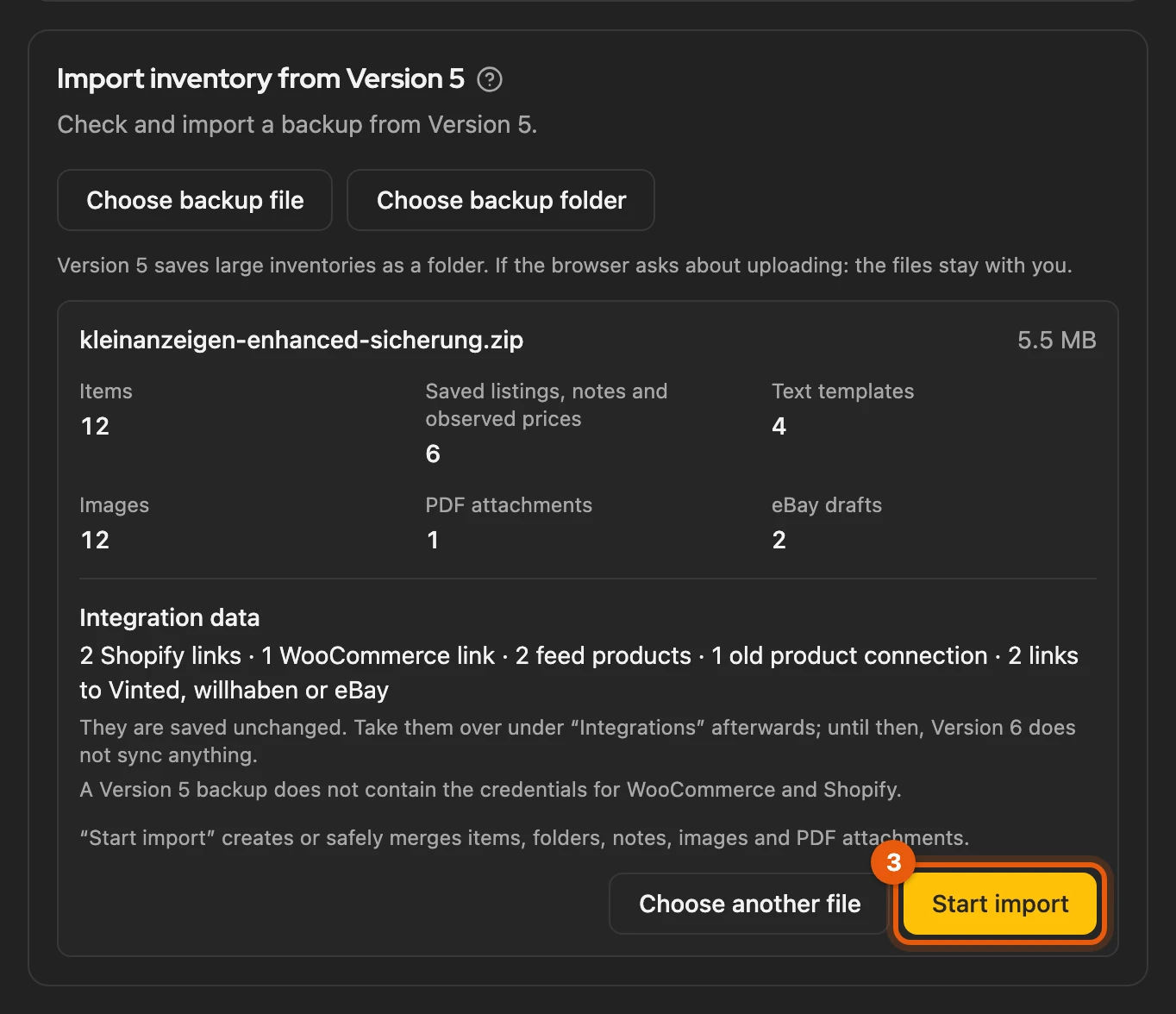
The check shows what the backup contains and does not change anything yet. Click Start import.
-
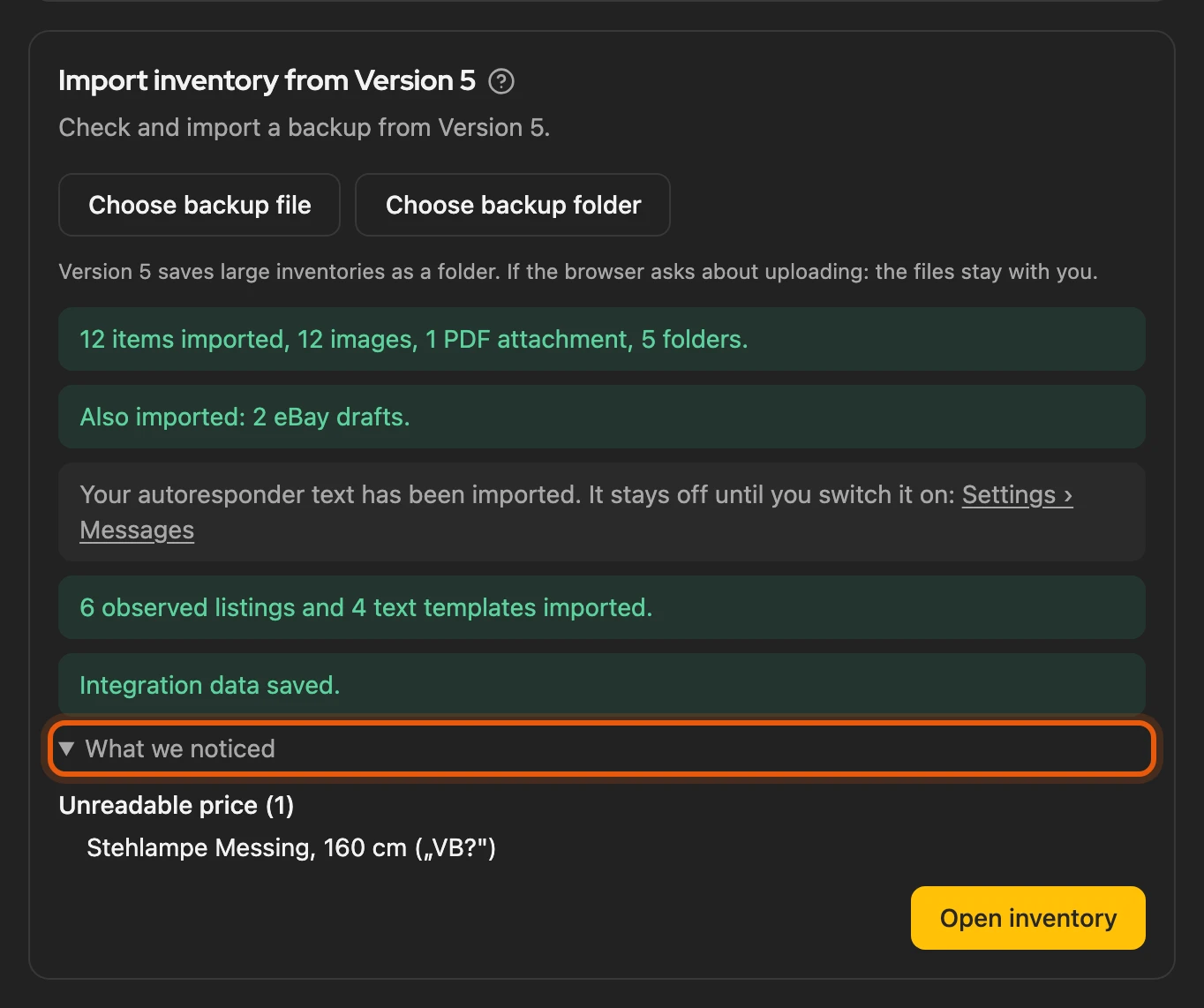
At the end, What we noticed lists details. Open inventory takes you to your items.
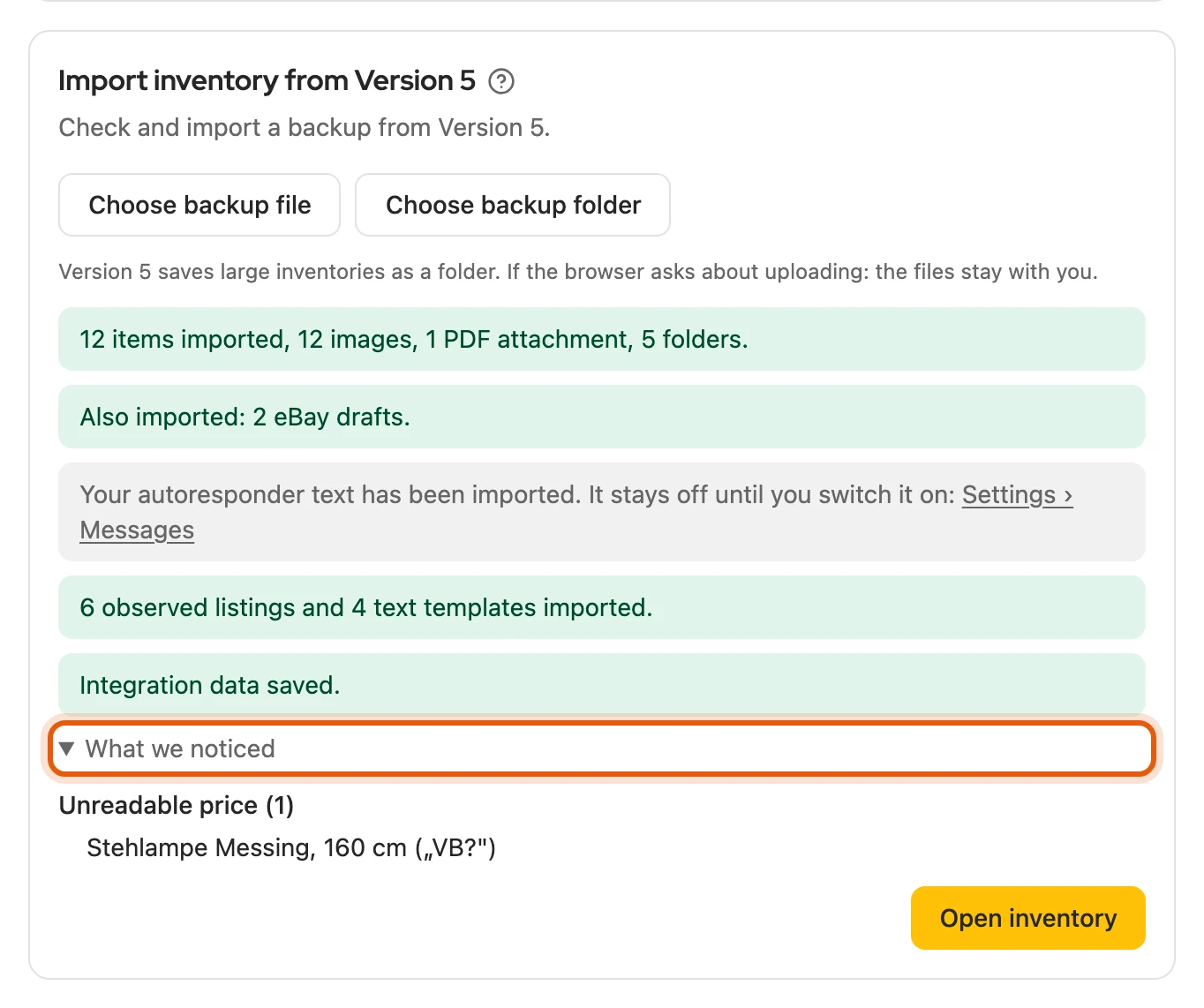
If you are not signed in to Kleinanzeigen in this browser, scheduled listings wait: sign in and click Take over schedules in the card.
More: folders, Firefox, schedules
- Folder instead of ZIP: from more than 400 items or 500 MB. A ZIP file your computer already unpacked while downloading is also chosen as a whole folder.
- Firefox: Version 5 always writes a ZIP file, even for large inventories; confirm the small window with OK. Text templates are only included from Version 5 in Firefox 0.2.35; otherwise create them again under Text templates.
- Old files in the folder: Version 5 never cleans it up. Kleinanzeigen-Enhanced recognises files from an older backup by their age and lists them under What we noticed.
- Setup on the start page: in the step Take over your data from Version 5, Choose backup opens the file dialog right away, Choose folder the one for a folder.
- If the browser asks whether it may upload the files, confirm; they still stay on your computer.
- Schedules: they stay noted even if you leave the page. Discard removes them; only another import of the same backup brings them back.
What is taken over
Section titled “What is taken over”Items with folders, notes, images and PDF attachments, text templates, message folders, eBay drafts, the Vinted inventory and your autoresponder text, which stays switched off. Scheduled listings land paused in the Calendar. You take over shop and feed data afterwards under Shops and feeds from Version 5.
More: details of the takeover
- Kleinanzeigen-Enhanced loads the pictures of the Vinted items from Vinted, one after the other.
- Notes on your own listings then appear on the listing’s page on Kleinanzeigen.
- You switch the autoresponder on under Settings › Messages or at the top of the messages.
- Text templates come with your default template, contact details from “Profil” (Profile) as Location and contact.
- Scheduled listings can only be taken over if your licence includes the calendar.
- The check lists shop and feed data (feed settings and products, links, sync state) under Integration data and saves it unchanged. Until you take it over under Integrations, Version 6 syncs nothing and changes no listing. A backup with only such data can be taken over too.
- The access details for your shops are not in the backup.
Cancelling and taking over again
Section titled “Cancelling and taking over again”- Cancel stops at any time; what has been taken over stays.
- The same file again: it continues from there without duplicates. The page recognises an interrupted takeover the next time you open it.
- A newer backup: your changes in Version 6 win; items edited since the last takeover stay unchanged.
- If the import fails, the checked backup stays in place and Try again continues it.
More: backup limits
| What | Limit |
|---|---|
| ZIP file | at most 4 GB and just under 65,000 files; not encrypted, not multi-part |
| Individual images and PDF attachments | over 20 MB skipped and named in the result |
| Other files | over 64 MB skipped and named |
| Item data | templates.json up to 256 MB, others up to 64 MB per file; otherwise no import |
| Shop and feed data | up to 64 MB per file; a larger one is missing, the rest comes |
| Unreadable file in the folder | for example only in cloud storage: named; for item data the check stops |
If a backup from Firefox is too large, write to us via Report a problem. An earlier version merged templates without a linked listing that had the same title into one item; taken over again, they appear as separate items.
Disabling Version 5
Section titled “Disabling Version 5”If Version 5 runs alongside Version 6, both work until you pause Version 5. Only pause it once you are signed in to Version 6 with a licence: without one, autoresponder, calendar and automatic extension do not run there.
From Version 5.9.24 (Firefox: 0.2.30), the floating menu on Kleinanzeigen shows Version 5 is still active with Pause Version 5:
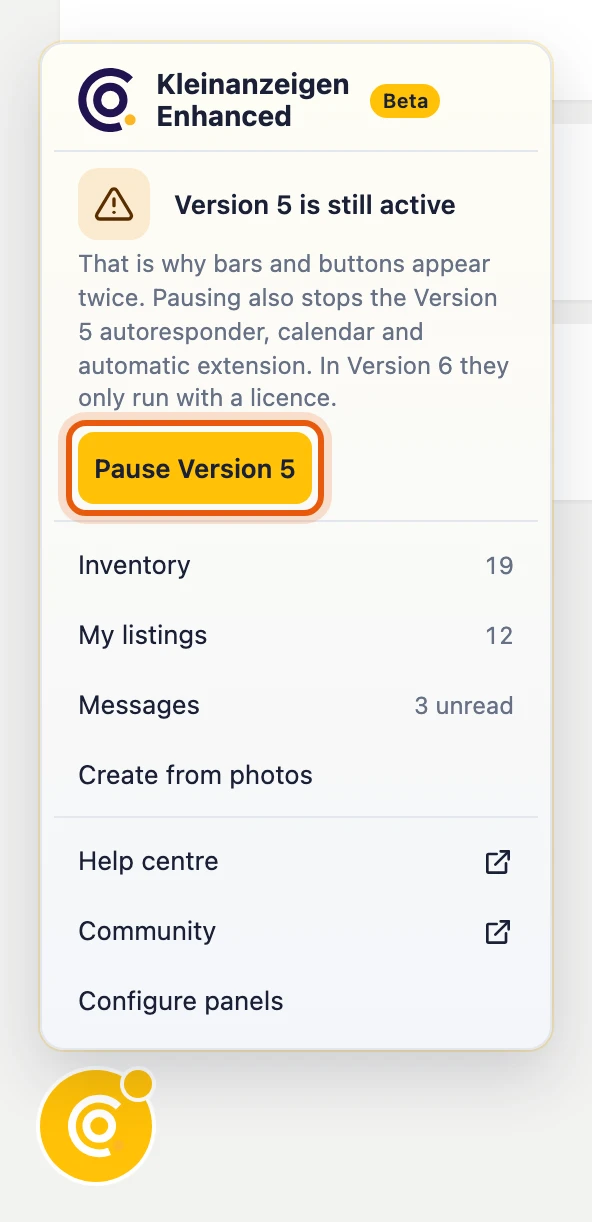
In the dashboard it is the third step of the setup; on the other pages the header reminds you:


After that, autoresponder, calendar, automatic extension, search agents and shop and feed sync rest in Version 5.
- Back to Version 5: in the Version 5 dashboard, click “Version 5 wieder aktivieren” (Reactivate Version 5). Missed schedules are not caught up.
- Older Version 5: switch it off in your browser’s extension manager.
- Another computer: if Version 5 runs there with the same Kleinanzeigen account, switch off autoresponder and calendar there.
More: what applies until pausing and afterwards
- Until you pause, the bars of both versions appear side by side on Kleinanzeigen. The Version 6 autoresponder pauses as long as the Version 5 one answers. Version 6 only resumes schedules it took over once Version 5 is paused, otherwise the same item would be published twice. Version 6 takes over automatic extension as soon as you sign in with a licence.
- Instead of Pause Version 5 it shows Open setup while the sign-in or your data is missing, or Open licence without an active licence. In the setup, Pause becomes available once you are signed in with a licence and have taken over your data or chosen Continue without data.
- As long as Version 5 runs alongside, the round floating-menu button carries a yellow dot. The header notice (Version 5 is still running · Version 5 still runs the autoresponder and calendar) can be hidden for seven days; the arrow next to it expands the full explanation.
- After pausing, the Version 5 buttons on Kleinanzeigen and Vinted disappear on reload, its icon shows “II”, and its dashboard stays available. Version 5 in Firefox has no autoresponder and calendar; there, extension, the message check and the bars rest.
- Back to Version 5: the autoresponder only answers new enquiries. If you remove Version 6, Version 5 resumes its tasks by itself after two days.
- Version 6 recognises an older Version 5 by its menu button and warns until it is off. If you switch it on again later, it catches up on missed schedules.
- Another computer: Version 6 recognises a second autoresponder by its answers and warns you.
- Version 6 shows notes on other people’s listings and price change hints only for listings it knows itself; what only Version 5 has appears again when you reactivate it. Version 6 has no transfer to Flinkanzeigen and no inbox for Vinted.