

Calendar
With the Calendar you plan when items are published on Kleinanzeigen, once or on a recurring basis. It appears in the sidebar if your licence includes it.
Creating a schedule
Section titled “Creating a schedule”- Choose Publish later in an item’s menu, in the selection bar or when publishing. In the Calendar you start with New schedule and tick the items.
- Choose the Schedule type: Once, Daily, Weekly or Monthly. Date and time are suggested as the next evening on which buyers are most active.
- Check the dates in the preview and click Save. If there are conflicts, the reason stands beside the button.
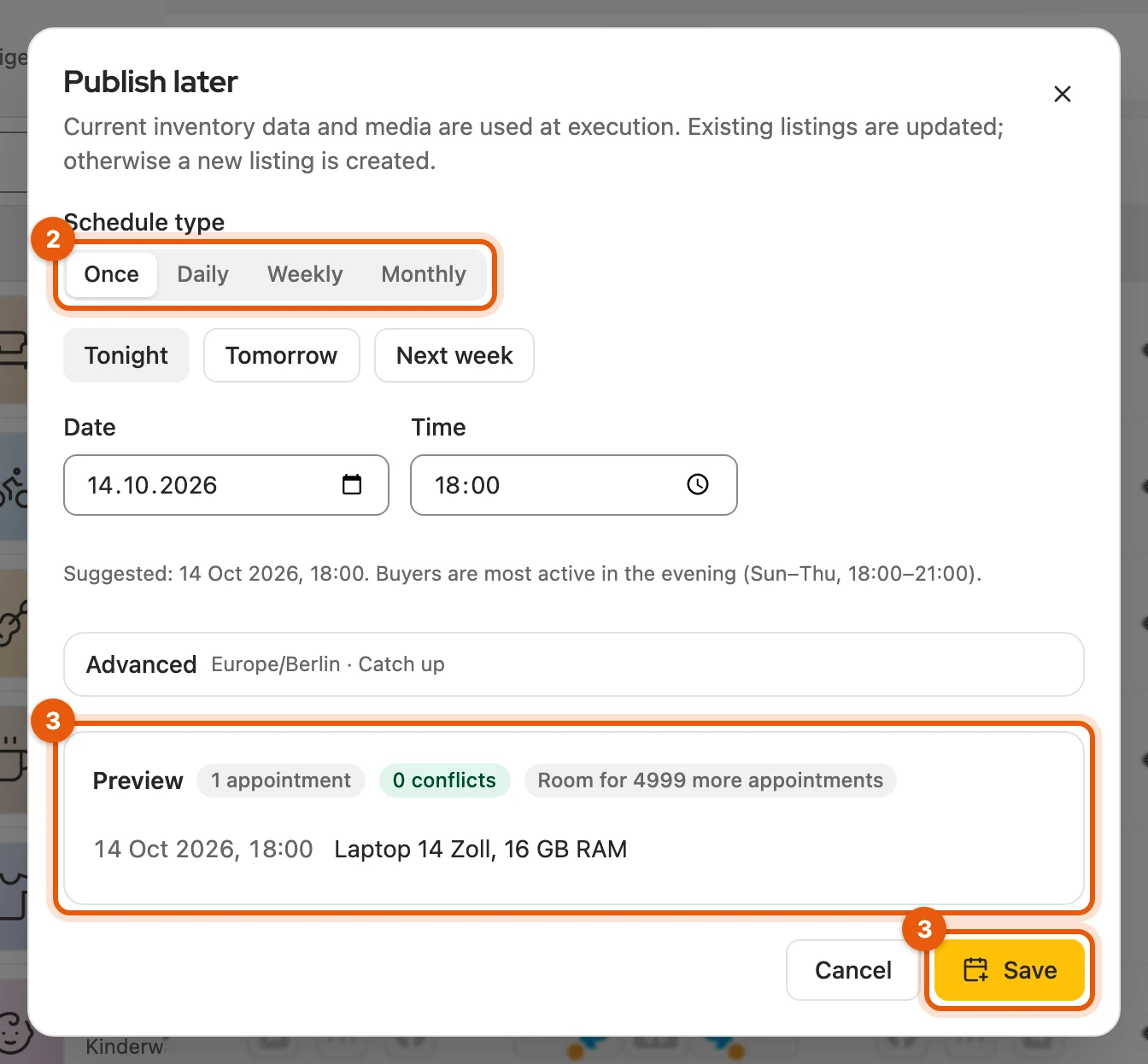
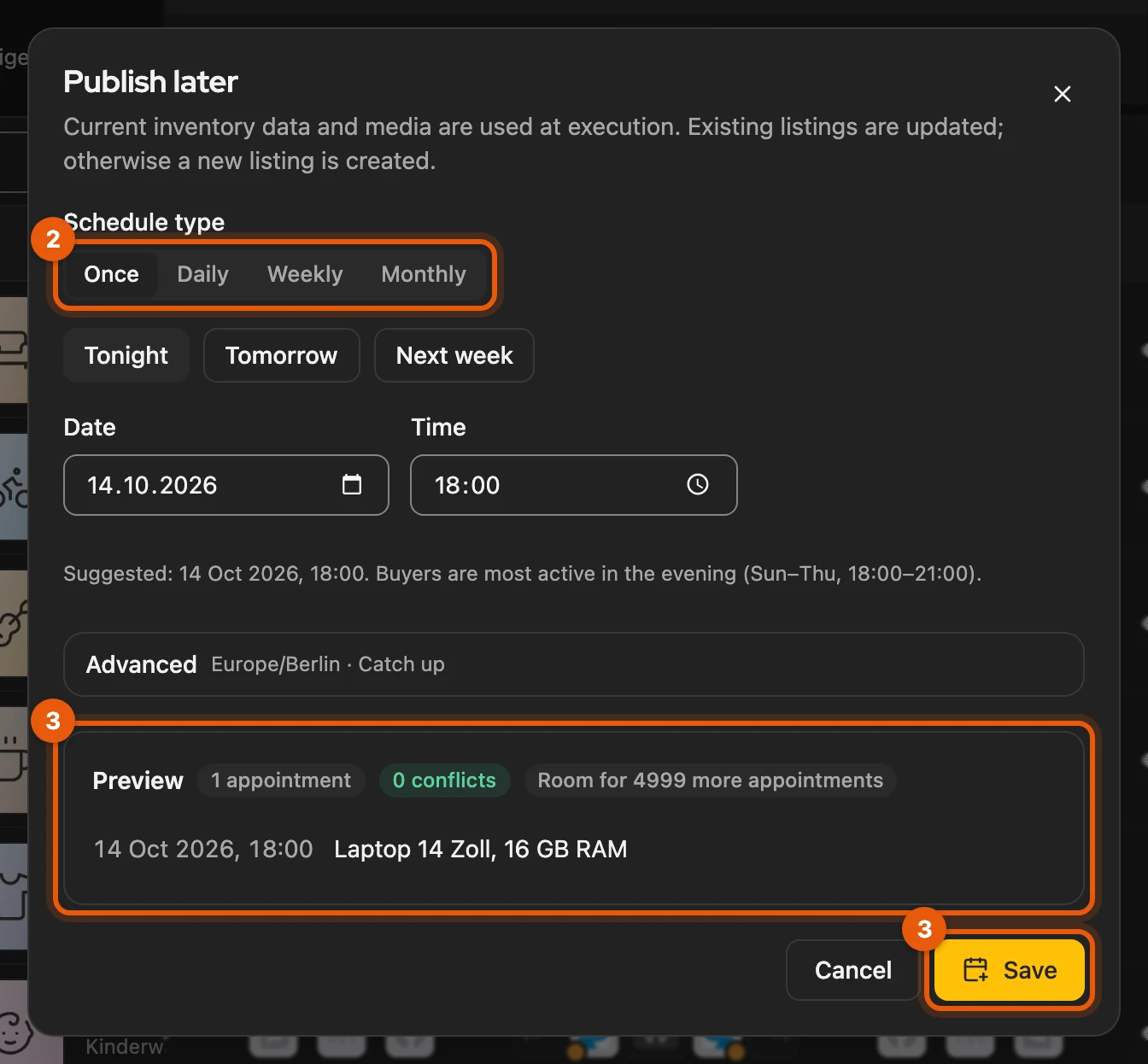
At the scheduled time, Kleinanzeigen-Enhanced takes the current state of the item. If it is already online, the existing listing is updated, never a second one created (Publish on Kleinanzeigen).
More: how the suggested date comes about
- Tonight, Tomorrow and Next week set date and time in one click, at the time from which your buyers are most active (usually 6 pm).
- Outside the season: if you schedule a single item, the dialog suggests the start of the season. If it keeps losing value (such as an iPhone), it stays with the next evening (Inventory › When).
- Use suggestion brings the suggestion back after you changed the date.
- Without Best listing time in your licence, the time in one hour is shown at first.
If the browser is closed at the scheduled time
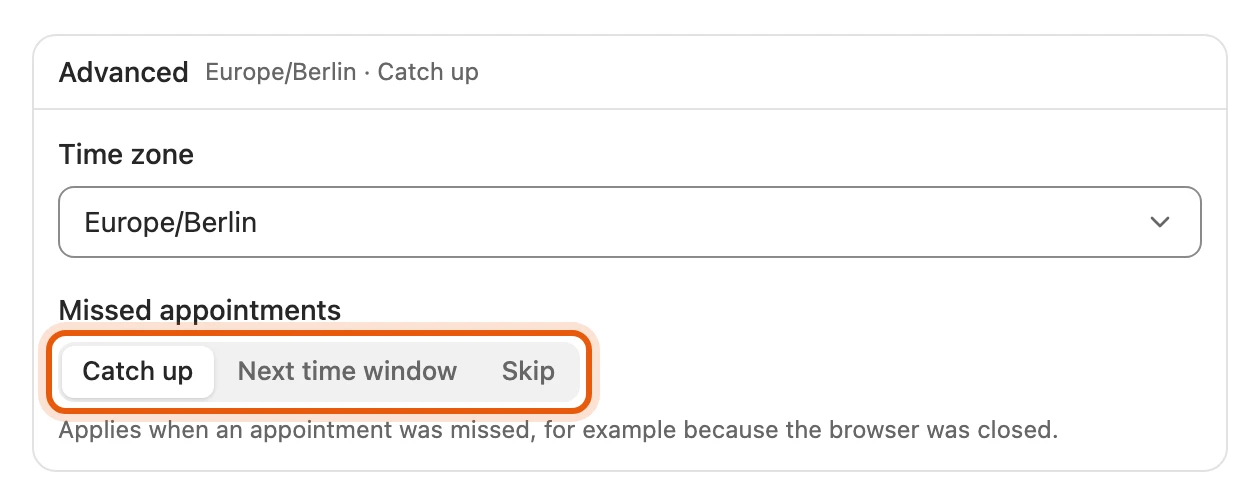
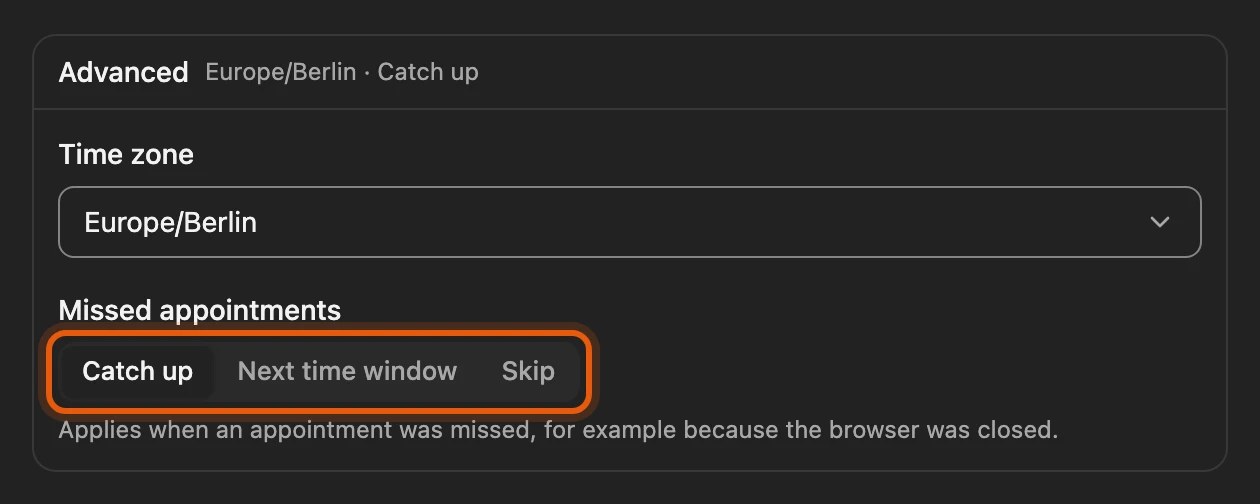
Section titled “If the browser is closed at the scheduled time”Dates only run while your browser is running and you are signed in to Kleinanzeigen. You set what happens to missed dates at the bottom of the dialog under Advanced › Missed appointments; the default is Catch up.
More: options, deadlines and limits
| Option | What happens |
|---|---|
| Catch up | The date runs at the next opportunity. |
| Next time window | The date moves to the next window from Time of day from/until. |
| Skip | If the date is more than the set number of minutes late, it is skipped. |
- Dates from the sales agent are caught up for up to 48 hours. After that the bell reports “Missed date” with Plan again.
- Signed out: due dates wait with Needs attention. Once you are signed in, they carry on by themselves.
- Limit: at most 5,000 waiting dates. The top of the calendar shows the room left, the number overdue and how many listings you can still post for free on Kleinanzeigen.
Managing dates
Section titled “Managing dates”Upcoming, Paused and History separate open and finished dates. At the top you switch between Table and Calendar (2); in the calendar you move dates by dragging.
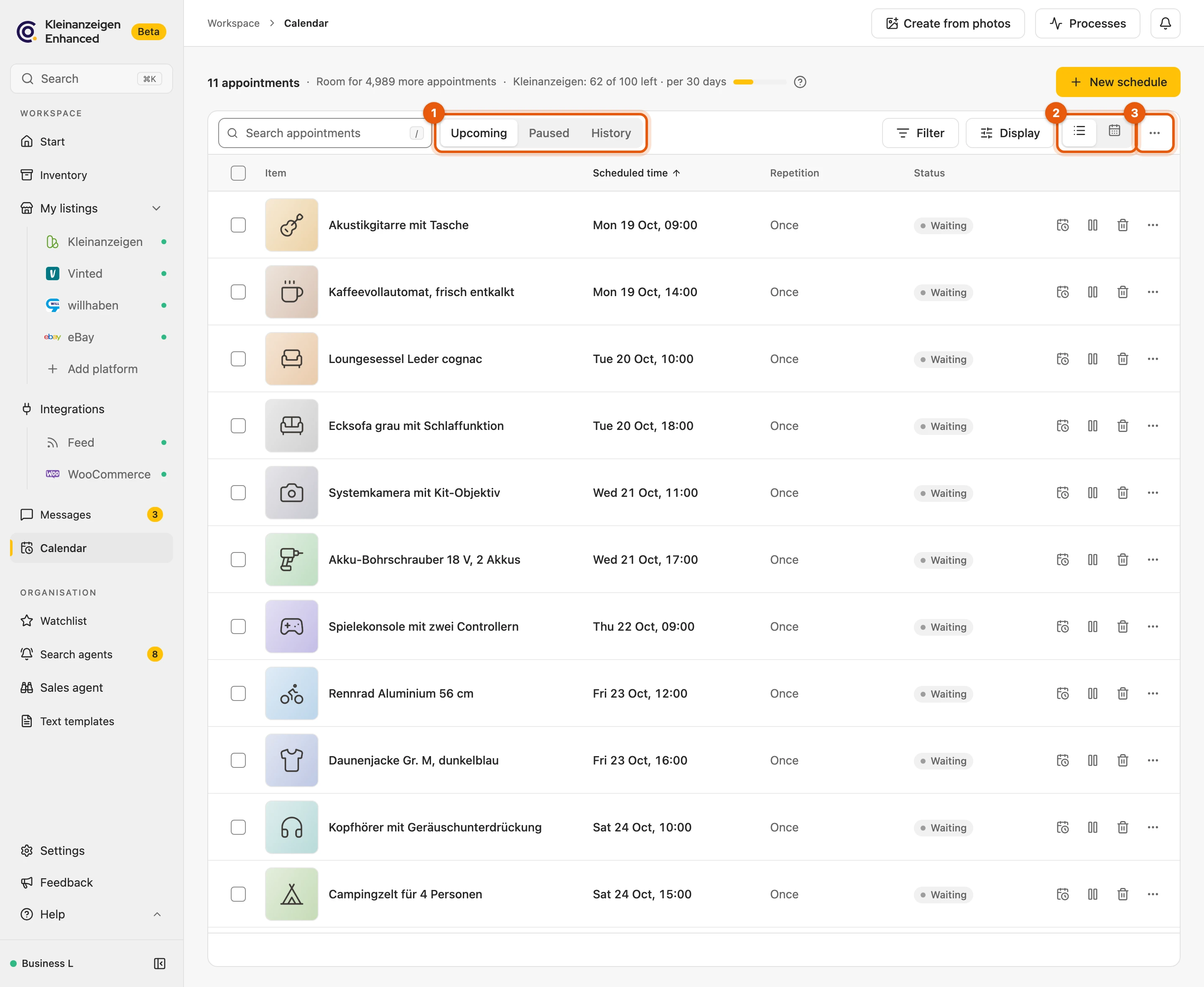
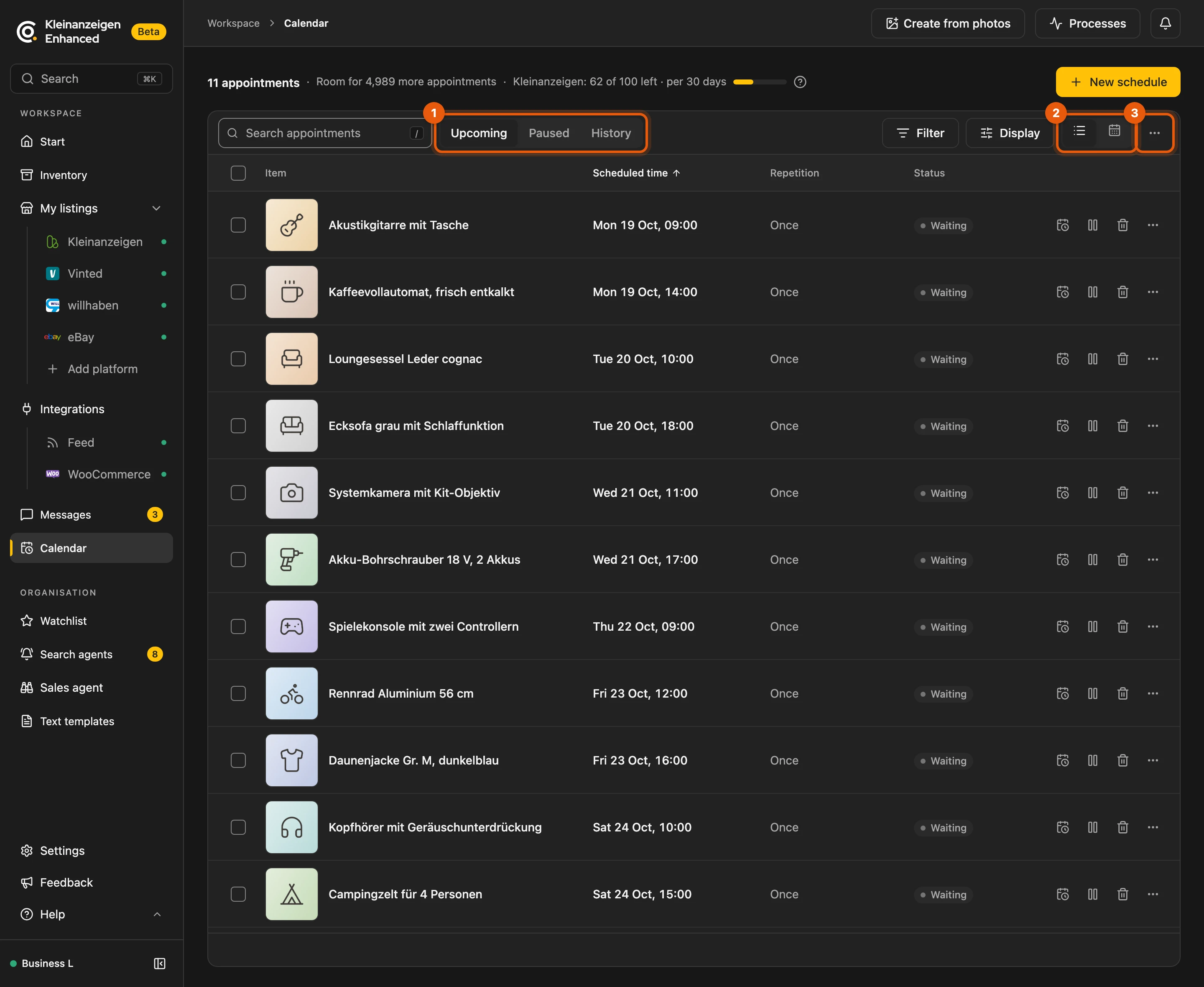
Clicking a date opens Edit schedule; for series you choose under Apply to what the change applies to. On the right of every row you pause, reschedule or delete.
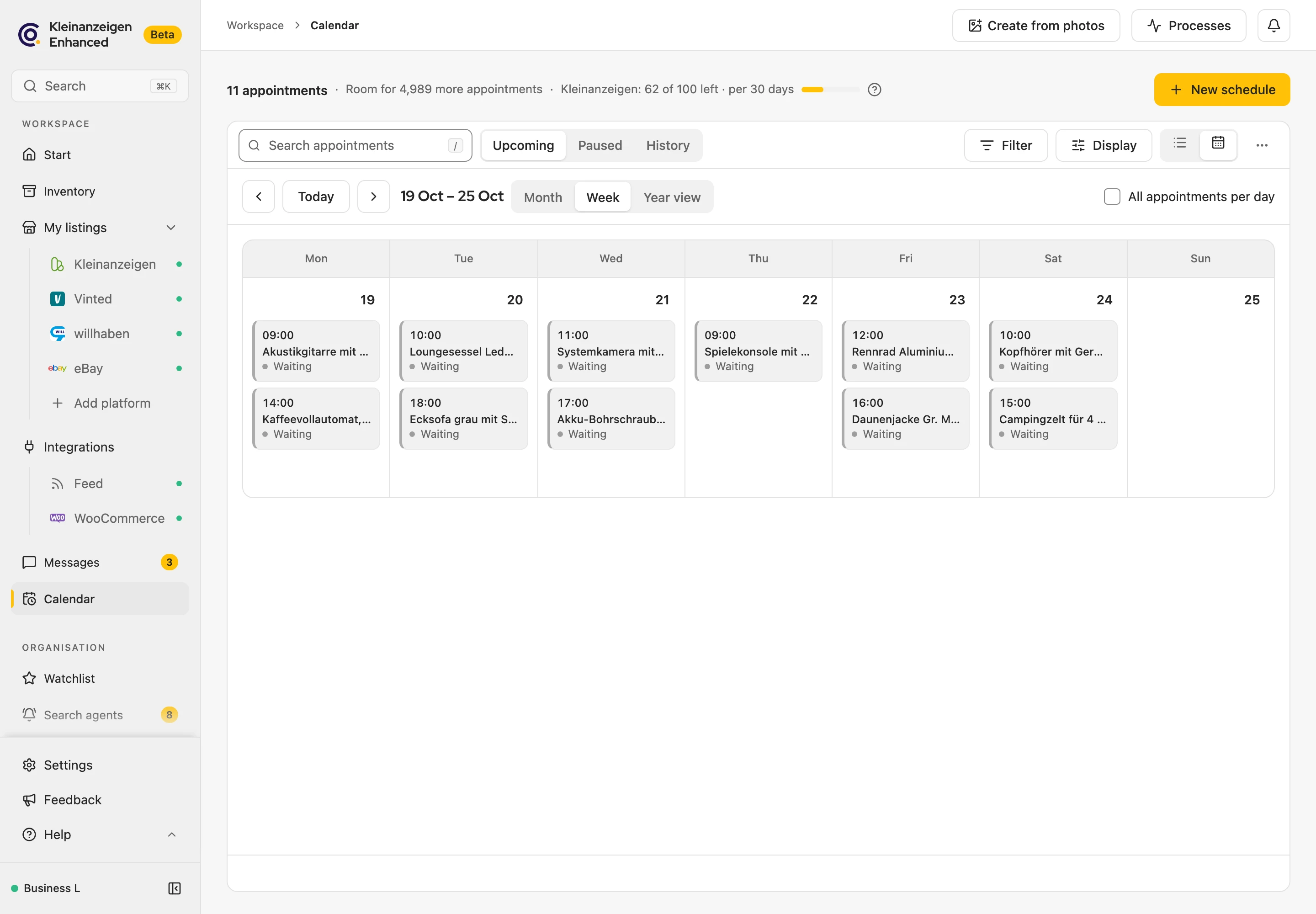
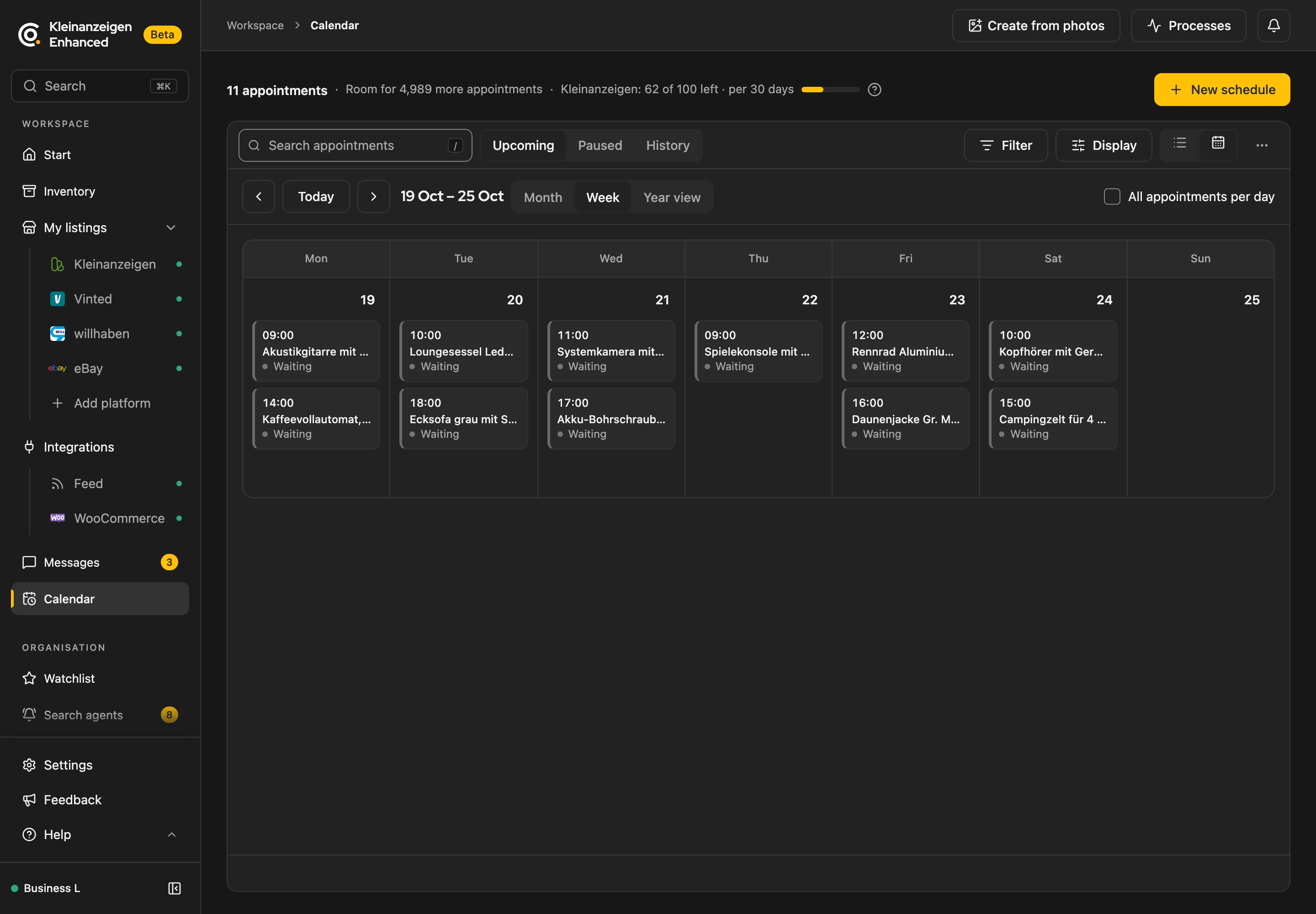
Dates from Version 5 only carry on once you pause Version 5, otherwise the same item would be published twice (Disable Version 5).
More: deleting, export and sales agent dates
- Delete removes a single waiting date at once; Undo schedules it again. For series, paused dates and dates that have already run, a dialog asks first.
- Schedule again plans a date that has already run once more.
- ⋯ on the right above the list: export and import schedules (imported dates are paused at first), empty the queue of due dates, delete all dates.
- Item deleted: its open dates disappear too.
- From the sales agent: it checks such dates the day before; if something is missing, the bell reports “… – something is still missing”. Pause everything under Settings › Notifications pauses them.
Status of a date
Section titled “Status of a date”- Needs attention: something is missing, such as allowance, sign-in or licence; the reason is shown on the date. After signing in, it carries on by itself.
- Unclear: check on Kleinanzeigen whether the listing is online and settle the process under Processes. The date is never repeated by itself.
- Skipped: the date was too late, you cancelled it, or the item has been sold.
More: all statuses
| Status | Meaning |
|---|---|
| Waiting | The date is still to come. |
| Paused | Only runs once you resume it. |
| Running | The listing is being published right now. |
| Unclear | Whether the listing went online is open. Another date of the same item waits until then. |
| Succeeded | The listing is online. |
| Needs attention | Something is missing; the reason is shown on the date. |
| Skipped | Skipped by your rule, cancelled under Processes, or item sold. |
| Failed | Publishing did not work. |