

Subscription and invoices
Under Settings › Subscription & invoices you see your subscription, invoices and billing address. You need to be signed in for this.
Your subscription
Section titled “Your subscription”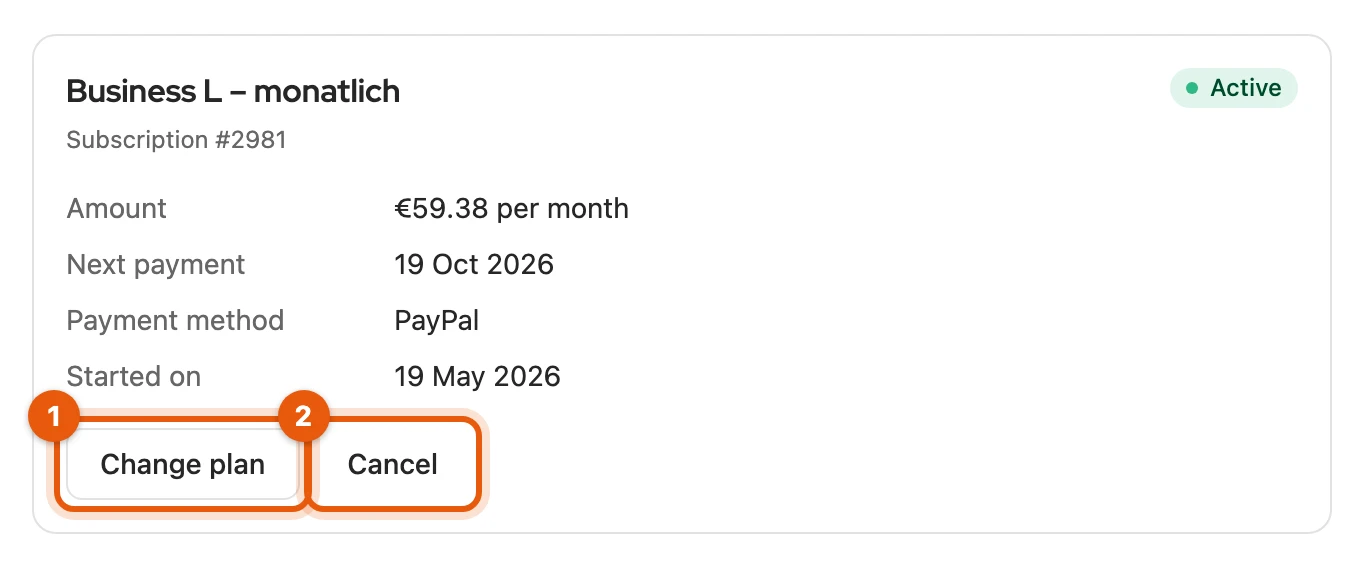
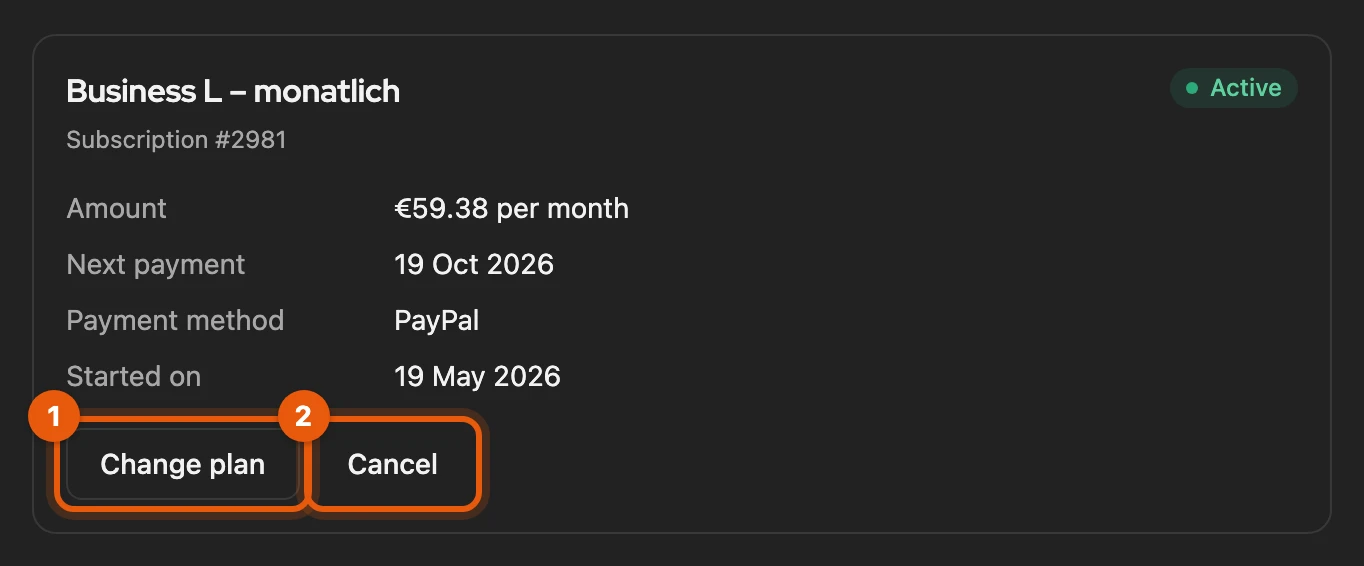
Each subscription has its own card with status, amount, next payment and payment method. If a payment is open, you pay it with Pay now (1).
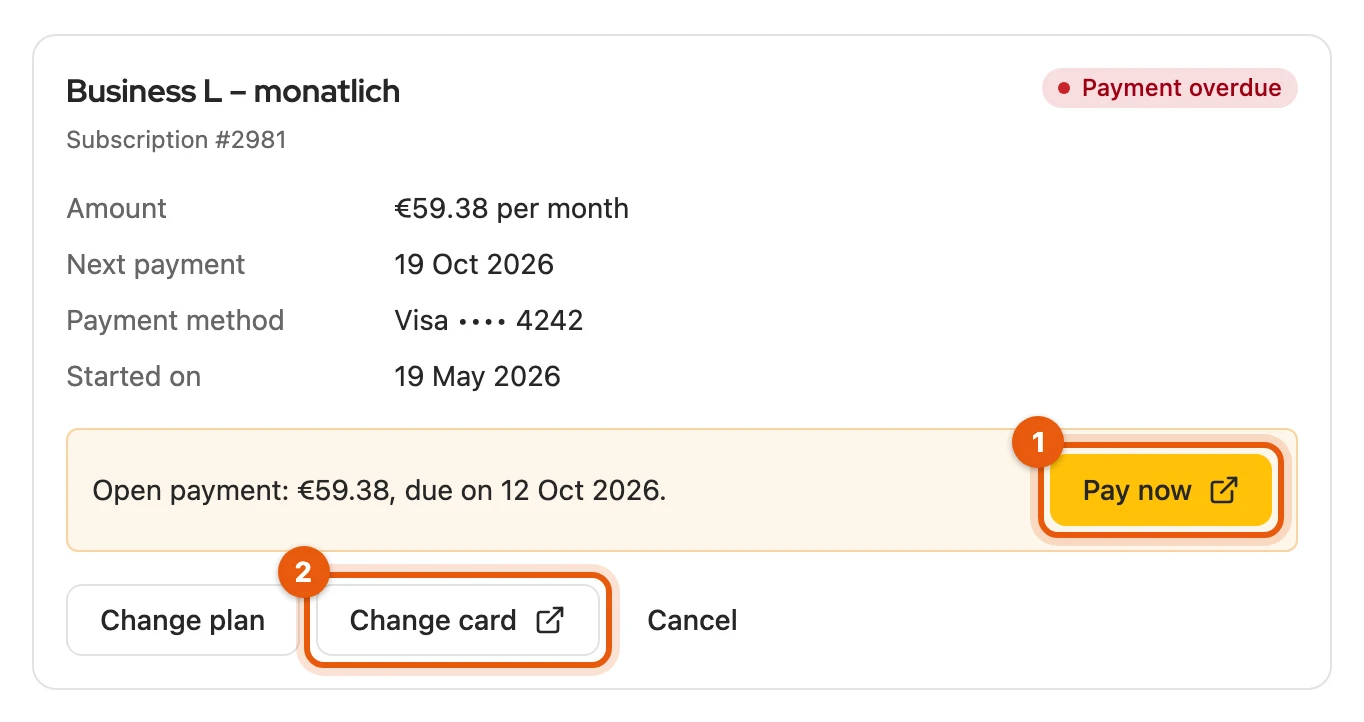
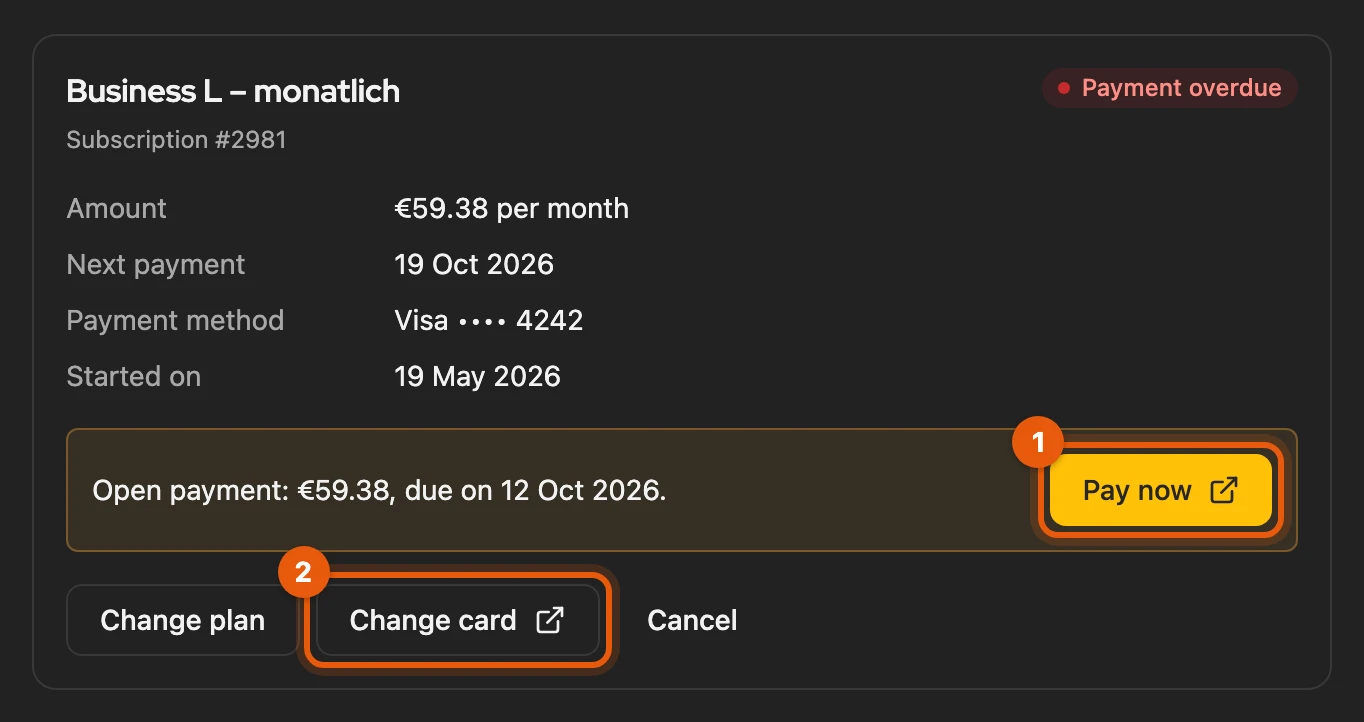
The buttons open the shop in a new tab, where you are already signed in. Back in the dashboard, the section shows the new status.
More: details on the card, section not unlocked
| Detail | Meaning |
|---|---|
| Plan and status | for example Active, Cancelled, Payment overdue or Expired |
| Amount | what you pay per month or per year |
| Next payment | when the next payment is due |
| Runs until | for a cancelled subscription, the end of the term |
| Payment method | PayPal or your card with the last four digits |
- An open payment shows the amount and the due date.
- The section is directly below Licence. Without signing in, Sign in takes you to the sign-in.
- If it is not unlocked yet, Open customer account opens your customer account on kleinanzeigen-enhanced.de.
Change plan
Section titled “Change plan”- In the card, click Change plan.
- Choose the new plan (2); Upgrade or Downgrade shows the direction.
- Click Continue to order (3) and complete the order in the shop.
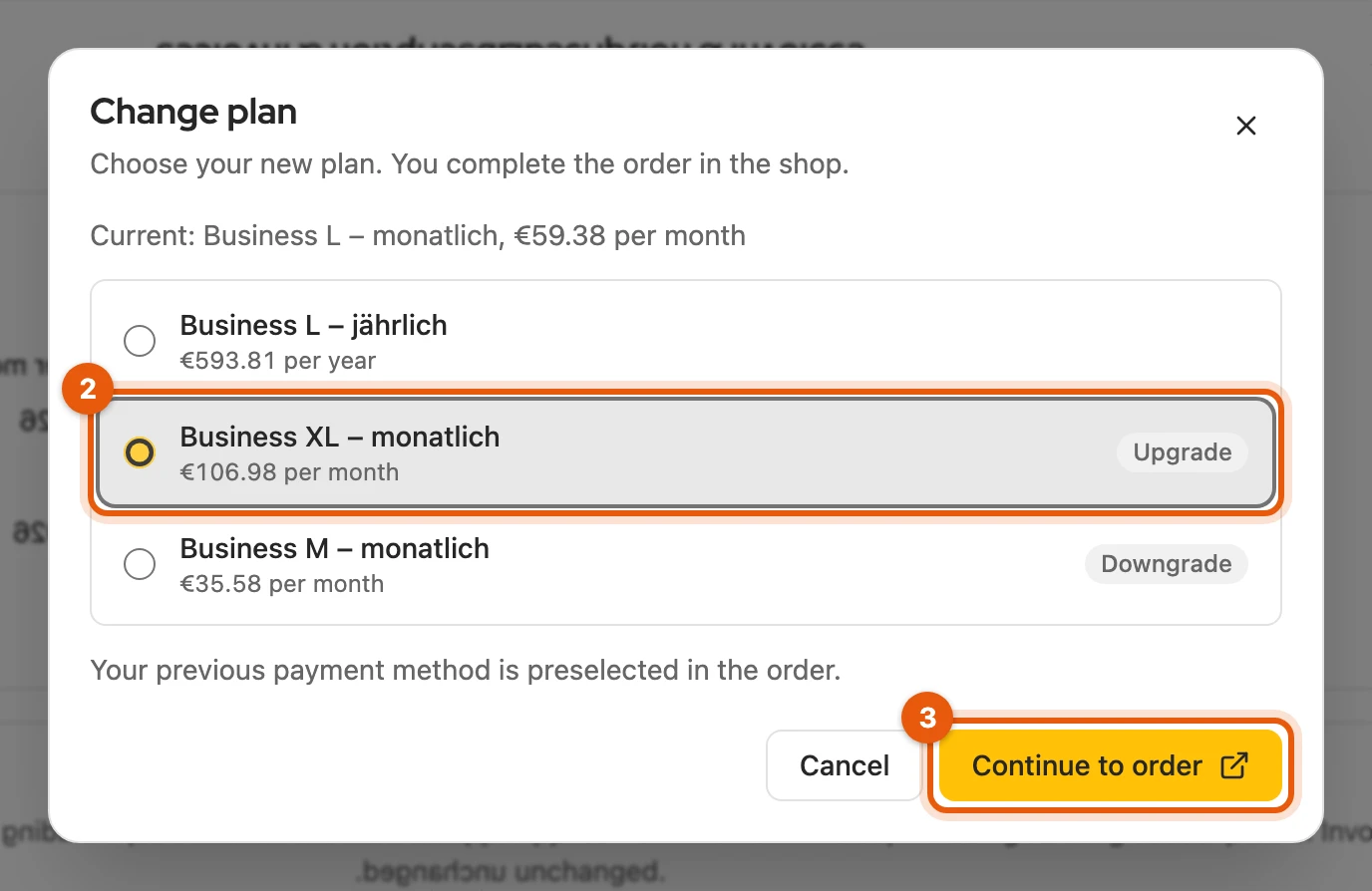
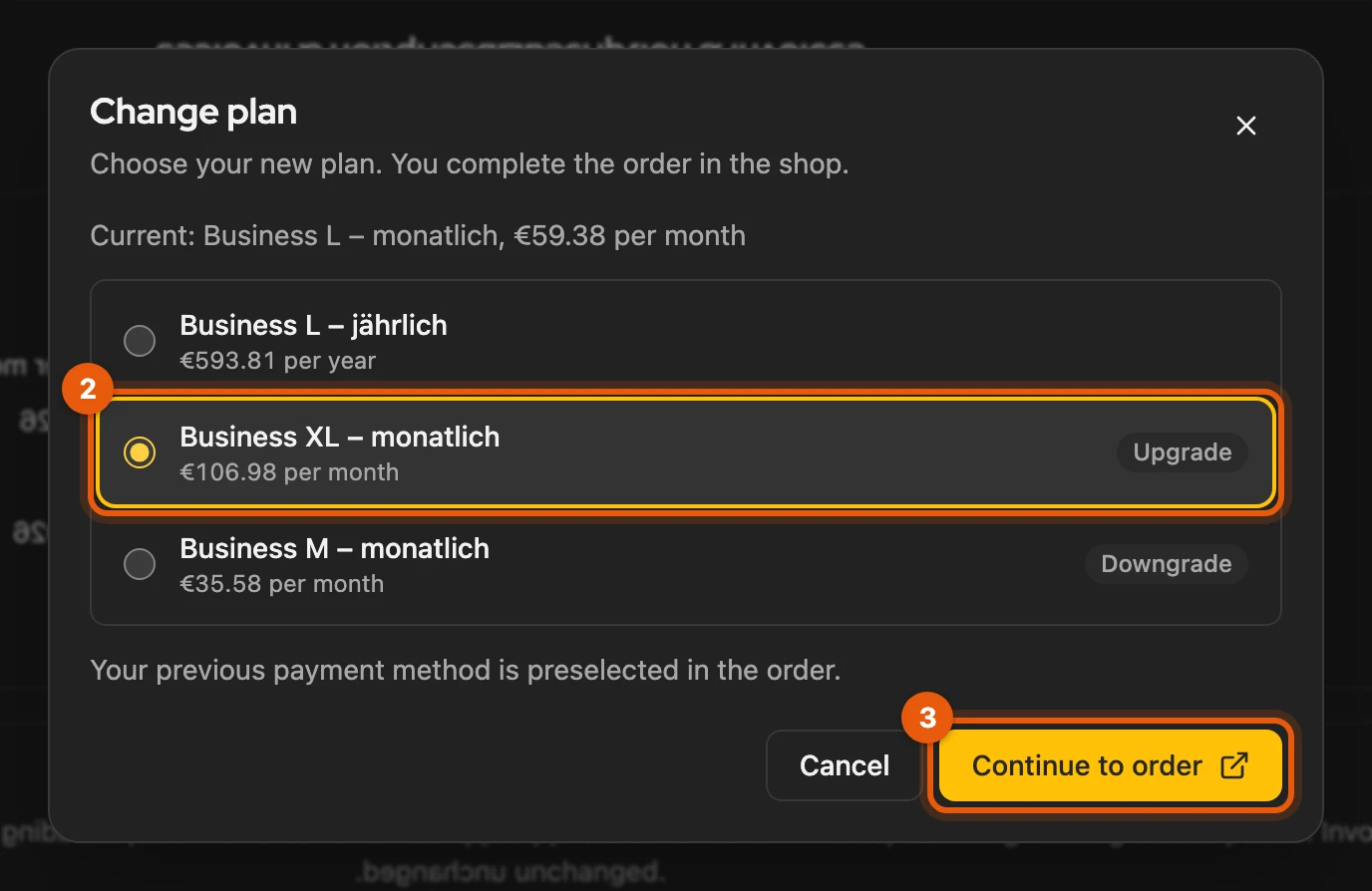
You can only switch between the variants of your plan that the shop offers, for example from monthly to yearly.
More: payment method when switching
If the window says that your previous payment method is preselected, you keep paying with the same PayPal account or card without signing in there again.
Change card
Section titled “Change card”Change card (2 in the picture above) opens the payment methods in your customer account; a new default card also applies to the running subscription. With PayPal, support helps you change.
Cancel
Section titled “Cancel”- In the card, click Cancel.
- The window tells you the end date. Click Cancel now (2).
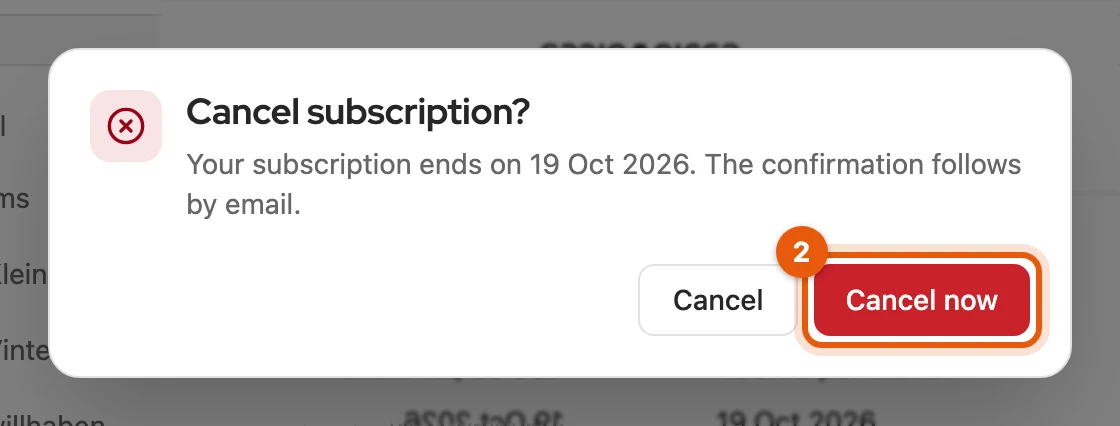
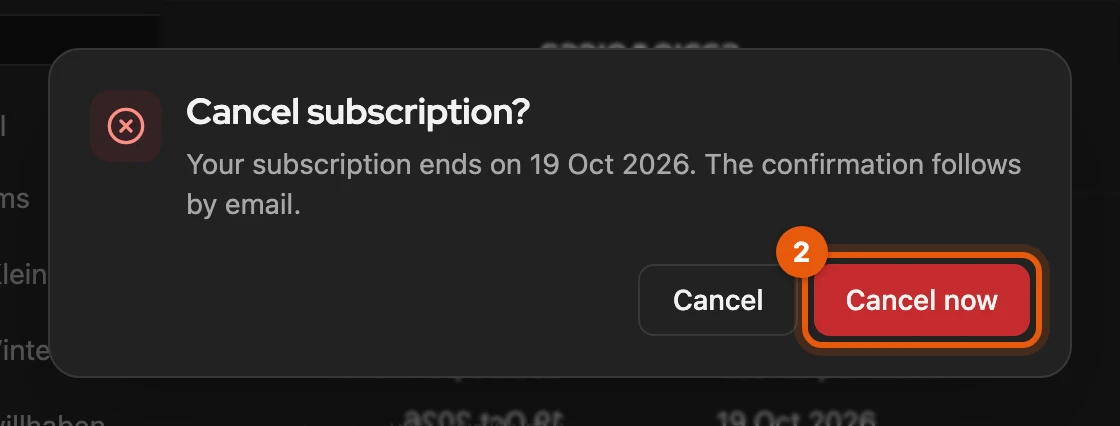
The cancellation takes effect at the end of the term; you get a confirmation by email.
More: after cancelling
The card then shows when your cancellation was received and when the subscription ends.
Change billing address and billing email
Section titled “Change billing address and billing email”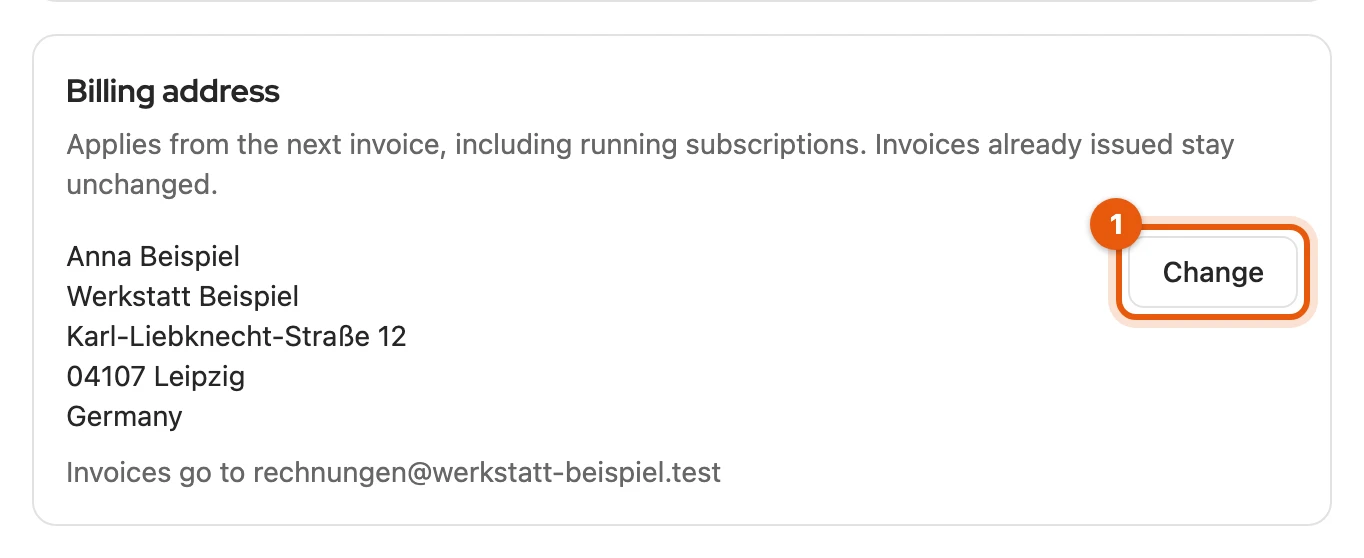
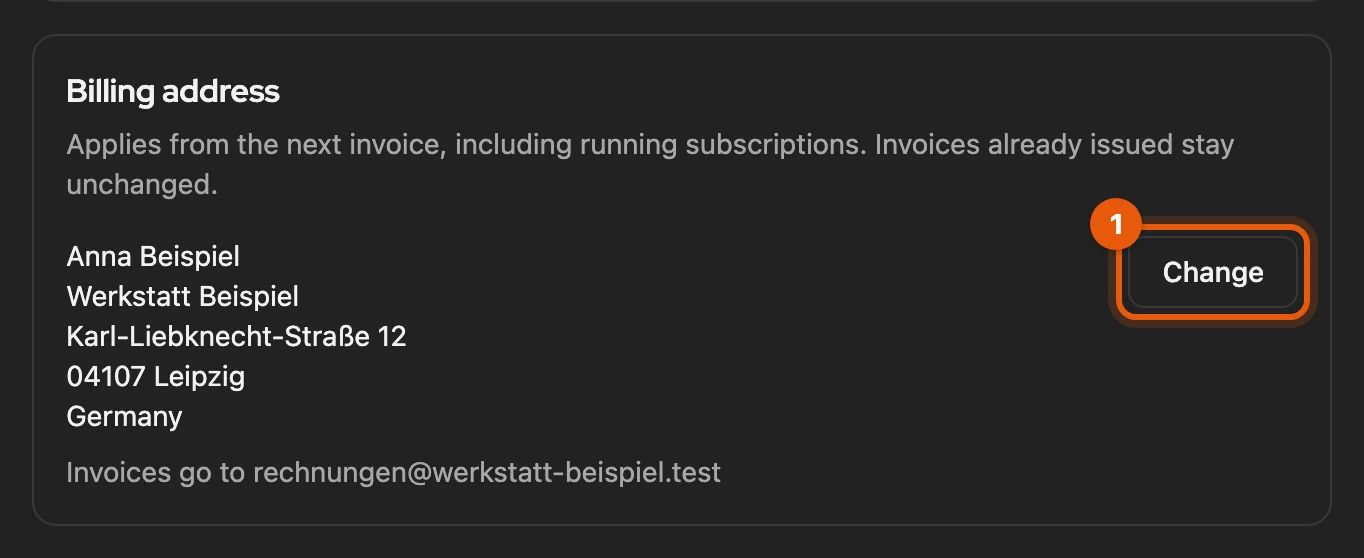
- In the Billing address card, click Change (1).
- Fill in the fields, including Email for invoices (2).
- Click Save (3).
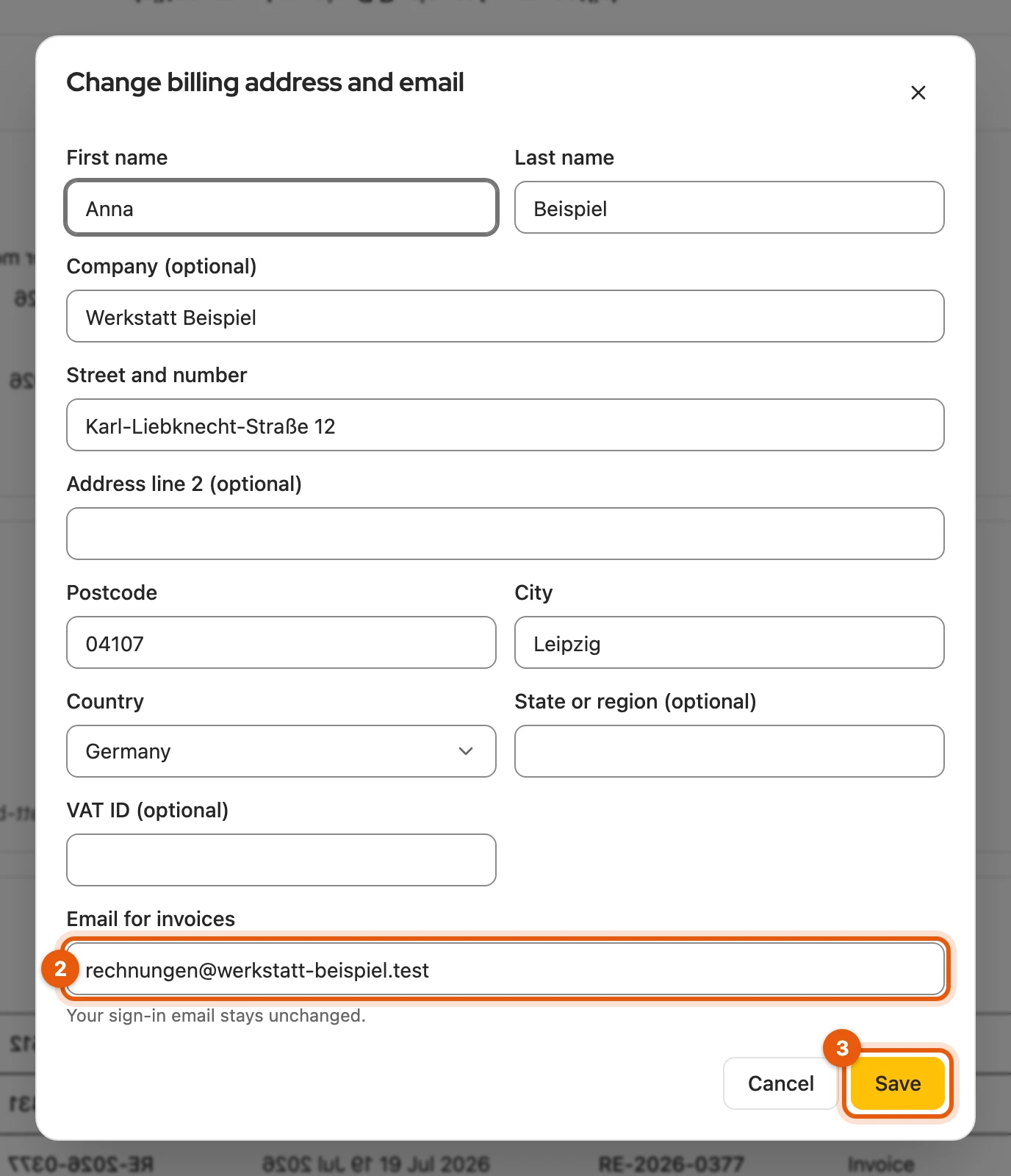
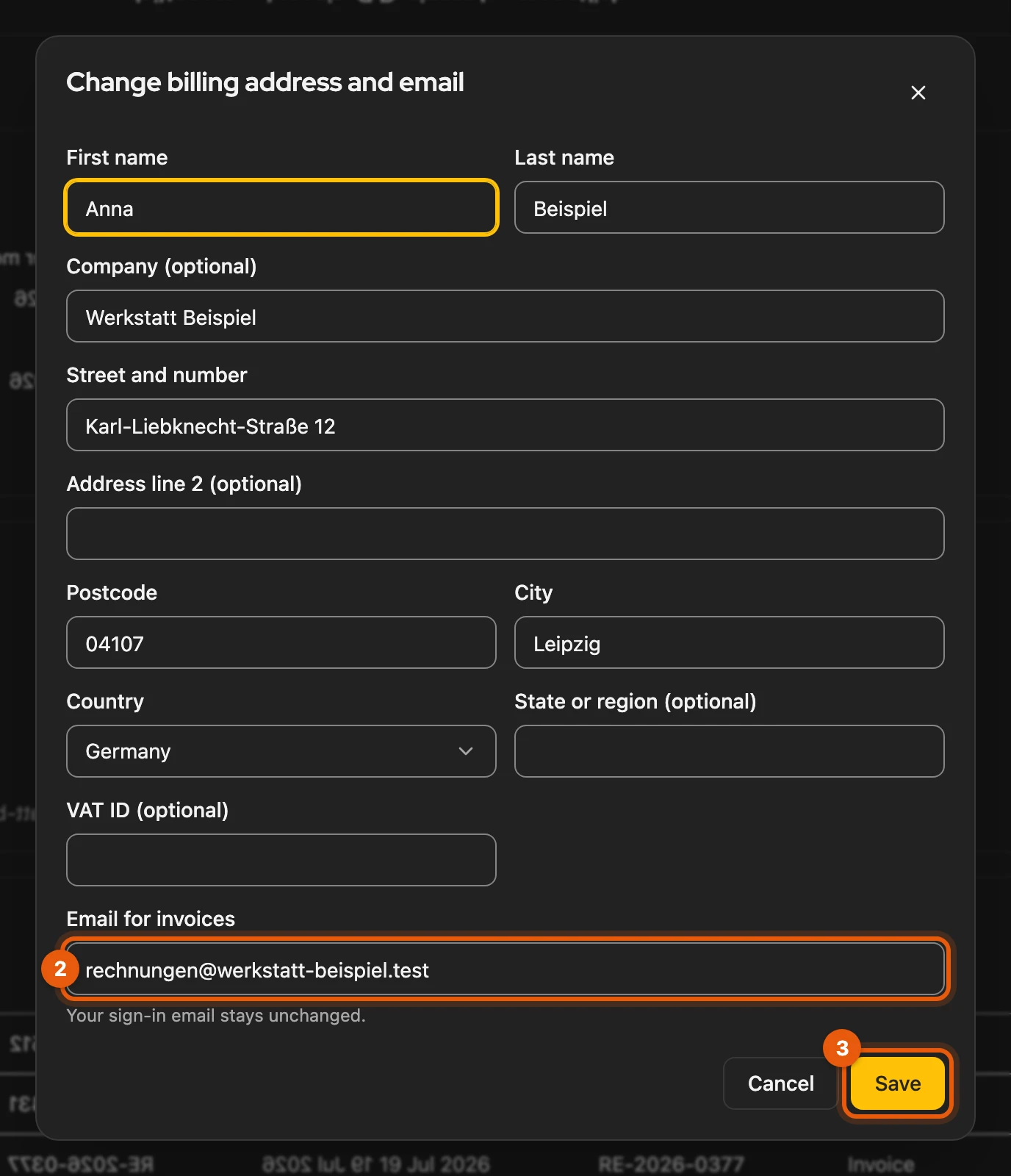
The change applies from the next invoice, including running subscriptions; issued invoices stay unchanged.
More: required fields, VAT ID, sign-in email
- Required: first name, last name, street and number, postcode, city, country, Email for invoices. Optional: company, address line 2, state or region, VAT ID.
- VAT ID: we check it on saving as at checkout. It must match the country; for businesses in another EU country, the company and address must also match the EU’s records.
- Reverse charge: businesses in another EU country receive invoices without VAT and with a reverse charge note from the next renewal on.
- The window marks a wrong field with Please fill in. or Please check.
- The card shows which address invoices go to. Your sign-in email does not change; for that, contact support.
Download invoices
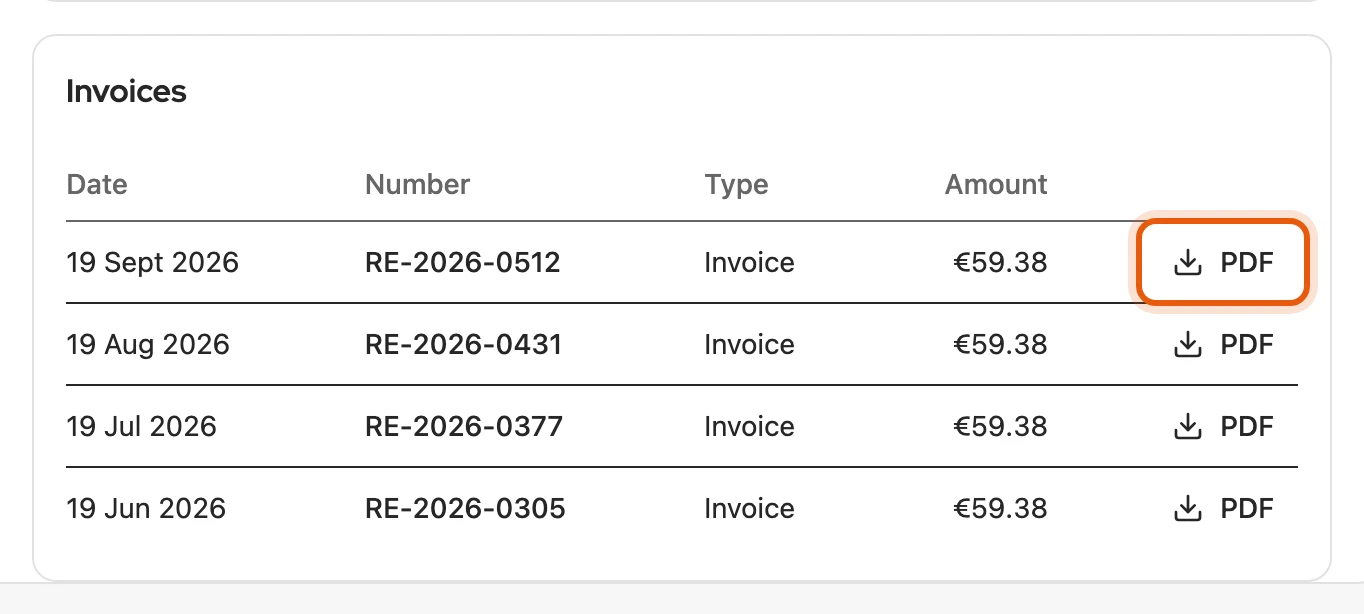
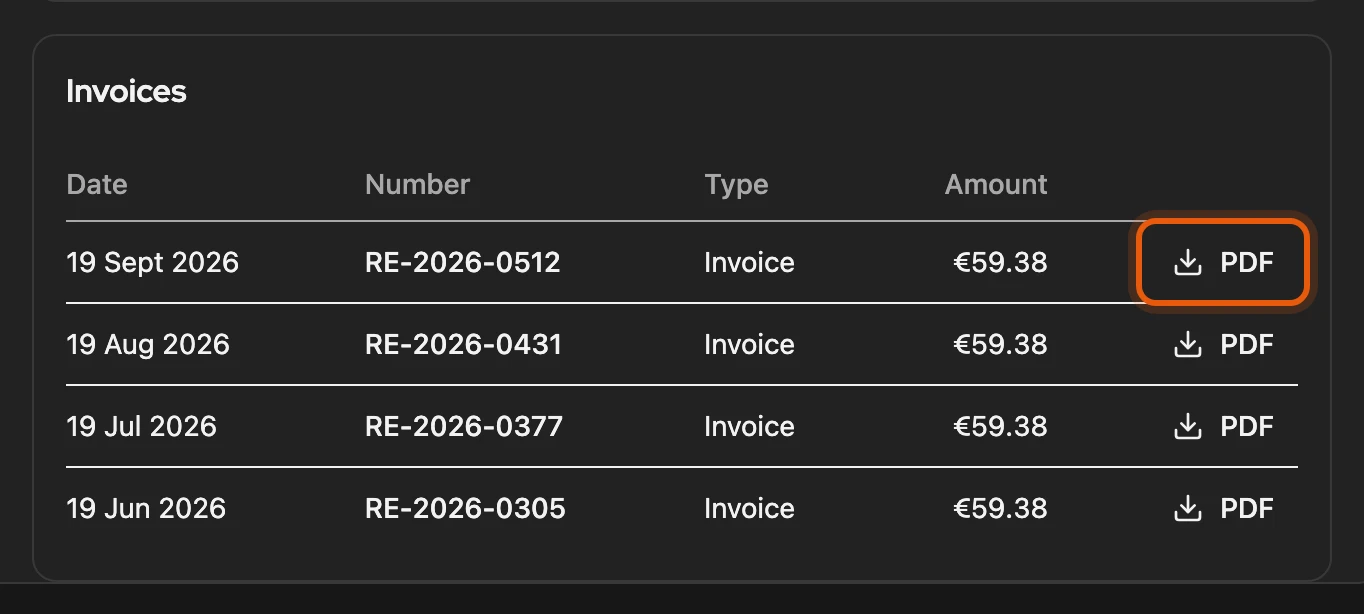
Section titled “Download invoices”The Invoices table lists invoices and cancellation invoices, newest first. PDF saves an invoice.
Error codes
Section titled “Error codes”An Error code appears below the message. The most common:
billing_unavailable,service_unavailable: try again later.unknown_subscription: reload the page.invalid_address: check the marked fields.
More: other error codes
| Code | What to do |
|---|---|
not_cancellable |
The subscription cannot be cancelled, usually because it is already cancelled. |
not_switchable |
No switch to this plan is possible right now. |
nothing_to_pay |
There is no open payment any more. |
unknown_invoice |
The invoice is not available; contact support. |