

Getting started
Kleinanzeigen-Enhanced is a browser extension for Chrome and Firefox. Your data is stored locally in your browser. On Kleinanzeigen, Vinted, willhaben and eBay you sign in as usual on the website; the extension does not store any sign-in details for these platforms.
Open the dashboard
Section titled “Open the dashboard”After installing, the dashboard opens on Start with Ready in three steps:
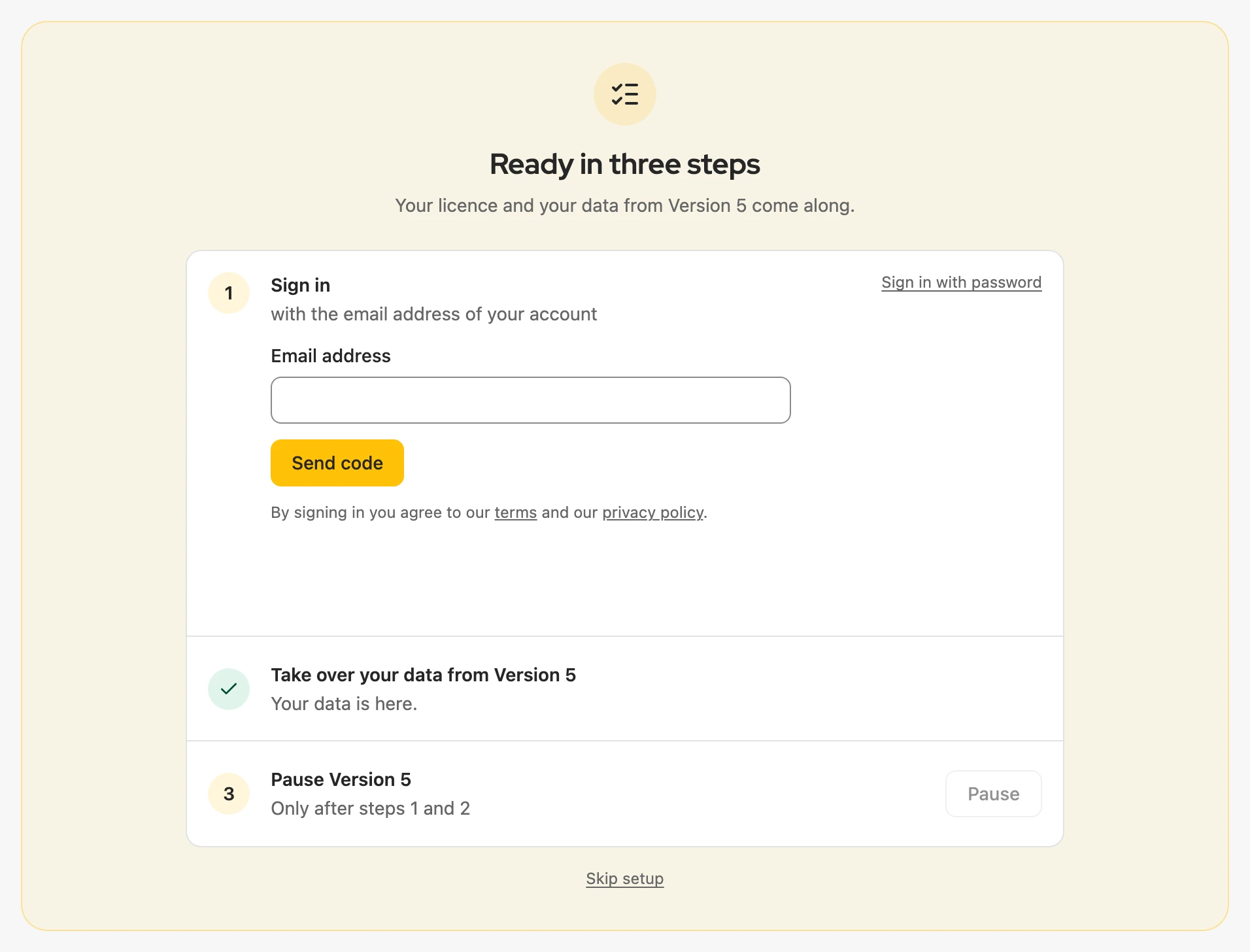
- Sign in with a code by email (Activating your licence).
- Take over your data from Version 5 or Continue without data (Switching from Version 5).
- Pause Version 5 once 1 and 2 are done.
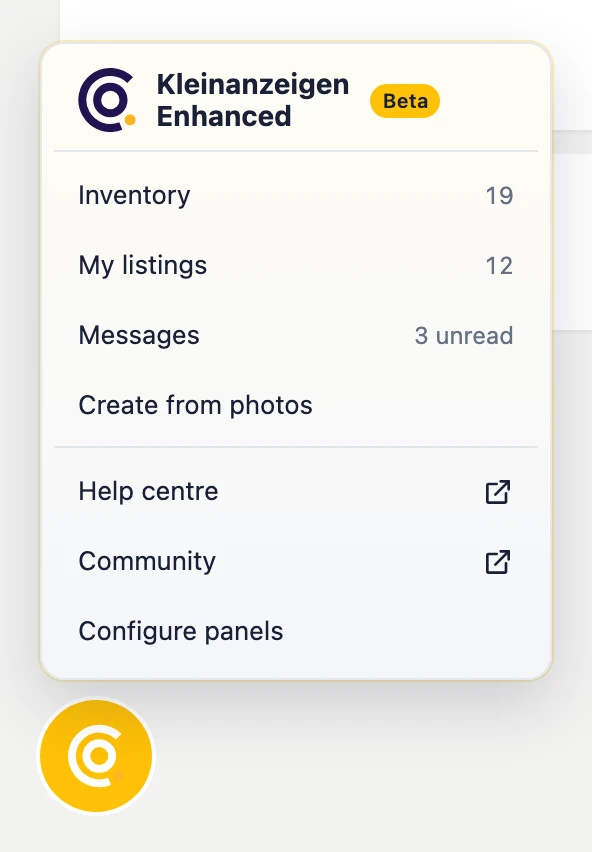
Later, clicking the Kleinanzeigen-Enhanced icon in the browser toolbar opens the Inventory. On kleinanzeigen.de the Floating menu at the bottom left leads to the dashboard.
More: setup and opening in detail
- The yellow button always sits at the next open step. Sign in with password leads to the licence page.
- If no Version 5 runs in this browser, steps 2 and 3 count as not needed; choose a backup from another computer with Choose a backup from another computer.
- Skip setup takes you to the overview at once; you can take over data any time later in the settings.
- If the dashboard is already open, clicking the icon brings that tab to the front.
- On vinted.de Kleinanzeigen-Enhanced shows nothing. Clicking the icon on an item page opens the dashboard at this item, see From a Vinted page.
- If your plan includes the cloud backup, your data is also stored there.
The areas of the dashboard
Section titled “The areas of the dashboard”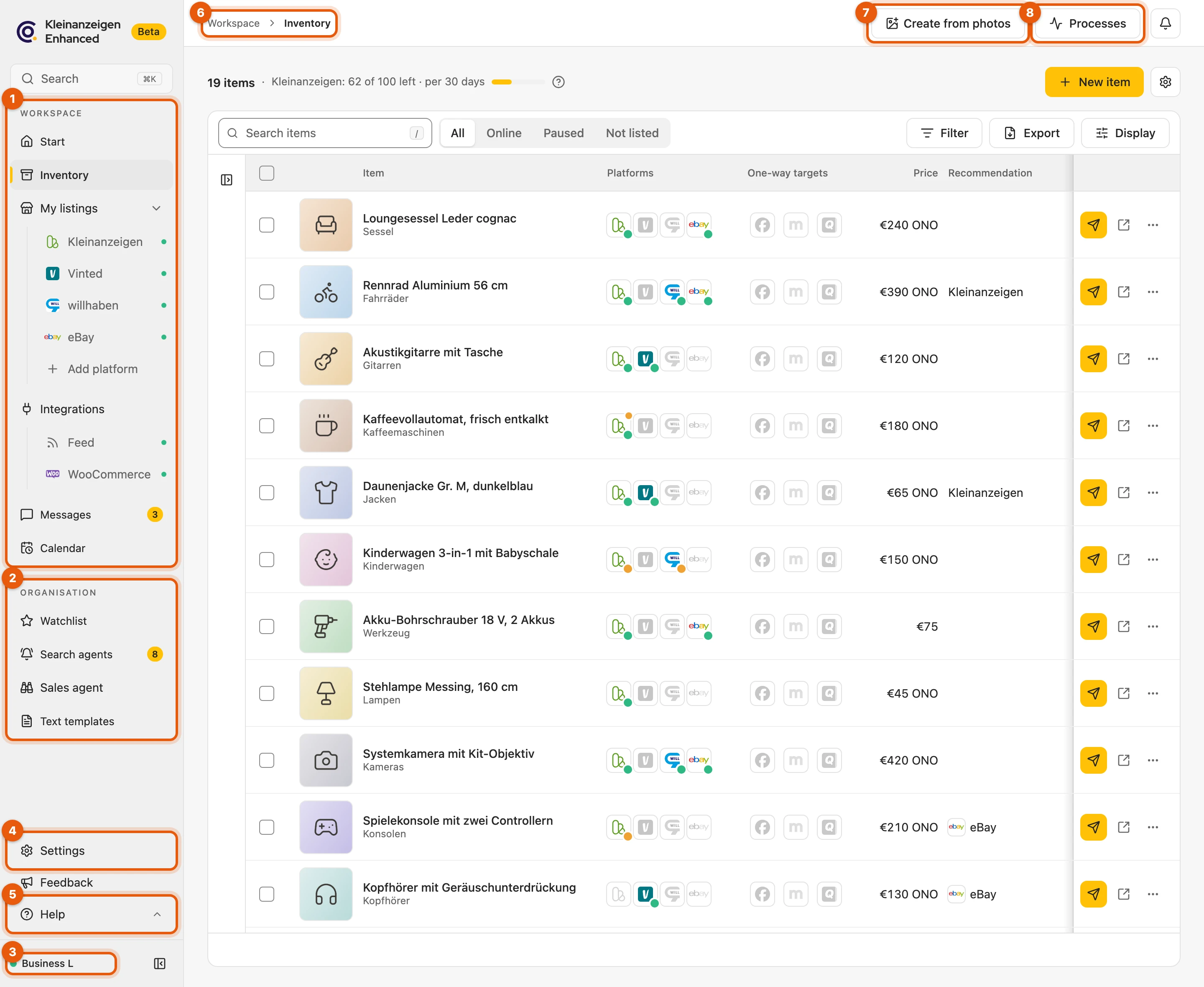
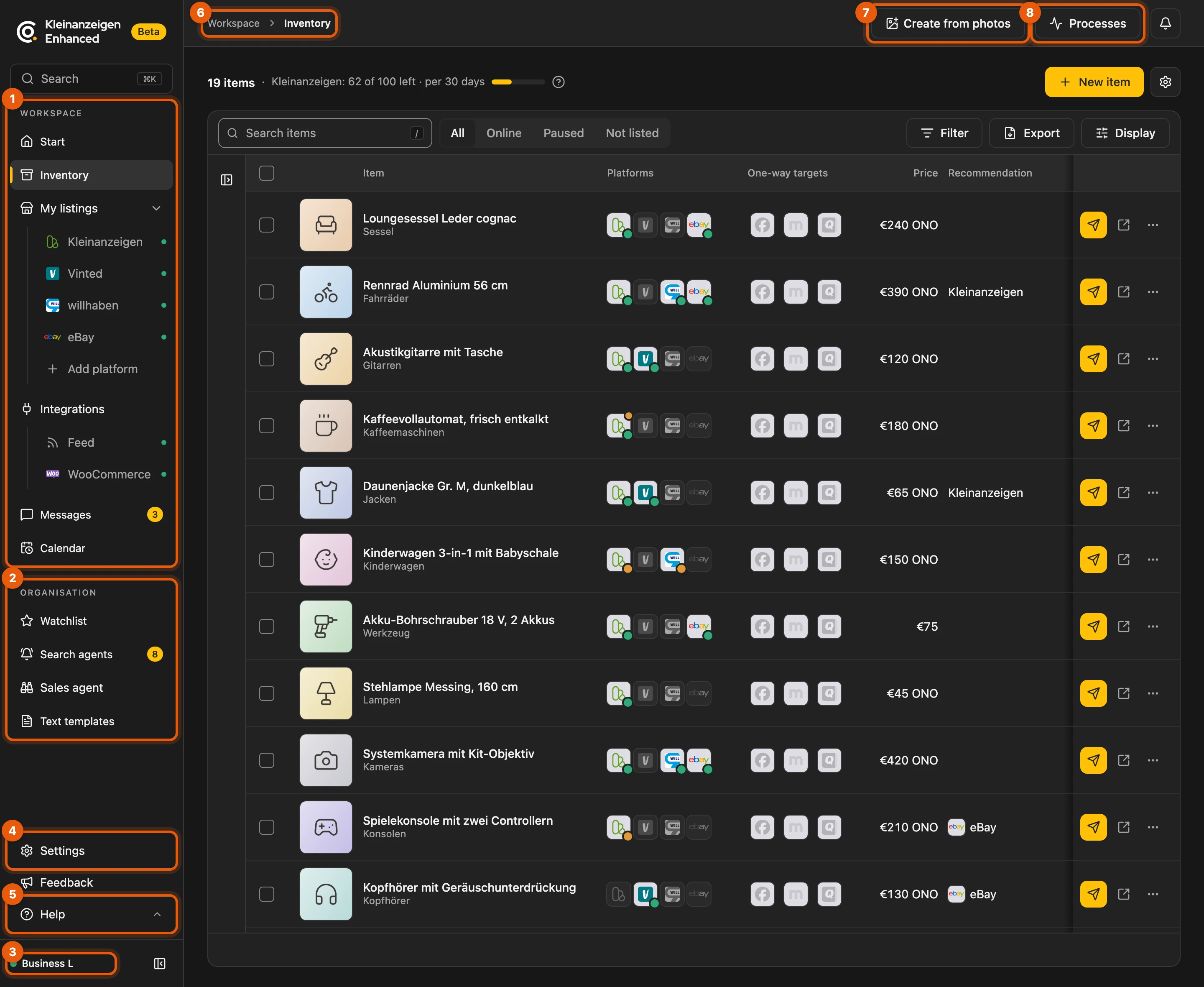
- Workspace: Start, Inventory, My listings, Integrations, Messages, Calendar
- Organisation: Watchlist, Search agents, Sales agent, Text templates
- your licence status (Licence in the sidebar)
- Settings
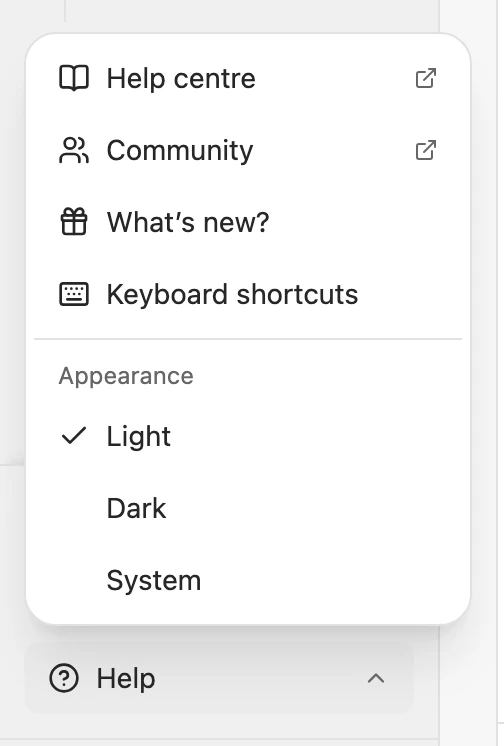
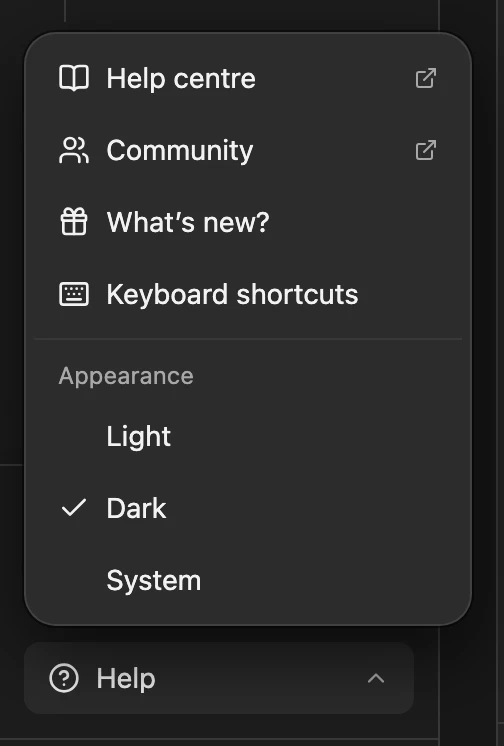
- Help: Help centre, Community, Guide (German), What’s new?, Keyboard shortcuts, Light or Dark
- where you are right now
- Create from photos
- Processes
| Shortcut | Effect |
|---|---|
| Ctrl+B (Mac: ⌘+B) | collapse and expand the sidebar |
| Ctrl+K (Mac: ⌘+K) | search everywhere |
More: what each area contains
| Area | What for |
|---|---|
| Start | overview, see The Start page |
| Inventory | your items, independent of any platform |
| My listings | your listings, one sub-item per platform; add more with Add platform |
| Integrations | products from a feed or from WooCommerce, Shopware and Shopify, see Connect shops and feeds |
| Messages | your Kleinanzeigen inbox |
| Calendar | scheduled listings; only if your licence includes the calendar |
| Watchlist | listings you have saved on Kleinanzeigen |
| Search agents | searches that report new listings automatically |
| Sales agent | watches selected items on the market every day and makes suggestions, see Sales agent |
| Text templates | reusable texts for listings and messages |
The bottom of the sidebar also has Feedback: there you report bugs, suggest ideas and see the status of your reports (Report a problem and suggest ideas). The Help menu switches between Light, Dark or System.
The Start page
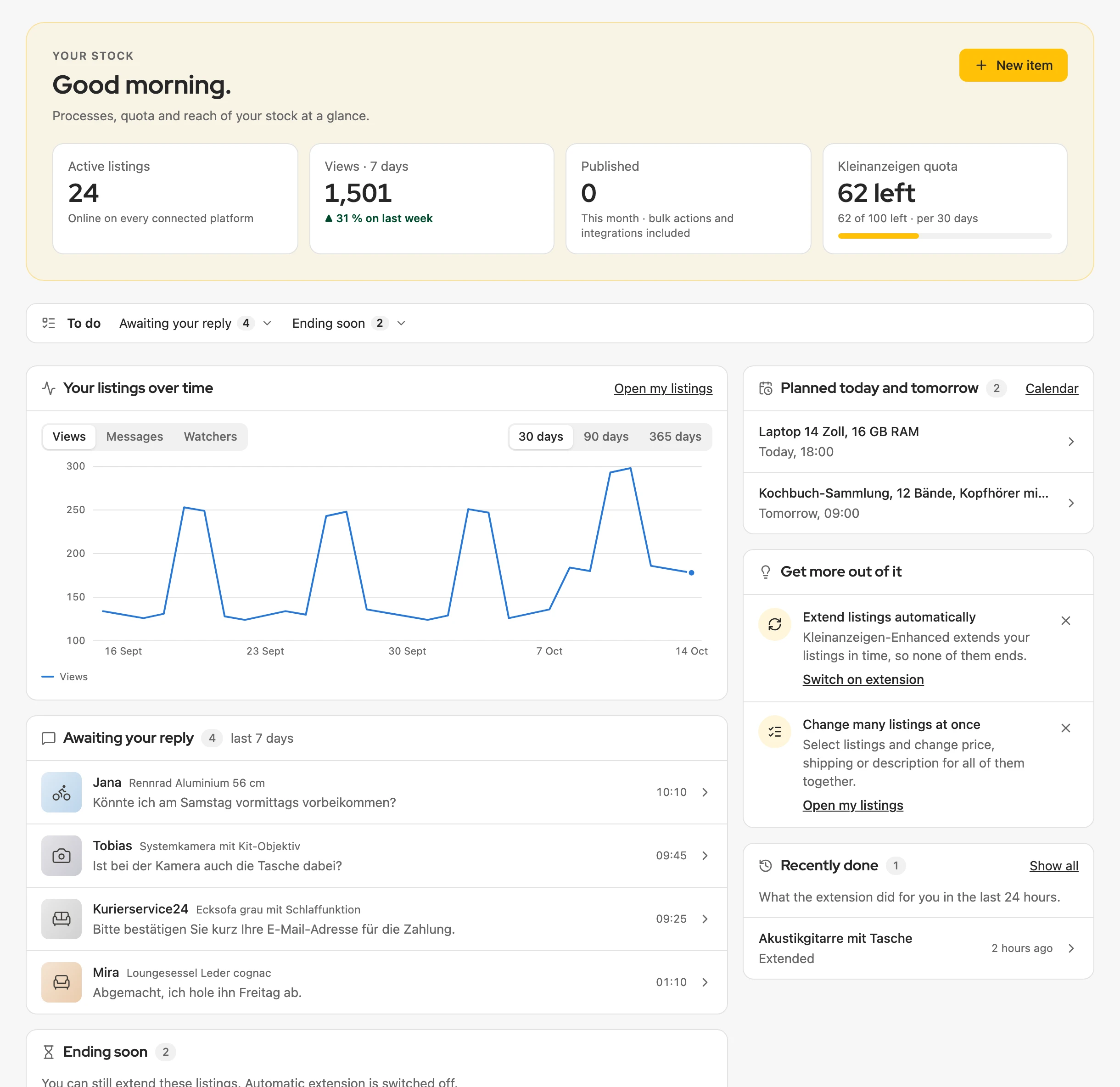
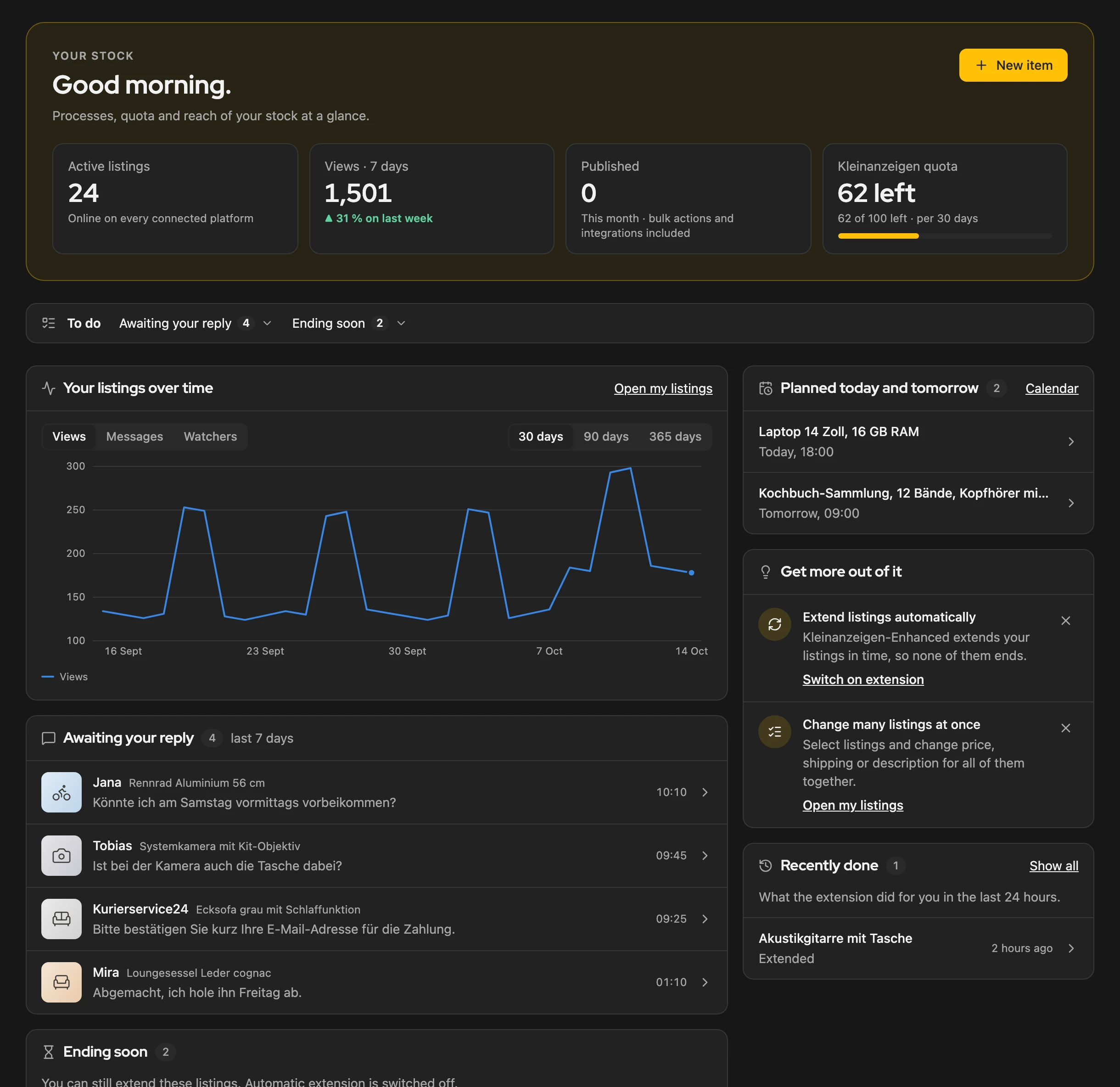
Section titled “The Start page”At the top you see how things are going: views and watchers of the last 7 days, time saved and how many listings you can still post for free. If something is open, the To do line jumps to the matching card. Below follow Your listings over time and cards that only appear when there is something for them.
More: figures, history and all cards
- Done for you shows the details per month. With Business or a commercial account, the top shows your active listings, what you published and your quota instead.
- Your listings over time: over 30, 90 or 365 days the Views, the Messages per day or the new Watchers. The first line appears after the second refresh of your listings.
- Connections: a platform where your sign-in is missing. If you never signed in there, say because you only sell on Vinted, it does not show here; in the sidebar it has a grey dot.
- From Version 5: what is still open after the switch, see Switching from Version 5.
- Processes that need you, such as a process that has stopped.
- Awaiting your reply: messages of the last 7 days without an answer; one line sums up the older ones and opens them under Messages.
- Planned today and tomorrow: scheduled listings from the calendar.
- Ending soon: listings to extend if automatic extension is off or cannot work right now.
- Not in the inventory yet: listings without an item, with Save to inventory per platform, see From the Start page.
- Get more out of it: up to three tips; the cross hides one for good.
- Recently done: what Kleinanzeigen-Enhanced has done in the last 24 hours.
- With the Best listing time also Worth listing now, see Inventory; with the sales agent Sales agent: … suggestions, see Sales agent.
- Clicking a row opens the message, the scheduled listing or the listing.
The header
Section titled “The header”

| Where | What |
|---|---|
| Left | where you are, for example “My listings › Kleinanzeigen” |
| Middle (1) | feedback such as “Draft created”; warnings and errors stay until you close them |
| Right (2) | Create from photos and Processes: tasks running in the background |
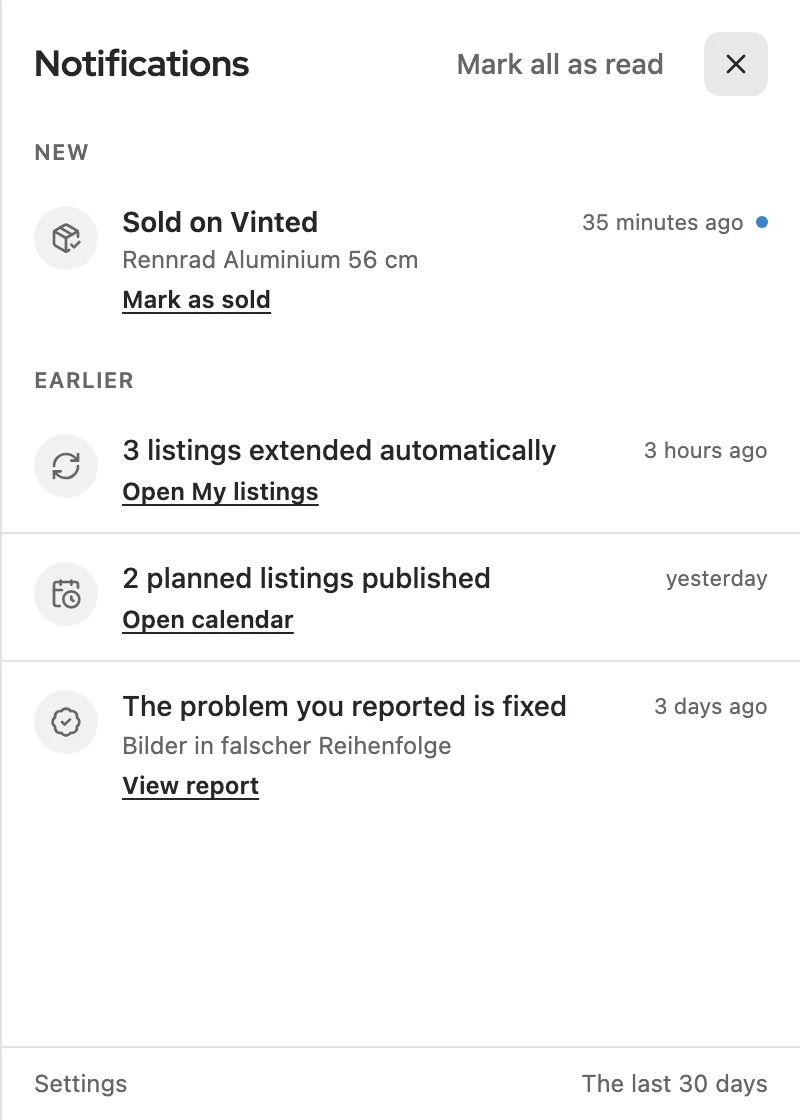
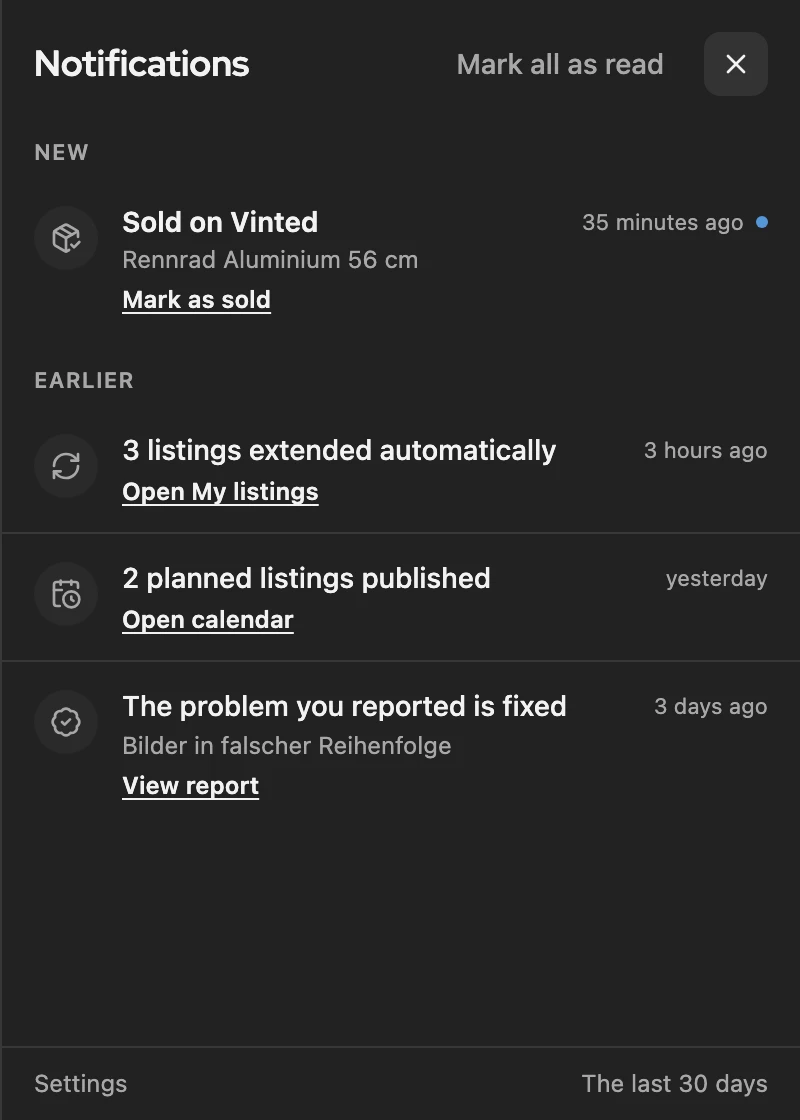
| Bell | what happened in the last 30 days, news and announcements |
A click on the bell opens the list; each entry leads to where things continue.
More: messages, processes and the bell
- Success messages disappear after a few seconds. Messages that need you to act stay. If there are several, a click expands the list.
- Processes shows how many are running, for example takeovers or actions for many listings; a red number shows those that need your attention. In narrow windows both buttons only show their icon.
- The bell never opens by itself. A red number means you need to do something; a yellow dot that something new is there.
- What is new after an update is also under Help › What’s new?; there, More in the help centre leads to the matching article.
The lists
Section titled “The lists”All lists are built the same way:


- count and situation, such as your quota or a sign-in problem
- search in the list; / jumps into it
- views
- Filter
- Display: row height and columns
- actions of the area
↑/↓ move between rows, Space selects one, Enter opens it. All shortcuts are under Help › Keyboard shortcuts.
How to get going
Section titled “How to get going”-
Sign in to Kleinanzeigen in your browser.
-
Have you used Version 5? Take over your data: Switching from Version 5.
-
Do you have a licence? Sign in: Activating your licence.
-
Open My listings › Kleinanzeigen.
On kleinanzeigen.de
Section titled “On kleinanzeigen.de”Kleinanzeigen-Enhanced adds its own elements to the website, for example the floating menu, an overview on “Meine Anzeigen” (Kleinanzeigen’s own listings page) and watch stars in result lists. Each can be turned off in the Settings.