

Edit items
Clicking a row in the inventory opens the item. At the top you choose Item status and folder (1), below that the tabs (2). At the bottom are Transfer (3) and Save (4).
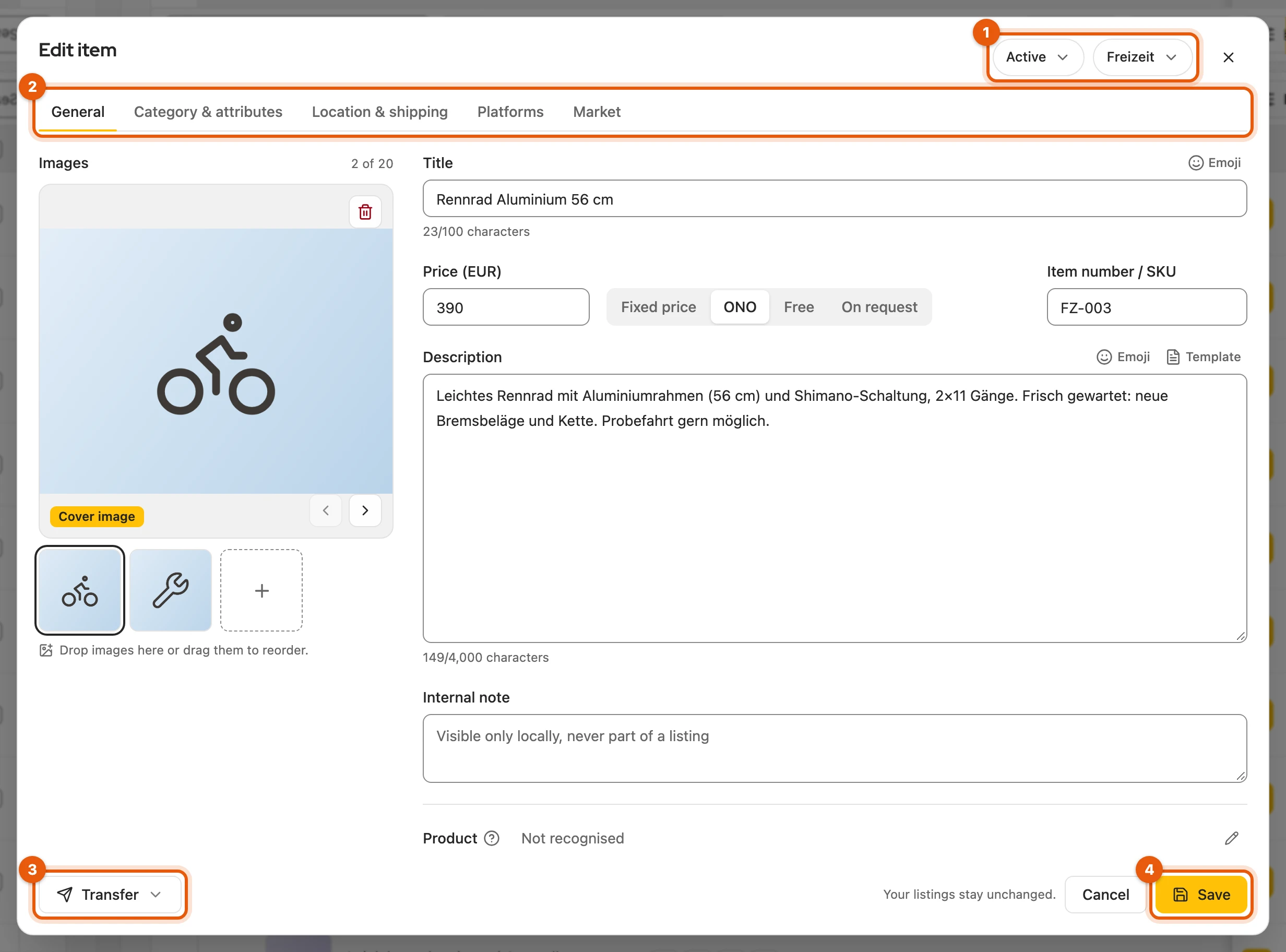
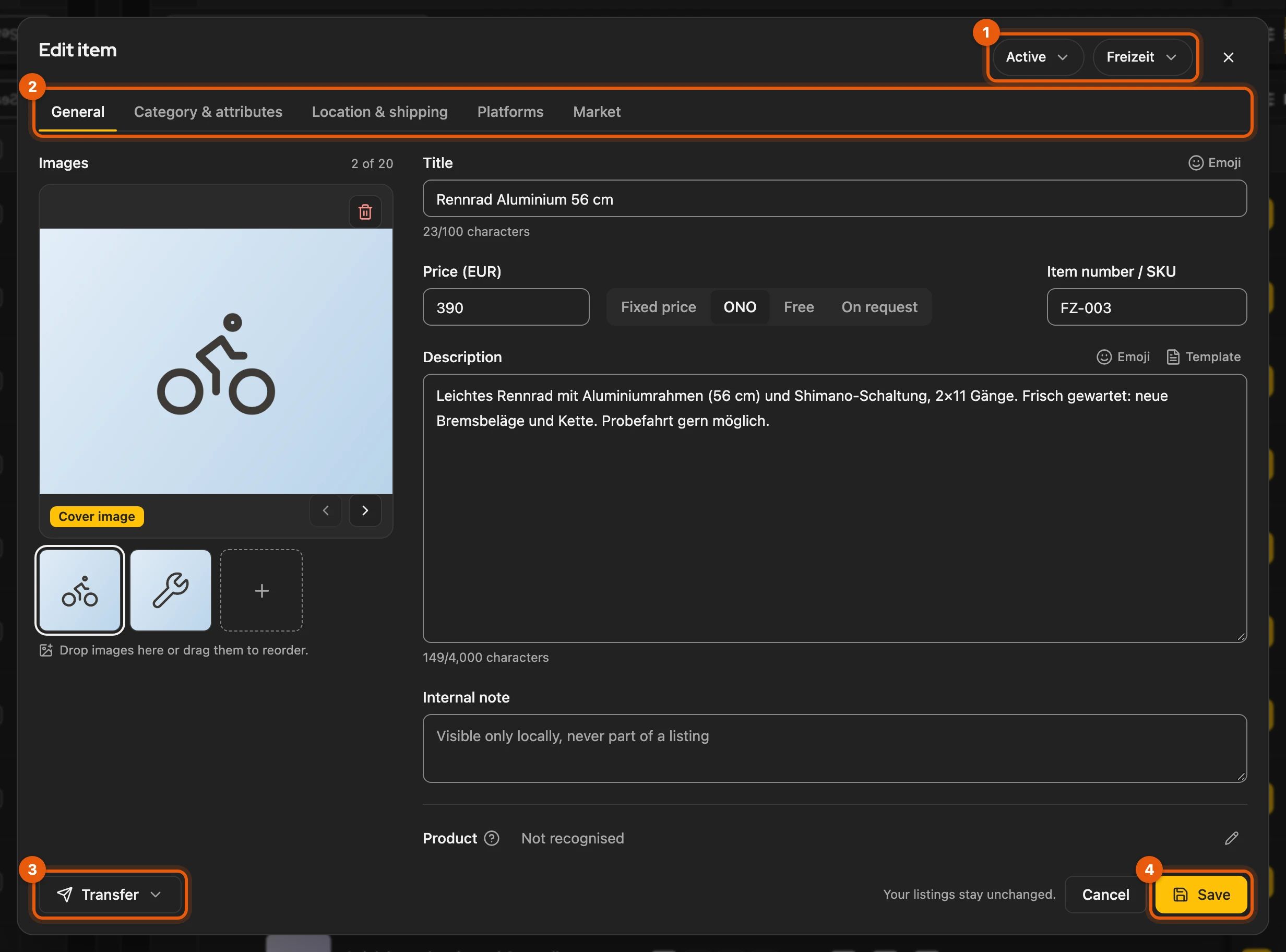
Changes only take effect with Save, pictures included. If the item is not published yet, Save and publish publishes it straight away on Kleinanzeigen.
More: saving, a second tab and documents
- Transfer saves open changes first by itself.
- Second tab: if the item was changed elsewhere meanwhile, Kleinanzeigen-Enhanced does not save over it. Open current version shows the stored version so you can compare.
- “Documents” tab: only appears if the item has PDF documents. Kleinanzeigen only offers them to real-estate accounts and certain business packages (PREMIUM, Optimum, Plus).
“General” tab
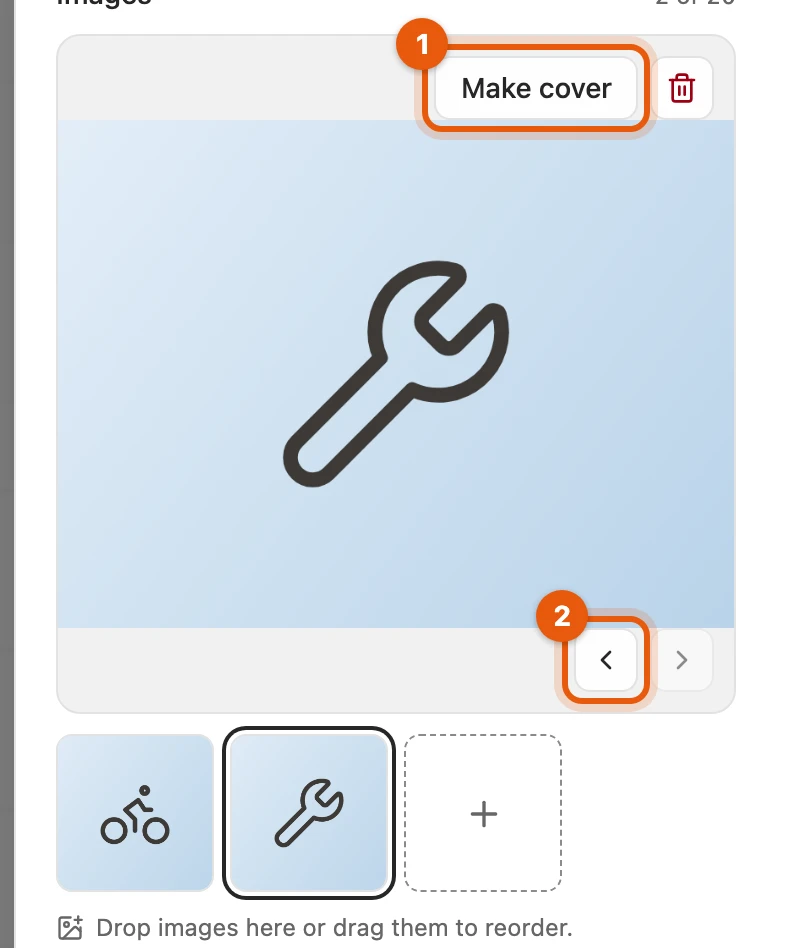
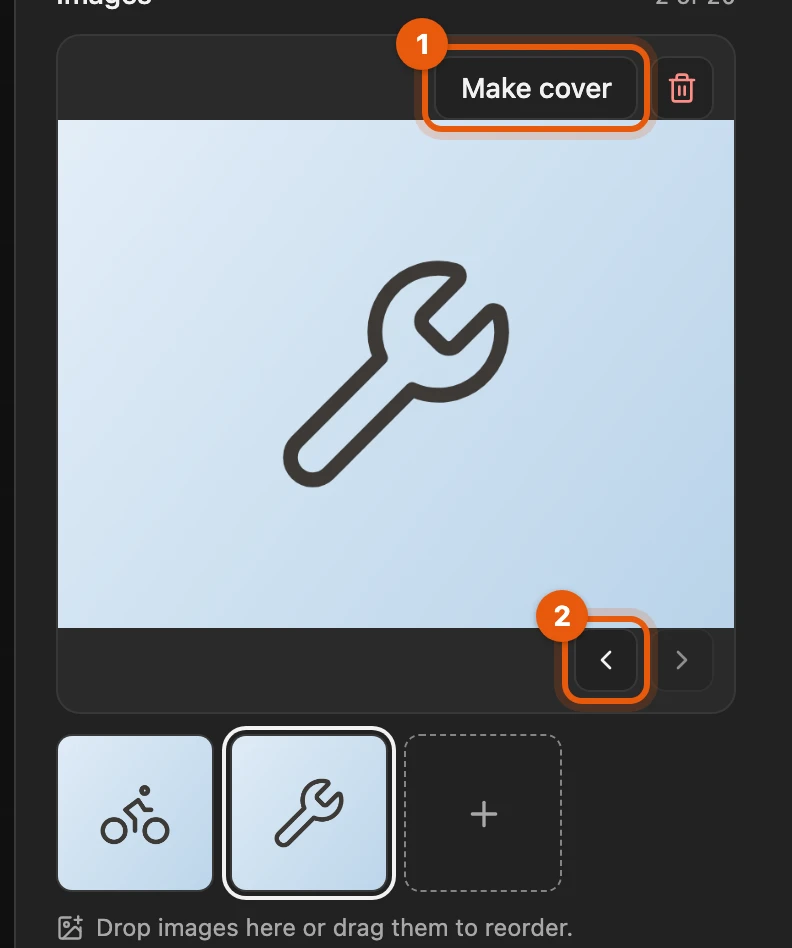
Section titled ““General” tab”Here are pictures, title, price, description and the Internal note, which only you see. You can drag in up to 40 pictures; Make cover (1) puts a picture in first place, the arrows (2) change the order.
Kleinanzeigen silently removes some emojis; the Emoji button only offers characters that are kept. You can save a text that is too long, but you have to shorten it before publishing.
More: pictures, price type and item number
| Where | Pictures |
|---|---|
| Inventory | up to 40, as JPG, PNG or WebP of at most 12 MB; iPhone photos (HEIC) become JPG |
| Vinted | 20 |
| willhaben | 8 (the first 8 are sent) |
- Price type: fixed price, negotiable, free or on request.
- Item number / SKU: appears for commercial Kleinanzeigen accounts or when the item already has one.
- Character counters: follow the limits of your Kleinanzeigen account.
- Emojis: Kleinanzeigen removes 📦, for example, while ✅ is kept. Above the description there is also Template for your text templates.
“Category & attributes” tab
Section titled ““Category & attributes” tab”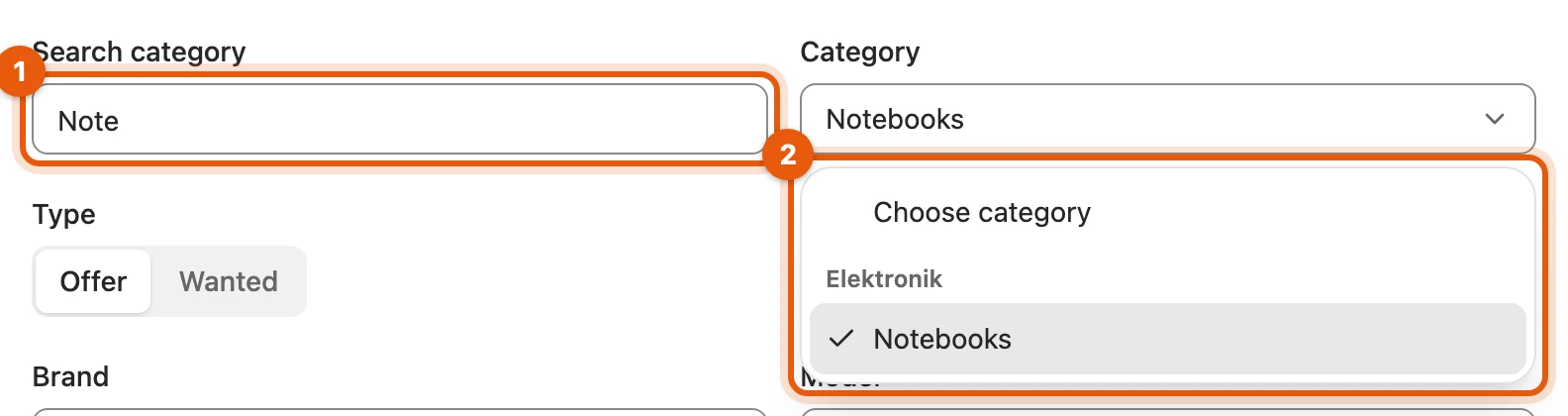
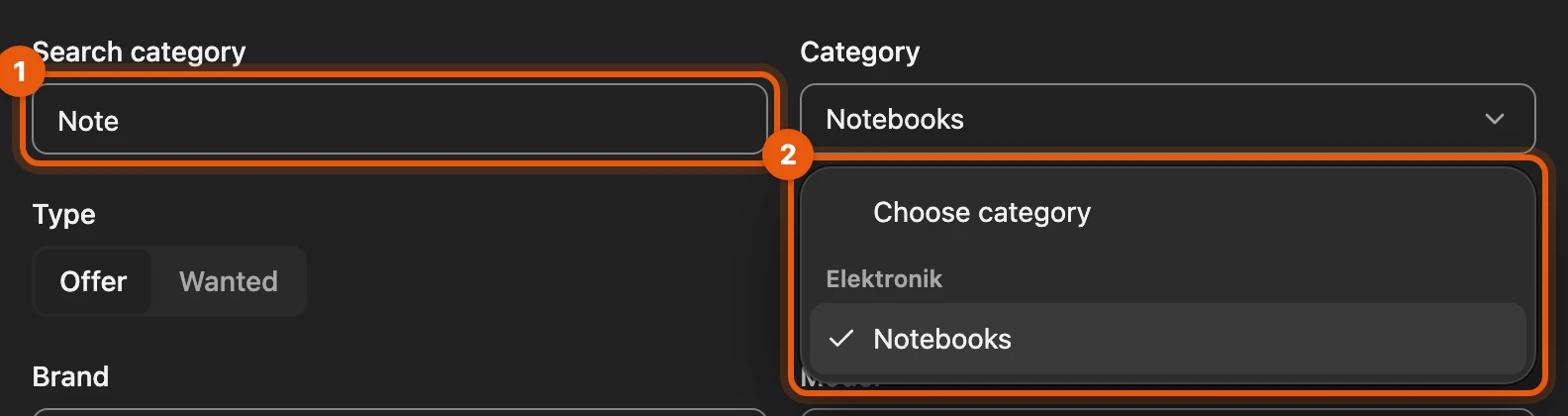
- Type a word into Search category.
- Pick the Kleinanzeigen category from the list. With a saved category, publishing no longer asks for it.
More: attributes and condition
- Fields: category, offer or wanted, brand, model, condition, colour, year and quantity.
- Without a category, Kleinanzeigen suggests matching ones from the title; when taking over an item, Kleinanzeigen-Enhanced adds it automatically.
- Condition: New, Very good, Good or Acceptable. If a takeover wrote it differently, such as “Gebraucht” (used), it stays that way until you change it.
“Location & shipping” tab
Section titled ““Location & shipping” tab”Under Shipping you choose Shipping, Shipping and pickup or Pickup only; this applies to every platform. For Kleinanzeigen, Change in the Kleinanzeigen box opens the Set shipping dialog:
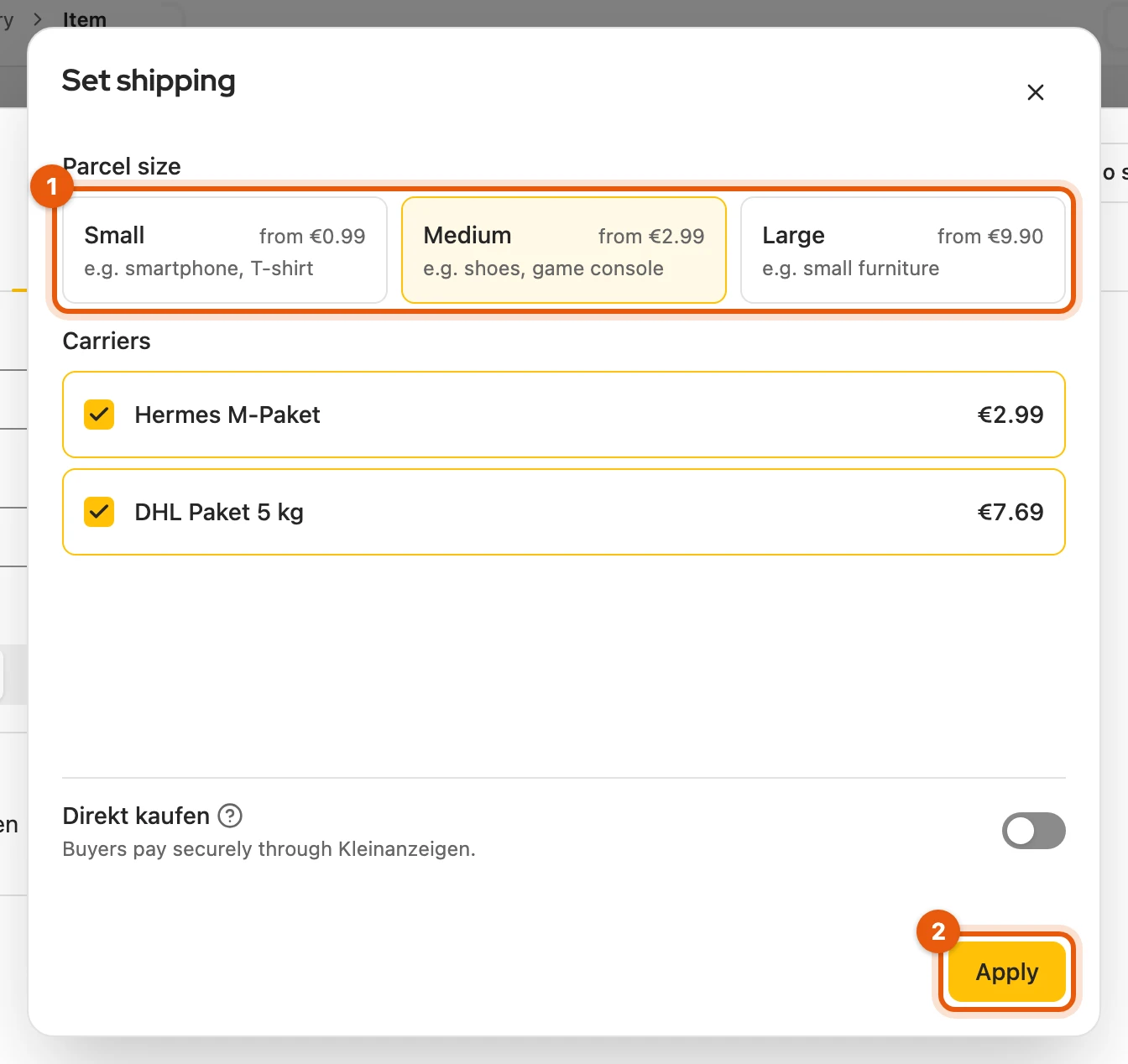
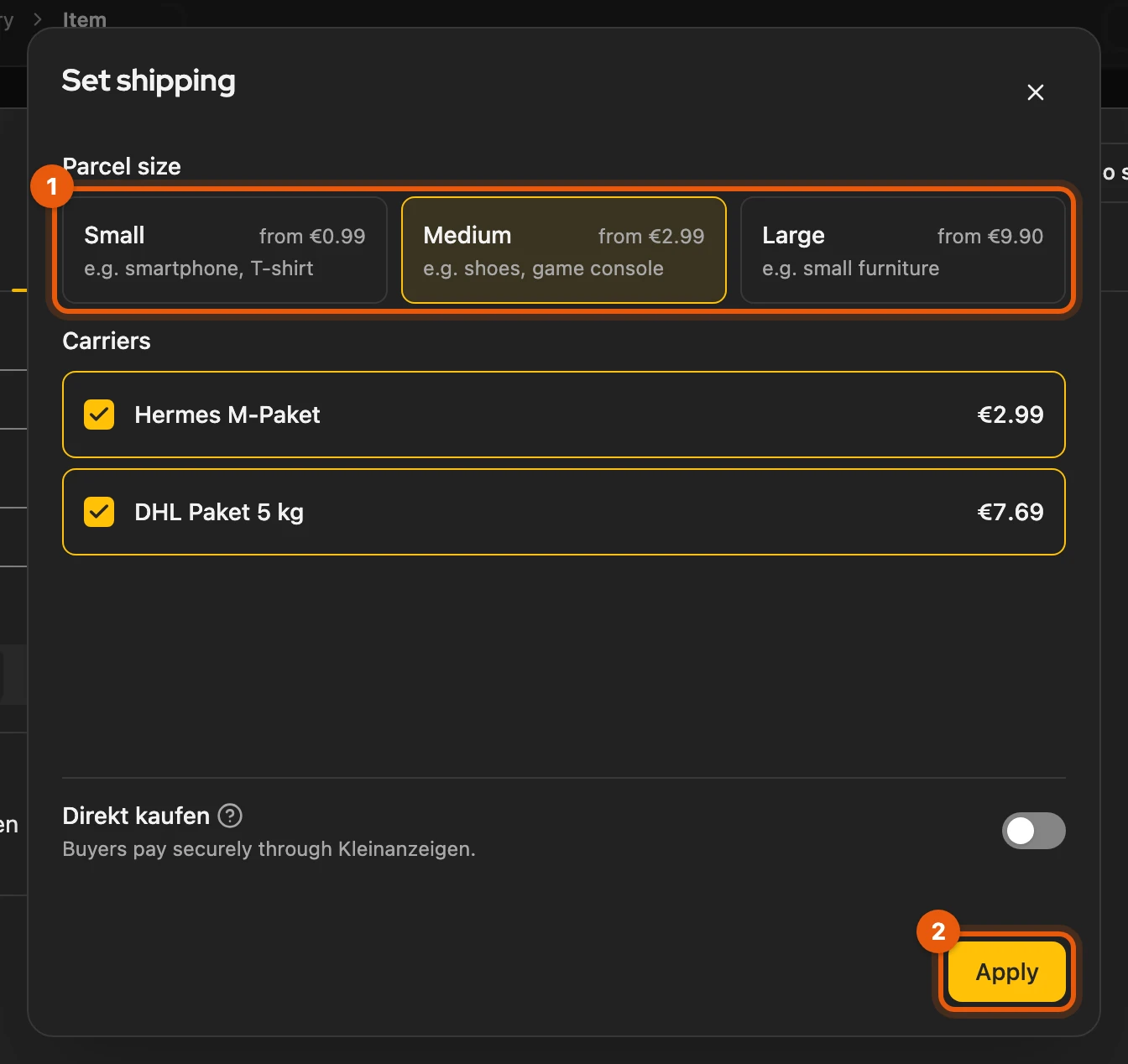
- Choose a parcel size and its carriers, and switch Direkt kaufen on or off.
- Apply, then save the item.
More: pickup only and own shipping price
- Pickup only: the box is greyed out; Kleinanzeigen gets no carrier and no Direkt kaufen. The carriers stay saved in case you switch back.
- Own shipping price: older items show it as a card with Remove. You cannot set a new one; new listings on Kleinanzeigen no longer have their own shipping price.
“Platforms” tab
Section titled ““Platforms” tab”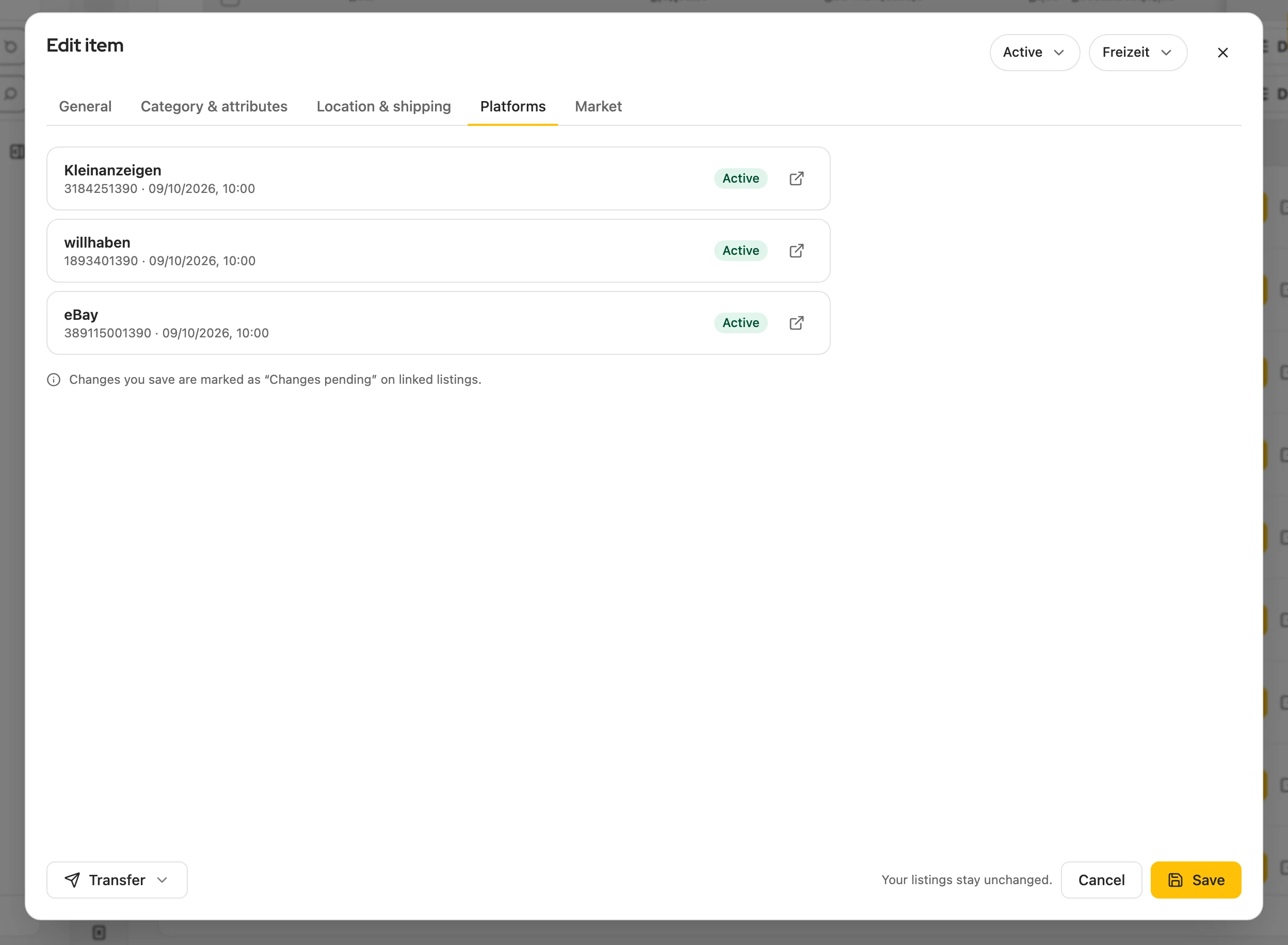
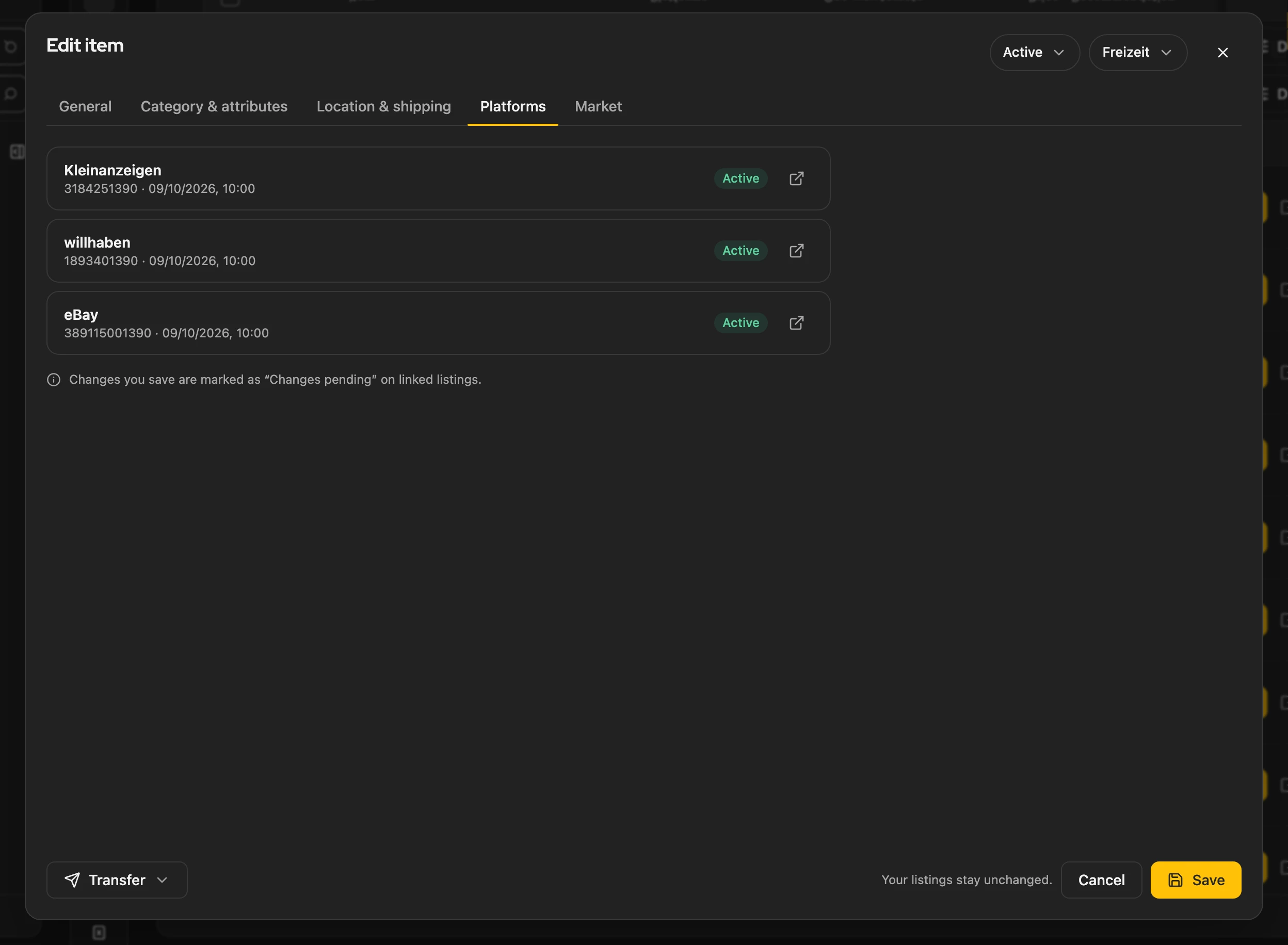
Saving never changes the listing. The linked listings are marked Changes pending. This is how you carry the change over:
- Kleinanzeigen: enter it in My listings via Edit; other platforms: directly there.
- Then choose Update item in the listing’s ⋯ menu; the mark disappears.
“Market” tab
Section titled ““Market” tab”The market is on the left, your item on the right. The sales agent comes with Privat Plus and up and in all Business plans.
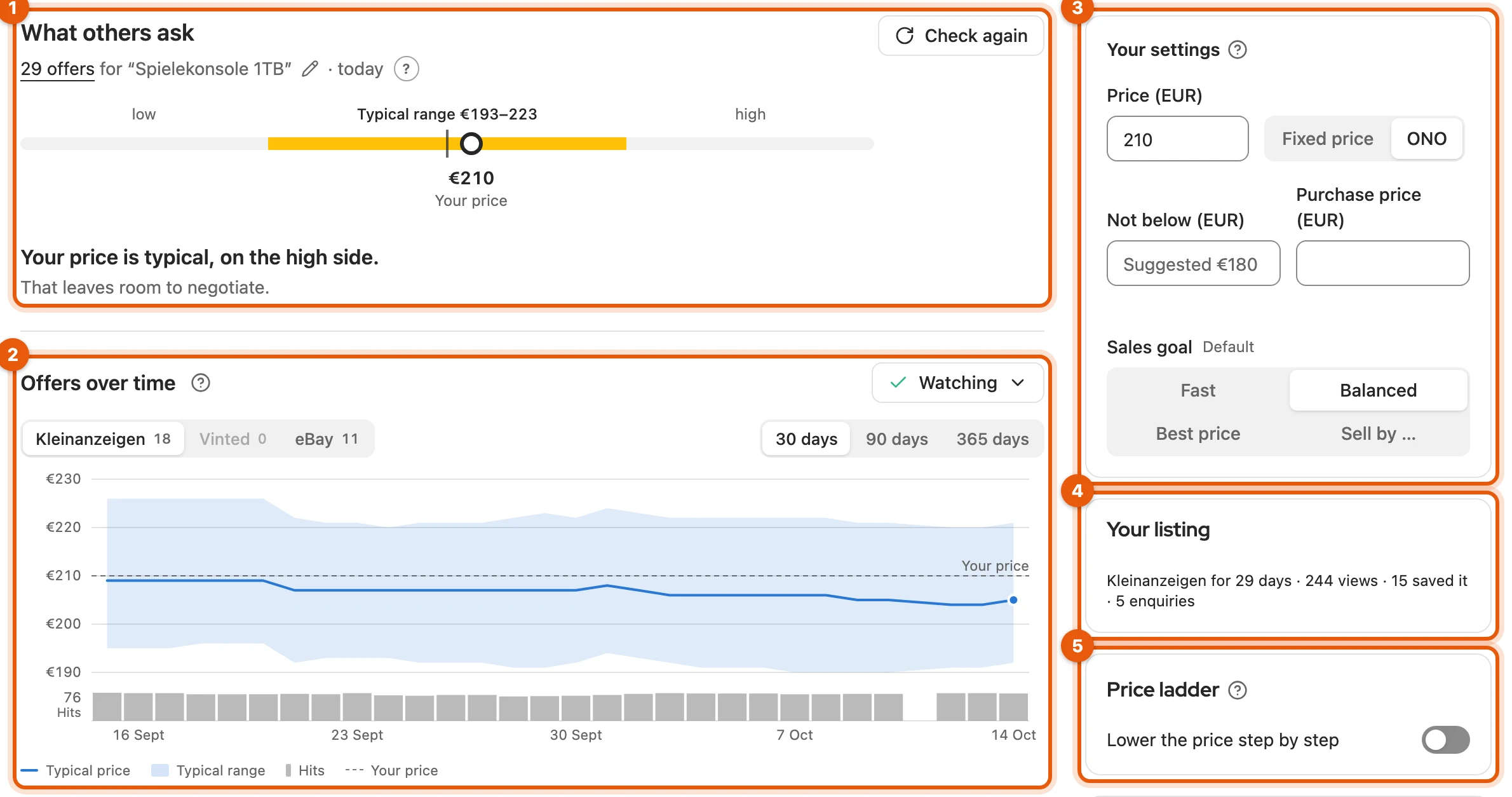
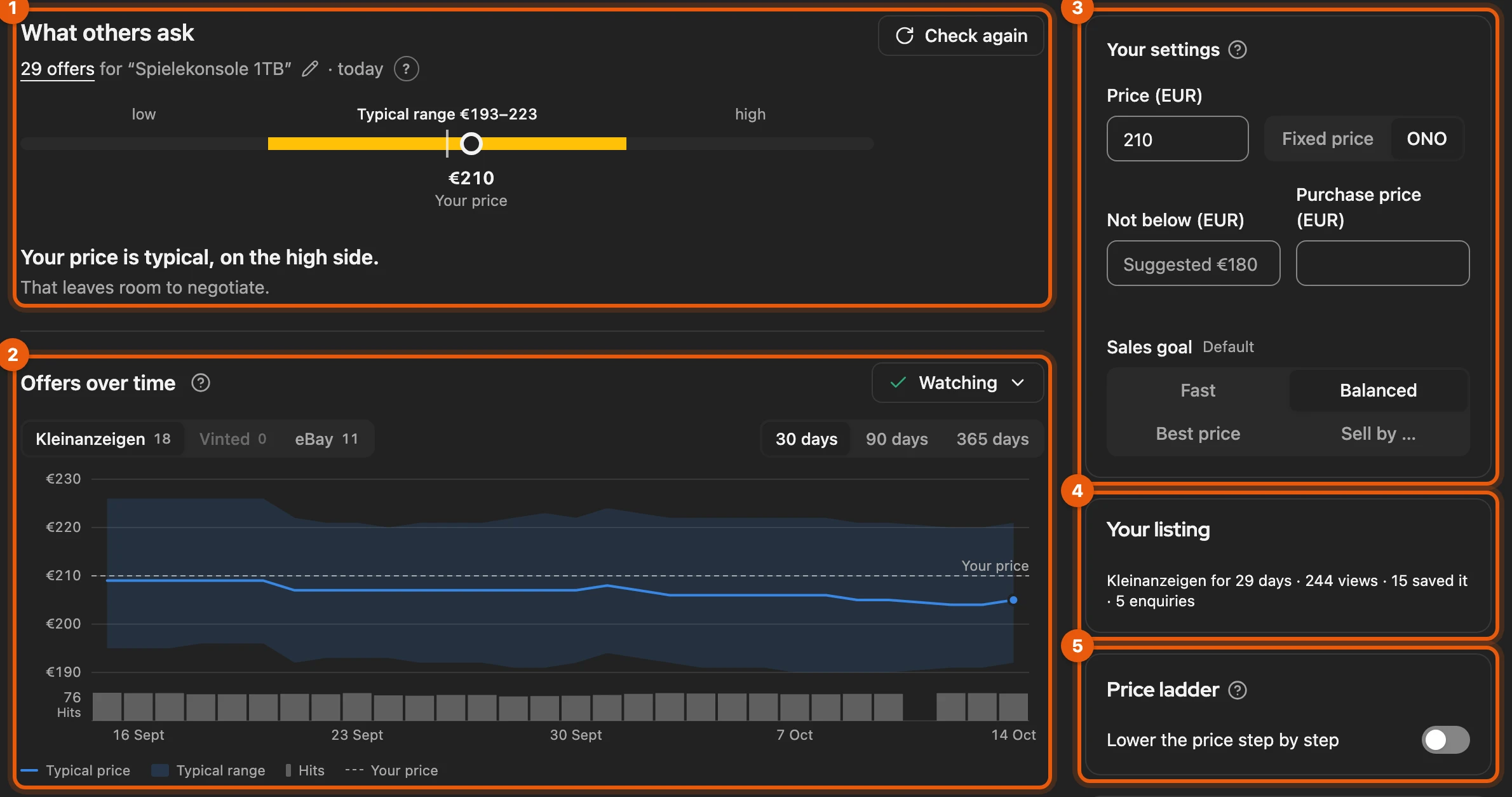
- What others ask: the market check, from Privat. Before listing, Set as price takes the suggestion.
- Offers over time with Watch (more).
- Your settings: price, floor price, purchase price and sales goal; the left side updates at once.
- Your listing: views, saves and enquiries per platform (more).
- Price ladder (more).
More: what else the tab contains
- Below: Comparable offers from watching or the market check and Look it up yourself on idealo, eBay and Google Trends.
- New item: the tab shows only Not below (EUR), Purchase price (EUR) and the Sales goal; the rest follows once the item is saved.
- At the top are the sales agent’s suggestions, when there are some.
- The tab does not publish anything.
Fill in from photos
Section titled “Fill in from photos”-
Click New item in the inventory and add photos.
-
Click Fill in from photos. Empty fields are filled in; what you entered stays.
-
Check the fields and click Save.
Undo below the photos restores the state before. You need an account with Kleinanzeigen-Enhanced; each fill uses up one credit, like a listing from photos.
More: credits, defaults and privacy
- Filled in are title, description, price, category and shipping. Nothing is published.
- Credits: only counted when a result comes back; how many you have left is shown below the photos.
- Defaults of Create from photos (writing style, your own instructions, text at the start and end) apply here too (defaults).
- Where the photos go: Privacy.
- For Kleinanzeigen: in the Category & attributes tab, category, attributes and shipping are ready; Remove discards them. If you change the category afterwards, they are not saved.
- Only when creating: a saved item does not have the button.
Product
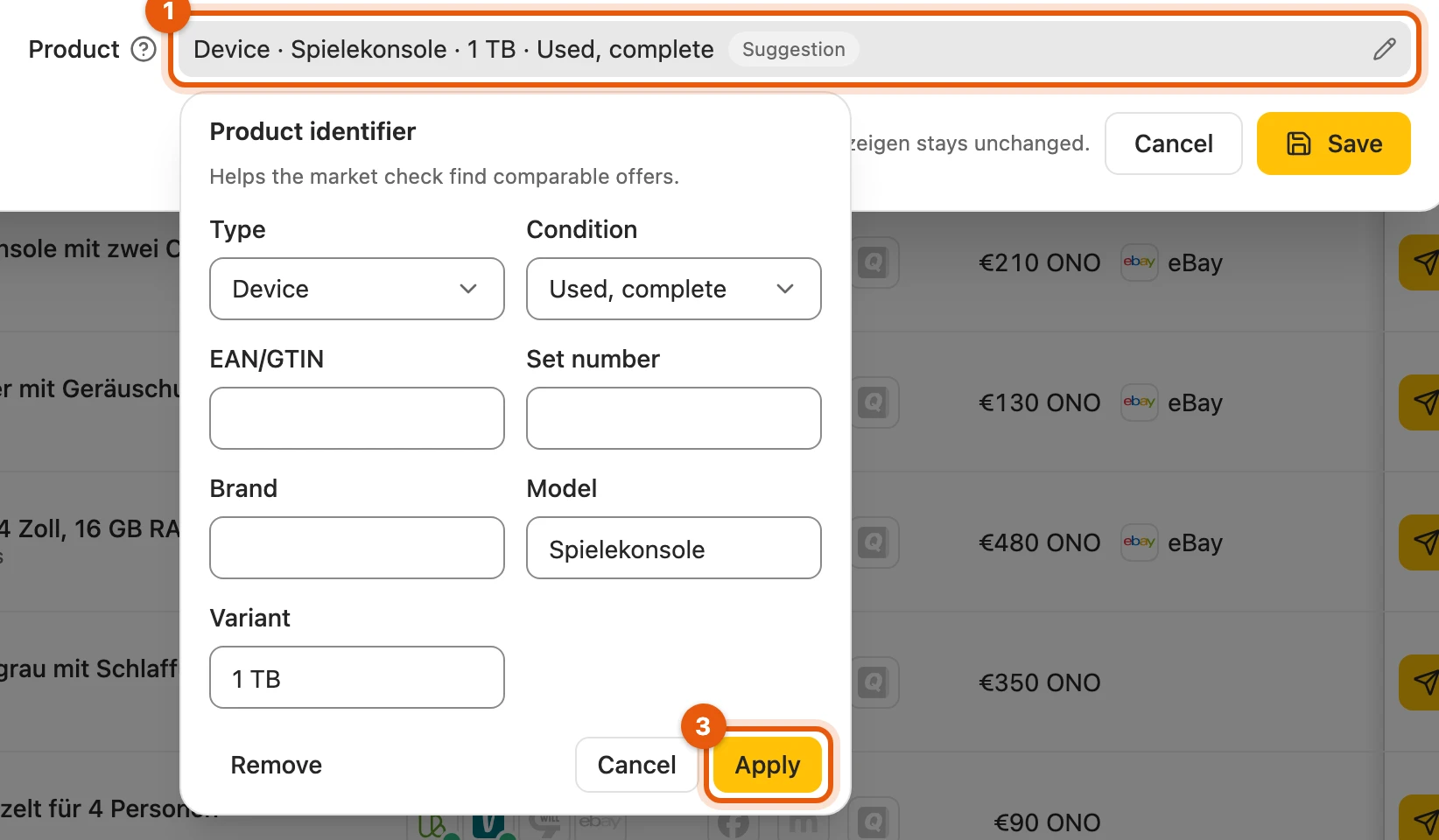
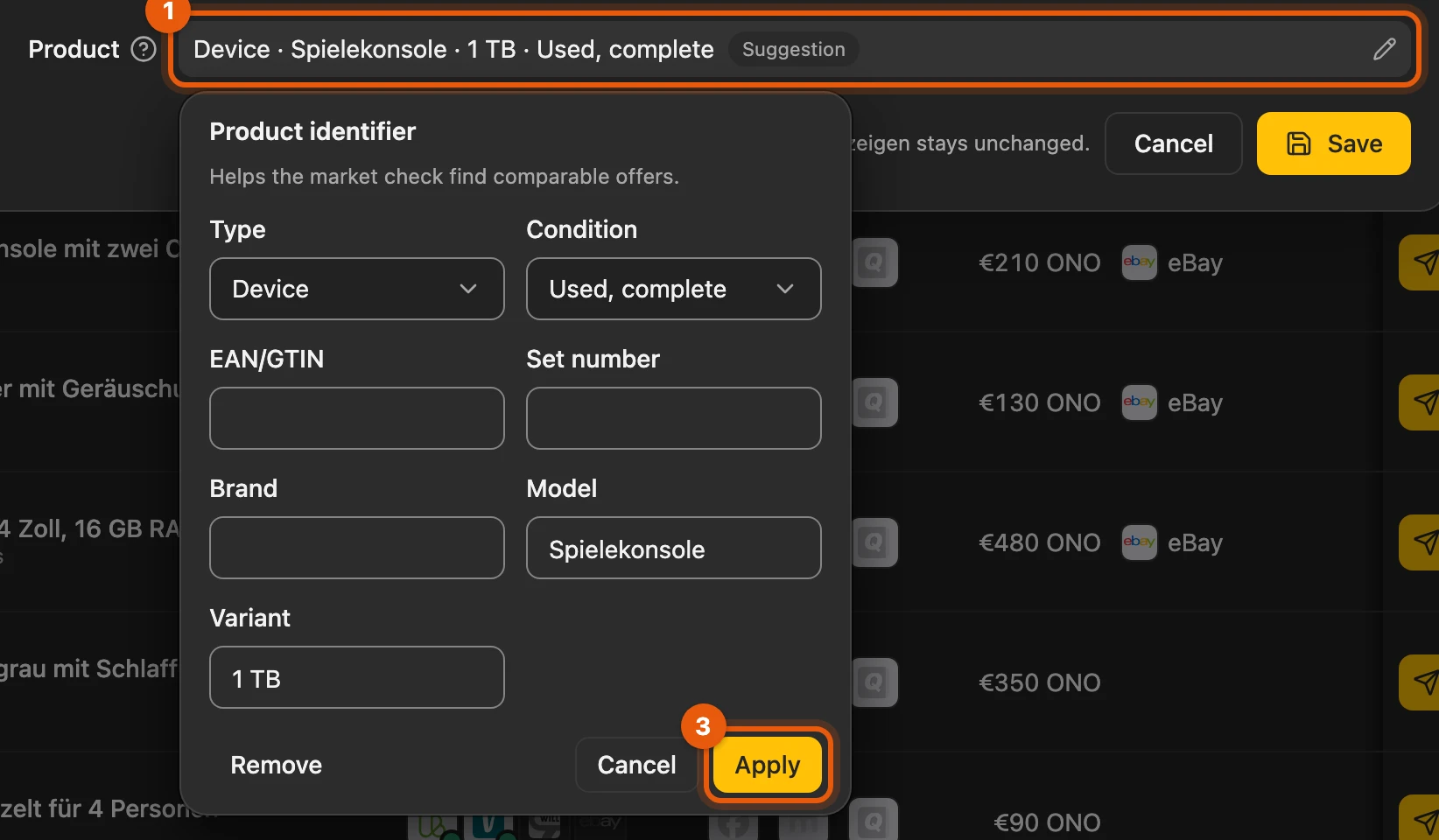
Section titled “Product”The Product row below the note says exactly which product the item is, such as “LEGO set · 21344”. With it, the market check finds comparable offers more precisely; it appears in no listing.
To correct it:
-
Click the Product row.
-
Change the details.
-
Click Apply and then Save at the bottom of the item.
Neither an import nor a suggestion replaces what you enter.
More: origin and priority of the details
| Mark | Origin | Priority |
|---|---|---|
| by you | entered or confirmed by you | 1 |
| Import | from a feed, shop or the takeover from eBay | 2 |
| Suggestion | from your photos, with Create from photos | 3 |
| Rule | read from title and description, not saved yet | 4 |
- Fields: type (EAN/GTIN, LEGO set, Device, Other), EAN/GTIN, set number, brand, model, variant (such as “256 GB”) and condition. This condition is only used for the comparison.
- Rule: reads LEGO set numbers, devices such as iPhone or PlayStation including storage, valid EANs or a clear brand. The market check searches with it even unsaved.
- EAN with a wrong check digit: “The check digit does not match. Please check the EAN.”
- Shop or feed details back: Remove and save; the next sync brings them back.
- Takeovers from Kleinanzeigen, Vinted and willhaben bring no product identifier.
Sales goal
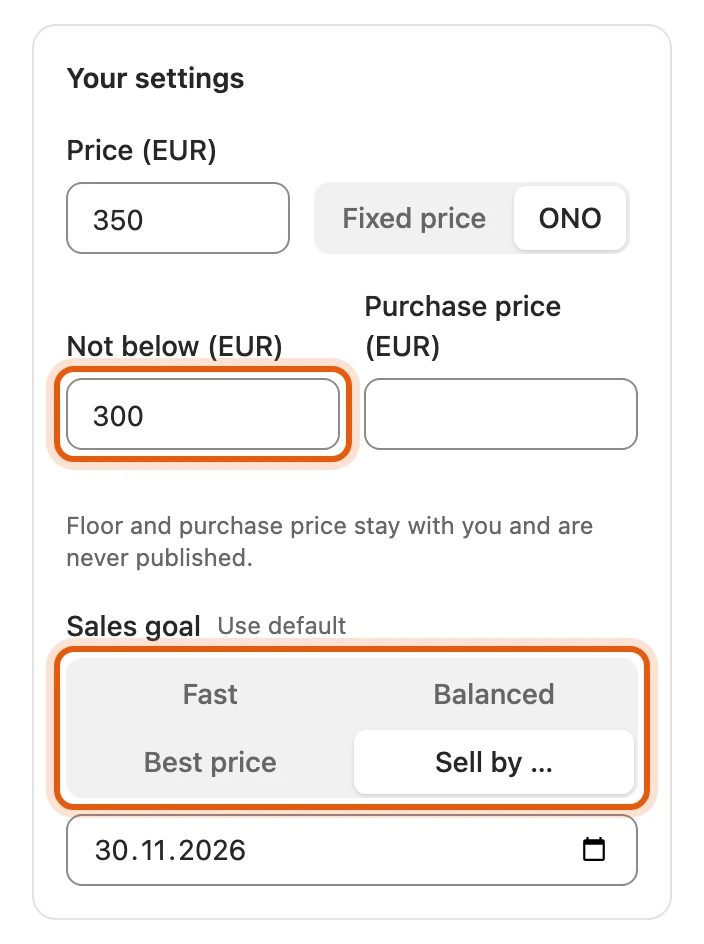
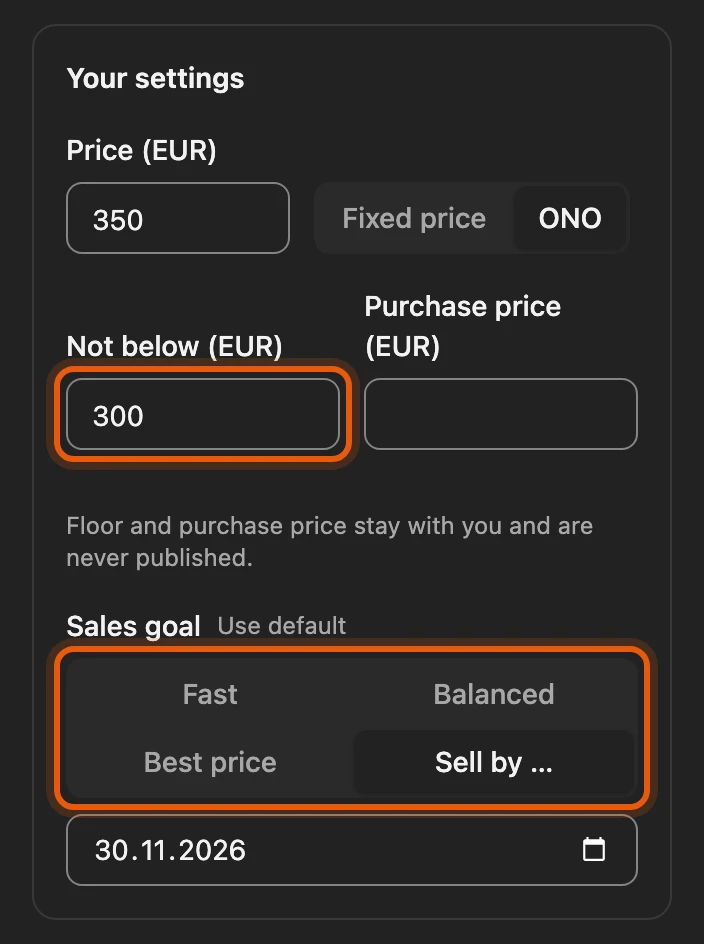
Section titled “Sales goal”The Sales goal determines which price and timing the sales plan suggests. Without a goal of its own, the one from Settings › Inventory applies; Use default goes back to it.
| Goal | What the plan suggests |
|---|---|
| Fast | price in the lower range of the offers, start immediately |
| Balanced | price at the typical price of the offers |
| Best price | price in the upper range, start at the time with the highest expected proceeds |
| Sell by … | sold by your day; the closer it is, the more like “Fast” |
More: default and date
- The default goal is Balanced at first.
- Sell by … needs a day from today on. If it has passed, the plan uses your default goal: “Your date has passed: the plan uses your standard goal.”
Floor price
Section titled “Floor price”In Not below (EUR) you enter the amount you do not want to go below. The floor price is never published, and the sales agent never suggests a reduction below it.
More: suggestion and your own floor price
- Empty field: with enough comparable offers, the plan’s suggestion sits there in grey, such as “Suggested €420”; it applies until you enter an amount of your own.
- Yours always applies, even below the suggestion. If it is above the suggested starting price, the plan points this out.
- Never published: it lives in your browser and only travels along in your data backup. See also Price limits.
Purchase price
Section titled “Purchase price”In Purchase price (EUR) you enter what you paid yourself; the sales plan uses it to show how far above or below it you are likely to land. It is never published either. For many items, you set goal and floor price with Edit multiple items.
More: no “Changes pending”
- Sales goal, floor price, purchase price and product identifier do not change any listing; if you only change these, your listings do not show Changes pending.
- If a value is invalid, Save opens the Market tab with the field.