

Backup
Your data is stored locally in this browser. A ZIP backup is available in every plan; the cloud backup also backs up automatically and syncs your browsers.
Cloud backup
Section titled “Cloud backup”The cloud backup is part of Privat Plus, Privat Pro and the Business plans from M. It is on automatically and uploads what is new every two hours, stored privately with Cloudflare in the EU.
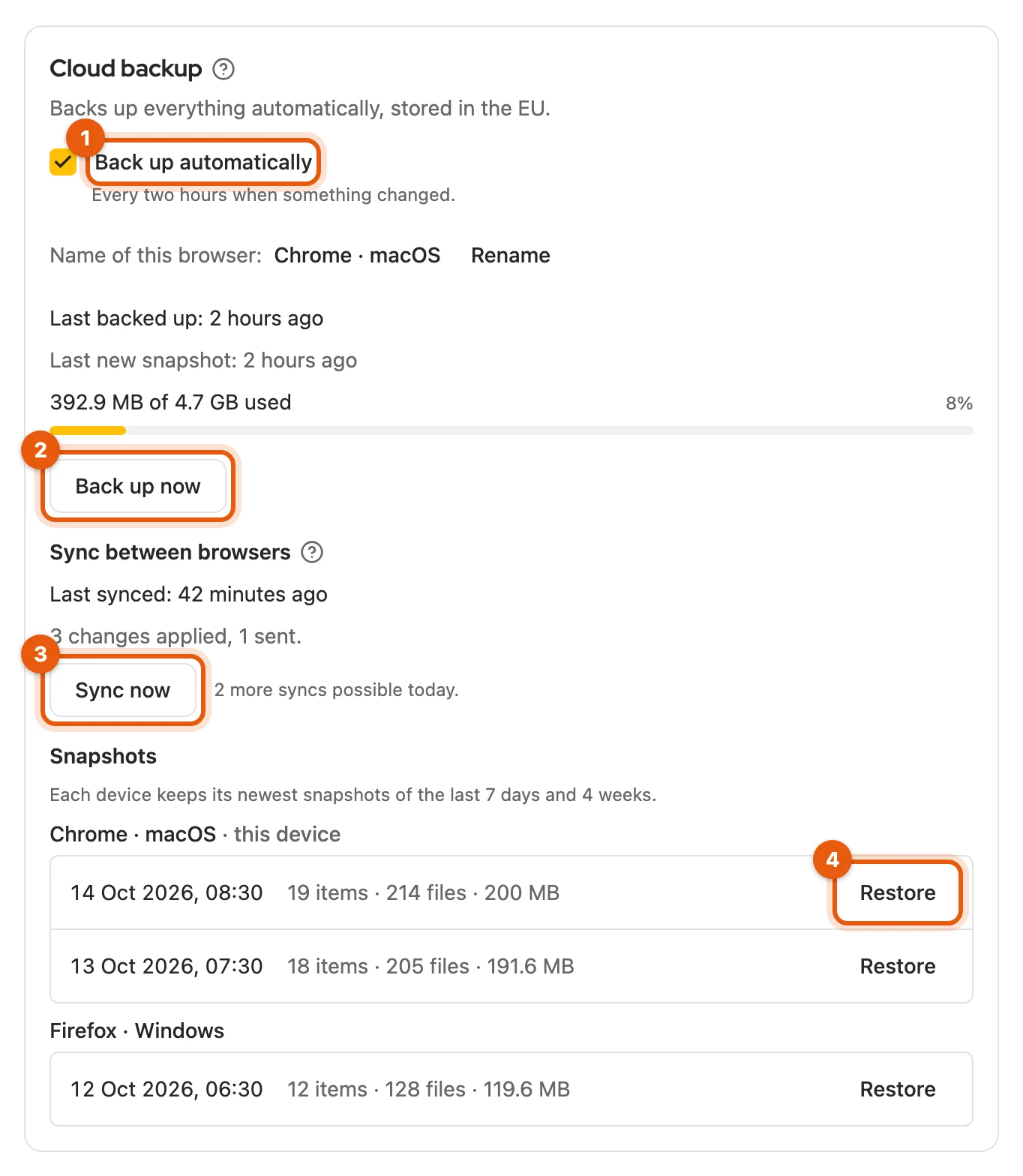
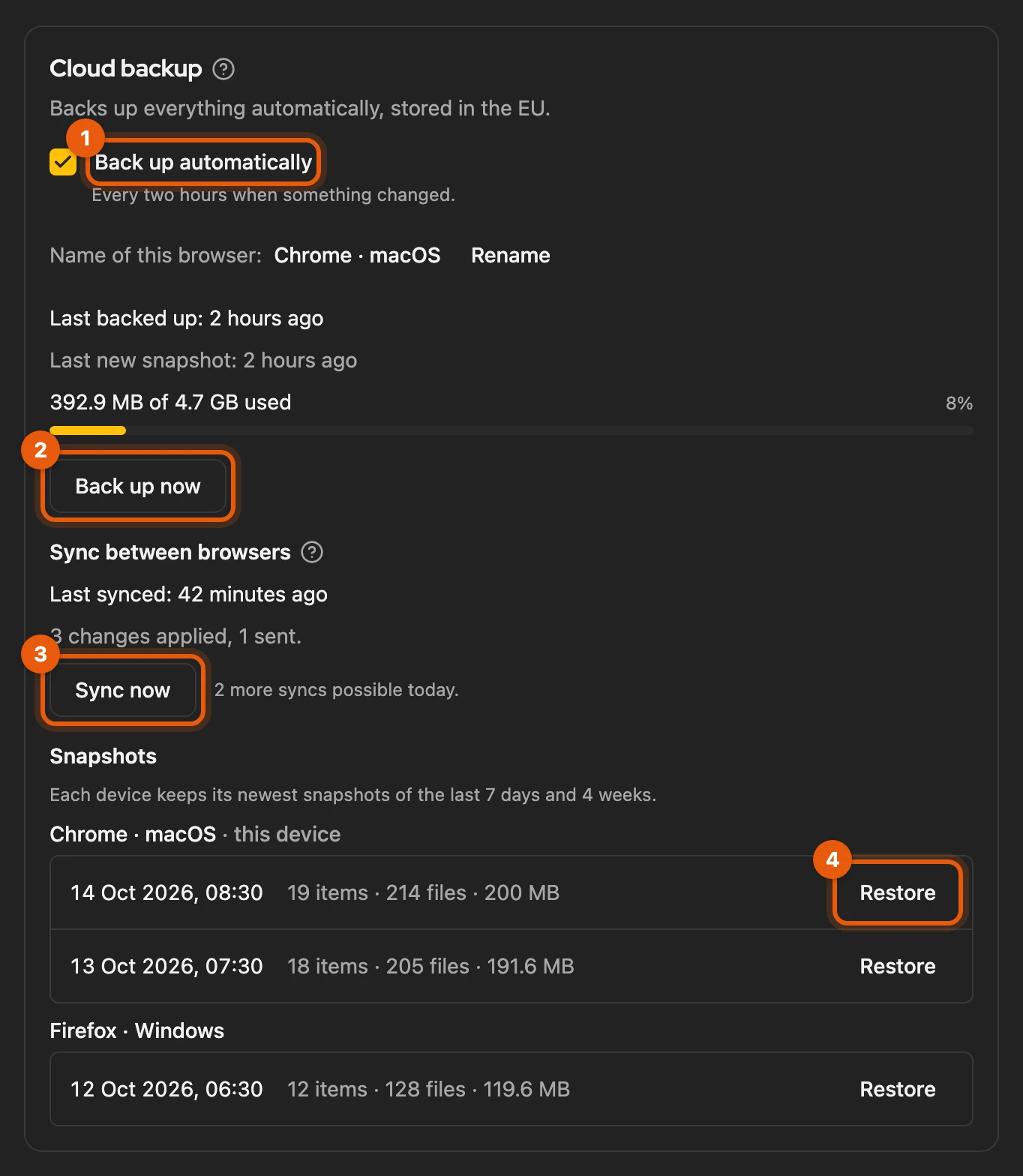
Under Settings › Data & import › Cloud backup you switch off Back up automatically (1), back up immediately with Back up now (2) and see the Snapshots of all browsers.
More: what the cloud backs up and for how long
| Backed up | items with pictures and PDFs, folders, notes, calendar appointments, listing history, sales, text templates, the Watchlist with notes, search agents with history and item assignments, shop and feed connections with product lists, message folders, notes on conversations, the autoresponder’s text, settings |
| Not backed up | sign-in data, sessions, WooCommerce and Shopware keys, uploaded feed files, contact names, phone numbers, message contents, the state of your listings on the platforms (fetched again), whether the autoresponder is on |
| Sales agent | backed up: watches with daily figures; not backed up: tracked comparable offers, market check results, open suggestions (they come back) |
- Only what is new is uploaded; a picture in several items is stored only once. Everything can only be retrieved with your licence.
- For each browser, the newest snapshots of the last 7 days and 4 weeks are kept.
- Every plan has a storage limit; the card shows how much is used.
- During the beta, licences from Version 5 can include the cloud backup too. The first time, the note Cloud backup is on appears at the top of the dashboard.
- After the licence ends, we delete it 7 days later once the end is confirmed, at the latest after 30 days. If you book a plan with cloud backup again before then, it stays. If you delete your account, it is deleted immediately.
Restoring from the cloud
Section titled “Restoring from the cloud”-
Install Kleinanzeigen-Enhanced and sign in under Settings › Licence.
-
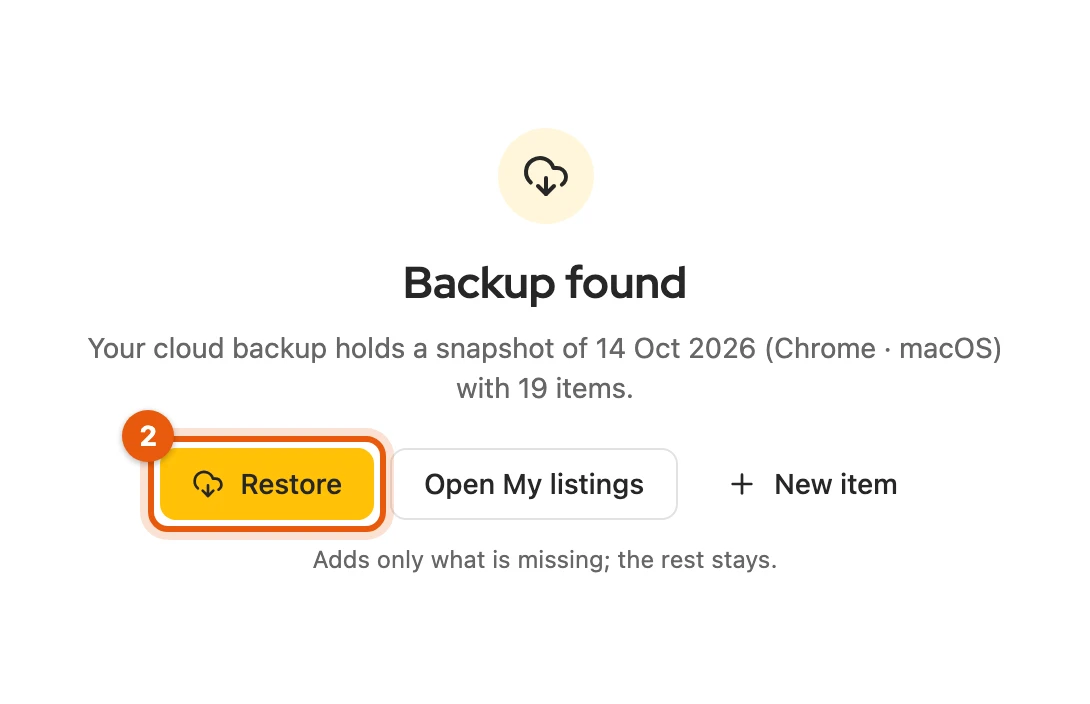
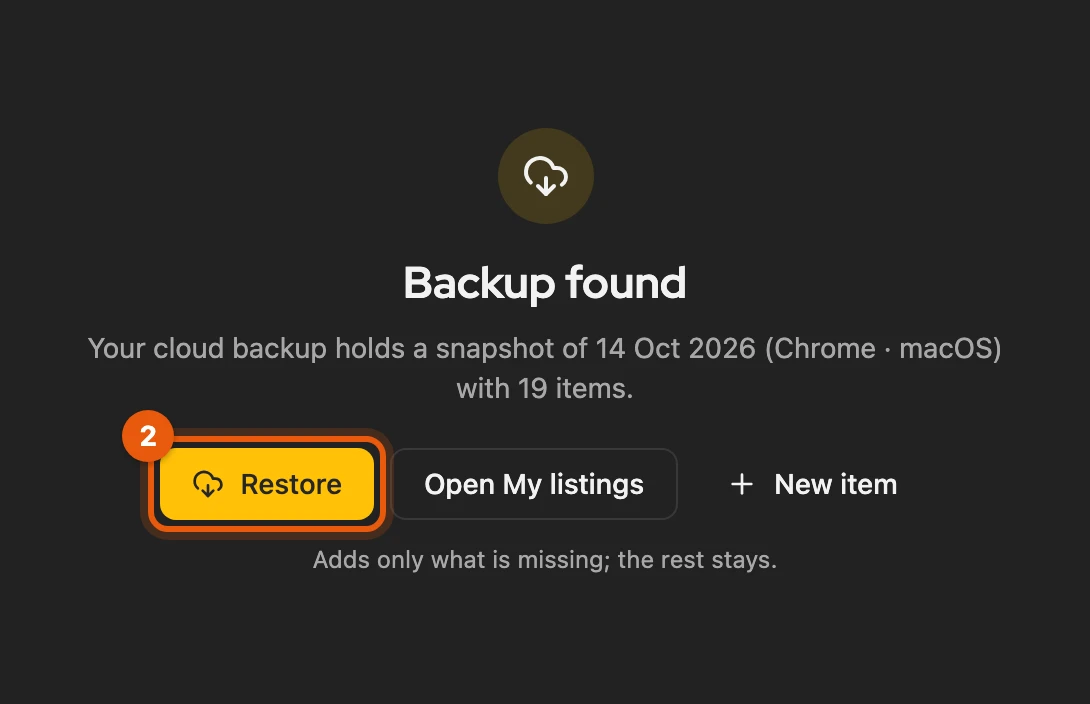
Open the inventory. If it is empty, it shows Backup found. Click Restore.
You restore a particular snapshot under Snapshots with Restore (4). Only missing entries are added. Calendar appointments come back paused; you switch the autoresponder back on yourself.
More: what happens when you restore
- You do not need to be signed in to Kleinanzeigen for this. Backing up and syncing work as soon as you are signed in to the Kleinanzeigen account your licence belongs to.
- To start afresh, click New item. If Sync between browsers is on, the empty inventory shows Syncing your inventory, and the items arrive by themselves.
- The restore keeps running in the background, even if you close the dashboard.
- Existing items, text templates and settings are not overwritten. Shop and feed connections come back with Review needed, as with the ZIP backup.
- Watches of the sales agent only come back for items that exist in this browser; of the daily figures, only missing days.
- Search agents keep running in the browser that ran them so far. If the card shows “… search agents keep running on …”, Run here brings them to this browser.
Syncing between browsers
Section titled “Syncing between browsers”With the cloud backup, inventory, text templates, notes, search agents and settings sync automatically between your browsers. Sync now (3) starts it at once; the tick Sync between browsers switches it off per browser. If you change something in two browsers, the newer version wins.
If one sync would delete many items at once, it stops and asks: Delete or Bring back. Run here brings a search agent to the current browser.
More: when, what and with which limits it syncs
- What: items with pictures, PDFs, folders and notes and which listing belongs to them, text templates, notes in the Watchlist, message folders, notes on conversations, search agents, settings such as language, overlays, transfer method and notifications.
- Not synced: calendar entries, auto-renew, the autoresponder, sales, the listing journal and the sales agent’s watches; they only come along through a restore.
- When: shortly after a change, when you open the dashboard and every 15 minutes if something changed.
- Switched off (or while Back up automatically is off), this browser’s inventory stays on its own; the other data keeps syncing.
- Conflicts: for items the dashboard tells you about the newer version; the older one stays in the snapshots. An item you are editing waits until you save it.
- First sync of a browser with its own items: Kleinanzeigen-Enhanced matches identical items itself. For the rest it asks once: Add or Replace with the other browsers’ state (backs up first, then deletes here; shop and feed items stay).
- Deletion guard: it applies if one sync would delete more than 20 items and more than a fifth of the inventory.
- Item limit of your plan applies in every browser; whatever does not fit follows once there is room.
- Search agents run in one browser only; the others show runs on …. Give two browsers of the same kind their own names with Rename, for example “Office Mac”. After Run here, the previous browser stops within an hour. If a browser does not report for two days, the list of search agents warns, for example “Office Mac inactive”.
- Different Kleinanzeigen-Enhanced account in the same browser: backup and sync pause until you confirm in the card.
Backup as a ZIP file
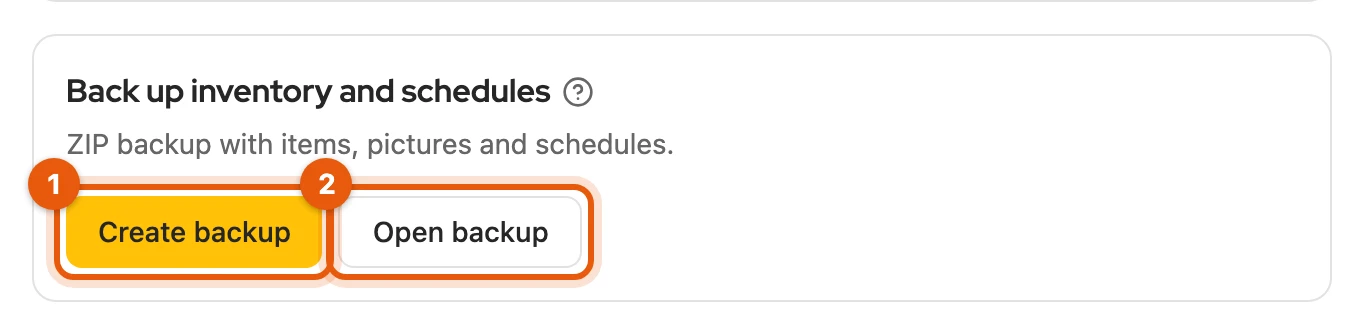
Section titled “Backup as a ZIP file”Under Settings › Data & import, click Create backup (1) in the Back up inventory and schedules card. The browser downloads a ZIP file with items, pictures and calendar entries.
More: what the ZIP file contains
- Included: items, folders, notes, pictures, PDFs, calendar entries, shop and feed connections with their product lists
- Not included: sign-in data, session data, contact names, phone numbers, WooCommerce and Shopware keys, uploaded feed files, sales agent data
Restoring a ZIP backup
Section titled “Restoring a ZIP backup”- Open Settings › Data & import in the browser where you need the data.
- Click Open backup (2) and choose the ZIP file.
- Check the preview and click Confirm.
Only missing entries are added. Calendar entries are paused at first; resume them in the calendar. Shop and feed connections show Review needed, see Connect shops and feeds.
More: item limit, appointments and connections
- The restore does not count against the item limit.
- Entries can only be taken over if your licence includes the calendar.
- With Review needed, you enter keys again, upload a feed file again and switch the automatic sync back on yourself.
New computer or second browser
Section titled “New computer or second browser”Restore from the cloud, or create a ZIP backup in the old browser and open it in the new one. Then sign in to the platforms; Kleinanzeigen-Enhanced fetches your listings and messages again.