

Settings
You open the Settings at the bottom of the dashboard’s sidebar. What is rarely needed sits under Advanced, and the ? shows the details. A platform’s defaults appear as soon as you use it; whatever your plan does not include shows Not in your plan.
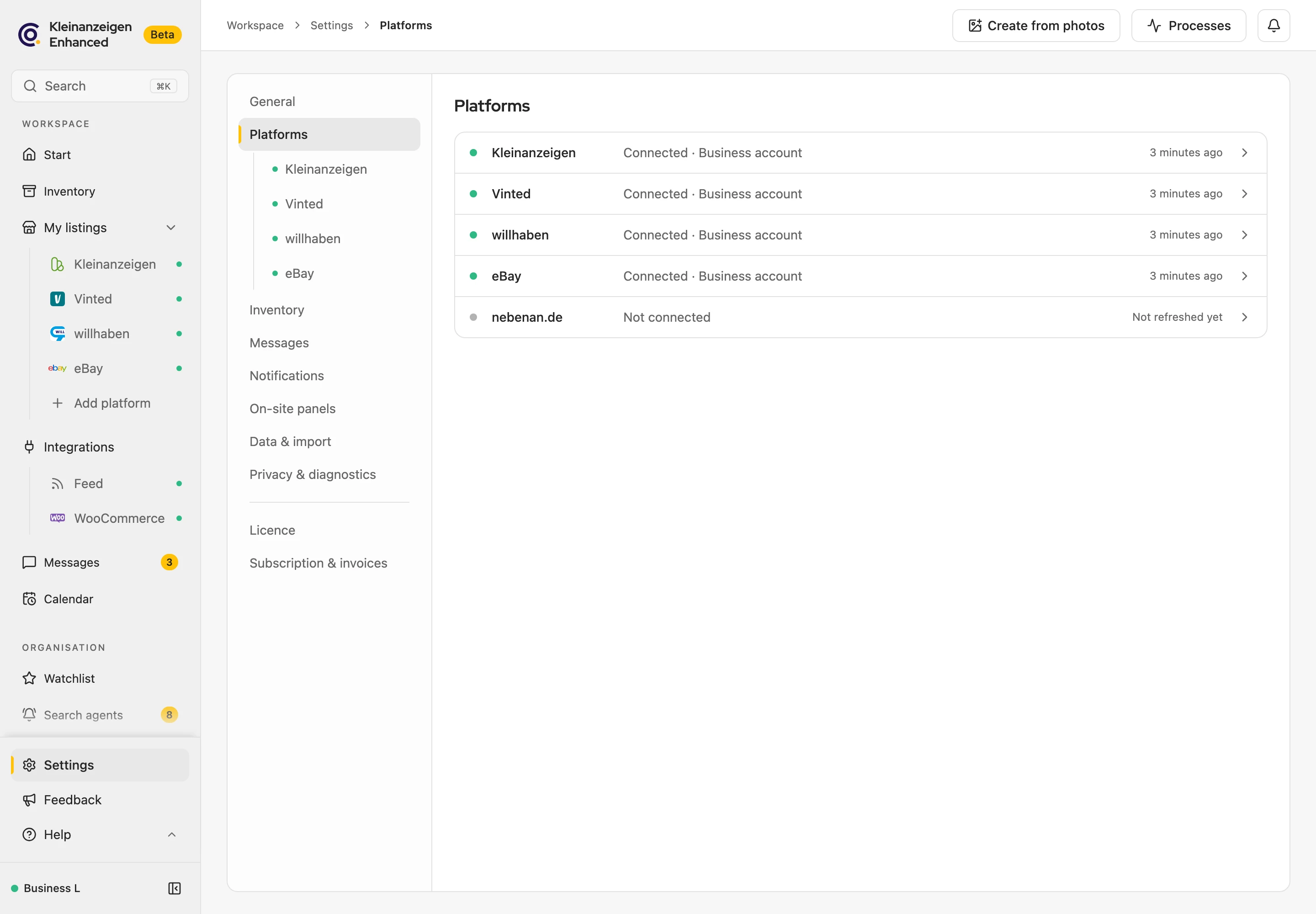
| Area | What you set there |
|---|---|
| General | Appearance, Row height, Language; under Advanced the Tables |
| Platforms | Sign-in status, account type and quota per platform, plus the defaults below |
| Inventory | Visible marketplaces, transfer from the inventory, Location and contact, Sales goal |
| Messages | autoresponder, greeting, new accounts, conversation note, archive |
| Notifications | Browser notifications and weekly report |
| On-site panels | Features on kleinanzeigen.de |
| Data & import | Backup, Switching from Version 5 |
| Privacy & diagnostics | Usage and error data, off at first |
| Licence | Activate your licence |
| Subscription & invoices | Subscription and invoices |
More: language, row height and tables
- Language Automatic chooses Deutsch if your browser is set to German, otherwise English.
- Row height applies to all lists with pictures. In the lists, Display changes the same setting.
- Tables: “Standard” puts text on the left and numbers on the right; “Centre” and “Right” apply to all columns except selection, title and actions.
- Keep the title in place when scrolling sideways keeps the title on the left when you scroll to the right.
- Inventory actions at the front puts a row’s buttons directly after the checkbox.
Visible marketplaces
Section titled “Visible marketplaces”Under Inventory you hide platforms you do not use. They then no longer appear when transferring; whatever is already published stays visible. Kleinanzeigen cannot be hidden.
More: where a hidden platform no longer shows
- as a logo in the inventory, in the Transfer menu in the item and under Transfer to … in My listings
- in bulk drafts and below your listings on kleinanzeigen.de
- in the sidebar under My listings and in Add platform, as long as you do not use it
- If you hide Facebook, markt.de and Quoka all together, the inventory column One-way targets disappears.
Location and contact
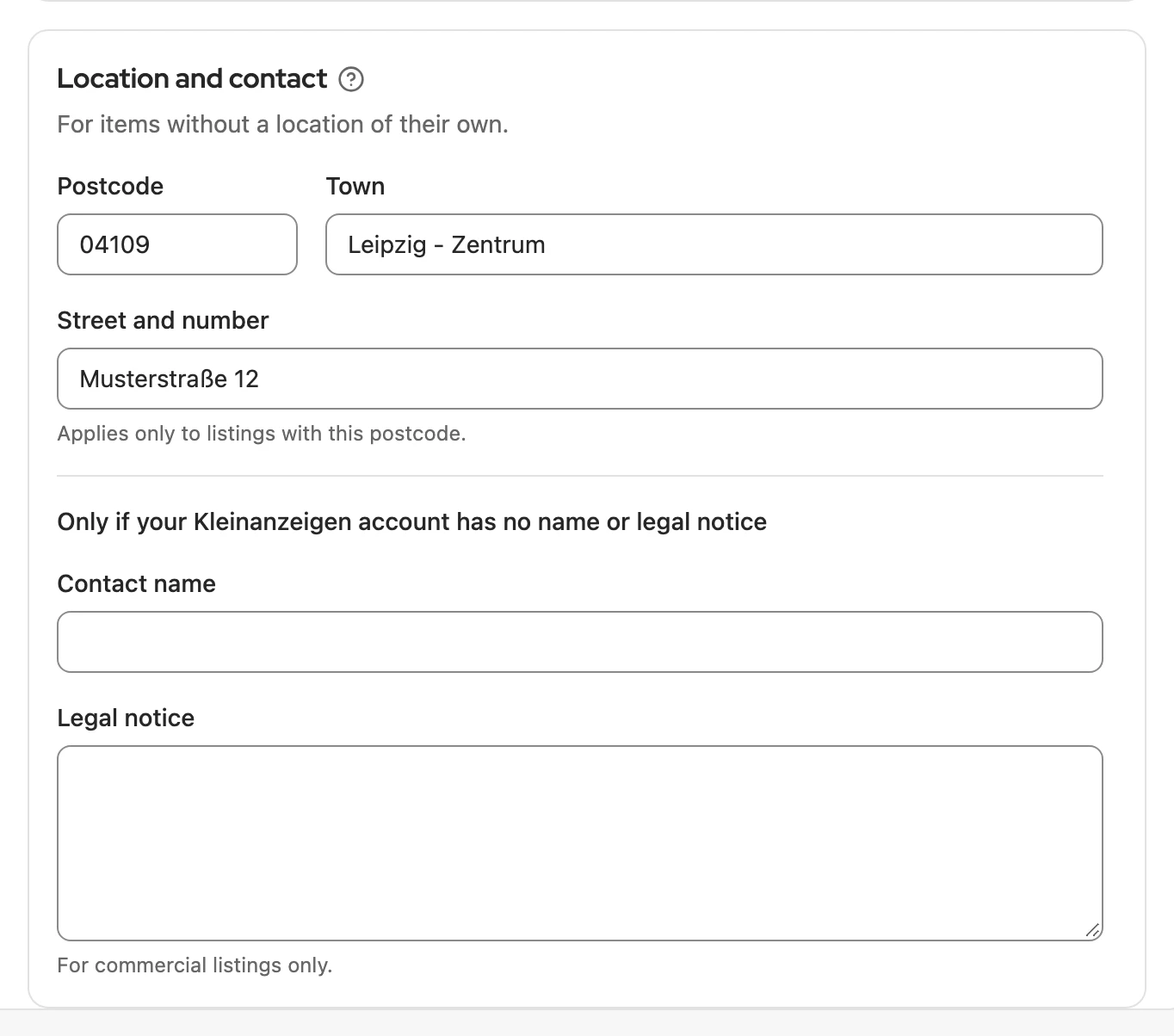
Section titled “Location and contact”Under Inventory › Location and contact you store a location for items without their own. It applies when publishing on Kleinanzeigen and as the item location on eBay. Vinted and willhaben always use the location of your account there.
More: which detail applies when
| Field | Applies … |
|---|---|
| Postcode and Town | only with a German postcode; if the item has its own, that one applies. The town is the item location on eBay. |
| Street and number | only to listings with this postcode. Whether the address is visible is up to your Kleinanzeigen account. |
| Contact name and Legal notice | only if your Kleinanzeigen account has none; the legal notice only for commercial listings. |
If you leave the card empty, Kleinanzeigen uses the location of your Kleinanzeigen account. Contact details from Profil (profile) in Version 5 are moved into this card when you switch.
Product safety and warranty
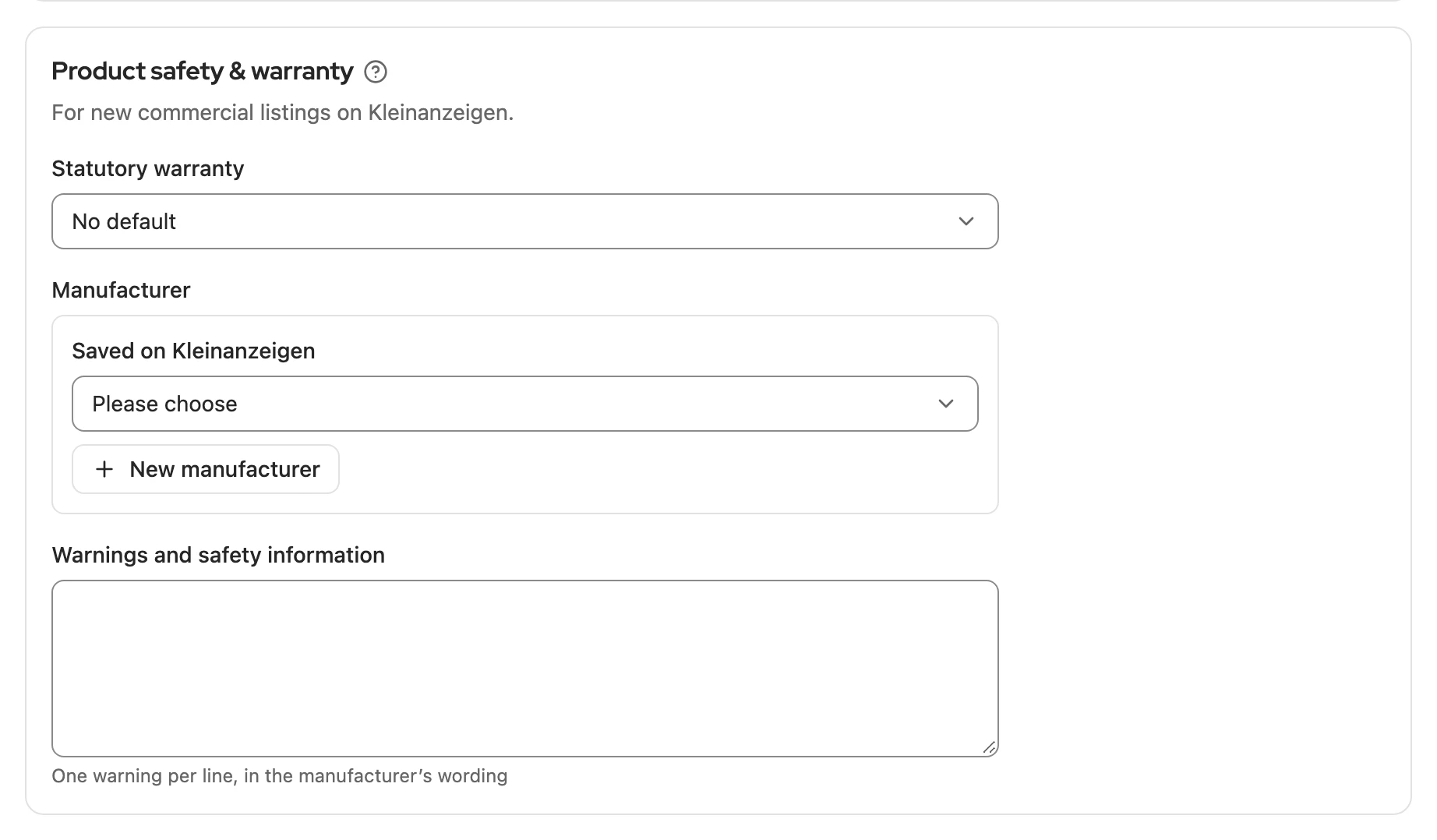
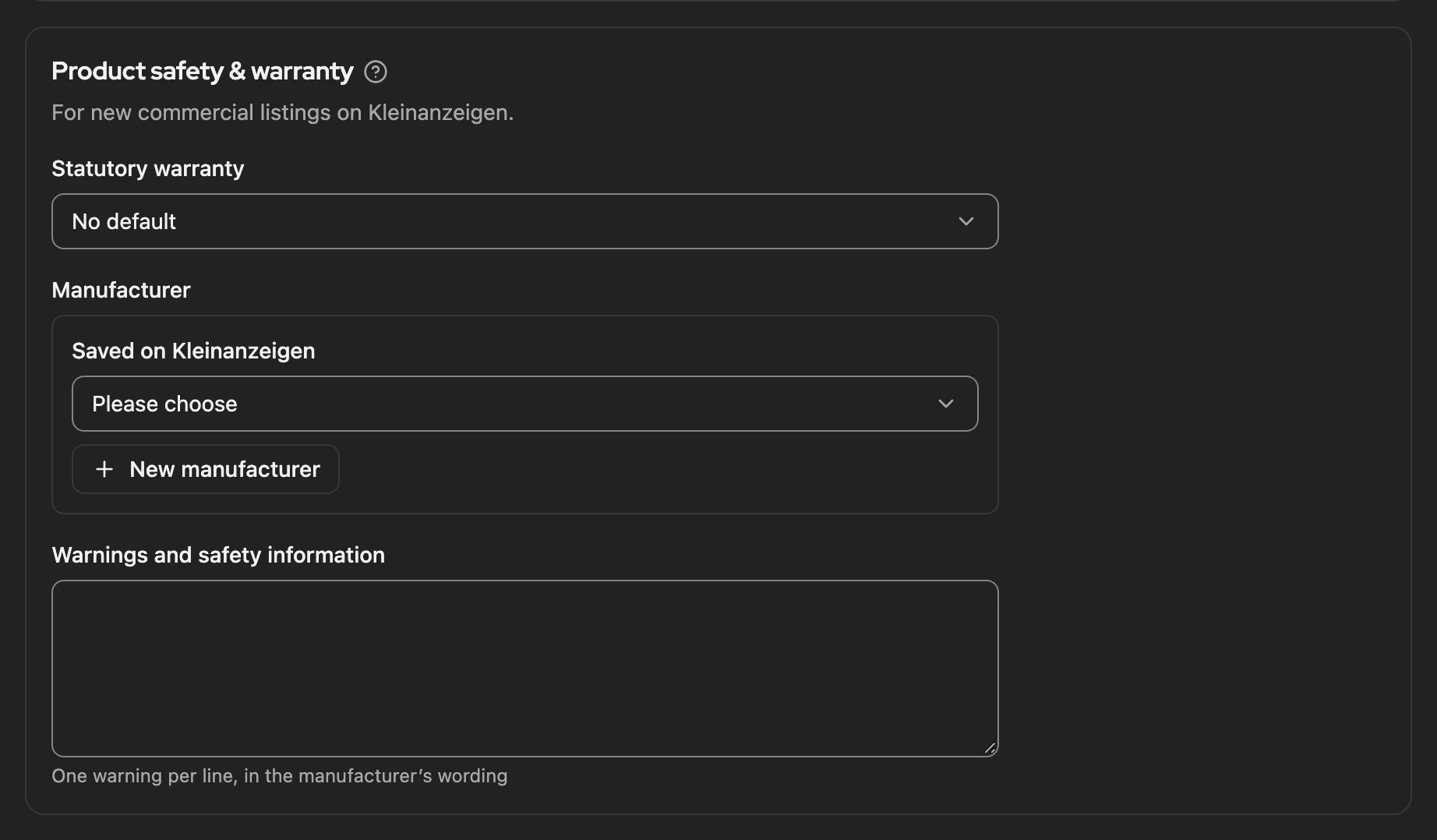
Section titled “Product safety and warranty”On a commercial Kleinanzeigen account, under Platforms › Kleinanzeigen › Product safety & warranty you store the manufacturer, warranty and warnings once for new listings. You change existing listings with Change fields.
More: when the details apply
- only where the category asks and the listing has no details yet
- New goods always get 24 months of warranty.
- If an item has a GTIN, it becomes the product number.
- The warnings save as soon as you leave the field.
Listing type on willhaben
Section titled “Listing type on willhaben”Under Platforms › willhaben you choose whether a transfer starts as a private or a commercial listing. Commercial listings always open the willhaben form.
More: by account and drafts
- By account follows your willhaben account; if it has not been refreshed yet, private applies.
- willhaben only creates drafts for private listings.
Import from Vinted
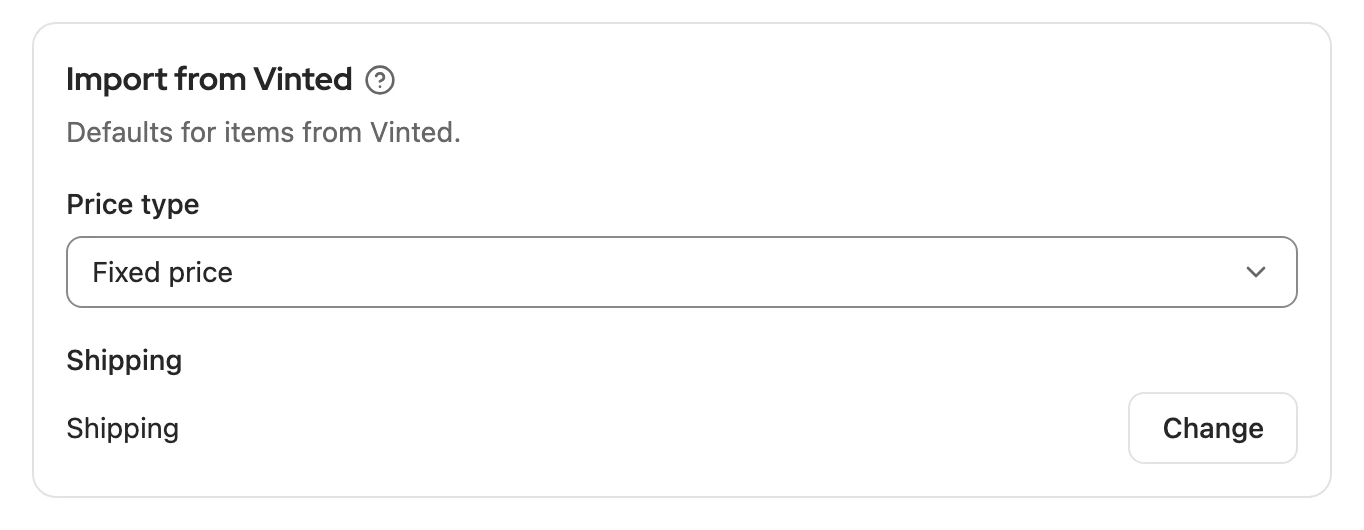
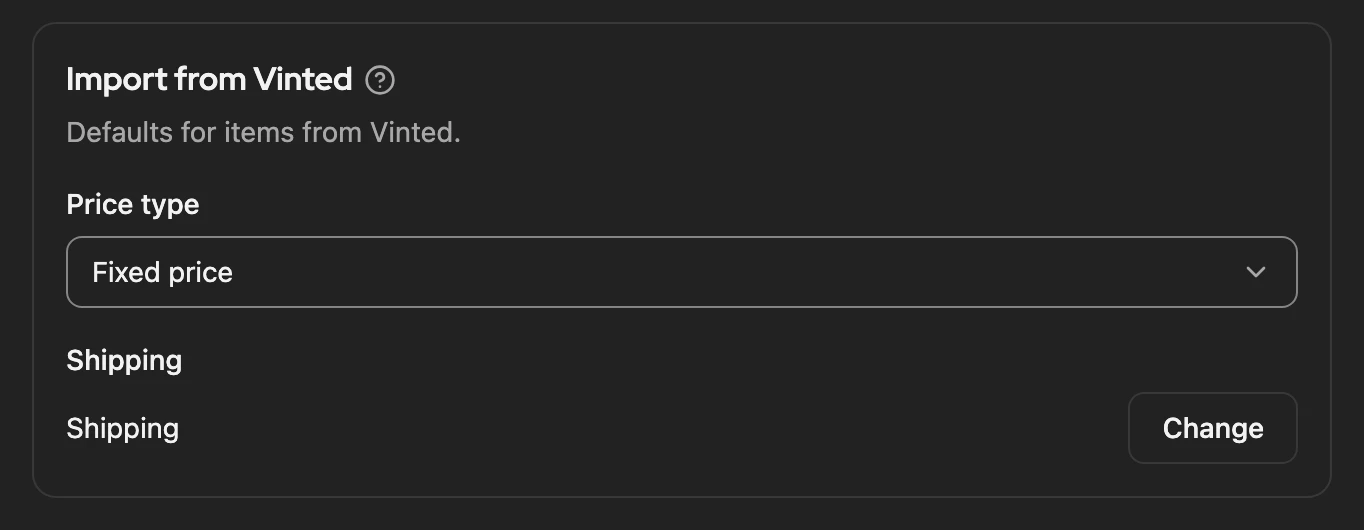
Section titled “Import from Vinted”Under Platforms › Vinted › Import from Vinted you set the Price type and Shipping an item you take over gets. Title, description and price stay as on Vinted.
How a click brings an item to Vinted is chosen under Inventory › Transfer from the inventory, see Ways to Vinted.
More: price type, shipping and transfer
- Price type: Fixed price, ONO or Free. Vinted itself knows neither a price type nor pickup.
- Shipping: shows whether the item gets Shipping, Shipping and pickup or Pickup only. With Change you choose the parcel size and carriers; they apply when publishing on Kleinanzeigen as long as the item names none.
- Transfer to Vinted: Create a draft, Fill in the form or Publish. Publish only applies once you confirm Publish directly at your own risk with Enable at my own risk; Cancel keeps the previous choice.
Import from eBay
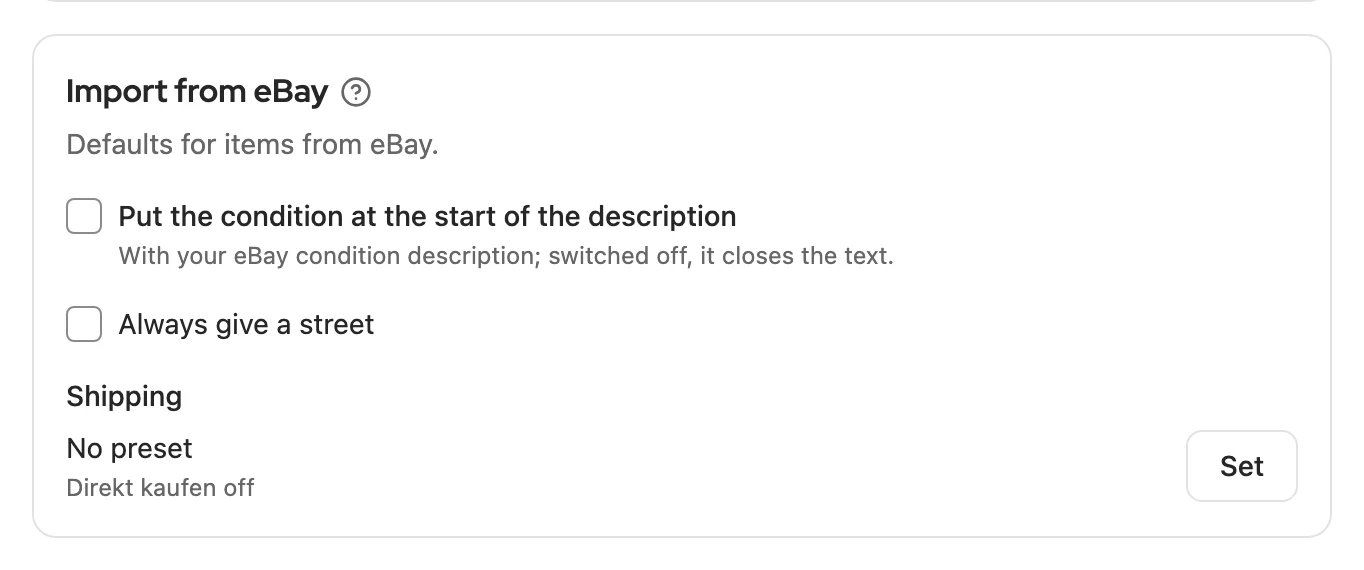
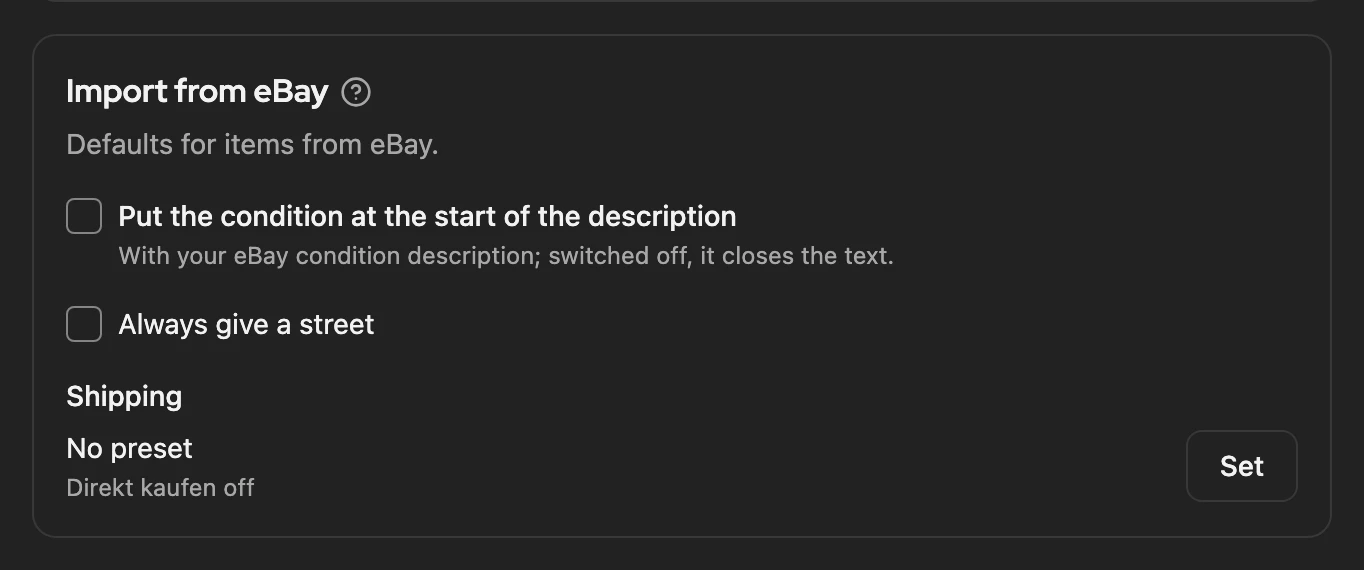
Section titled “Import from eBay”Under Platforms › eBay › Import from eBay you set what an item from eBay also gets. Pickup and shipping come from the eBay listing.
More: the three defaults
- Put the condition at the start of the description: “Zustand: …” (condition) with your eBay condition description comes first; without a description, the condition itself, for example “Gebraucht” (used). Switched off, it is at the end.
- Always give a street: this street appears when publishing on Kleinanzeigen with the address shown, unless the item has its own.
- Shipping: the parcel size and carriers apply as long as the item names none. Direkt kaufen (buy directly) switches on Kleinanzeigen’s payment feature where the category offers it; No preset removes the carriers.
Sales goal
Section titled “Sales goal”Under Inventory › Sales goal you choose the default goal Fast, Balanced or Best price. It applies to items without a goal of their own and determines which price and time the sales plan suggests.


More: default and goals of their own
- The default is Balanced. Your choice saves immediately and applies in this browser.
- An item gets a goal of its own in the item, in the defaults for listings from photos or for many items with Edit multiple items. “Sell by …” is only available for single items.
- How long the sales agent waits before suggesting a price also depends on the goal.
Notifications
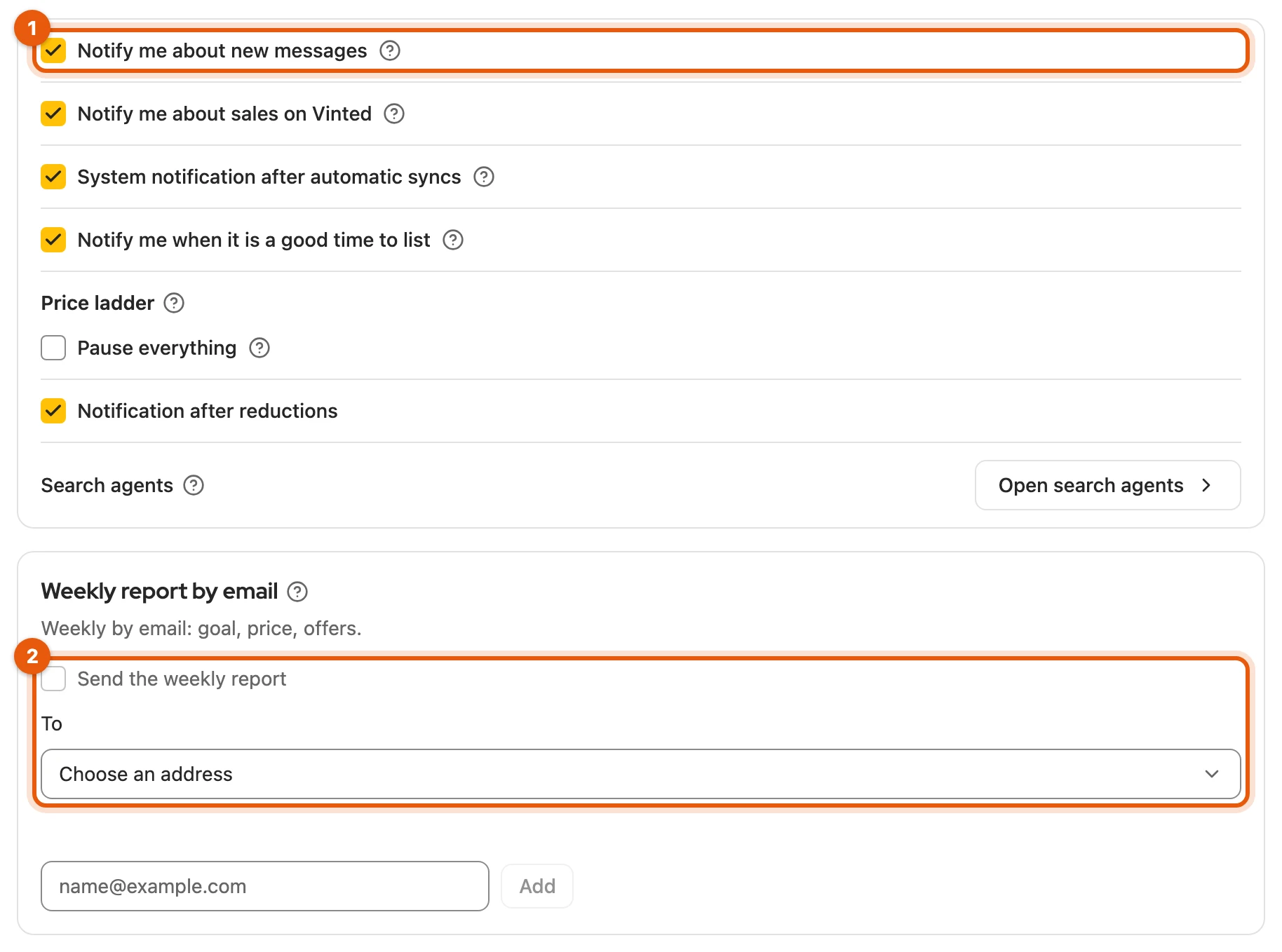
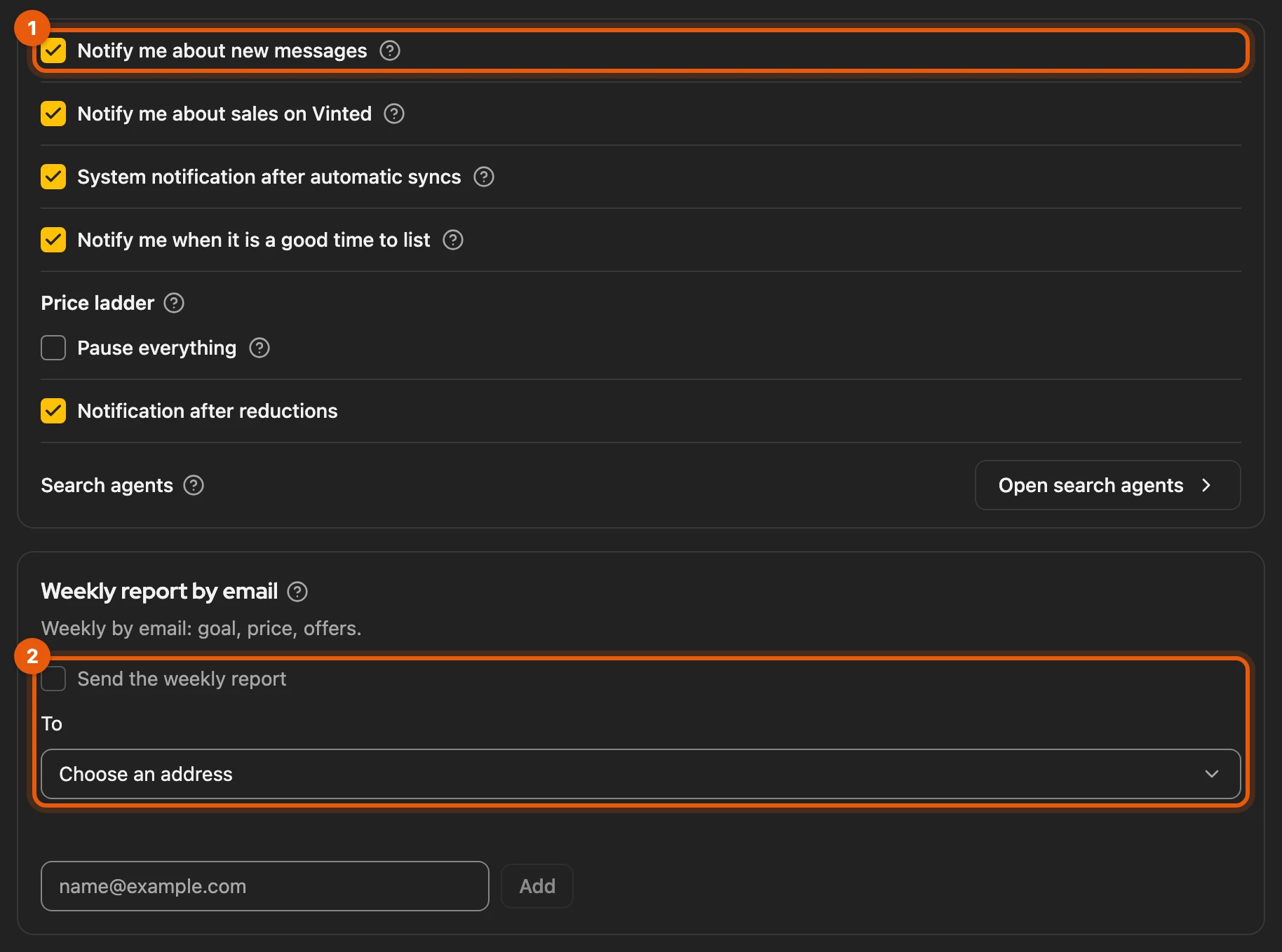
Section titled “Notifications”The bell at the top right collects what happened in the background and needs no setting. Under Notifications you choose when Kleinanzeigen-Enhanced also gets in touch through your browser, for example Notify me about new messages (1), and you switch on the Weekly report by email (2) (from Privat Plus and in all Business plans).
More: browser notifications, weekly report and price ladder
- Browser notifications come for new messages, after automatic shop and feed syncs and when the sales agent sees a good time to list. Whether a search agent reports is set in the search agent itself.
- Weekly report: switch on Send the weekly report and choose the address under To. You confirm a New address with the link in the confirmation email. Contents and unsubscribing: Weekly report by email.
- Pause everything in the Price ladder group holds all price ladders and the sales agent’s dates (more).
- What the bell shows is described under The header. What’s new? is in the Help menu and opens once by itself after an update.
Defaults for listings from photos are in the Create from photos dialog under the icon with the sliders.
Usage and error data
Section titled “Usage and error data”Kleinanzeigen-Enhanced asks once whether it may send usage and error data, without names and without the content of your items, listings or messages. You can change this at any time under Privacy & diagnostics with Send usage and error data.
More: what is sent and what never is
| Question | comes once, after you signed in and took over your data or skipped the setup. Don’t allow or the ✕ declines; the extension works just the same. |
| Sent | fixed events such as “Inventory opened” with duration and an approximate amount (such as “10–49”), errors as a code without the message text, version, browser and operating system |
| Never sent | items, listing copy, images, messages, notes, search terms, names, email addresses, account, licence and platform identifiers, cookies, page addresses, keystrokes |
| Identifier | random for usage data, changing daily for error data |
| Recipient | our own Matomo server; it shortens your IP address immediately |
| Switching off | takes effect at once; anything not yet sent and the identifiers are deleted |
In Firefox, Firefox also asks for “technical and interaction data”. If you decline there or withdraw the permission in about:addons, nothing is sent. More in the privacy policy.
Saving changes
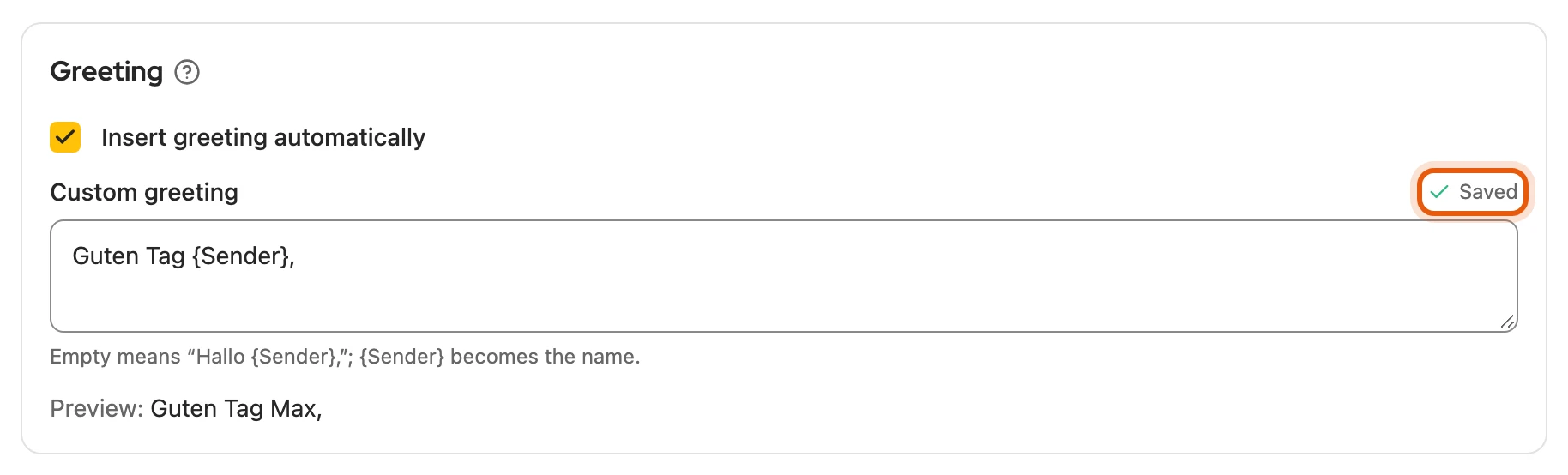
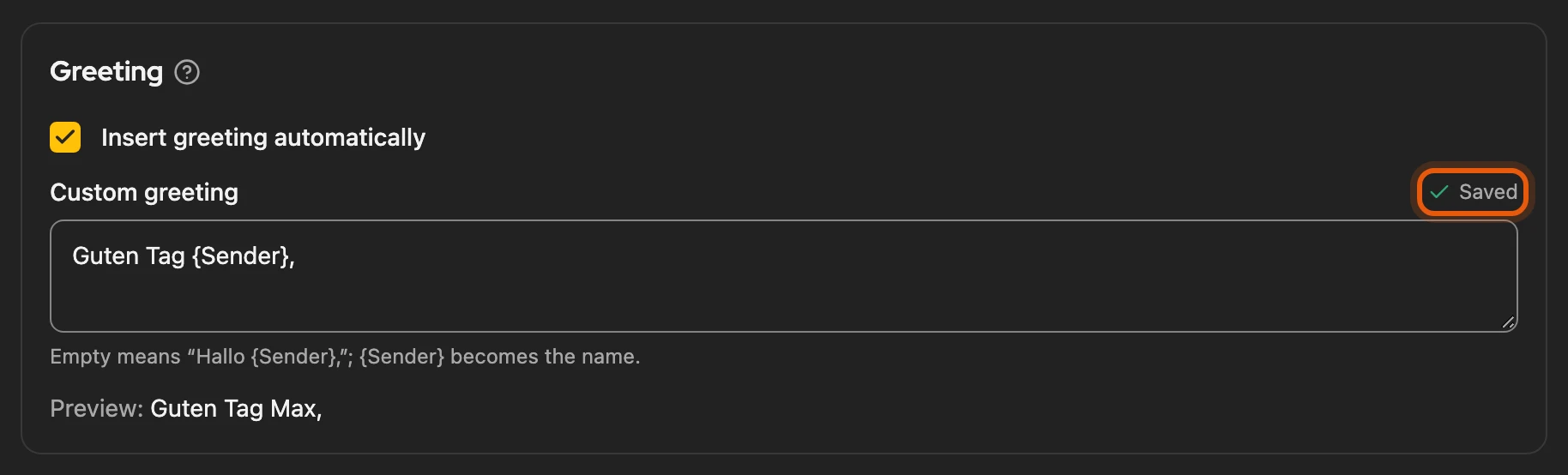
Section titled “Saving changes”There is no Save button. Switches save immediately, text fields as soon as you leave the field or press Enter. Saved then appears briefly next to the field’s name; if saving fails, the card tells you.
Accounts on the platforms
Section titled “Accounts on the platforms”On Kleinanzeigen, Vinted, willhaben and eBay you sign in on the platform’s website; Kleinanzeigen-Enhanced does not store any sign-in details. Under Platforms you see the status and sign in with Sign in to ….