

Shops and feeds from Version 5
Your connections from Version 5 come with the backup you take over under Settings › Data & import (see Switching from Version 5); the check shows them under Integration data. With them come the links, the state of the sync and the settings. Nothing happens on Kleinanzeigen until you confirm the first sync.
Taking over
Section titled “Taking over”Open Integrations. Under Import from Version 5 there is one row per connection.
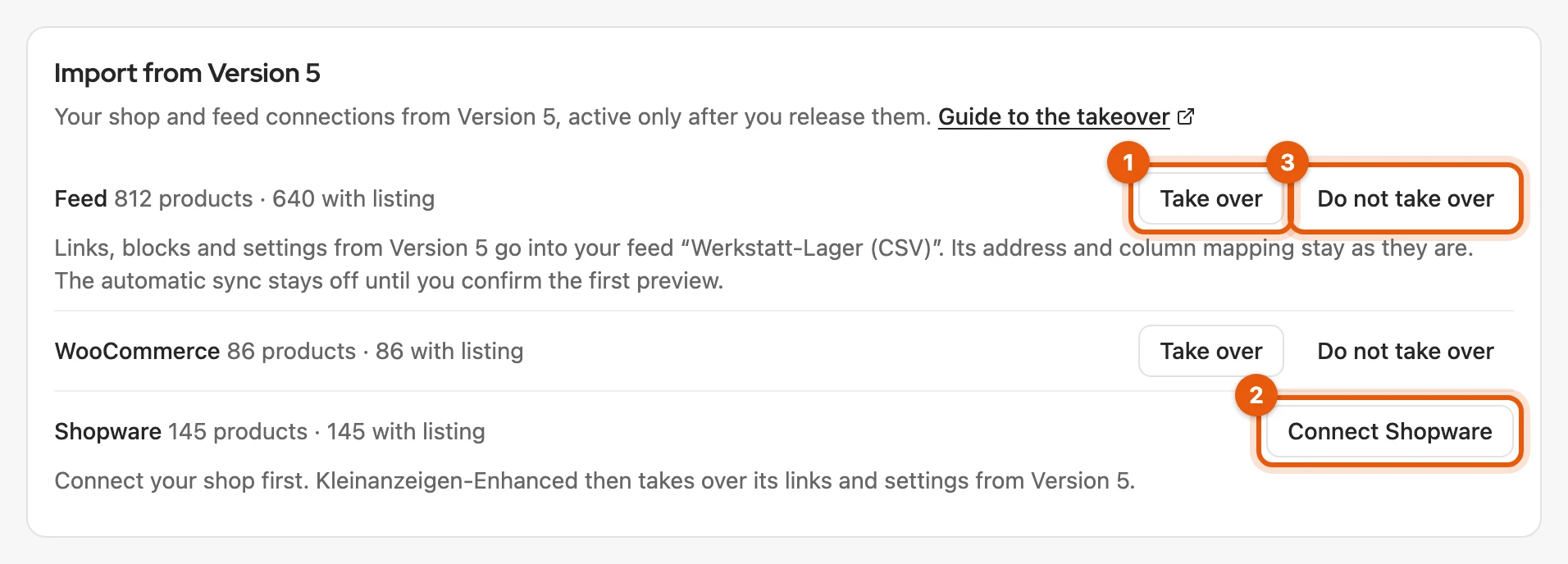
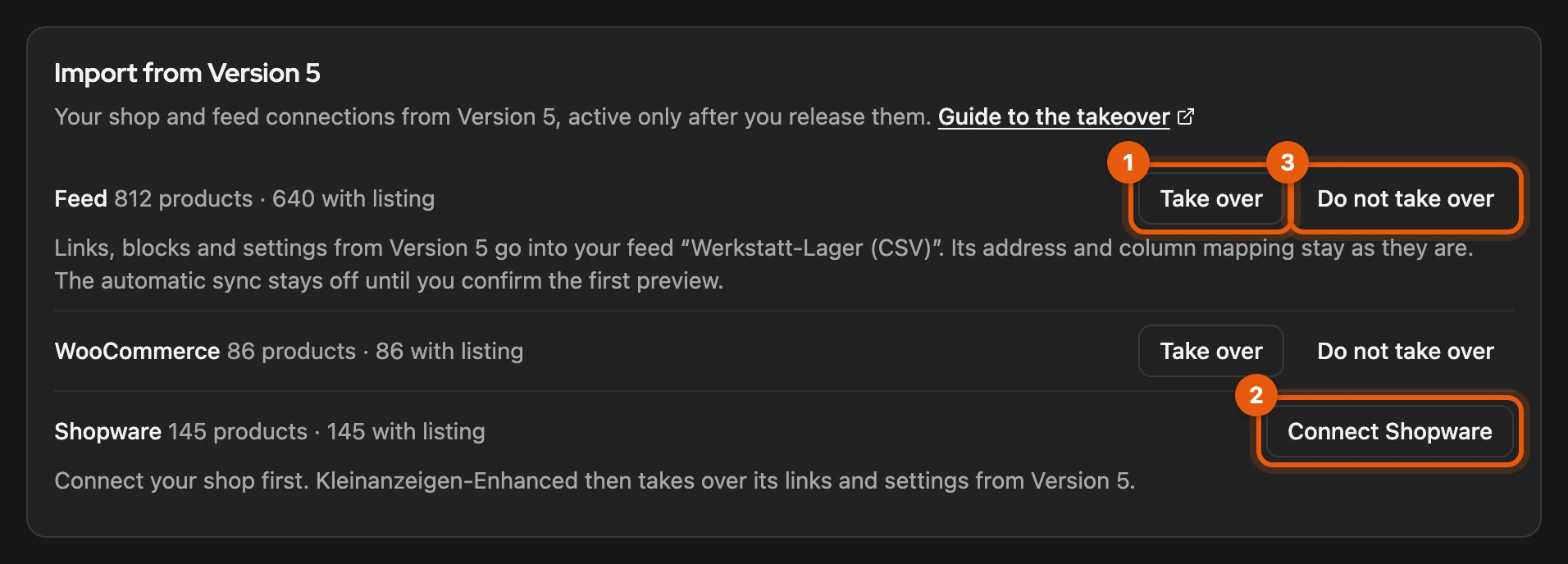
- Feed: click Take over (1). If the row reports another address or mapping, Open feed or Check mapping takes you there to correct it.
- Shops: connect the shop first, for example with Connect Shopware (2), then click Take over. The credentials are not in the backup.
With Do not take over (3) you leave a connection aside; Undo offers it again.
More: special cases for the feed and what is taken over
- Feed already set up with the same address or file: links, blocks and settings go into that feed; its address and mapping stay.
- Feed reads another address: there is only one feed. Open feed takes you to it; enter the address or file from Version 5 there or delete it.
- Feed recognises products differently, for example through another column for the product number: nothing is taken over, so that no listings are paused or published twice. Check mapping opens the column mapping: set the same column, sync once, then take over.
- Paused listings: what the Version 5 sync had paused still counts as paused by the sync. It never reactivates listings you paused yourself.
- Other platforms: Kleinanzeigen-Enhanced adds links to Vinted, willhaben and eBay to the items.
- Once per kind: each connection is taken over once.
Checking the first sync
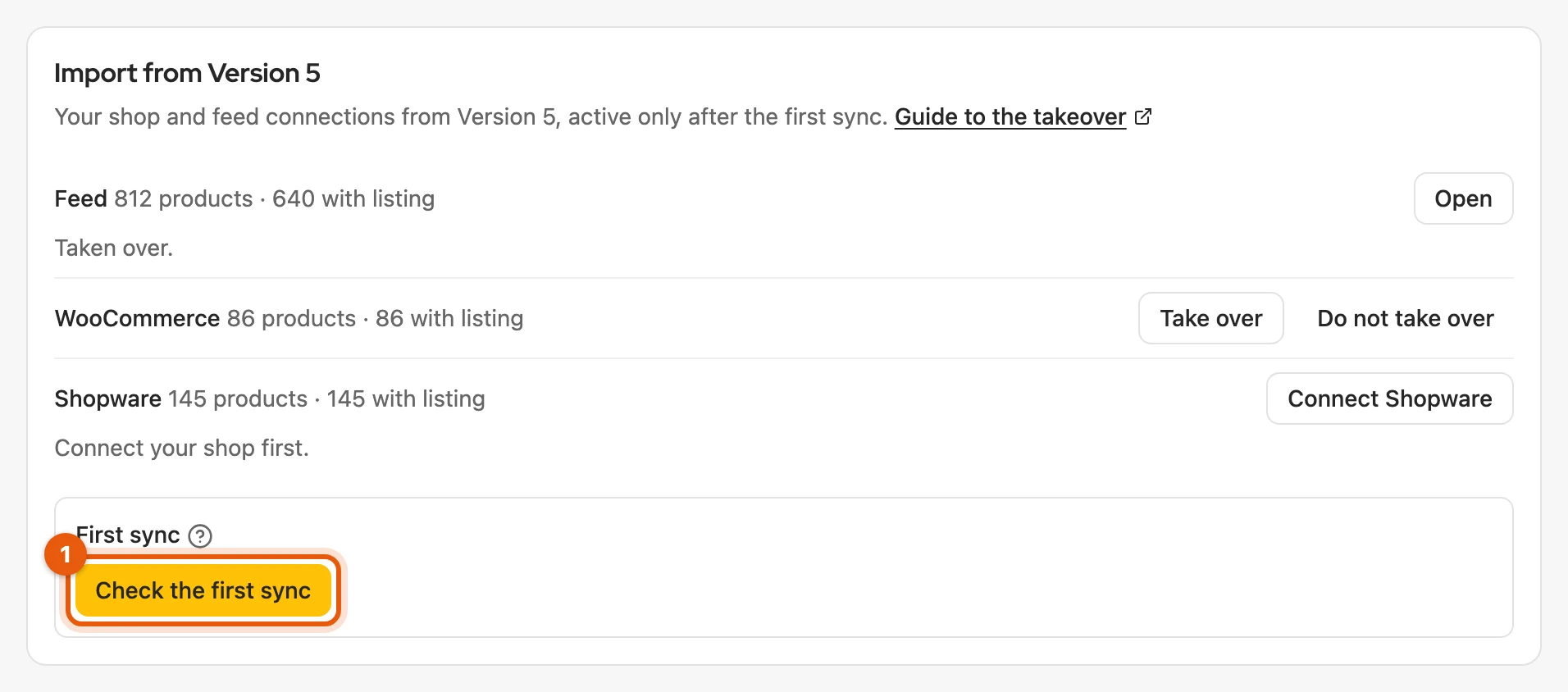
Section titled “Checking the first sync”With Take over, the connection runs on this computer from now on; the card shows First sync.
-
If Version 5 is still running on another computer, stop the automatic sync there.
-
Click Check the first sync (1), allow access if asked and check the preview.
-
Then switch the automatic sync back on.
What is not taken over
Section titled “What is not taken over”What is missing, such as shipping carriers, is named in the row under Not taken over. Check the shipping in the settings. OneDrive and writing the listing ID back are no longer available, see Connect a feed.
More: the full list
- shipping carriers from Version 5
- the Magento connection
- the rules of the duplicate search
- products without a fixed product ID and differing feed links
- user name and password in the feed address
- old product connections without a listing and their import templates
- data that cannot be read
Products without a listing appear again as soon as you load the products. If a connection is not part of your licence, its data stays saved until your licence includes it.