

Connect shops and feeds
Under Integrations in the sidebar you connect a feed or your shop. The route is always the same: product in the shop or feed → item in the inventory → listing. Connecting publishes nothing.
Which shops and feeds there are
Section titled “Which shops and feeds there are”| Shop or feed | What you need | Licence |
|---|---|---|
| Feed | a file (CSV, JSON, XML, Excel) or a feed address, also a Google Sheet | from Business M |
| WooCommerce | your shop’s address and a read-only REST key | from Business M |
| Shopware | your shop’s address and an integration with read permissions | from Business M |
| Shopify | the access that support sets up for your shop | from Business L |
You connect a JTL shop as a feed. Automatic sync is available from Business L.
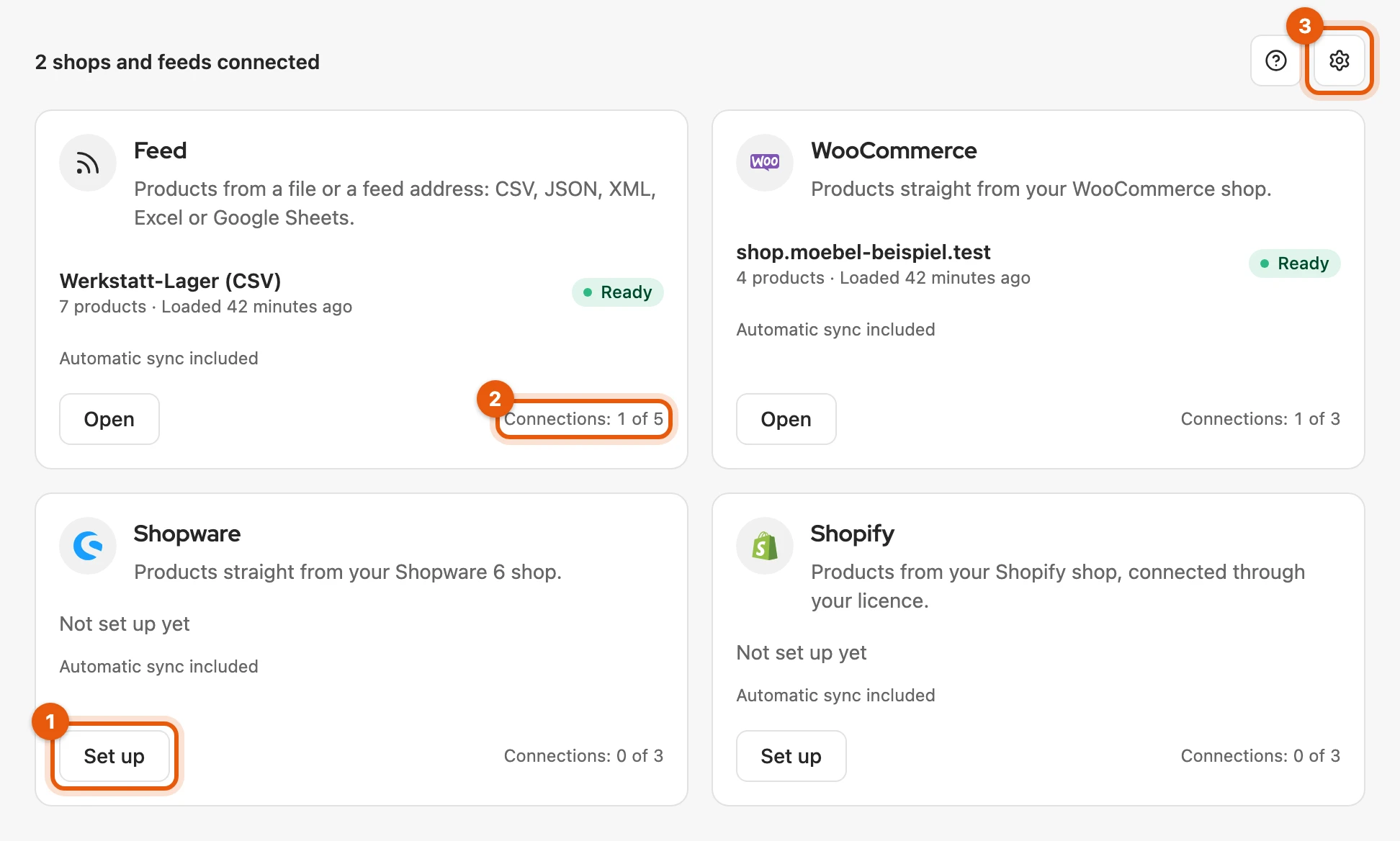
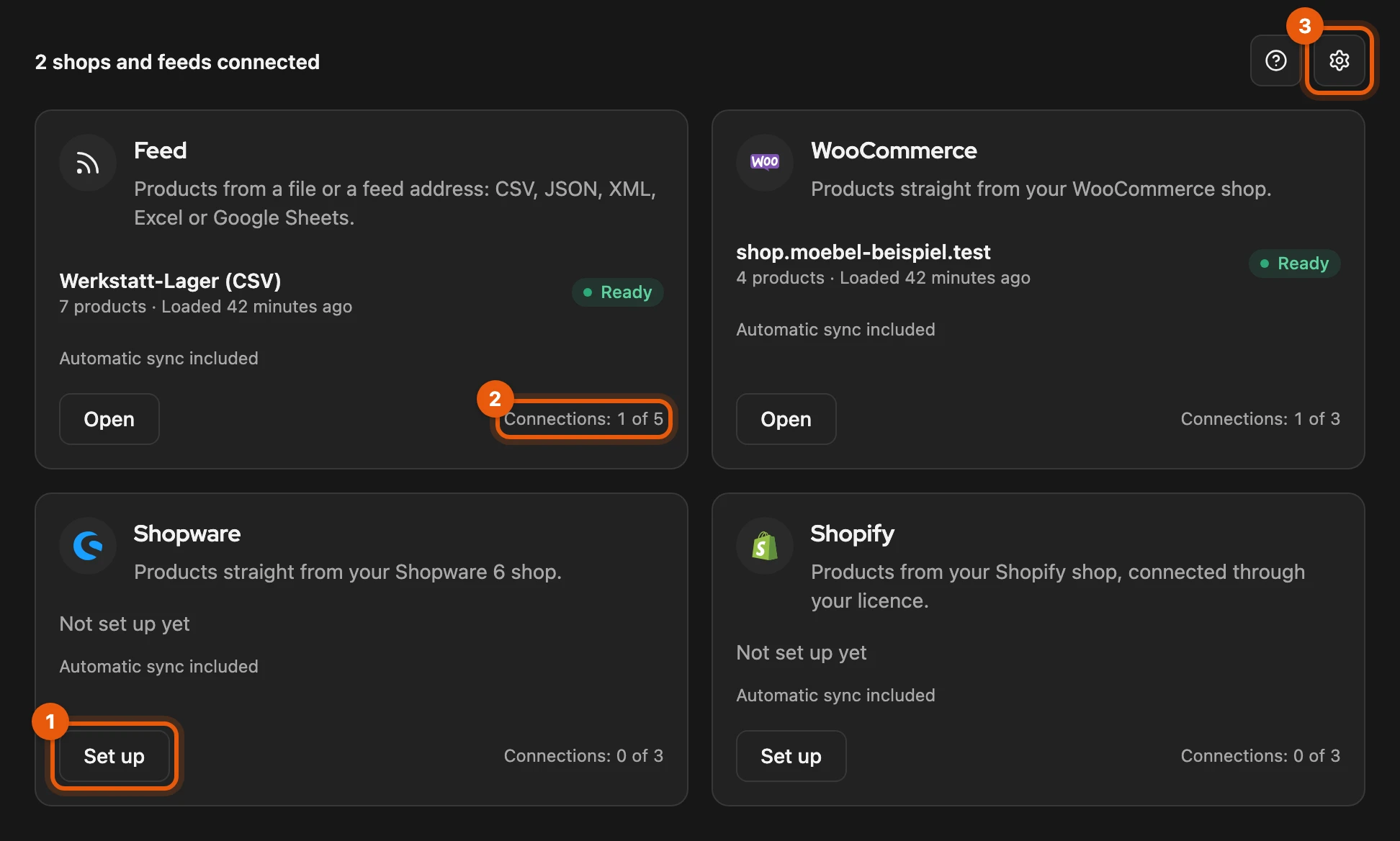
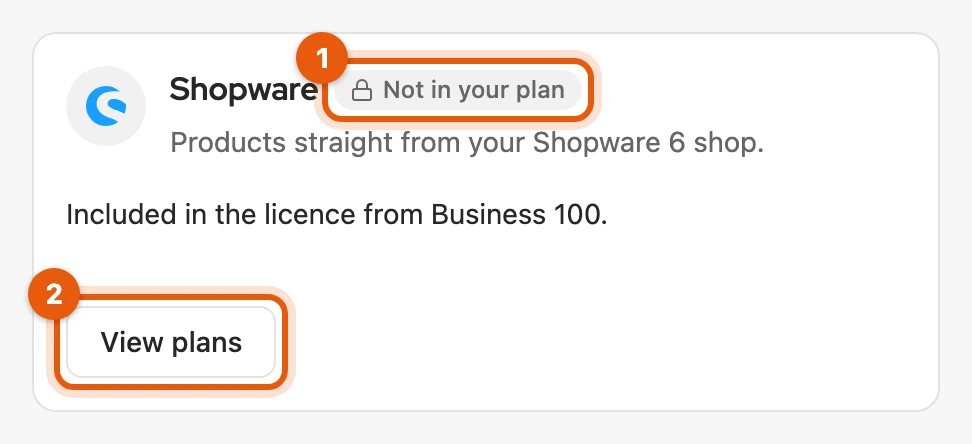
Each card shows Set up (1) or, once connected, Open; the gear (2) opens the integration settings. Without the licence, the card shows Not in your plan (1) with View plans (2).
More: tiers with a plan from version 5 and the item limit
- Plan from version 5: as long as the new plans are not on sale yet, its tiers apply: a file and every shop from Business 100, a feed address from Business 200, automatic sync from Business 400. The card names the tier that applies to you.
- Item limit: items created from a shop or feed do not count towards your inventory’s item limit.
How to work with a shop or feed
Section titled “How to work with a shop or feed”-
Set up: click Set up and connect the shop or feed as described in its article. Its products appear under Products.
-
Take over or publish: select products and click Take over (1) or Publish (2).


-
Keep up to date: Load products fetches the new state (for a file, Load new file), Sync brings it into items and listings, see Sync with shops and feeds.
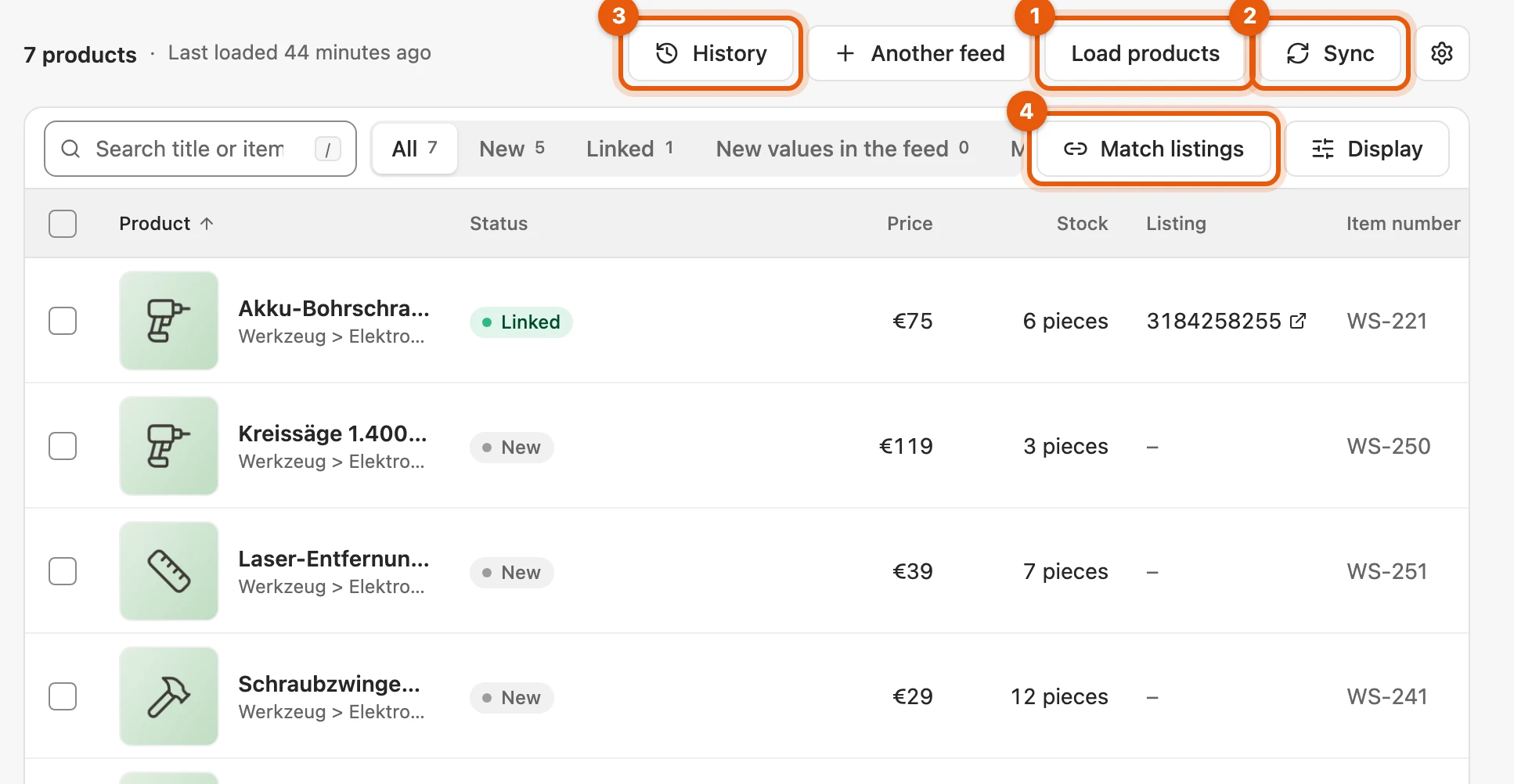
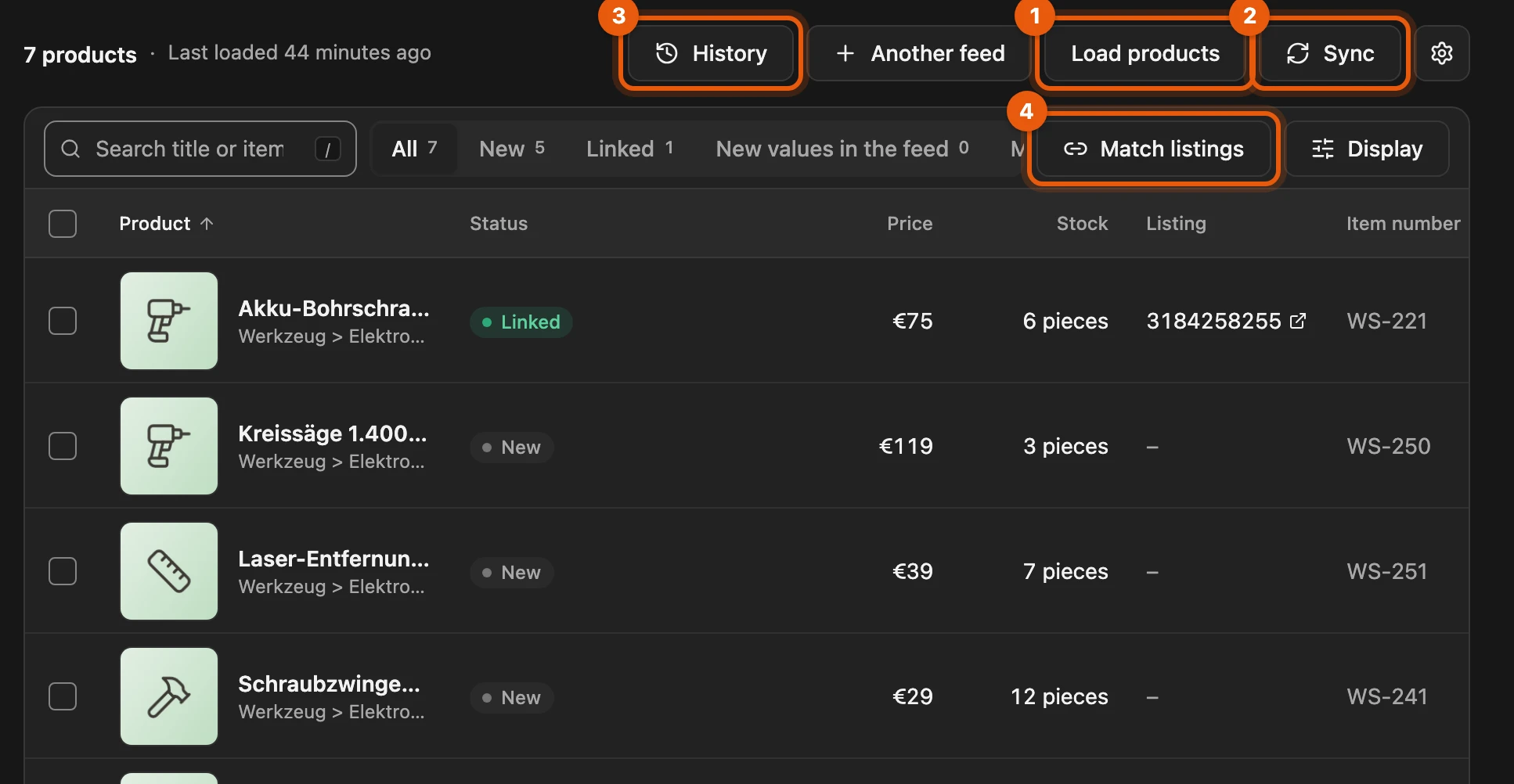
Products you take over are ordinary items; you can also transfer them to other platforms.
More: publishing in batches, processes and diagnostics
- Batches: Publish works in batches of 50 with a pause of a few minutes in between. If your quota on Kleinanzeigen is not enough, Kleinanzeigen-Enhanced asks you first; it never publishes anything that costs money.
- Processes: take-overs and syncs keep running in the background. Processes lists the last ten per shop or feed with time and result, including automatic syncs without changes. There is no system notification after each process.
- History: shows for each process what it did and why it stopped.
- Export diagnostics (at the bottom of History): a file for support with the settings without sign-in details, the processes and the errors.
Open a product
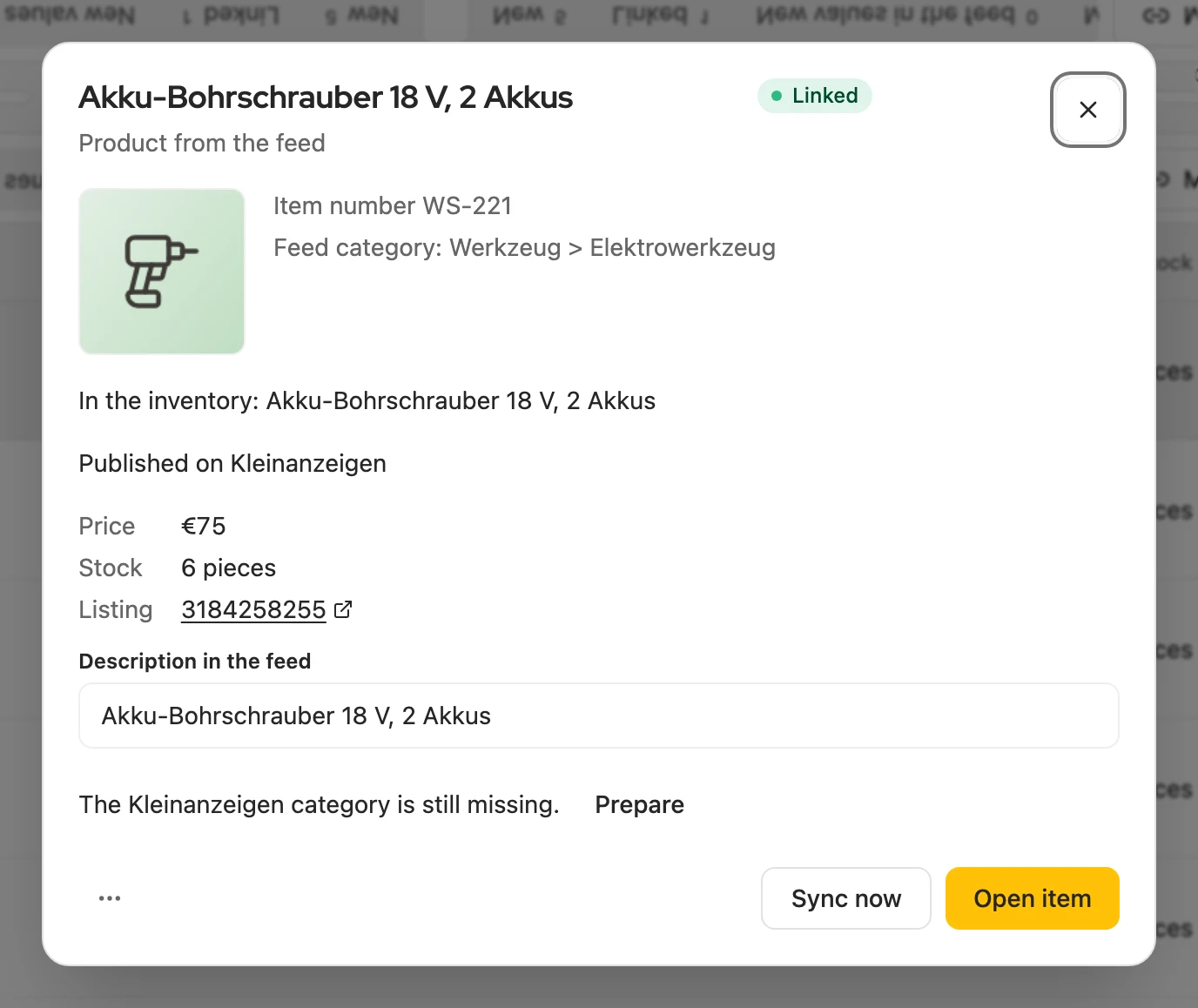
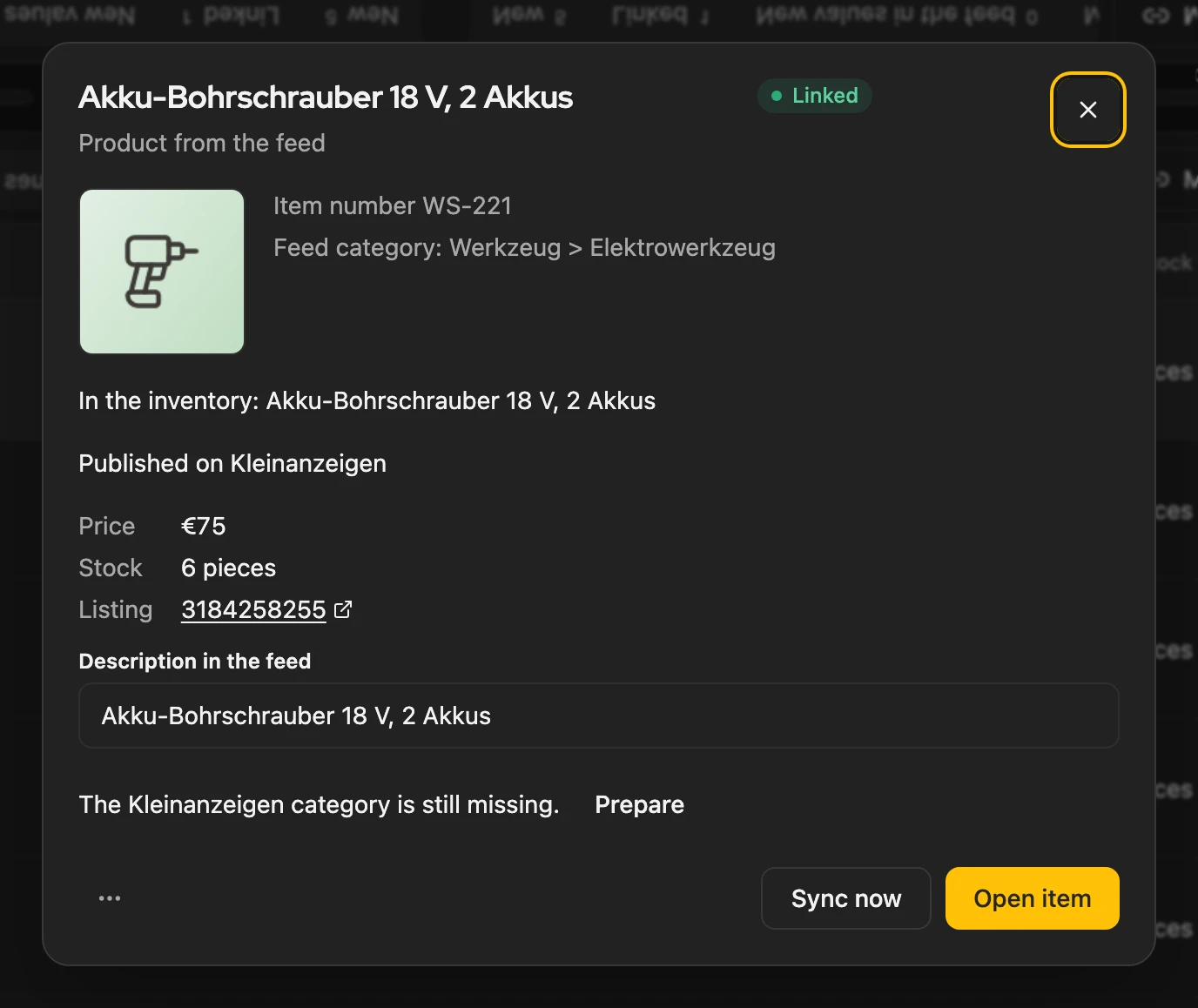
Section titled “Open a product”Clicking a product opens it, a linked one opens the item directly; the product itself then opens with a click on its status. There you find the actions for this product; the selection bar offers the same for several selected products.
More: what the actions do
| Action | What happens |
|---|---|
| Sync now | item and listing get the values of the last load right away; your own changes are kept |
| Assign … | connects the product to an existing listing or item; their values are kept |
| Remove link | the item stays but is no longer synced |
| Dismiss | the product stays out; Take over or Assign … brings it back |
| Lift block | after three rejected attempts, for example when Kleinanzeigen rejects the listing or pictures could not be uploaded |
| Prepare | if the Kleinanzeigen category is still missing |
- List: Search finds titles, item numbers, descriptions, categories, manufacturers and tags. Filter narrows the list by category and price. The price is shown after the conversion from the settings; the tooltip shows the price in the shop or feed.
- Columns: Tags, Manufacturer and Created can be switched on or off in the column choice, as far as the shop or feed supplies them.
- Into the form: The icon at the end of the row opens the product in the Kleinanzeigen form; a product not taken over yet first gets its article.
- Partner link for job listings: applicants land on your own page. Kleinanzeigen only accepts it for commercial accounts in the job categories.
What the status means
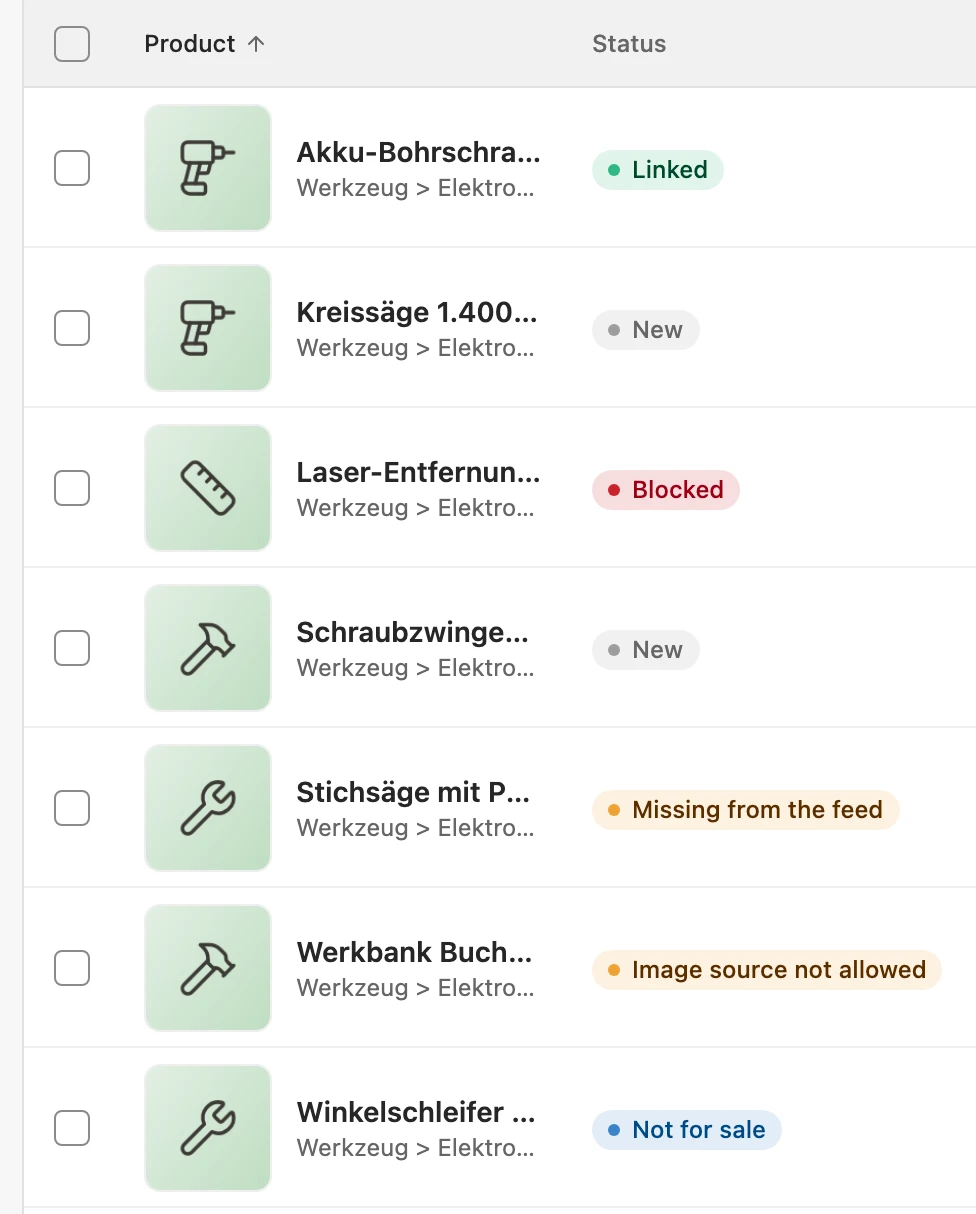
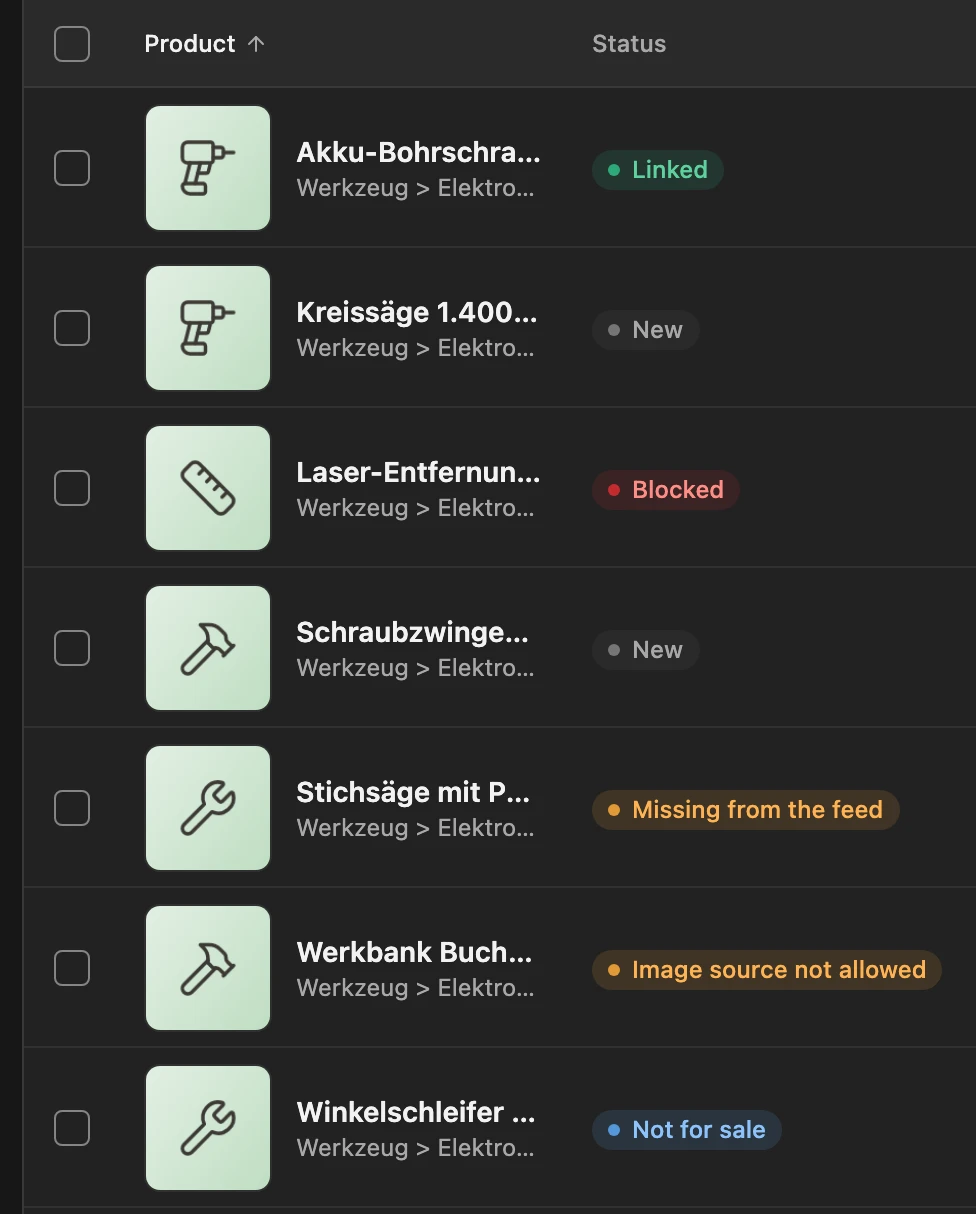
Section titled “What the status means”You see each product’s status in the list.
More: all statuses
| Status | Meaning |
|---|---|
| New | not yet in the inventory |
| Linked | connected to an item or a listing |
| New values in the shop / in the feed | the next sync takes the change over |
| Missing from the shop / from the feed | no longer there at the last complete read |
| Not for sale | sold out, inactive or not published |
| Blocked | stopped after repeated errors |
| Image source not allowed | pictures are on a website you have not allowed yet |
| Dismissed | sorted out; the sync does not create it again |
Match existing listings
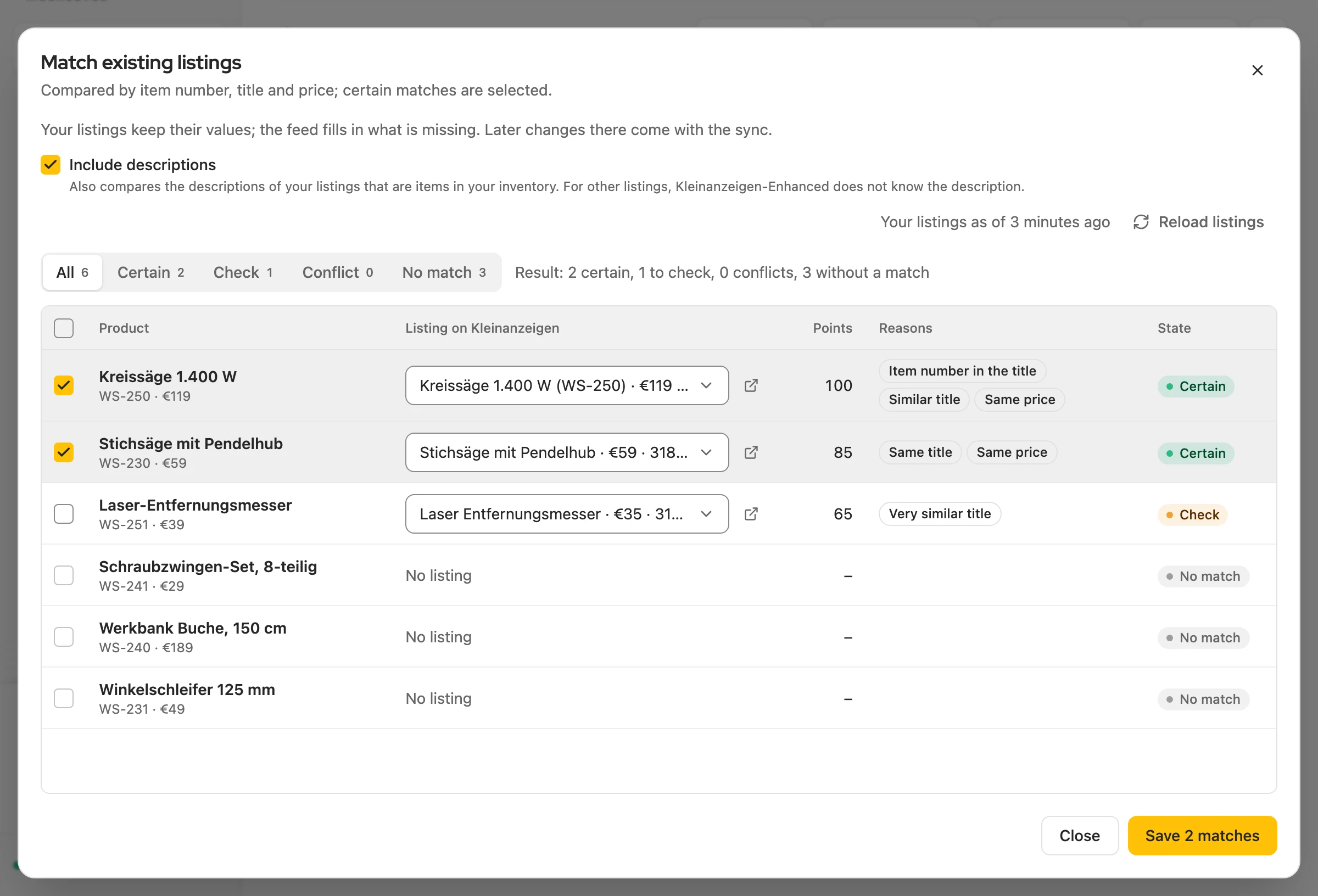
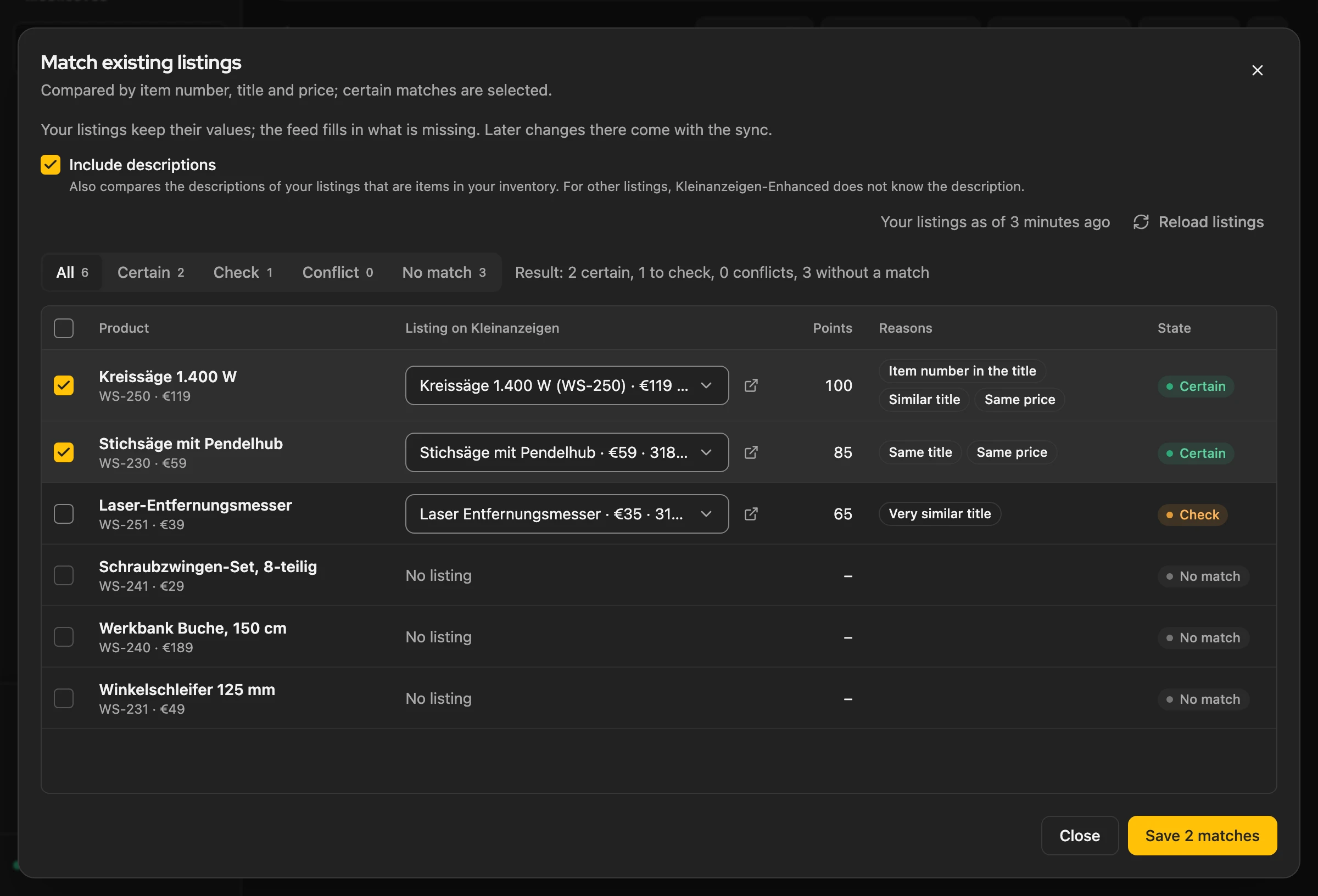
Section titled “Match existing listings”If products are already on Kleinanzeigen, click Match listings instead of publishing them a second time. Kleinanzeigen-Enhanced suggests the best listing for each product. Check the selection and save, for example with Save 12 matches.
More: how matches are found
- Compared are item number, title, price and, with Include descriptions, the description.
- Certain is already selected, Check needs a look, Conflict means the same listing fits several products.
- Pre-sorting: if Add missing details automatically is on (and enabled for your account), matches to check show Probably the same listing or Probably a different item, for example with a different size. This does not use any credits.
- Match in the selection bar opens the same dialog for the selected products only.
Category for Kleinanzeigen
Section titled “Category for Kleinanzeigen”You do not have to assign anything: Kleinanzeigen-Enhanced finds the category and fills its attributes from the product’s data itself, without credits. Title, description and price from the shop or feed stay unchanged.
More: order, privacy and rewriting texts
- a category column in the feed that already names a Kleinanzeigen category,
- the Base item of the shop or feed (also for attributes and shipping),
- otherwise the automatic category choice per product, based on title, description and the category in the shop or feed,
- finally Kleinanzeigen’s category suggestion for the title.
- Pace: with many products, at most five items per ten minutes are prepared; the rest follows by itself.
- Attributes: read when the item is created and when the product changes; what you enter yourself stays.
- Data: for the suggestions, title, description and attributes go to an AI service, private notes and image files do not.
- Switch off: under Settings › Inventory › Advanced with Add missing details automatically. The category column, base item and Kleinanzeigen’s suggestion stay active.
- Rewrite texts (feed settings › Defaults): costs one credit per item. The new text counts as your change; if there are not enough credits, the feed’s text stays.
Access to websites
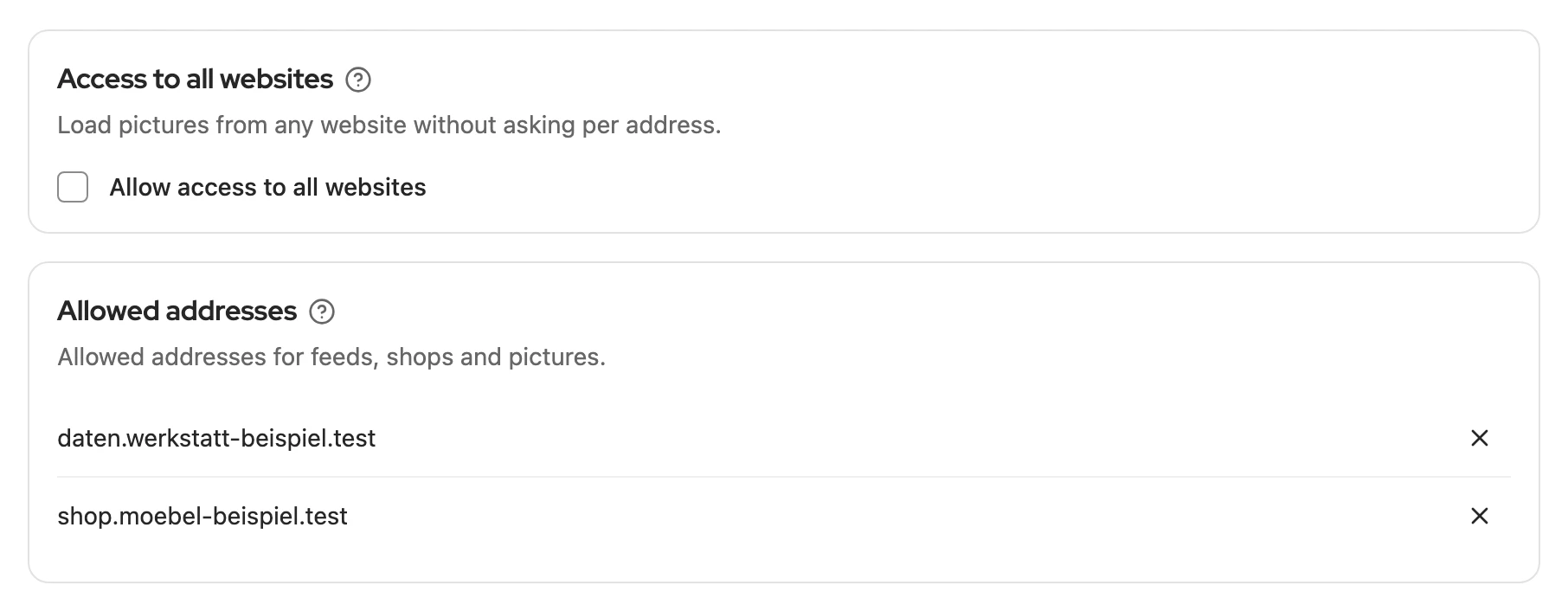
Section titled “Access to websites”For the address of your shop or feed and for pictures from other websites, the browser asks once, for example on Connect or Load products. If you decline, the shop or feed shows Access missing with Allow access. If only pictures are missing, Load pictures fetches them once allowed. Shopify needs no permission.
More: allowed addresses and all websites
- Data route: the data goes directly from your computer to the shop or feed, not through our servers.
- Allowed addresses: if you remove one, the shop or feed only loads again after you allow it again.
- Allow access to all websites: for feeds with pictures from many addresses; you can undo it at any time.
Several computers and backup
Section titled “Several computers and backup”Keys for WooCommerce and Shopware are stored only on the computer where you entered them; Shopify is tied to your Kleinanzeigen-Enhanced account. Only one computer syncs automatically, see Several devices.
More: what the backup contains
- Backup (ZIP): contains shops, feeds and product lists, but no keys and no uploaded feed files. Afterwards they show Review needed; you switch automatic sync back on yourself. See backup.
- Cloud backup: contains no shops or feeds.
- Removing: if you remove a shop or feed, its product list and settings are gone; items and listings stay.