

Messages
Under Messages you see your Kleinanzeigen inbox in the dashboard; you need to be signed in to Kleinanzeigen. It refreshes about every five minutes, straight away with Refresh.
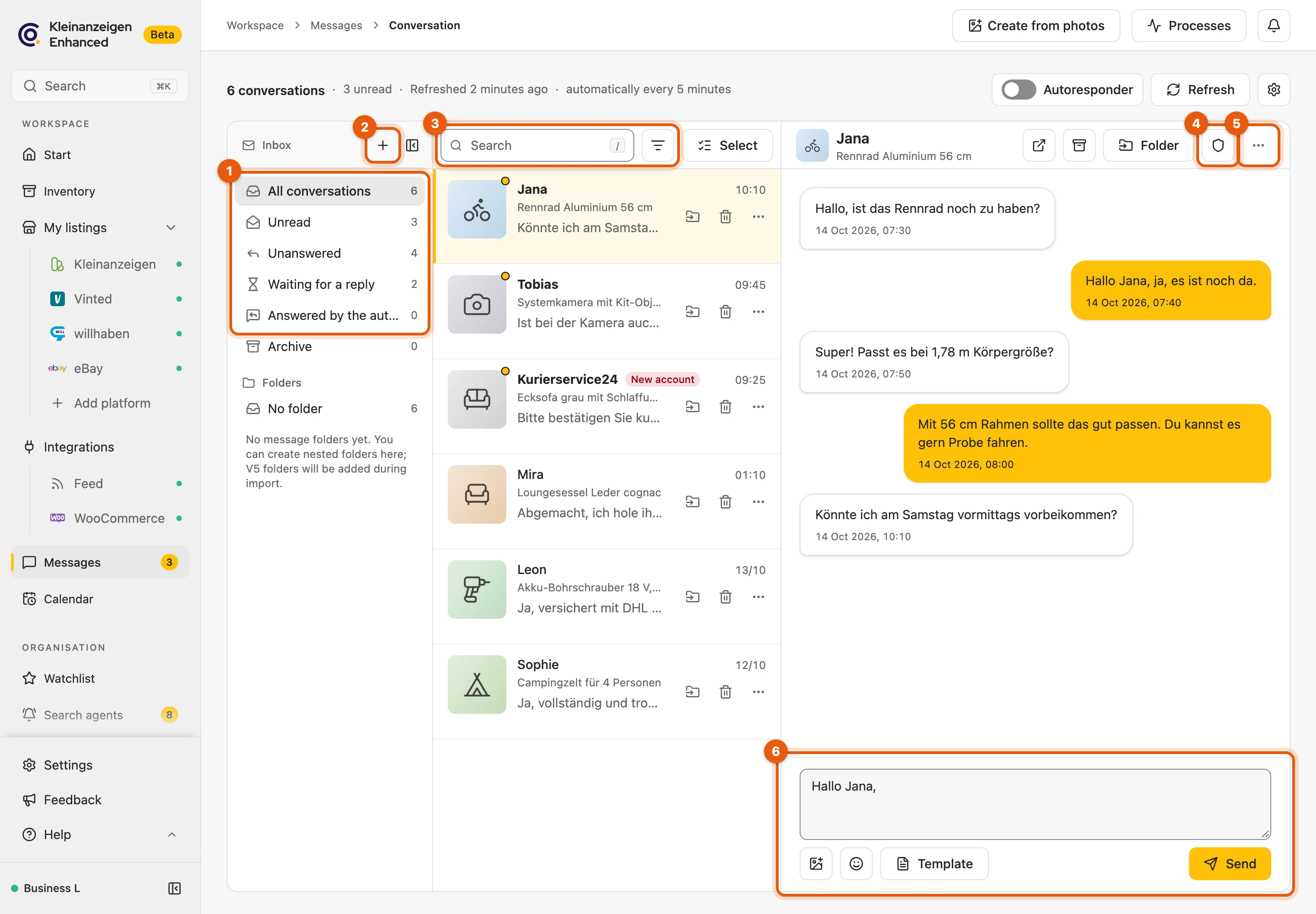
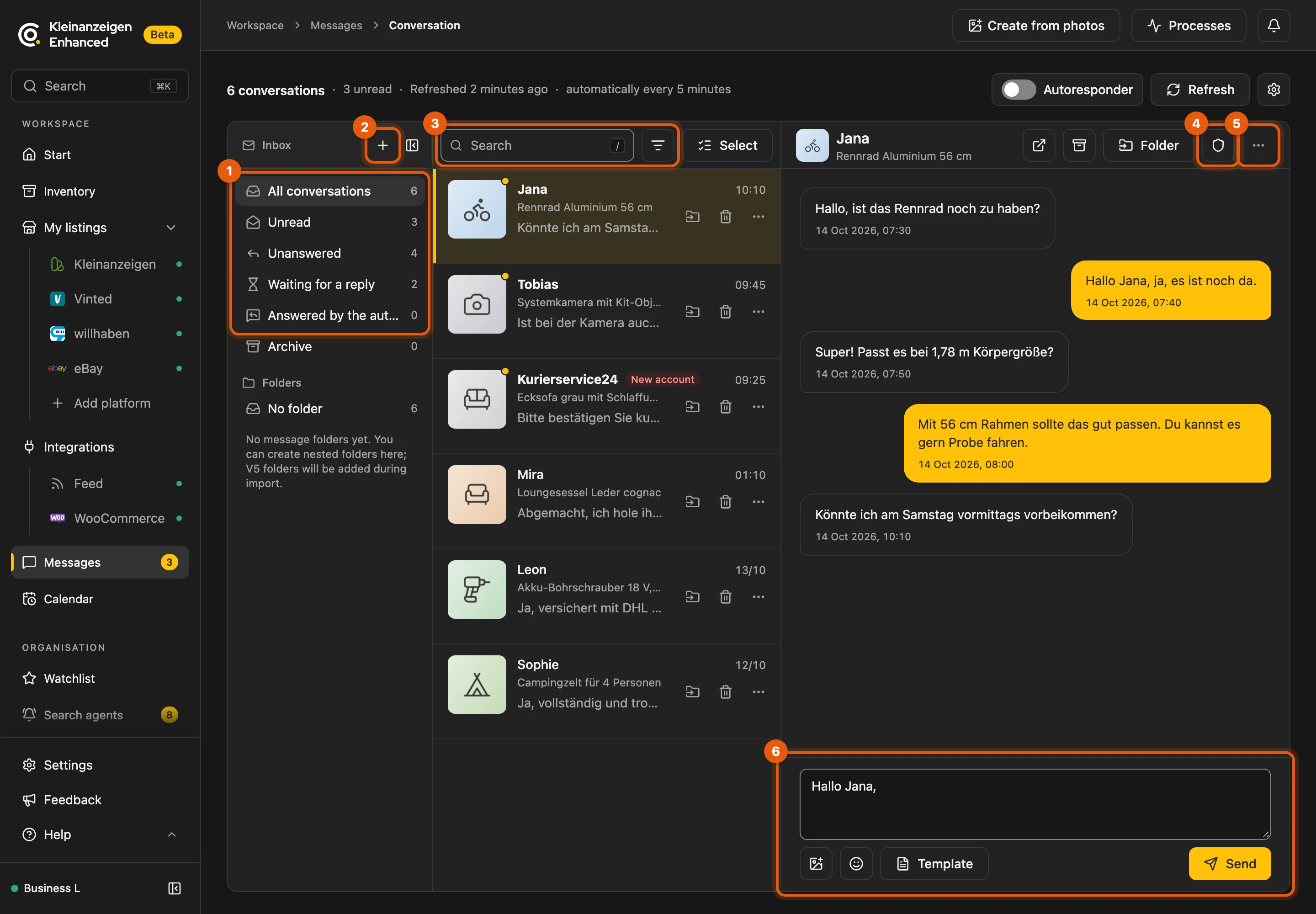
- the views under Inbox, see Organising
- + for a new folder
- search and Filter and sort
- Fraud check, see below
- the conversation’s menu (⋯)
- the reply field, see Replying
Organising
Section titled “Organising”On the left you find views such as Unread and Unanswered and, below them, your own folders. Press / to jump into the search; it also finds your conversation notes. On the right of each row you move a conversation to a folder or delete it.
More: views, filters, refreshing and limits
| View | shows |
|---|---|
| Unanswered | The other person wrote last. |
| Waiting for a reply | You replied last. |
| Answered by the autoresponder | Only the autoresponder has replied; these conversations also appear under Unanswered. |
- Folders can be nested; you create new ones with + next to Inbox.
- Filter and sort (icon next to the search): Listing status (Active, Paused, Deleted) and Sort order (A–Z, Z–A, otherwise Newest first). Reset filters removes all of them.
- Coming from My listings via Enquiries, the listing is shown as a filter above the list; ✕ shows all again.
- Move to folder also offers New folder …; the message at the top offers Undo. A right-click on a conversation offers moving, deleting and Conversation as PDF.
- Refresh: when you come back from another tab, the inbox refreshes by itself (at most once a minute). The tooltip on Refresh says when it last ran. The tab title counts unread conversations, for example “(3) Kleinanzeigen-Enhanced”.
- Limit: the browser stores the 1,500 most recently active conversations (Latest 1,500 conversations); you find older ones on Kleinanzeigen.
Replying
Section titled “Replying”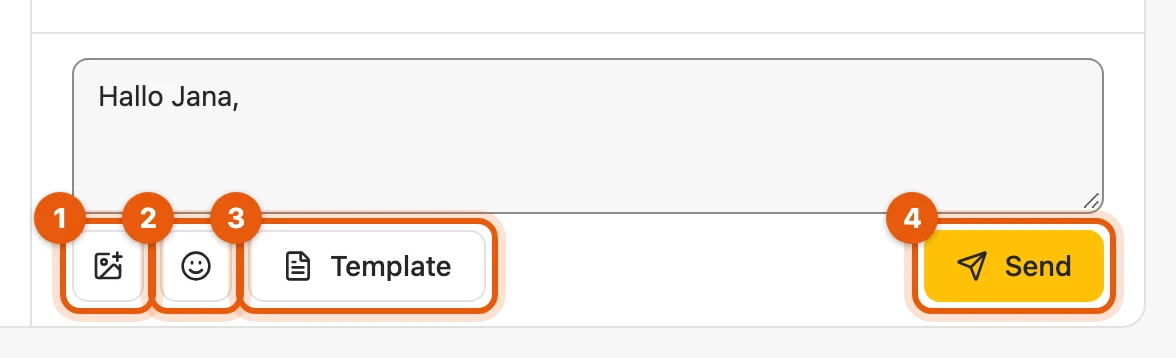
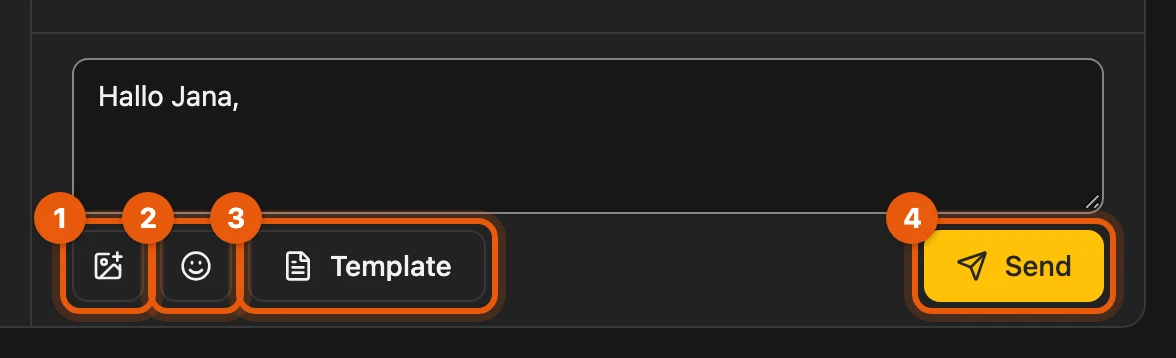
Write your reply and click Send (4) or press Ctrl+Enter (Mac: ⌘+Enter). You can attach up to three images (1) and insert emojis (2) and text templates (3). Your text is kept as a draft until Kleinanzeigen has confirmed that it was sent.
More: images, drafts and sending
- Enter on its own starts a new line and never sends.
- Images: at most 1 MB each; you can also paste them or drag them into the field. They only stay in this tab, the text also after reloading.
- Emojis: every emoji works, 📦 and 🚚 included.
- Links (
https://…orwww.…) are clickable and open in a new tab. - “not yet confirmed in the conversation” after a minute: the next refresh picks the message up.
- Deleted conversation: once both sides deleted it, Kleinanzeigen still accepts a reply but no longer delivers it. The message and the reply field point this out.
Greeting
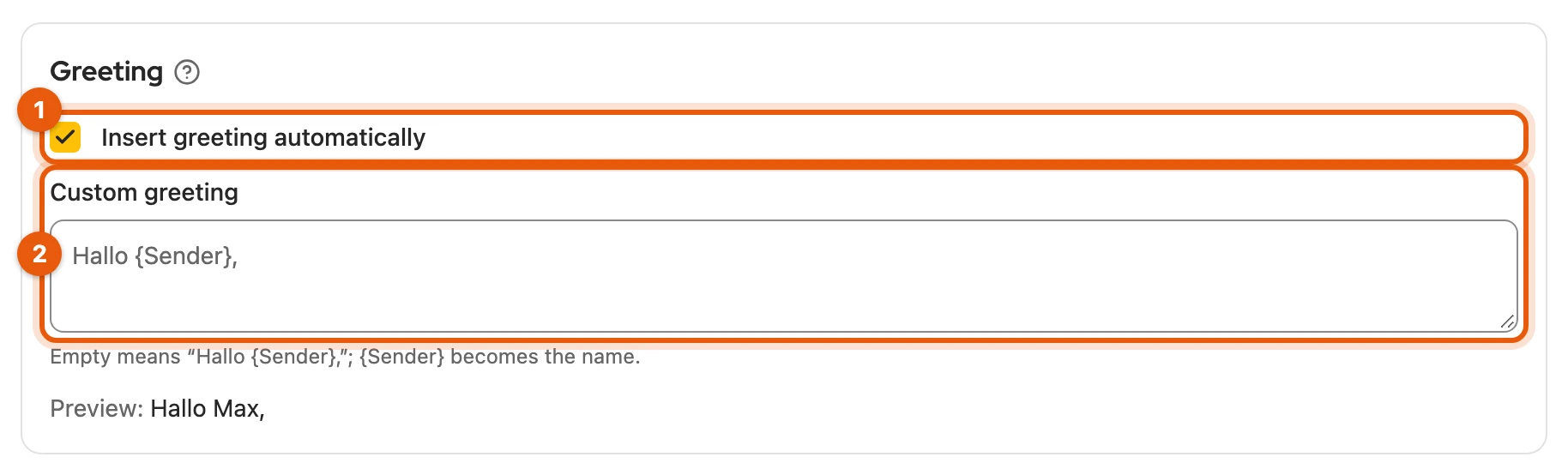
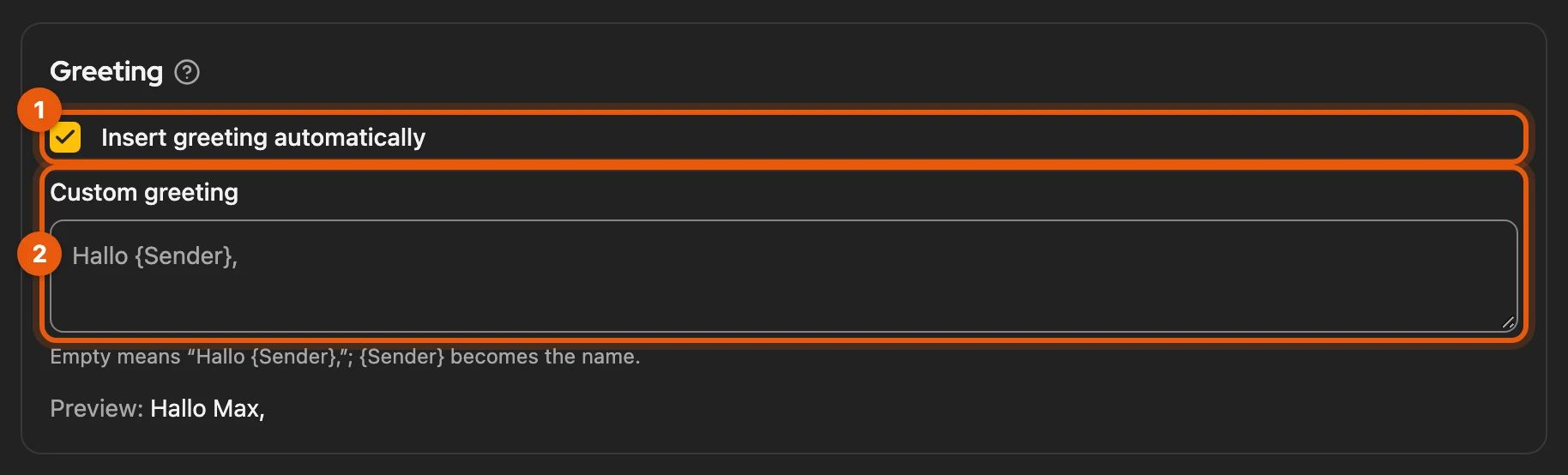
Section titled “Greeting”The reply field already contains a greeting such as Hallo Anna,. You set your own under
Settings › Messages in the Greeting card under Custom greeting (2); {Sender} is
replaced by the name. Insert greeting automatically (1) turns it off.
More: drafts and an empty field
- A saved draft always takes priority. The greeting alone is not saved as a draft.
- If the field is left empty,
Hallo {Sender},is used. It saves as soon as you leave the field.
Conversation note
Section titled “Conversation note”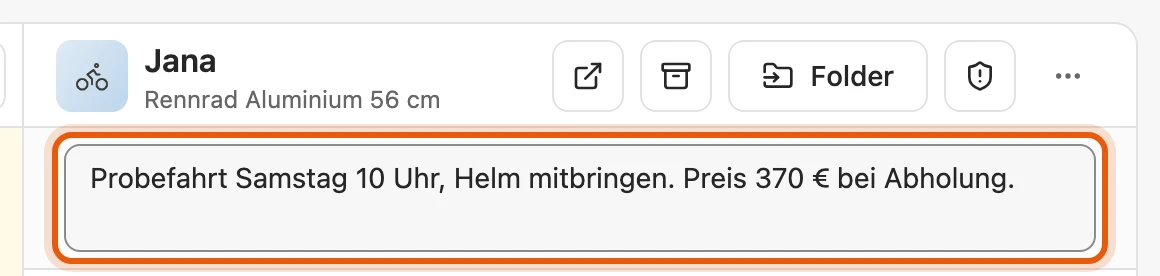
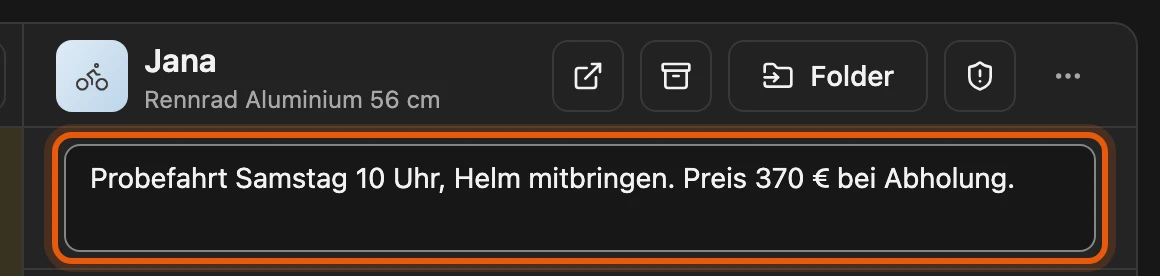
A note field for arrangements can appear above each conversation. Only you can see the note; it is not sent to Kleinanzeigen. You turn the field on under Settings › Messages with Show note field.
More: saving, Version 5 and backup
- It saves automatically shortly after you stop typing. Conversations with a note show a small note icon in the list.
- From Version 5: Version 6 takes over message notes when you update. Version 5 had already discarded notes older than one year; the ZIP backup of Version 5 does not contain notes.
- Cloud backup: if your plan includes the cloud backup, the notes are part of it and are synced between your browsers with Sync now.
Account age
Section titled “Account age”If the other person has been registered on Kleinanzeigen for 10 days at most, New account appears next to their name. Brand-new accounts are common in fraud attempts.


You can turn this off under Settings › Messages with Mark new accounts.
More: date and missing information
- If you hover over New account, you see the registration date.
- The date comes with the refresh, for older conversations once when you open them. If Kleinanzeigen provides no date, nothing is shown.
- The gear icon at the top right of Messages takes you straight to the settings.
Notifications for new messages
Section titled “Notifications for new messages”When a new message arrives, your system shows a notification; a click opens the conversation. You can turn it off under Settings › Notifications with Notify me about new messages.
More: when a notification appears
- It shows the listing title, the sender and the beginning of the message. Several conversations at once are summed up in one notification; a click shows the unread ones.
- There is one per conversation until you have read it, in the dashboard or on Kleinanzeigen.
- Your own replies and automatic replies do not trigger one.
- Messages that were already there at the first refresh are not reported, also after switching accounts.
- When you share your screen, macOS and Windows usually hide notifications.
Autoresponder
Section titled “Autoresponder”The autoresponder answers new conversations once automatically with your text, as long as you have not written anything in them yourself (any Business licence).
- Open Settings › Messages, Autoresponder card. From the messages, Autoresponder at the top right takes you there.
- Adjust the Reply text or choose a template.
{Sender}is replaced by the name,{Titel}by the listing title. - Tick Answer new conversations automatically.
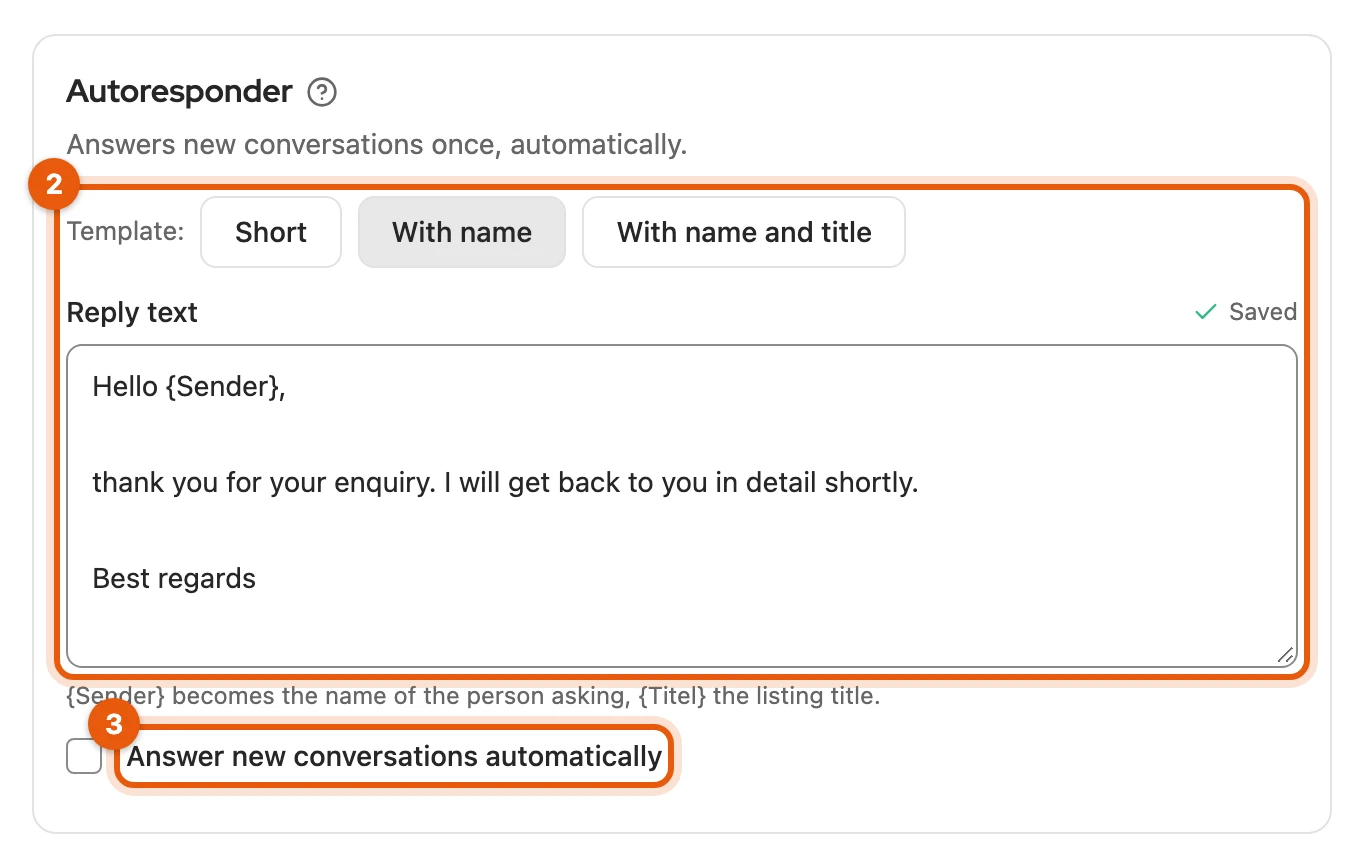
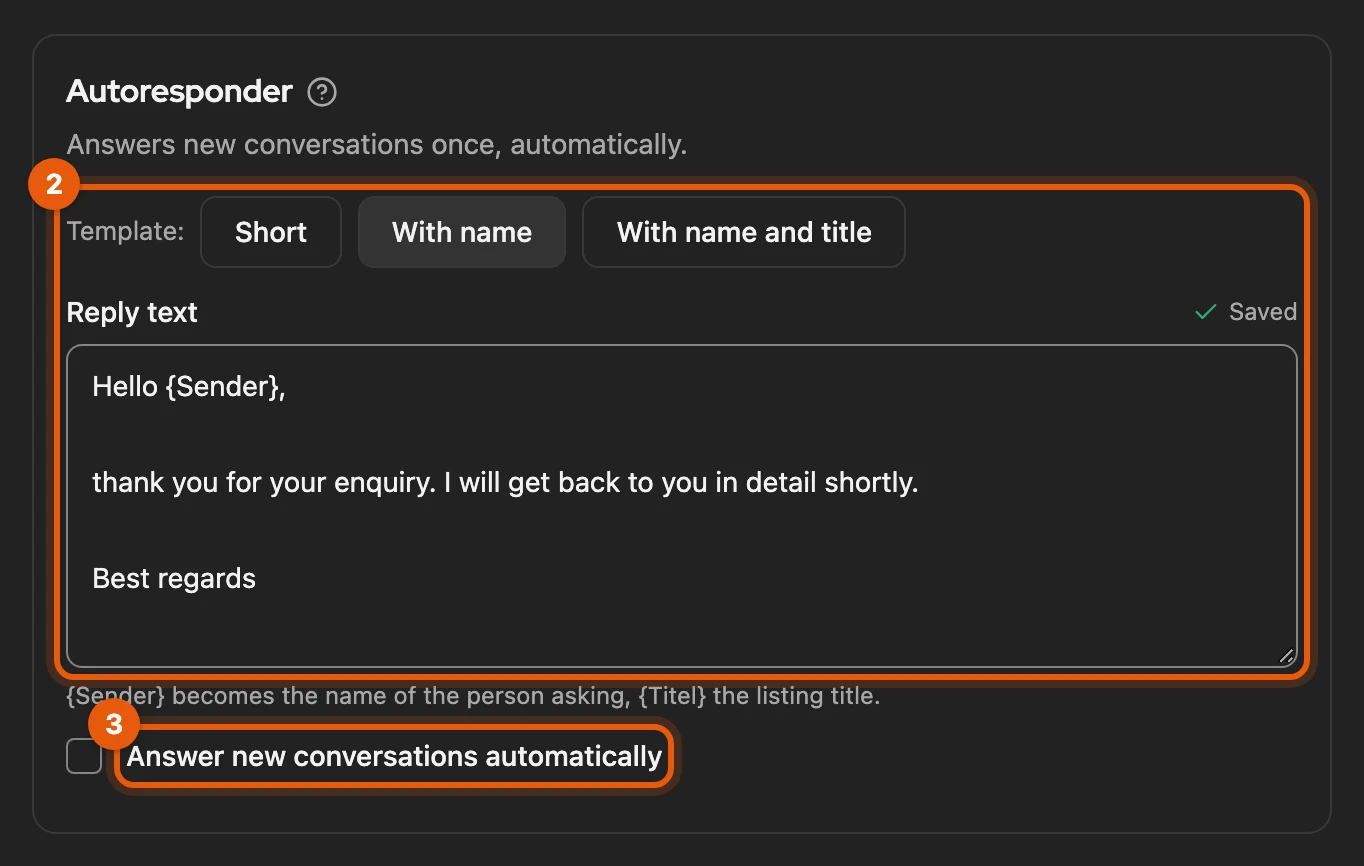
Your browser must be running. If Version 5 or Kleinanzeigen-Enhanced on another device is already answering, it pauses so that nobody gets two replies; turn the other one off and click Send anyway.
More: when it replies and when it pauses
- Timing: after every refresh, about every five minutes; you must be signed in to Kleinanzeigen.
- Which conversations: only those that start after you turn it on and are at most 24 hours old; each one at most once.
- Marker: the line
‾‾‾is added below every automatic reply. In the conversation it shows as Automatic reply, and Unanswered does not count it as a reply. - Switch at the top right of the messages: turns it on and off with the saved text; without a text it uses the Short template, without a Business licence it cannot be turned on. During a pause it reads Autoresponder paused.
- Switching accounts: it turns itself off; for the new account you turn it on again. Signing out and back in with the same account keeps it on.
- Unclear confirmation: the reply is not repeated; the card lists it, so check the conversation.
- Double operation: it pauses if Version 5 answers in this browser itself or another autoresponder has replied on your account. If you pause Version 5 (see Disabling Version 5), it answers again by itself. It cannot see another device: turn it off there, then Send anyway. Pause again on double operation reverses that.
In the conversation
Section titled “In the conversation”At the top of the conversation, the other person’s name opens their profile and Open listing opens the listing. Under ⋯ you find Conversation as PDF, Open on Kleinanzeigen and Delete conversation; after a confirmation, deleting removes the conversation on Kleinanzeigen and locally.
Deleting several conversations
Section titled “Deleting several conversations”- Click Select above the list.
- Tick conversations; hold Shift to select all in between.
- Click Delete selected or, under ⋯, Delete by date.
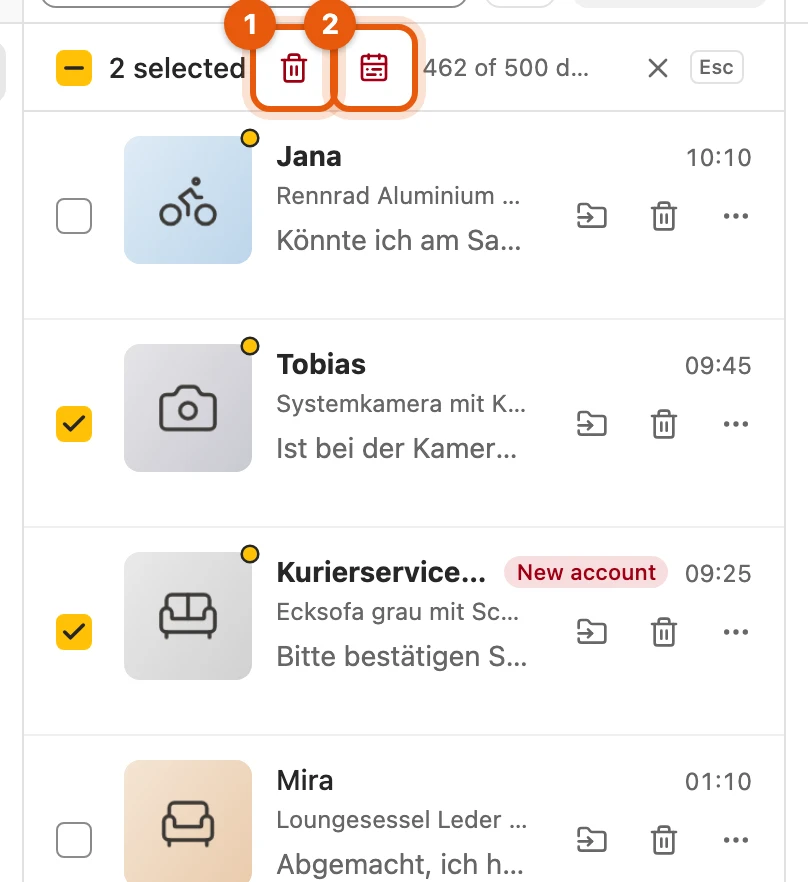
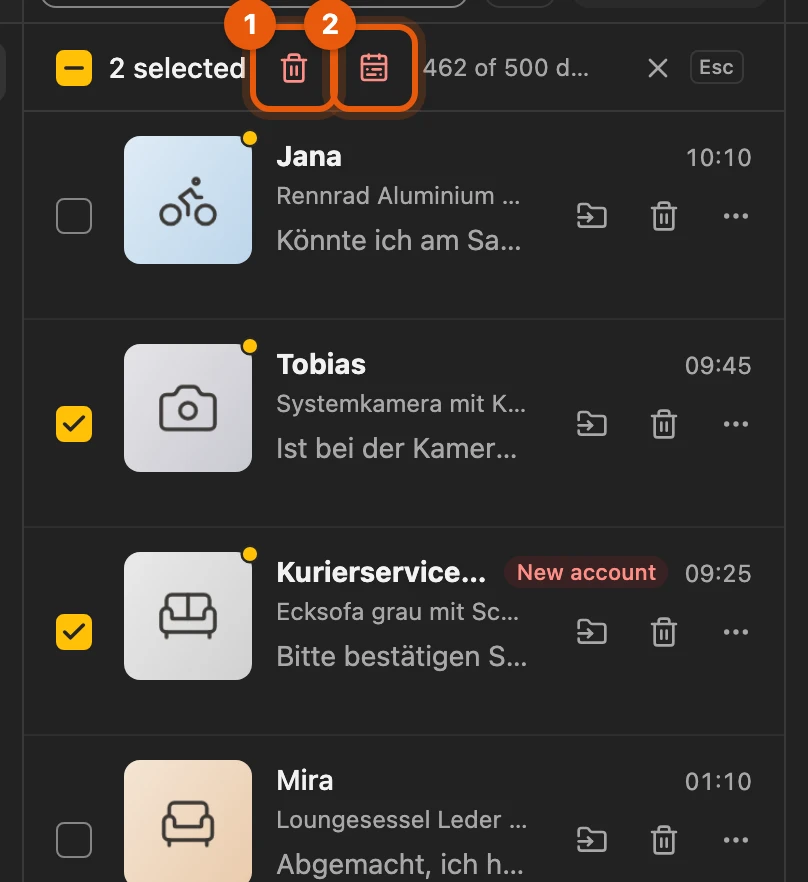
Conversations are deleted permanently from your Kleinanzeigen inbox. Multiple selection is available from Privat Plus, with a booked package on Kleinanzeigen (PRO or real estate) from Business.
More: date range, progress and allowance
- More than deleting: you can also mark as read or move to a folder. Esc clears the selection; another click on Select hides the boxes.
- Select all: the checkbox on the far left selects all conversations in the view, including those not loaded yet.
- Delete by date applies to the whole inbox, regardless of search, filters and folders. You choose To (inclusive) and optionally From; the date of the last message counts.
- Progress: it continues in the background, even with the dashboard closed, and shows under Processes as Delete messages. If Kleinanzeigen slows things down, you are signed out, a different account is signed in or the licence service cannot be reached, it stops; Resume carries on, Discard leaves the rest.
- Allowance: depending on your plan, per calendar month for your whole account across all devices. Only what Kleinanzeigen actually deleted counts. When it runs low, the bar shows what is left.
- Single conversations you delete via ⋯ › Delete conversation without a licence and without an allowance.
Archive
Section titled “Archive”With a Business licence you archive conversations with Archive at the top of the conversation. They are then stored online, encrypted, and kept even when they are deleted on Kleinanzeigen. You find them on the left under Archive.
More: bringing back, deleting and deadlines
- Reactivate brings a conversation back into the inbox. If your contact writes again, it comes back by itself.
- If Kleinanzeigen no longer has the conversation, it stays readable, but Kleinanzeigen does not deliver replies.
- Delete for good removes it from the archive; this cannot be undone.
- Archive before deleting (Settings › Messages) is on at first: conversations are archived before they are deleted, including those you delete directly on Kleinanzeigen. Without the archive, conversations deleted there also disappear here within a day.
- Space: depends on the plan; when the archive is full, the list says so, and the delete dialog says beforehand how many are deleted without it. Conversations that are too large go into the archive without pictures (“Picture not in the archive”).
- Per Kleinanzeigen account: signed in with another account, you see that account’s archive.
- End of subscription: the archive is deleted 30 days after the term ends; you get an email 7 days before. A new Business subscription keeps everything.
Conversation as PDF
Section titled “Conversation as PDF”Under ⋯ › Conversation as PDF you save a conversation with its key details and pictures as a PDF. It is created locally in your browser.
More: what the PDF contains and its limits
- Header: listing title, buyer, seller, listing and conversation number, time period, time of the last refresh.
- Messages: received on the left, sent on the right, separated by day; automatic replies marked, emojis in black and white.
- Pictures appear in their message; other attachments and pictures that could not be loaded are listed with their file names.
- Replies that have not been refreshed yet are missing. Conversations with more than 2,000 messages cannot be exported.
Fraud check
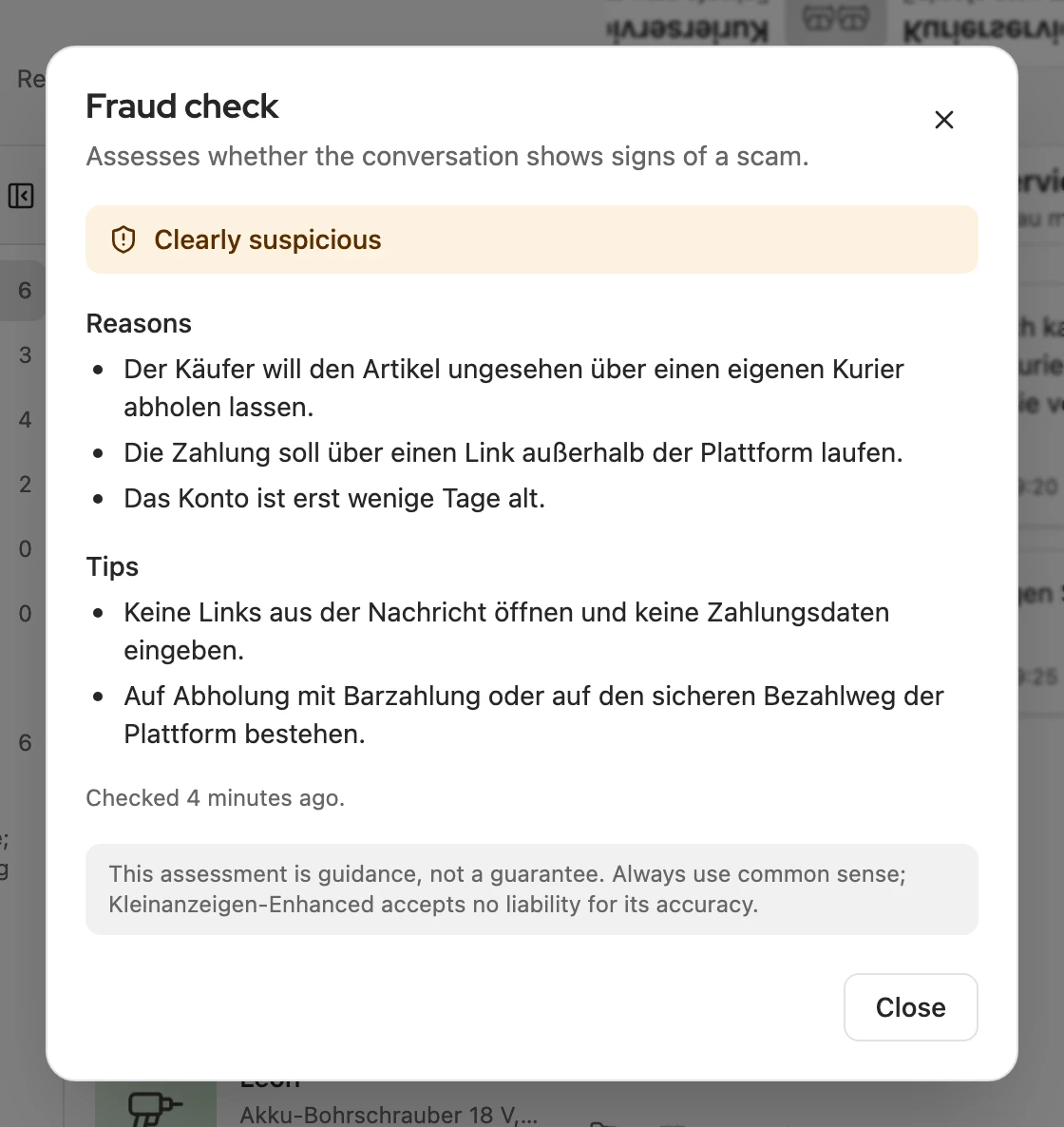
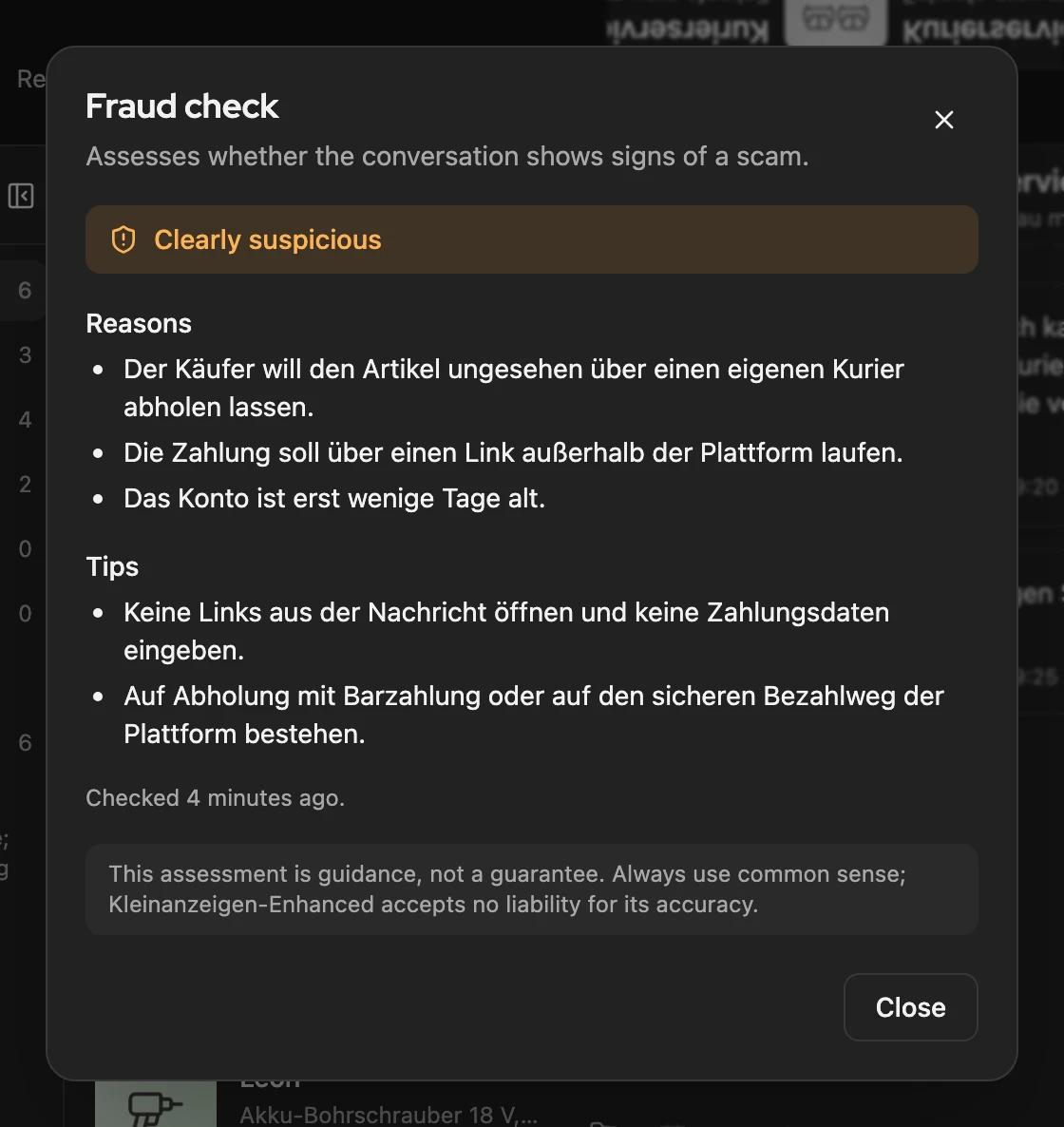
Section titled “Fraud check”Click the shield icon in the conversation and confirm the first time with Agree and check · 1 credit, after that with Check · 1 credit. You get an assessment from Completely harmless to Fraud very likely with reasons and tips. It is an aid, not a guarantee.
More: credits, result and what is sent
- Credits: above the button you see how many are left this month. A stored result appears without a credit; an unchanged conversation is not calculated again. If it has changed, start Check again · 1 credit. You need a signed-in licence.
- Shield: for the two highest levels, the shield in the header is coloured; the assessment shows in the tooltip.
- Earlier conversations with this person show above the result, the last three under Details. Kleinanzeigen-Enhanced reads this only from your inbox in the browser.
- Feedback: below the result you rate it with a symbol, add a comment and click Send feedback. Only your rating and comment are sent.
- Sent are also the other person’s messages; names and identifiers from the profiles are not. Links are shortened to their domain. Names or addresses in the text itself are included. The data is not used for training.
Problems
Section titled “Problems”- Signed out: the line above the inbox takes you to sign in; your conversations stay.
- Sending fails: your text stays in the field, and the line above the buttons says what happened. If you are signed out, Sign in takes you to Kleinanzeigen.
- No notification: allow your browser to show notifications in your system settings.
- Deleting stops: under Processes, Resume carries on.